User Preferences
 Updated
by
Amy Thomas
Updated
by
Amy Thomas
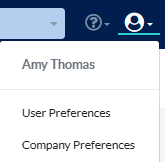
To set the default preferences for your user profile click the avatar in the top right and select User Preferences. All Criteria users can set their defaults for notifications, viewing sample data and the blind hiring option.
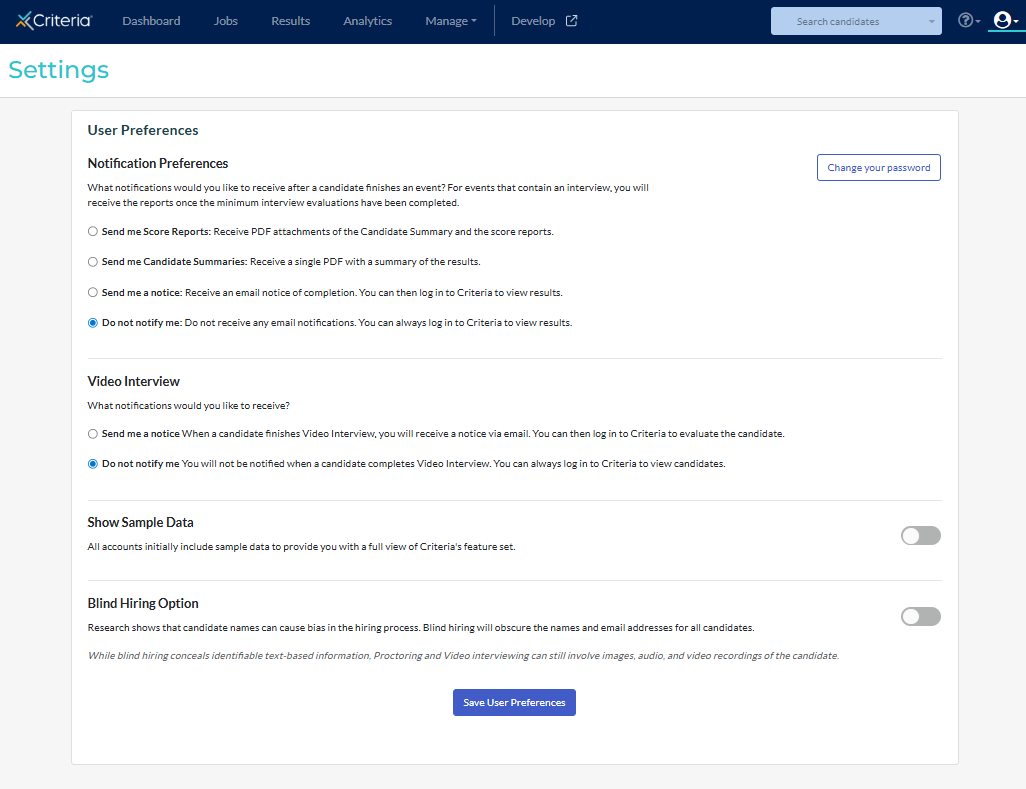
Click Save User Preferences whenever you make any changes to this page.
Note that these changes will only affect you. Each user in your organization will need to set their own preferences.
Notification Preferences
Select how you want to be notified that your candidates have completed testing by ticking the circle next to your preferred option. Click here to learn more about the report options in the Criteria platform.
Send me Score Reports
Please note that the report inclusions setting applies across your whole Criteria account. If the Workplace Insights Report email notification setting is enabled, all users in your Criteria account who select Send me Score Reports will receive this report in their notification emails also.
Send me Candidate Summaries
Send me a notice
Do not notify me
You can email specific candidates' results to yourself by using the Share Results function. Alternatively, you may want to generate a spreadsheet of the results.
Video Interview
Select how you want to be notified that your candidates have completed a video interview by ticking the circle next to your preferred option.
Send me a notice
Do not notify me
Show Sample Data
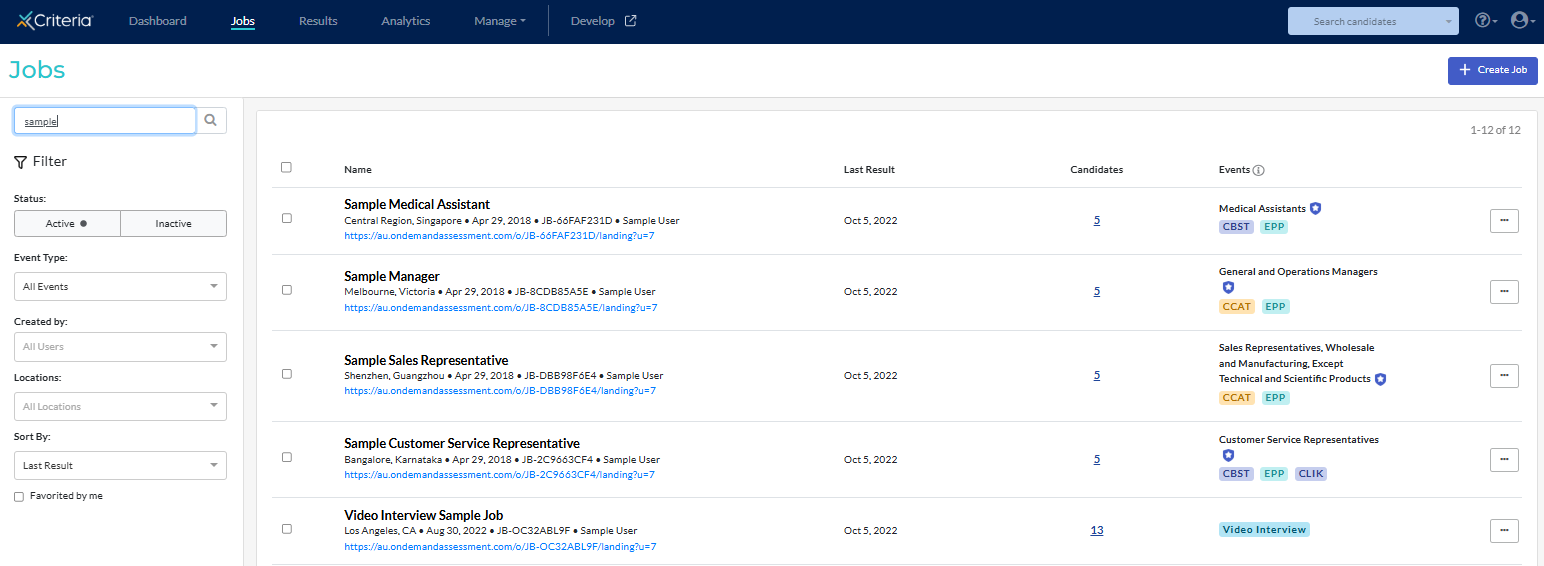
If you do not wish to see the sample jobs in your jobs feed, toggle Show Sample Data to the off position. When toggled on, the Sample Jobs are visible in the Jobs list.
Blind Hiring Option
Turn Blind Hiring Option on if you do not want to see your candidates' names and email addresses in the candidate card, candidate list, or reports.
Please note that this feature does not hide personal details listed in some areas of the Criteria platform.
- Any documents uploaded to the platform (for example, resumes)
- Application form responses
- Responses to questions in TestMaker tests
- Video Interviewing: images, audio and video recordings may still be visible
- Proctoring: images may still be visible
