Evaluators and Interview Links
 Updated
by
Amy Thomas
Updated
by
Amy Thomas
When setting up video interviews in your Criteria account, you will need to consider these points:
- How will your interviews be scored?
- By humans (Human Scoring),
- By Criteria's IIQ (Automated Scoring), or
- By a mix of both humans and IIQ (Hybrid Scoring).
- If you are using Human Scoring, who will be evaluating your candidates' responses?
- Will your evaluators require access to your Criteria account?
- What level of access will evaluators need?
Human Scoring
Human Scoring interview questions require an evaluator to review and rate the candidate responses. Evaluators may be pre-assigned in the Job Settings, or sent a link to self-assign as guest evaluators.
Pre-assigning evaluators
If your evaluators will need to access more than just the candidates' video interview responses, they will first need to be added to your Criteria account as users.
Depending on the level of access you give them, you may need to also share the job with them and assign them as evaluators in the job.
Evaluator Self-Assignment
Evaluator Self Assignment allows you to share evaluation links with anyone without adding them to your Criteria account as users first.
Guest Evaluators verify their identity through a simple email authentication and can immediately begin reviewing candidate video interviews. They will need to have access to an email address with an approved email domain.
Once a guest evaluator completes their first candidate evaluation, they are automatically assigned to the job. They can then evaluate other candidates on that job, if you have enabled Multi-candidate evaluation links.

Before You Start
Before enabling Evaluator Self Assignment on jobs, you must update your Company Preferences.
- Configure Approved Domains: This ensures only users with email addresses from your organization's approved domains can self-assign as evaluators.
- Enable Evaluator Self-Assignment: This allows users to toggle this on in the job settings for individual jobs.
During Job Creation
When creating a new job, turn on Evaluator Self-Assignment. This can also be enabled in existing jobs by editing the job settings.
Toggle Multi-candidate evaluation links on if you want guest evaluators to automatically have access to all candidates' video interviews in that job. Toggle this option off if you plan to control which interviews your guest evaluator has access to.
Share Evaluation Links with Evaluators
After candidates complete their video interviews, share the evaluation links with your evaluators. We recommend providing the relevant instructions below with the Interview Link, if this is the first time the person has been given an Interview Link.
View Video Interview Responses
Guide to Manually Evaluating Video Interview Responses
Automated Scoring
Criteria's IIQ (Interview Intelligence) will automatically evaluate interview questions that have been set to Automated Scoring. The AI will evaluate the candidate responses against the Response Rating Scales for the question.
Hybrid Scoring
You can create a video interview template that includes a combination of Automated Scoring and Human Scoring questions. Templates that include both are labeled Hybrid Scoring.
- IIQ automatically evaluates the questions set to Automated Scoring.
- On the Evaluate Interview screen, evaluators will only see the questions set to Human Scoring or Unscored.
The Review Responses screen shows all questions presented to the candidate. This view is available to non-evaluator users and to evaluators after they have completed their evaluation of the candidate’s responses.
Review Evaluation Results
Once evaluators submit their evaluations, review the results as usual. Criteria's IIQ and self-assigned evaluators appear alongside pre-assigned evaluators in your evaluation results.
You can generate a spreadsheet of your candidates' video interview results (and other assessment results if required.)
Example: manage evaluations
You can manage which guest evaluators review each candidate with the Interview Data Report.
- Toggle Multi-candidate evaluation links off in the job settings.
- Once candidates have completed the video interview, generate an Interview Data Report.
- Add a column to the spreadsheet to list out who will be responsible for each evaluation.
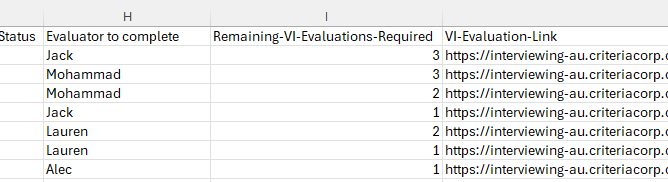
- Create a pivot table to help separate out each evaluator's list.
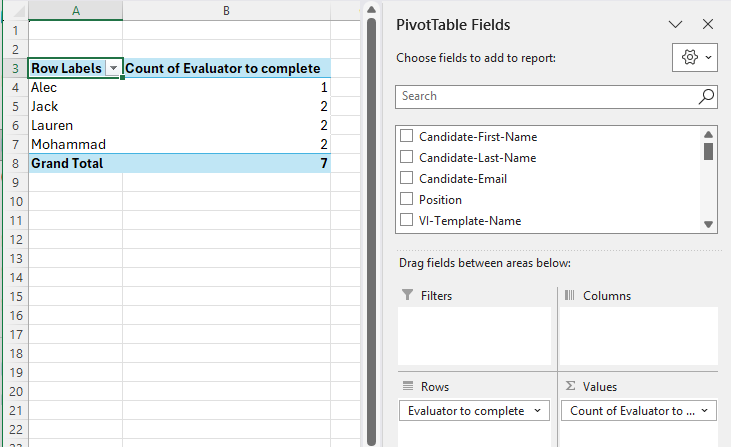

- Send each evaluator their list of candidates. They will need to click on each VI-Evaluation Link in the spreadsheet to access the evaluation. However, if they are completing multiple evaluations within a 24 hour period, using the same browser, they will only need to complete the verification process once per day.
- Remaining Evaluations Required: if more than one evaluation is required per candidate, the guest evaluator can start with the candidates with the highest number of remaining evaluations.
