Create Human Scoring Questions for Structured Interviews
 Updated
by
Amy Thomas
Create custom questions in your Interview Content Library to ask your candidates during the structured interview.
If you are not certain whether a question will be rated by your evaluators or by Criteria's IIQ, we recommend creating it as an Automated Scoring question. The scoring type can be changed to Human Scoring in the interview template.
Create question
You may add questions in video or text format. For video interviews, if you do not want to record yourself asking a question, you can include written questions for your candidates to respond to instead. If the question is used for a live interview, only the text question will be shown to the interviewer. If the question is used for an AI Interview, the Response Type must be set to Video.
- Click Manage and select Interview Content Library from the dropdown list.

- In the Custom Library tab, click Create New Question and select Human for the Scoring Type.

- Ensure that Turn Automated Scoring on for this question is toggled off.

- Complete the required information.

- Question: Enter in the exact text of the question you wish the candidate to see.
- Category: Select an available category from the dropdown list or create your own, making your content easier to find.
- To create your own category, click General Questions and start typing in the Enter new category here field. Click Enter to create the new category.
- Response Type: The default response type is Video, meaning the candidate will be answering the question by recording their answer on camera. The other options are Written which allows you to capture a written response only from the candidate and Document, which requires candidates to upload a document in response to the question.
- Questions used in AI Interview templates must be set to Video. Written and document questions are not available in AI Interviews.
- Preparation Time: the amount of time candidates have to consider how to respond to the question before the recording begins.
- If you have selected Written or Document for the Response Type, no prep time will be provided to the candidate.
- This will only apply to Video Interviews. Live interviews and AI Interviews have no time limits, so this setting is not used when you add the question to a live interview template or an AI Interview template.
- Answer Time: the amount of time candidates have to respond to the question. For video responses, this is the recording that your reviewers will be evaluating your candidates on.
- This will only apply to Video Interviews. Live interviews and AI Interviews have no time limits, so this setting is not used when you add the question to a live interview template or an AI Interview template.
- Record or Upload Video: Here you can record your question directly in the platform or upload a question recorded elsewhere.
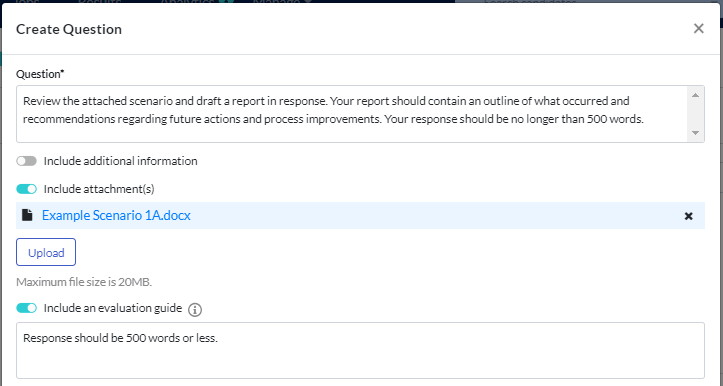
- Include additional information: Toggle this on if there is additional information you are providing the candidate. For example, additional instructions about the question.
- Include attachment(s): Toggle this on to include an attachment for the candidate to review. The maximum file size is 20Mb.
- Include an evaluation guide: Toggle this on to include a guide for evaluators to assess candidates' responses. This will not be visible to candidates.
- Once you are happy the content and options you’ve selected, click Save & Complete and your question will be added to your Library.

Word and character counts in written response questions
When you create a question that requires a written response from the candidate, you may want to impose limitations on how long the candidate's response may be. For example, you would like the candidate to produce a 500 word analysis or a 160 character social media post.
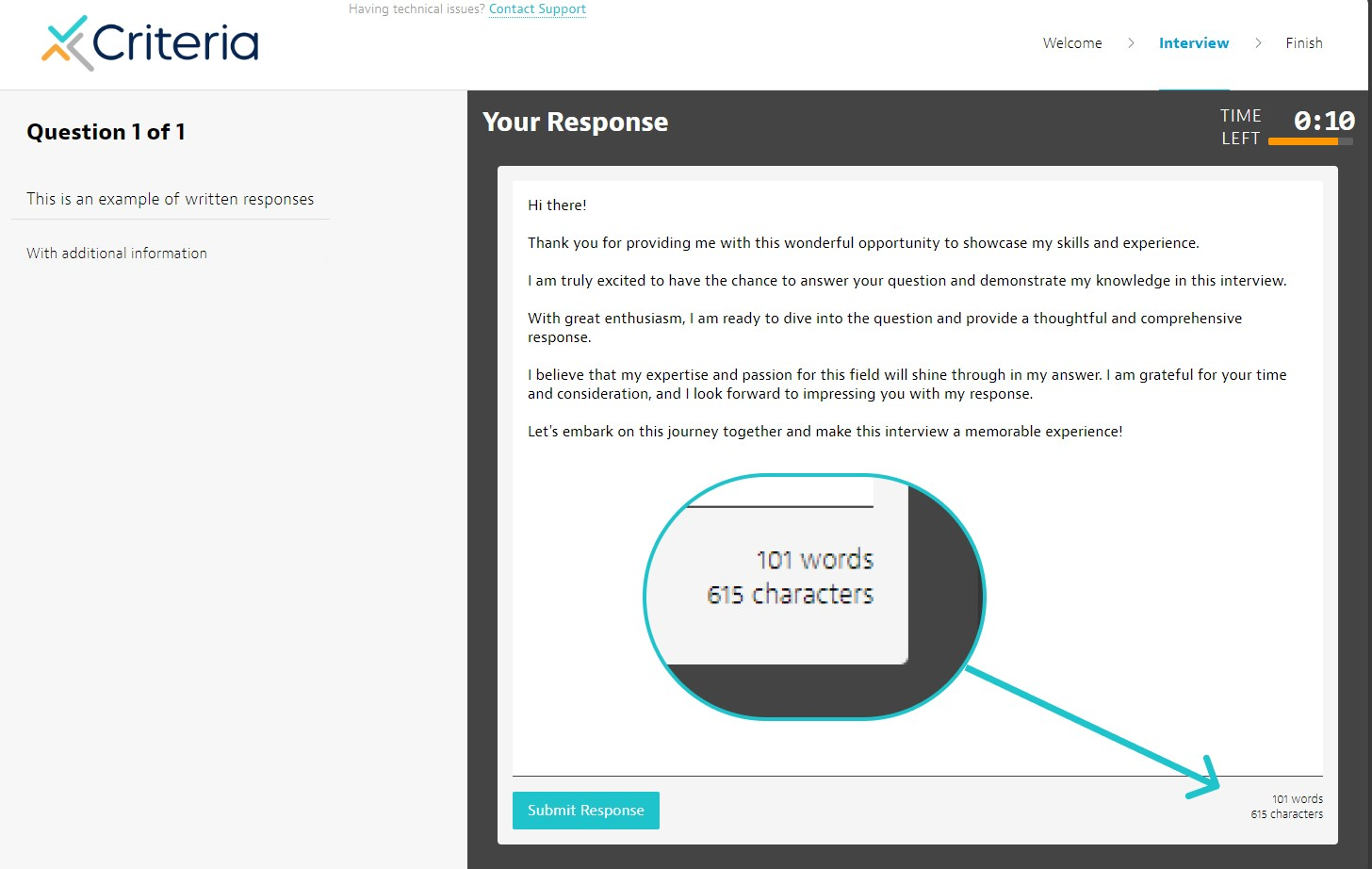
The system cannot enforce these limitations, however there is a word and character tracker in the candidate experience so they will know when they are reaching their limit.
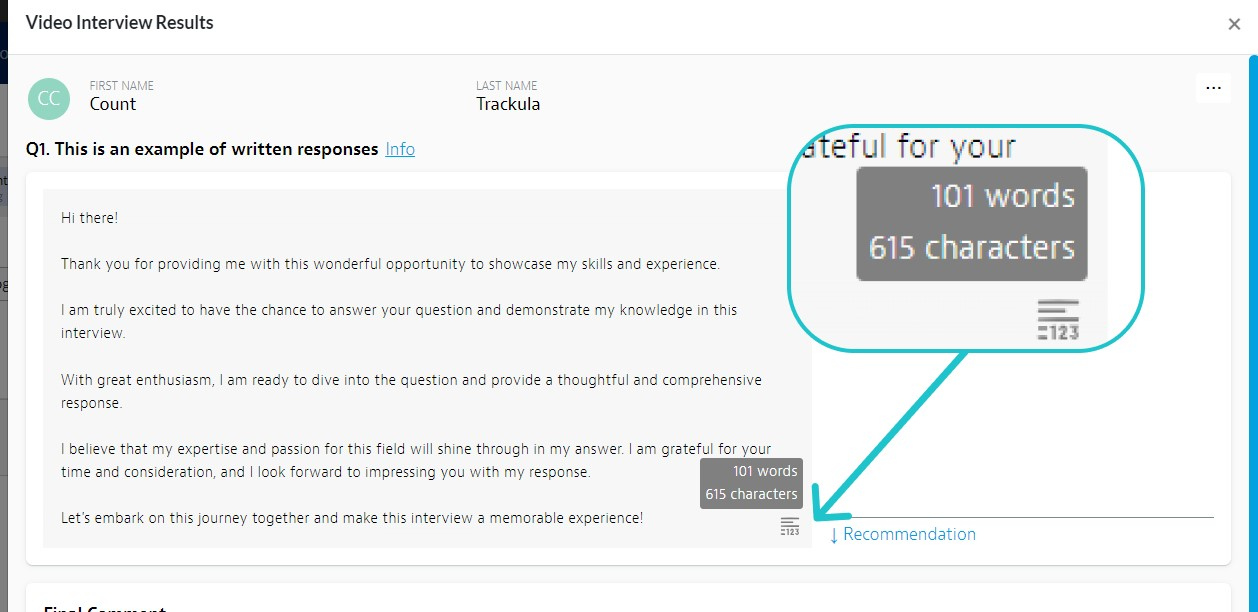
When evaluating the candidate's response, these numbers can be accessed from the icon in the bottom right corner of the response field.
Next steps
Once you have created all the questions and messages you need, you will be ready to create a video interview template or a live interview template.
