Choose the Visibility Defaults for Your Organization
 Updated
by
Amy Thomas
Updated
by
Amy Thomas
Develop enables you to choose which employees can view the reports for individuals, teams, departments and your organization.
View visibility options
- In your Develop account, go to the Admin Console and click on Organization Settings in the left menu. Click TEAMscan.
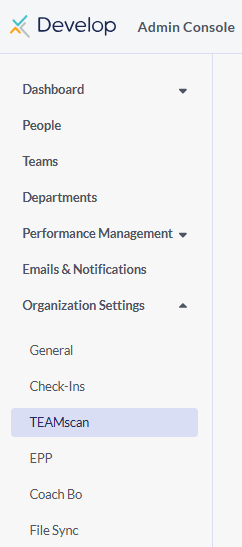
- There are three options to choose from:
- Privacy-Focused: provides individual privacy with little visibility to others
- Balanced: provides some visibility by team members and managers
- Transparency-Focused: provides complete visibility by all members in your organization

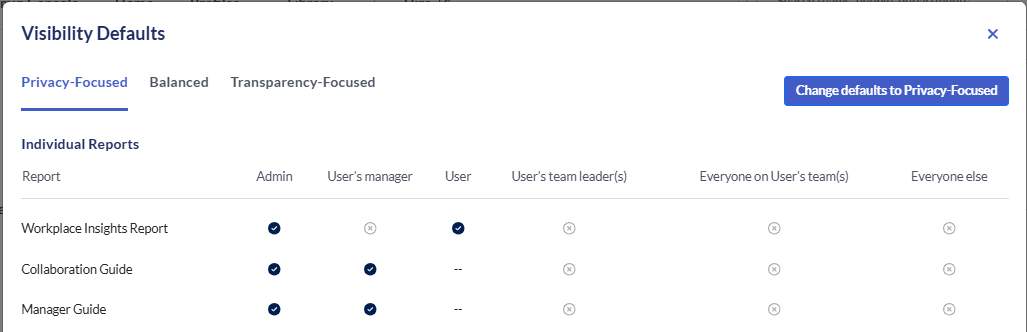
- Click View defaults to see who can view each type of report for each of these options. Depending on which option you select, some reports may only be visible to the admin users, the team or department leader, members of the team or everyone in your organization.
- In the pop-up modal, click each of the tabs to view the different options. Each tab has 5 tables for each of the different report types:
- Individual Reports: these include the Workplace Insights Report, Collaboration Guide and Manager Guide
- Team Reports: these include the Team Personality Report and the TEAMscan Report (Team-Level)
- Department Reports: this is the TEAMscan Report (Department-Level)
- Organization Reports: this is the TEAMscan Report (Organization-Level)
- Team Personality Reports: this is the Individual Personality Traits on the Team Personality Report
Set visibility default
- Once you have chosen which visibility option to set, in the tab for that option, click Change defaults to...
For example, if you want to make the reports available across your organization, you would select Change defaults to Transparency-Focused.
- Select whether you want to:
- Reconfigure everyone's settings to update all user and team settings to match your organization's default, or
- Only reconfigure unmodified settings to only change the settings for users and teams that have not changed their own settings.
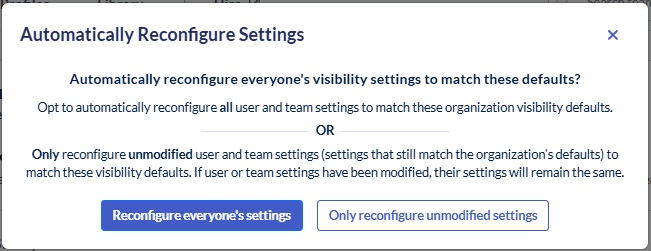
- If Reconfigure everyone's settings is selected and there are users or teams that have settings which are different from the organization defaults you are choosing, a warning message will be displayed to indicate how many users and teams will be affected by the change. Click Reconfigure everyone's settings to continue or Only reconfigure unmodified settings to allow those users and teams to keep their current settings.
The visibility settings in these options cannot be changed at the organization level. For example, you want to select Privacy-Focused, but make the Workplace Insights Report visible to each use's manager. Changing the settings for specific reports is not available at this time. However, please see the section on allowing individual override below for further information.
Allow individual override
- When toggled on (set to blue), the Allow individual override option enables:
- Users to change the visibility settings for their individual reports
- Team leaders to change visibility settings for their team reports

For example, if you have set your organization default to Privacy-Focused but are allowing individual override, a user can choose to allow their team leader to view their Workplace Insights report.
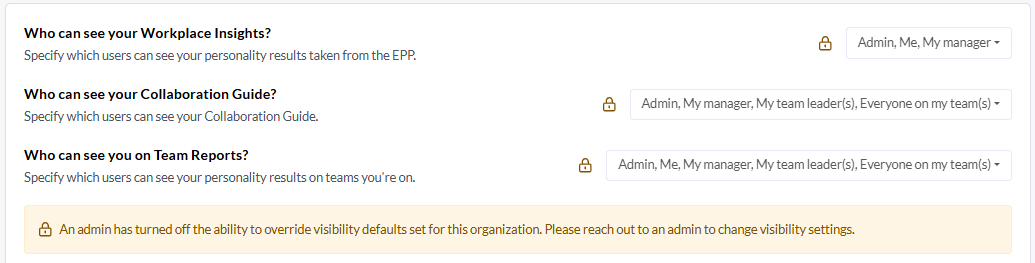
- These settings can be updated by each user by clicking on their avatar in the top right corner and selecting User Settings in the dropdown menu. To update who can view their reports, the user clicks the button to the right of each report and selects the relevant options from the list.
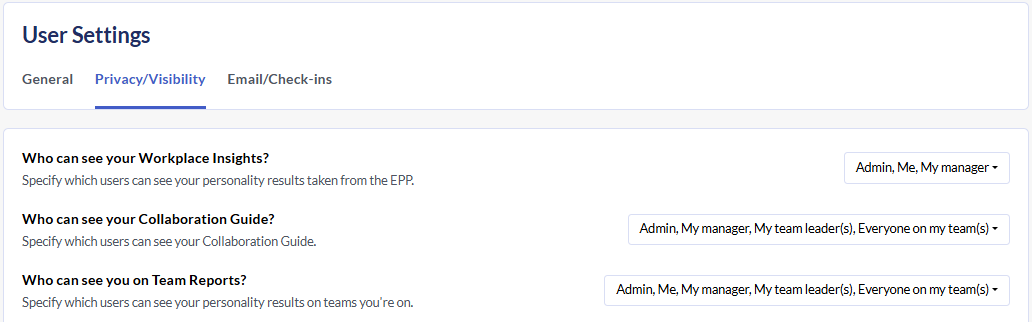
- When the Allow individual override option is toggled off (set to grey), the privacy options will be locked for users and teams. They will see a message advising them that they are not able to make changes to the settings. They will need to contact their admin to change their visibility settings.