Company Preferences
 Updated
by
Amy Thomas
Updated
by
Amy Thomas
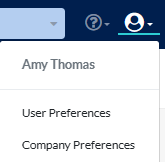
To set the default preferences for your organization, click the avatar in the top right and select Company Preferences. Admin level users and those with a custom access that includes Company Preferences may make changes to the default settings for your Criteria account.
✳️ The settings on this screen affect users, jobs and candidates for your whole account.
✳️ Some items can be overridden at the job level if required. This will be indicated below, where relevant.
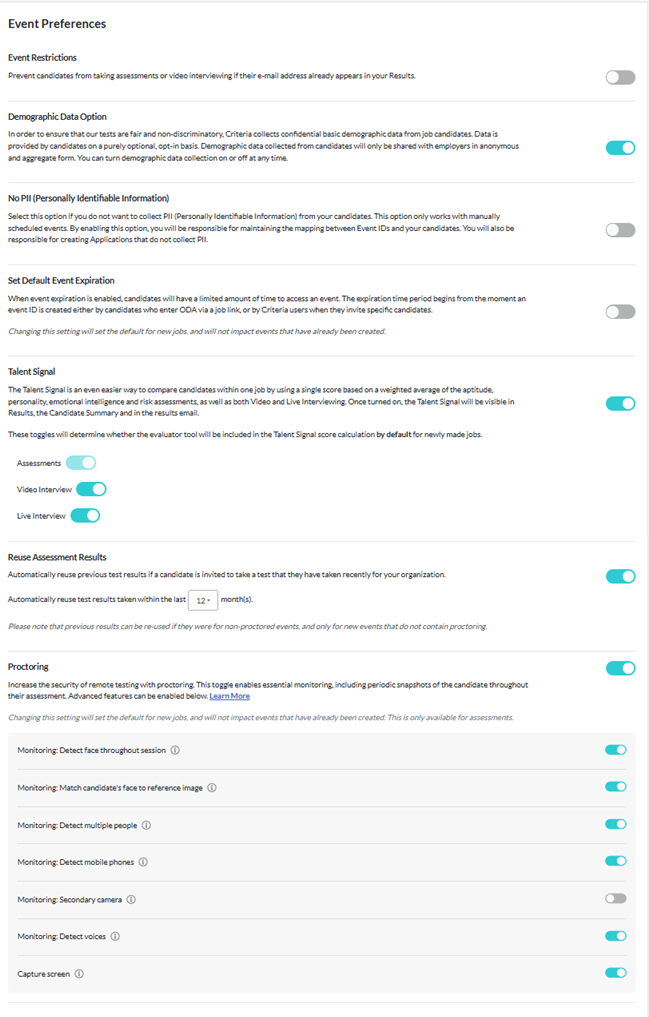
Event Preferences
Event Restrictions
When toggled on, candidates will be prevented from completing assessments or video interviews again within a set number of months. You may also choose to only restrict candidates from completing testing events more than once for each job.

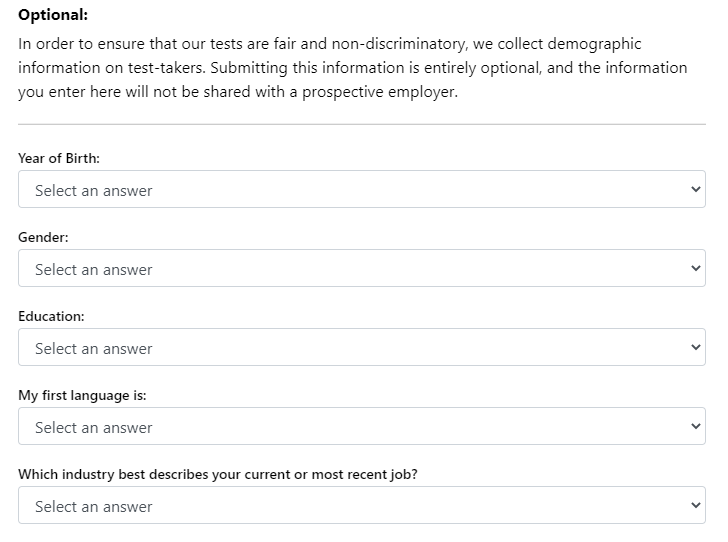
Demographic Data Option
When switched on, candidates will be presented with a set of demographic questions. Answering the questions is optional.
If you have this enabled and wish to view your demographic data please contact your Customer Success Manager to discuss this.
No PII (Personally Identifiable Information)
When enabled, your Criteria account will not collect the names or email addresses of candidates.
A great use for this feature is to collect anonymous responses from your team via a survey.

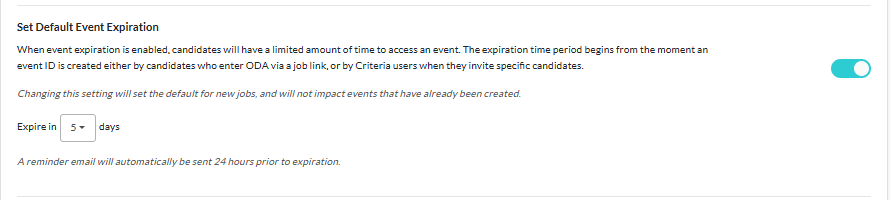
Set Default Event Expiration
If you wish to limit the time your canddiates have to complete the evaluation task, we reccomend setting a default expiration date for your account. This can be for up to 14 days.
You can override your account’s default setting at the job level and when sending out invitations to individual candidates.
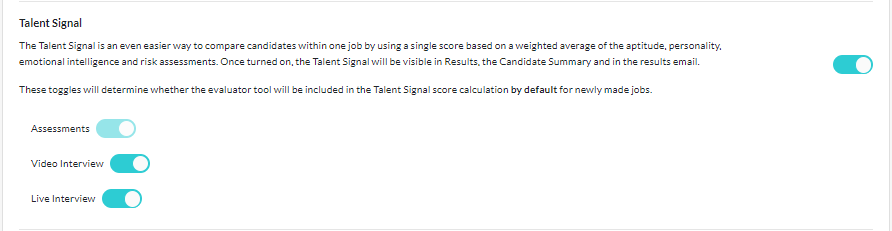
Talent Signal
Enable this feature to view a single score for each candidate’s results, based on a weighted average of the assessments and structured interviews completed.
Reuse Assessment Results
You can automatically reuse (copy) results for your candidates if they have completed the test for you recently.
Video Interview results cannot be reused; candidates will need to sit each video interview they are invited to complete.

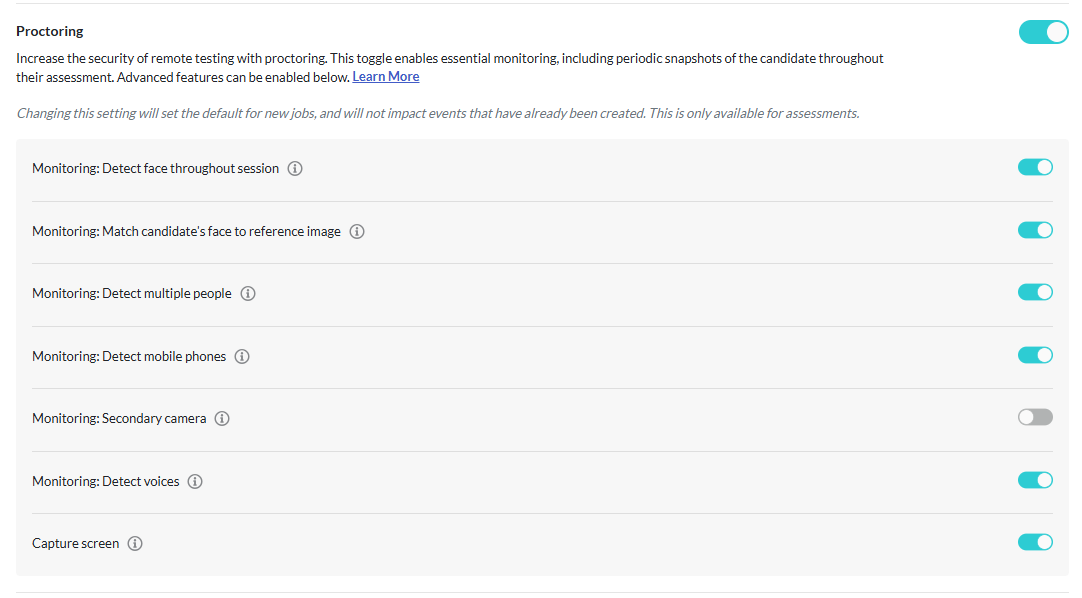
Proctoring
To further enhance test security for remote testing, you can create a proctored job that takes periodic snapshots of your candidates as they complete their assessments.
Once enabled for your organization*, this is turned on by default. Proctoring will automatically apply to all new jobs created. This can be turned on or off at the organization level (here in Company Preferences), at the job level or at the candidate level
*Contact your Criteria Account Manager to discuss enabling this for your organization.
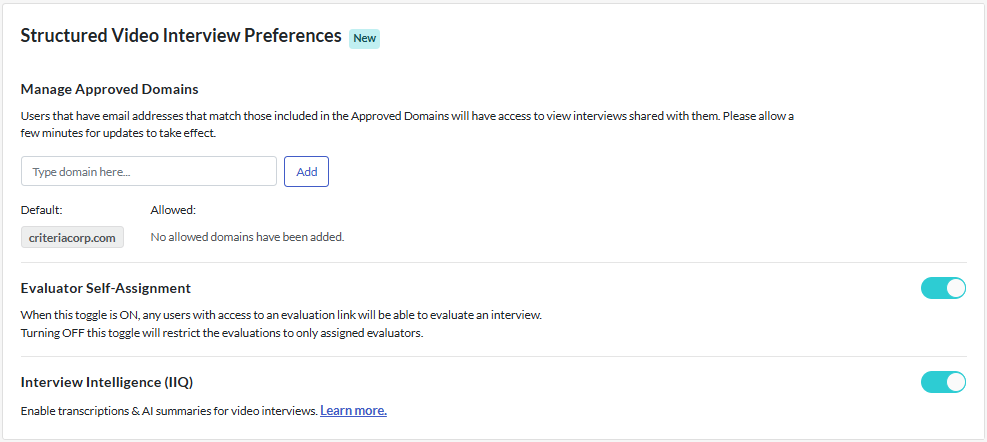
Structured Video Interview Preferences
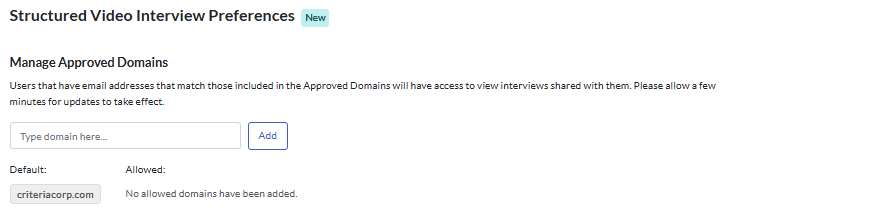
Manage Approved Domains
Add the email domains of any users (everything after @ in the email address) to allow access to view interviews that have been shared with them.
Note: the default domain listed here is already approved and does not need to be added again.
Evaluator Self-Assignment
When this toggle is ON, any users with access to an evaluation link will be able to evaluate an interview. Turning OFF this toggle will restrict the evaluations to only assigned evaluators.

Interview Intelligence (IIQ)
If you have structured interviewing enabled for your account, toggle on to enable transcriptions & AI summaries for video interviews..

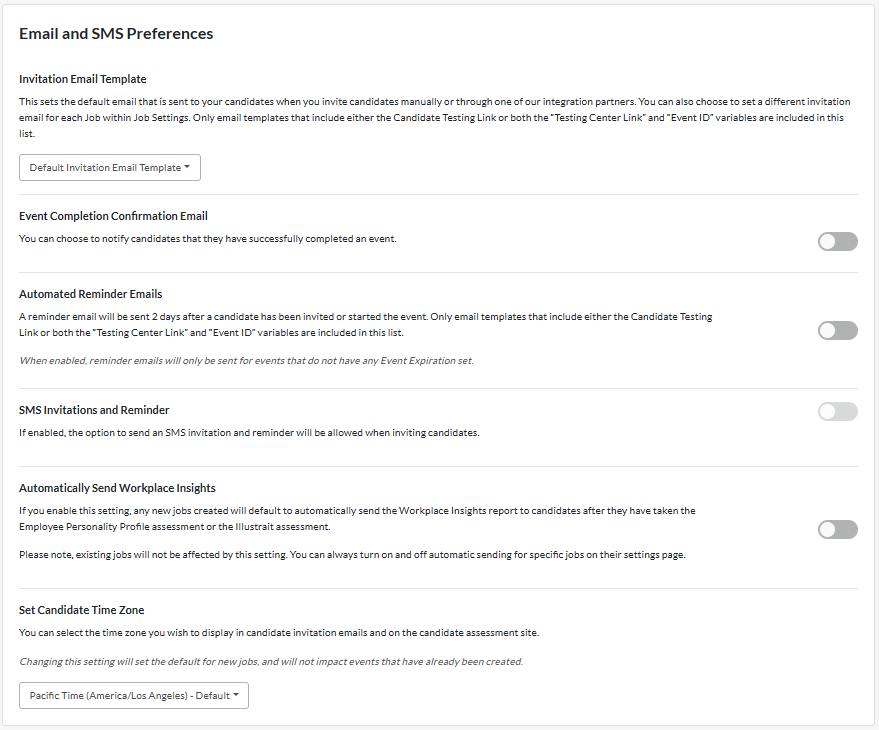
Email and SMS Preferences
Invitation Email Template
To select a default invitation email template for your account, choose the template from the dropdown list.
You can override your account’s default setting at the job level and when sending out invitations to individual candidates.

Event Completion Confirmation Email
When enabled, your candidates will receive an email to confirm once they have completed all assessments or video interview you have invited them to.
This does not affect candidates filling out an application form; candidates are not sent an email to confirm once they have submitted an application form.

Automated Reminder Emails
When enabled, a reminder email will be sent 2 days after a candidate has been invited or started an event, such as an assessment or interview. This option applies to events that do not have an expiration date set.
You can select the default reminder email that will be sent to your candidates here.

SMS Invitations and Reminder
When enabled, the option to send an SMS invitation and reminder will be allowed when inviting candidates.

Automatically Send Workplace Insights
Toggle this feature on if you want to automatically send your candidate a copy of their Workplace Insights Report once they have completed testing.
Note that the email will only be sent if the candidate completes an assessment that has a Workplace Insights Report available.
You can override your account’s default setting at the job level.

Set Candidate Time Zone
Select the default time zone you want to use for the expiration time for your candidates' invitation emails.
You can select a different time zone for candidate invitations at the job level.

Language Preferences
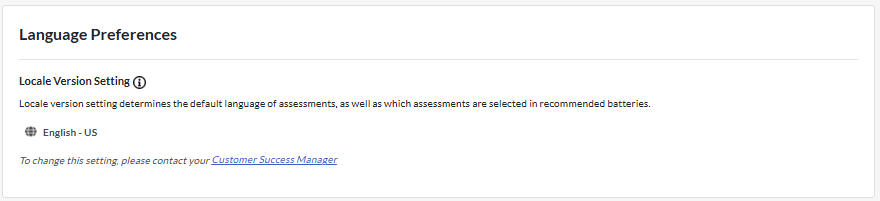
Locale Version Setting
Our language preference options are for North American English or Australian English. If you want to change this setting, please contact your Customer Success Manager to request this..