Interview Data Reports
 Updated
by
Amy Thomas
Updated
by
Amy Thomas
You can export your candidates’ structured interview results as a spreadsheet from Manage > Run Reports. Two reports are available, and the one you choose will depend on the level of detail you need.
Report Builder
The Report Builder allows you to view selected assessment and structured interview scores for candidates matching your desired parameters, as well as their responses to the application questions.
The following data points relating to structured interviews can be included in this report:
Video Interviewing | Live Interviewing |
|
|
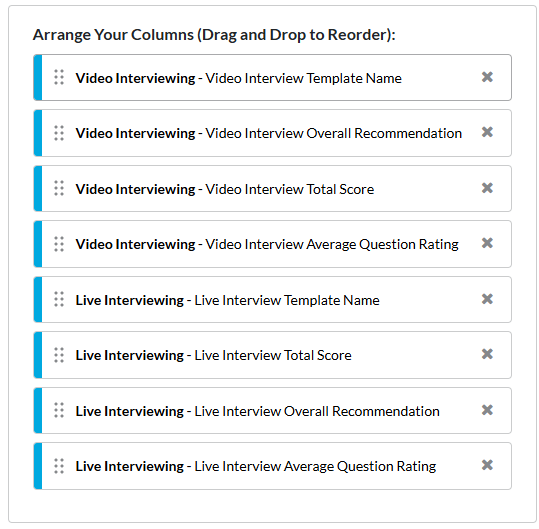
The Report Builder has some key advantages:
- This report is most useful if your candidates have also completed assessments and/or an application form. You can include key details regarding their results for each step of the recruitment process in one spreadsheet.
- Results for candidates who completed the video interview or live interview (and other tasks) across multiple jobs can be included in one report.
- You can schedule the report to run on a regular basis and email you the results.
Interview Data Report
The Interview Data Report allows you to export your candidates' interview results for a specific job. This report provides additional information that is not available in the Report Builder.
Note: this report is run immediately and the report emailed to you once it has finished generating. The estimated delivery time of your report is based on the complexity and volume of data requested.
- To create this report, go to Manage in the top menu and select Run Reports from the dropdown list.
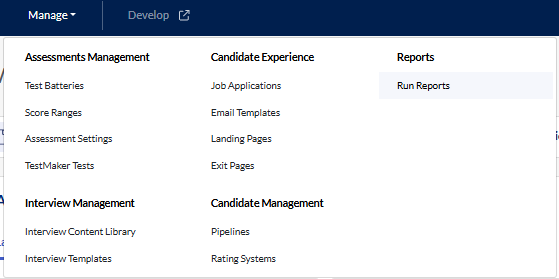
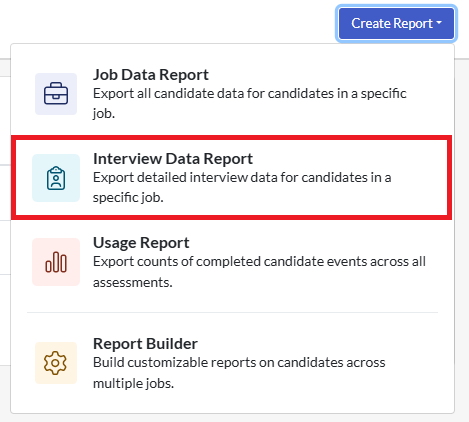
- Click Create Report in the top right corner, then select Interview Data Report from the list.
- Choose the job you want to run the report for from the dropdown list. Set the date range for the report.
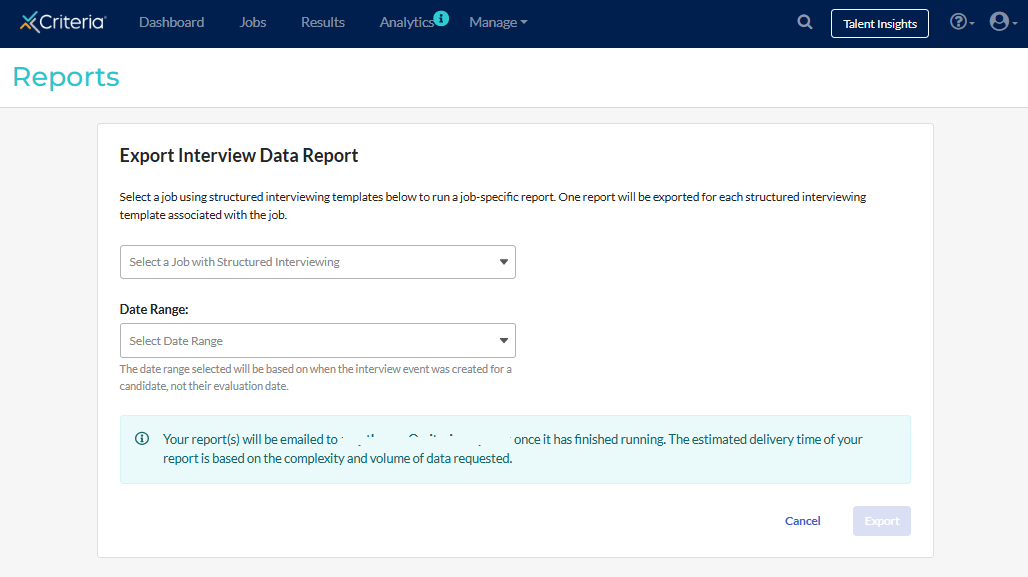
- Click Export. Once the report has been generated, it will be emailed to your registered email address.
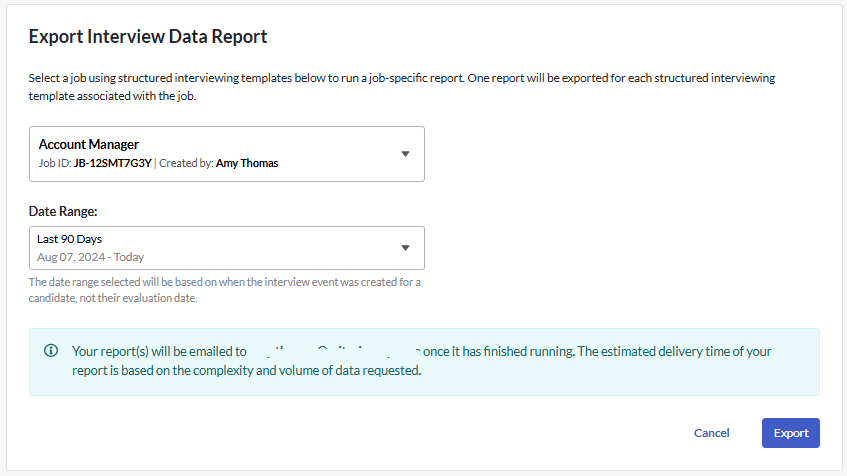
This report contains the following data points. (Note: items marked * are also available in the Report Builder but may be presented in a different format.)
- Candidate name and email*
- Position name*
- Video interview template name*
- Event Status (has the candidate completed the interview?)*
- Evaluation Overall Status (have the minimum number of required evaluations been submitted?)
- Pipeline stage the candidate is in when the report is run*
- Remaining evaluations (to make it easy to know which candidates to prioritize)
- VI Evaluation link
- VI Candidate Responses link
- Test-Taker and Event IDs*
- Requisition ID (for customers integrated with a separate ATS)
- Date interview scheduled, Date completed by candidate, Expiry date of invitation*
- Total video interview score*
- Final Recommendations* (separated into different columns here)
- Final Recommendation and Question Rating for each evaluator
- Question Rating averages across all evaluators
- Final comments for each evaluator
- Question comments for each evaluator
