iCIMS Standard Integration Guide
 Updated
by
Integrations Team
Updated
by
Integrations Team

Setting Up the Integration
- Customer contacts iCIMS rep and Criteria CSM to express interest in an iCIMS integration
- iCIMS sends Vendor Readiness Questionnaire to vendor (Criteria) and Customer Readiness Questionnaire to customer via email
- Criteria CSM works with customer to set-up their Criteria account with jobs, test batteries, and score ranges (if needed). (Note: Jobs, test batteries, and score ranges (if needed) will need to be solidified/created before Criteria can complete Vendor Readiness Questionnaire.)
- Customer will complete and submit Customer Readiness Questionnaire
- Criteria will complete and submit Vendor Readiness Questionnaire
- Once both the Vendor and Customer Readiness Questionnaire are completed iCIMS can then put the customer into the queue for an iCIMS Integration Rep to be assigned (Note: once both sets of questionnaires are submitted it can take a few weeks before an iCIMS Integration Rep is assigned)
- Once the iCIMS Integration Rep is assigned, they will schedule the kick-off call with the customer and Criteria
- After that call iCIMS and Criteria exchange credentials, endpoint, IP addresses, packages for integration and enable the integration
- iCIMS and Criteria configure the integration based on details from the discussion during the kick-off call
- iCIMS tests the integration to confirm that it’s working as expected
- iCIMS schedules a demo call with the customer and Criteria to demonstrate that the integration is working
- Customer does UAT (User Acceptance Testing) to test the integration before giving the greenlight to go-live
- Once the customer gives the greenlight, iCIMS and Criteria ensure that the integration is in production and the customer can begin using it
Note About the iCIMS Standard Integration:
iCIMS is a robust/customizable ATS which is configured by an iCIMS Integration Rep after speaking with the customer about their preferences. As such, this guide represents a basic outline of how integration works. For specific details on customizable configurations within iCIMS, please consult your iCIMS Integration Rep.
Packages
New customers onboarding to this integration will have their Criteria Jobs appear as the assessment packages in iCIMS.
Existing customers who were migrated to the latest integration will be migrated with Criteria Test Batteries as their assessment packages in iCIMS.
Your package type will dictate type of invitations you will be able to process via the integration.
Invitation Type | Jobs as Packages in iCIMS | Test Batteries as Packages in iCIMS |
Assessments Only | Supported | Supported |
Assessments + Video Interview together | Supported | Supported |
Video Interview only | Supported | Not Supported |
Live Interview | Supported | Not Supported |
If your integration is using Criteria Test Batteries as the package in iCIMS, reach out to Criteria to migrate to Jobs to utilize the other invitation types.
Optional Configurations
Custom Fields
Criteria will place the assessment results into the dedicated Assessment Score, Assessment Result and Assessment Notes fields in iCIMS. If you would like Criteria to place the scores into custom fields in iCIMS, this can be configured. iCIMS can apply viewing permissions to custom fields to allow segmentation of data. Custom fields may also be easier to report on in iCIMS.
Create custom fields on the application workflow or the candidate object in iCIMS. Create one field for each of the Criteria scores you would like displayed. Provide the custom field ID value to Criteria, along with the score that should be put into that field.
The data type of the field is important so it is best to liaise with Criteria before you make the new fields to ensure they are set up correctly.
Note: All the custom fields need to be at the same level - application or candidate.
This setup can be added to your integration at any time.
Create Custom Fields
Create Custom Fields in iCIMS for Criteria to populate with the candidates' scores.
When a candidate is invited, completes a test, or an evaluator submits a video evaluation, these actions trigger Criteria to update the corresponding custom field values in iCIMS.
Candidate or Applicant Workflow fields? You may choose to create the custom fields in iCIMS against the candidate or the applicant workflow. (The default is on the applicant workflow.)
- Create the custom fields on the candidate if you want the results will follow the candidate around to whatever job they apply for. When the candidate completes more testing with Criteria, the custom fields on the candidate will be updated to always show the most recent result. However, only the custom fields relevant to the specific action are updated, leaving the other fields unchanged. As a result, some fields may retain data from previous tests, which could be associated with an earlier package in the same job application or a different job application altogether.
- Create the custom fields on the applicant workflow if you want the ability to see the results for each application separately. This is recommended if a candidate may be applying for multiple jobs over time.
What Fields? Work with your Criteria CSM if you need help choosing which scores you’d like mapped to iCIMS. You will need to create 1 Custom Field for each score you wish to map. Refer to the table below that shows the fields that may be mapped in the integration.
Once you have made your decision, talk to your iCIMS rep about creating the custom fields. It is important that the correct data type be used for each field, provide the data type from the table below. Not all fields will be used all the time so ensure the fields are set to be optional (not required).
Provide the custom field Name, ID and data type to Criteria for the mappings to be added to your integration.
Fields that can be mapped to iCIMS
The following Criteria fields can be mapped to custom fields in your iCIMS Standard integration. Choose which field(s) you would like to use.
Description | Data Type for Custom Field |
Current testing status Recommended for customers using VI to see when the candidate has completed. E.g. Invited, Evaluation In Progress, Completed | Dropdown (single-select list options), or Text |
Date candidate invited for testing | Date & Time |
Date candidate completed testing | Date & Time |
Talent Signal | Number |
Met All Score Ranges Possible values: Yes, No | Dropdown (single-select list options), or Text |
There are fields available for each test. Usually, Percentile is the main one, but it will differ for each test. Refer to the 2 'Score Fields' sections in the Criteria REST API document to see the fields that are able to be mapped for Assessments and Structured Interviewing. The data type mentioned in the API doc will match the data type you should use in iCIMS, with the exception of Invalid fields. | If the value is always a number, use 'Number'. If the value is always text or may sometimes contain text, use 'Text'. If there are a limited sub-set of values available, it could be added as 'Dropdown (single-select list options)'. Criteria can provide all the possible values for you to add. Examples: Percentile -> Number Raw Score -> Number Recommendation -> Text Invalid -> Use Text or 'Dropdown (single-select list options)' with values of 'Yes' and 'No'. EPP Percent Match -> Use Text ('Refer to report' message will be used when a Job Family is not chosen) |
Proctoring Overall result Possible Values: Pass, Flag, Fail | Dropdown (single-select list options), or Text |
Link to score report | URL, or Text |
Link to Personality report Tests: CPI, CSAP, SalesAP, EPP, Illustrait, WAA If a candidate has competed multiple of these tests, the report will be for the first test found from this list | URL, or Text |
Link to Individual test score report E.g. CCAT report URL, EPP report URL | URL, or Text Specify the test the report link should show. |
Link to Evaluator URL for Video Interviewing | URL, or Text |
It is important to choose the right data type to ensure the data is able to be sent to iCIMS.
Candidates do not complete same testing again
Use the standard Reuse Assessment Results feature in your Criteria account to allow previous result to be reused and avoid candidates sitting the same test in a pre-determined timeframe e.g. 12 months. This setting may be managed from the Company Preferences page in your Criteria platform account, by an Admin user.
When iCIMS asks for a candidate to be invited, Criteria will always create a new candidate entry. If you have Reuse Assessment Results enabled, Criteria will check if there are existing results for this candidate email address in a previously completed event (in Progress events are ignored). If a match is found, the results for that test are copied into the new candidate entry.
This is repeated for each test.
If all the tests for the new candidate have been copied from a previous session, the candidate does not have to complete any testing.
- For an Inline invitation, the candidate will still be redirected over to Criteria. They will be told that their results were reused from a previous session and they will be immediately redirected back to iCIMS to submit their application form. The results will be sent straight to iCIMS.
- For a Recruiter Initiated invitation, the invitation email will not be sent and the results will be sent straight to iCIMS.
If only some of the tests were reused into the new candidate entry, the candidate will still be asked to complete the outstanding testing. They will not see any information about the tests that were reused. The results will be sent to iCIMS once all the invited testing has been completed.
Assessment Score value
By default, Criteria will display the Talent Signal as the main score in the Assessment Score field in iCIMS.
Reach out to Criteria if you would like a different score shown here. The same score will be used for all packages so the chosen score should be from a test that is included in all your packages. If the score does not exist for a package, the Assessment Score will display as 0.
2 rounds of testing
If you would like candidates to complete 2 Criteria packages:
- Inline + Recruiter Initiated, or
- 2 x Recruiter Initiated
Talk to iCIMS to have 1 or 2 status values added to your workflow. Criteria does not need the information for your Round 1 status, but the Round 2 status must be configured in your integration to tell Criteria to look at the 2nd Criteria package on the iCIMS Job when it is used. Please provide the ID of your round 2 status to Criteria.
When you are using 2 rounds of testing, be sure to choose 2 Criteria packages on your iCIMS Jobs:
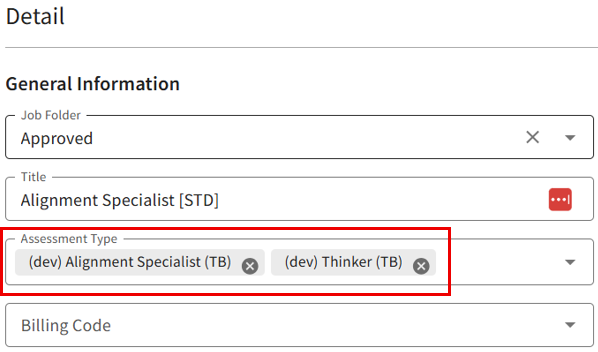
When you move the candidate into your Round 2 status in iCIMS, Criteria will look at the 2nd Criteria package selected on the iCIMS Job.
When you move the candidate into any other status in iCIMS, or the testing is triggered via the Inline method, Criteria will look at the 1st Criteria package selected on the iCIMS Job.
Candidate Testing Retake
This integration supports retakes. A retake is when the candidate is invited to sit the same testing again, any previous results will be ignored (even if Reuse Assessment Results is enabled), so they will be able to sit the test again. Perhaps they had technical difficulties the first time or you have made the decision to allow them to complete the testing again before the Reuse Assessment Results timeframe has fully expired.
If you are using 2 rounds of testing in your integration, you can implement a retake for each of the 2 rounds.
If you would like to use this feature, create additional status values in your iCIMS application workflow, and provide the Status ID value/s to Criteria to configure in your integration.
- When a candidate is moved into the Round 1 Retake Status, the candidate will be re-invited to the first Criteria package on the iCIMS Job. Reuse Assessment Results will be ignored.
- When a candidate is moved into the Round 2 Retake Status, the candidate will be re-invited to the second Criteria package on the iCIMS Job. Reuse Assessment Results will be ignored.
In both cases, duplicate checking will still be enforced to ensure you do not accidentally invite the candidate to the same package from the same status. You can only issue 1 retake per candidate. If you trigger this again, it will be assumed to be a mistake and the original invitation link will be used
Store Criteria testing link in iCIMS
If you would like iCIMS to send the invitation email to the candidate, you may create a custom field in iCIMS to hold the testing link and then use iCIMS automation / emails to send the email to the candidate with the link included.
As part of this setup, notify Criteria of the custom field in iCIMS that will hold the link and ask for the invitation email to be disabled.
The custom field may be added tot he candidate object or the application workflow. Notify Criteria where the custom field has been created. This feature is separate to the Custom Field feature so the field may be at a different level from that other configuration.
Disable invitation emails for Inline testing
By default, Criteria will still send an invitation email to candidates who were invited for testing using the Inline method. This is helpful if they would like to complete the testing and their application later.
If you would like them to complete everything in 1 session, Criteria can disable the invitation email for Inline testing.
Report Link
Choose from the following to be used as your report link
- live link to Criteria score report in HTML / interactive format (default)
- live link Criteria score report in PDF format
- link to the Criteria score report in PDF format, but only display the summary report
- link to candidate profile in the Criteria platform, users must authenticate to access the results
Using the Integration
Adding Criteria Packages to an iCIMS Job
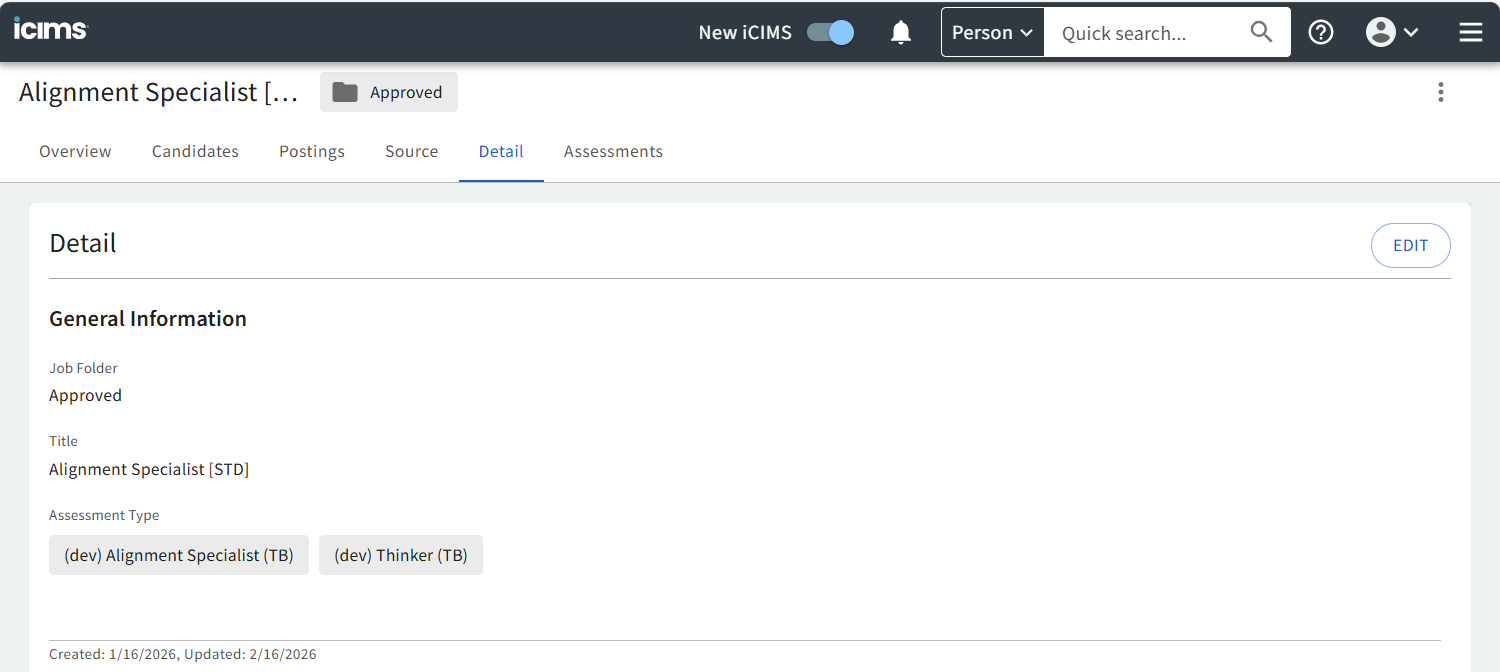
Your iCIMS Jobs must be configured with a Criteria package so Criteria knows what testing you wish to use for this Job.
The following demo shows how to configure a Criteria package on your iCIMS Job in the iCIMS Standard + Criteria integration (open the demo in a new window).
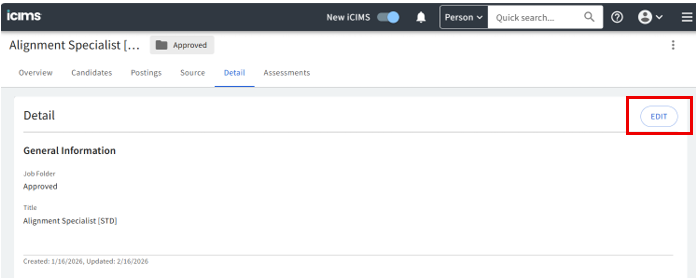
- Select the Edit button in Details tab of the job req in iCIMS
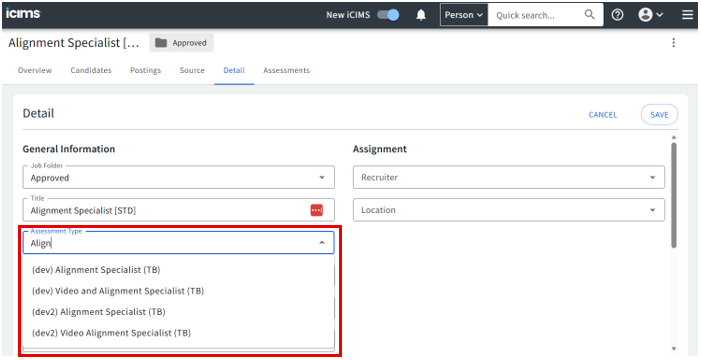
- Click on the Assessment Type field. A drop down will be shown with your Criteria packages. Not all packages may be shown, use the search box to search for the name of the package you want to use. Click on the package you wish to use.
- If your integration has been configured to support 2 rounds of testing, you may choose 2 packages here, be sure to choose the round 1 package first and the round 2 package second as this is the order in which Criteria will apply the testing.
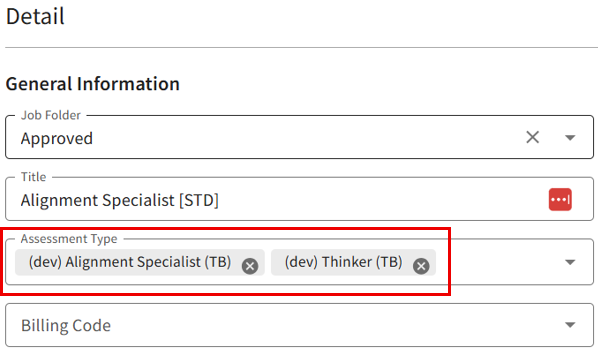
- click Save when you have made your selections.
- The Criteria package/s are now associated with the iCIMS job and are ready to be administered.
Sending Assessments to a Candidate
In the iCIMS Standard integration there are two ways of administering assessments
- In-Line with Application, during the application process
- Recruiter Initiated, on status change
If the assessments are being administered via the Inline with Application method the candidate will be presented with a testing link on the Assessment stage in the application and must complete the Criteria testing before they can submit their application. Use this method if you would like all candidates to complete Criteria testing upfront. (iCIMS call this method App Complete.)
If you are using the Recruiter Initiated method, the assessments will be administered via email when the candidate is moved into the appropriate status in iCIMS. (iCIMS call this method Workflow Status Change)
Which method you use to administer assessments would have been discussed during the kick-off call and configured in iCIMS by your iCIMS Integration Rep.
Inline with Application (App Complete)
When using this method to administer assessments, all candidates will take the assessments as part of the application process. A link to the testing will be provided to the candidate towards the end of the application process.
The candidate will enter the personal details, complete any application questions, then click to continue.
The iCIMS Job must be pre-configured with the Criteria package in the Assessment Type field. If the Job has multiple packages set up, the candidate will always be invited to the first package for Inline testing.
The following demo shows how Inline testing works in the iCIMS Standard + Criteria integration (open the demo in a new window).
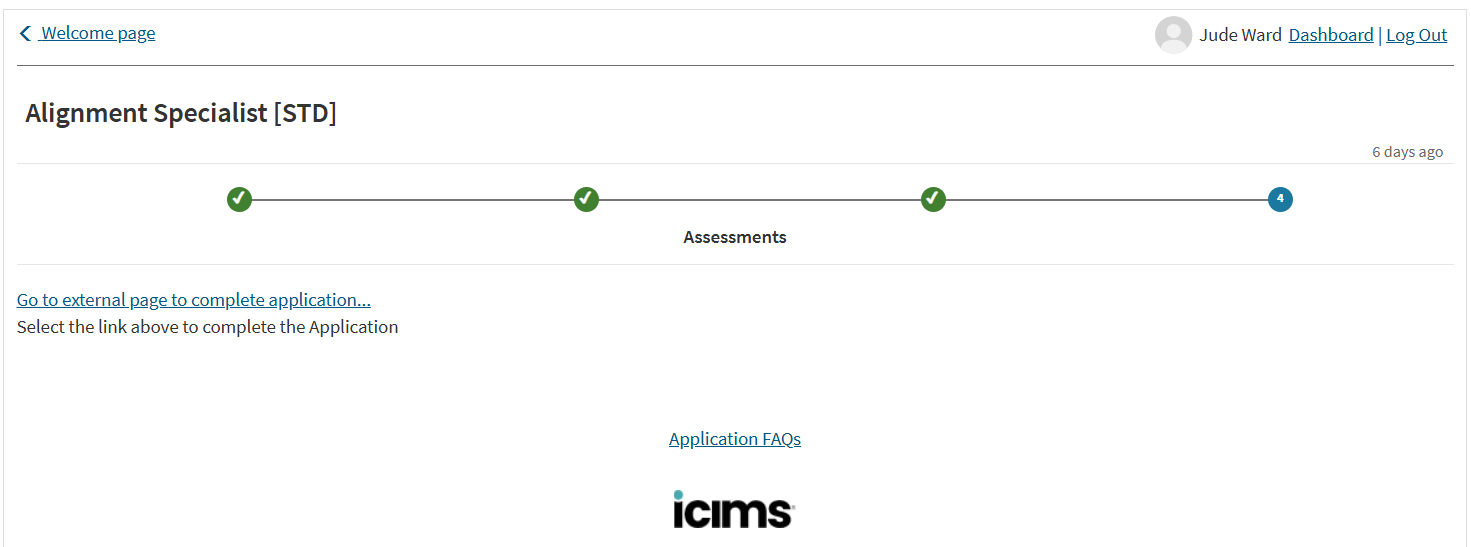
- On the Assessments step in the application, iCIMS will show a temporary message while the invitation is created in Criteria. Once created, a link will be shown for the candidate to click. (The text is customizable via the iCIMS portal.)
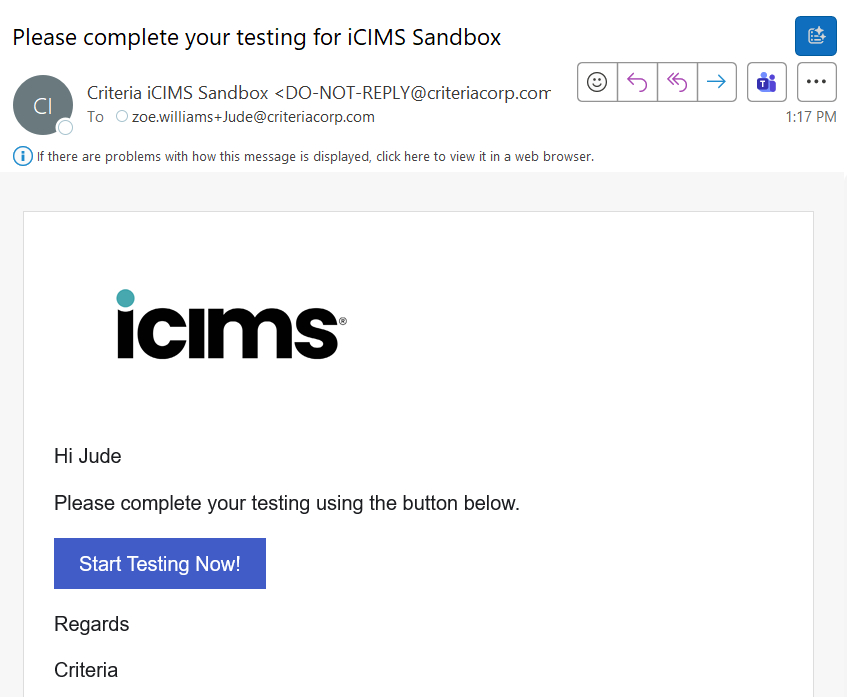
- The candidate will also receive an invitation email in case they wish to complete their testing and resume their application later. (Talk to Criteria if you wish to disable this email.)
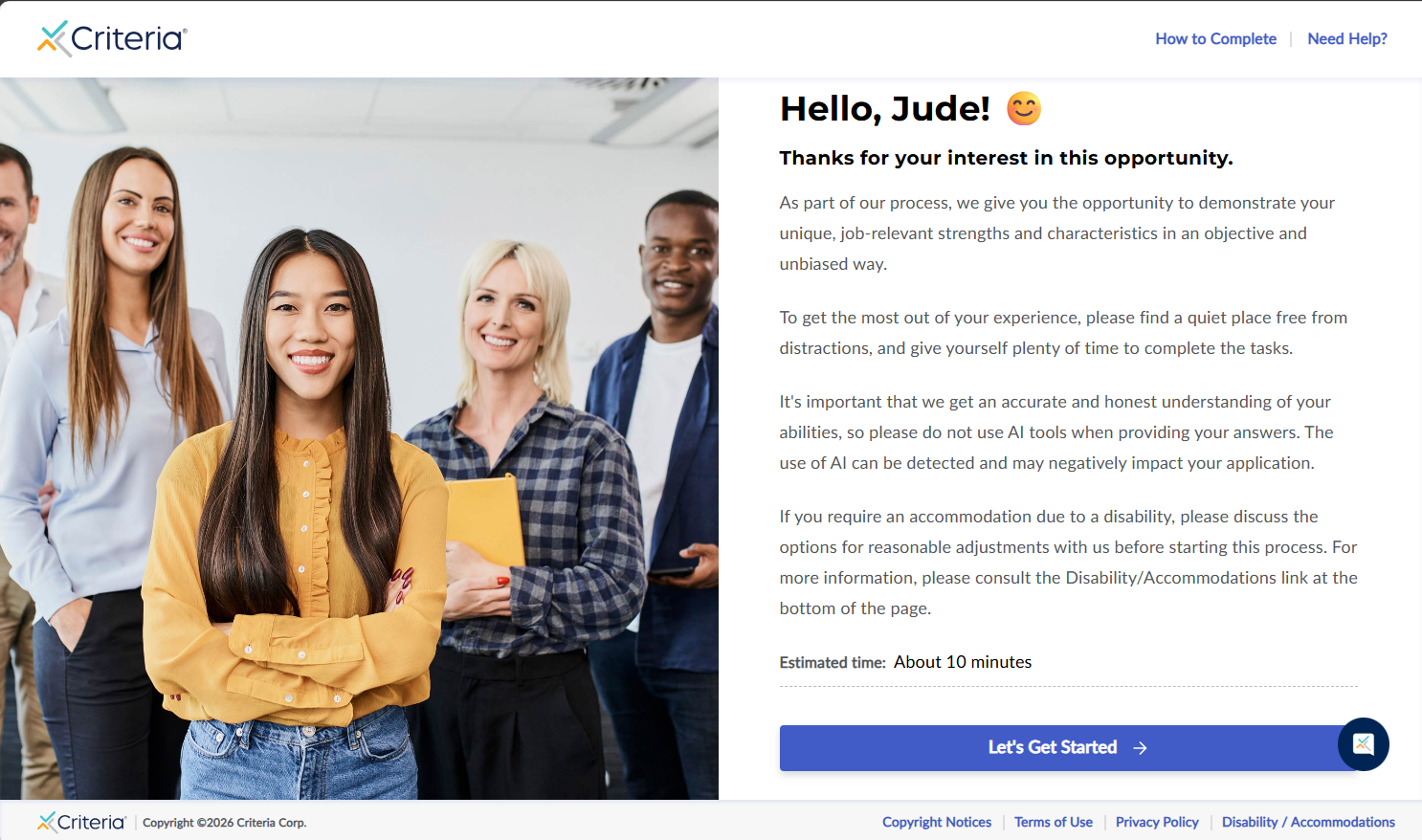
- When the candidate clicks the link in the iCIMS application (or the Criteria invitation email), they will be taken to the Criteria candidate experience. The invitation will be created using the Job settings from Criteria - Assessments / Interview + evaluators, invitation email template, candidate experience landing page, expiry date etc.
- The candidate’s name and email are pre-filled in the form using the data provided by iCIMS
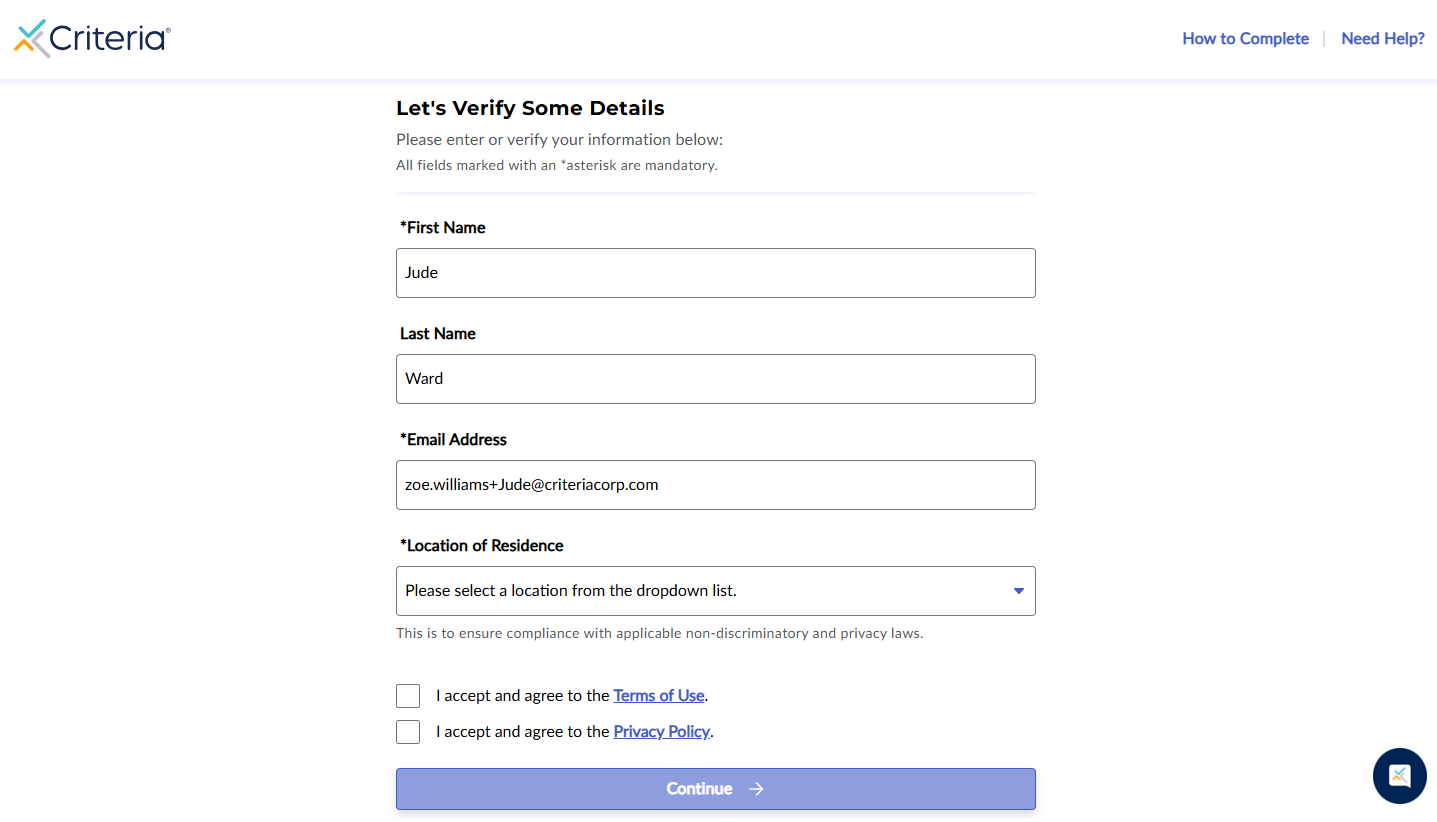
- Once the assessments are completed, Criteria will automatically redirect the candidate back to iCIMS.
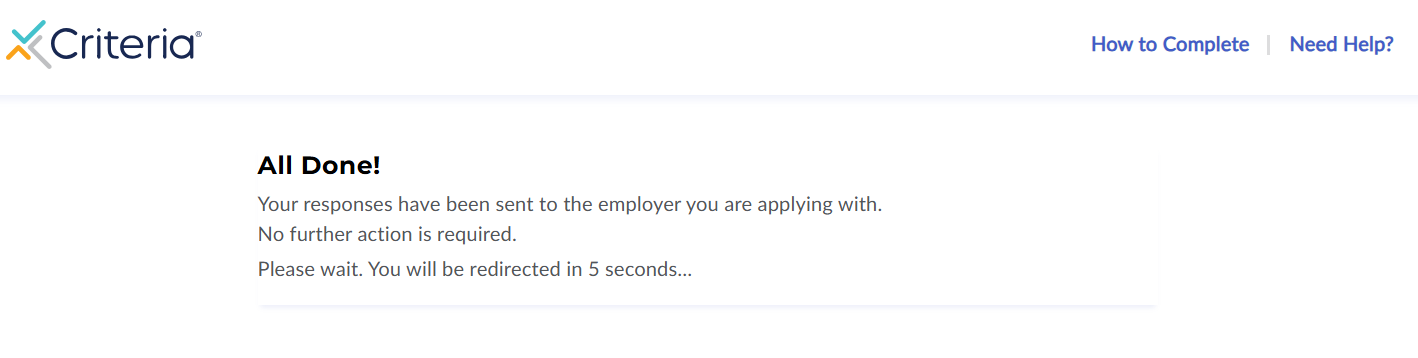
- The iCIMS application will be automatically submitted.
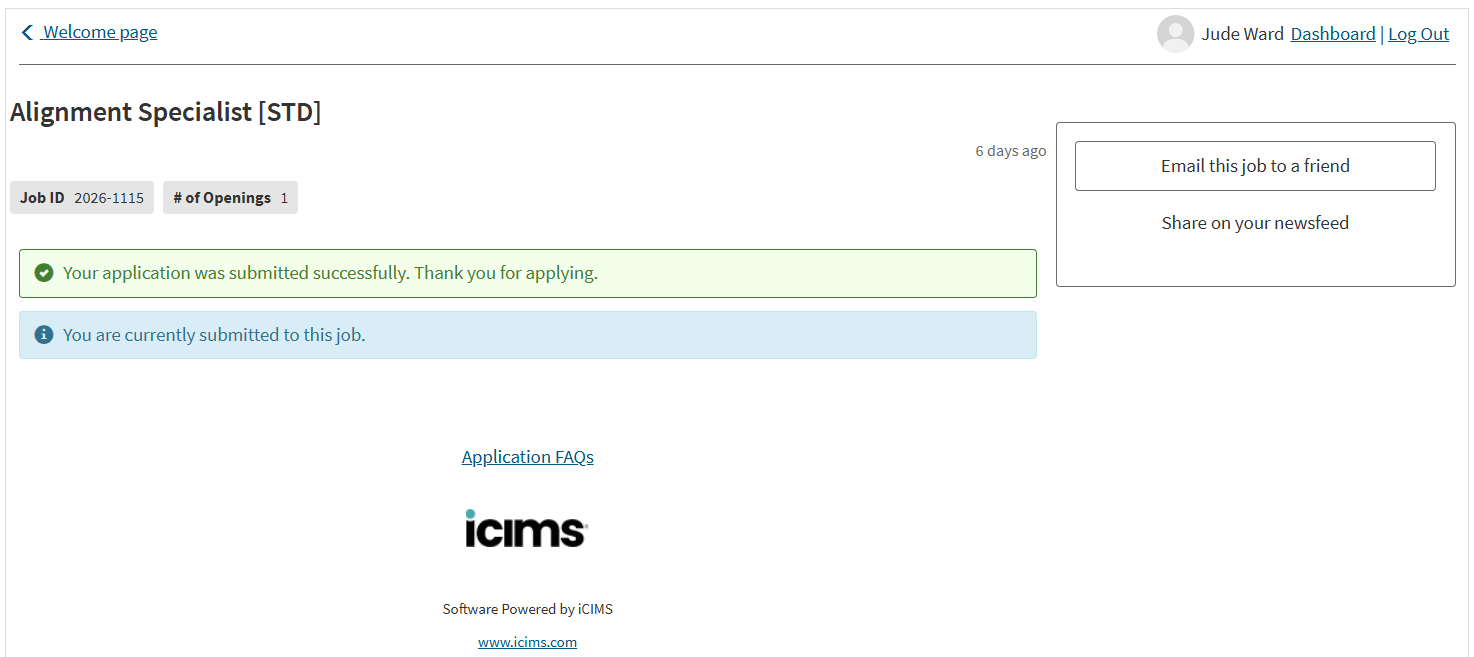
- The results will be available in iCIMS in the candidate record.
Recruiter Initiated Method (Workflow Status Change)
The iCIMS Job must be pre-configured with the Criteria package in the Assessment Type field.
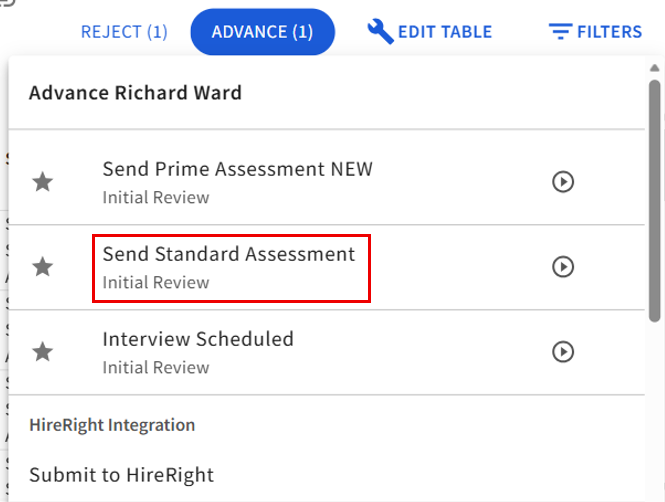
During the kick-off call, a status name would be decided upon to use for triggering the assessments. (In this example, the status is called Send Standard Assessment.) The candidate will be invited to the 1st Criteria package configured on the iCIMS Job when the candidate is moved into this status.
If you chose to support 2 rounds of testing in your integration, you may have another status that will trigger the 2nd Criteria package on the ICIMS Job. This status ID must be provided to Criteria to configure it in your integration.
The following demo shows how Recruiter Initiated testing works in the iCIMS Standard + Criteria integration (open the demo in a new window).
- To trigger the assessments, simply select the candidate and then choose Advance to move them to another status.
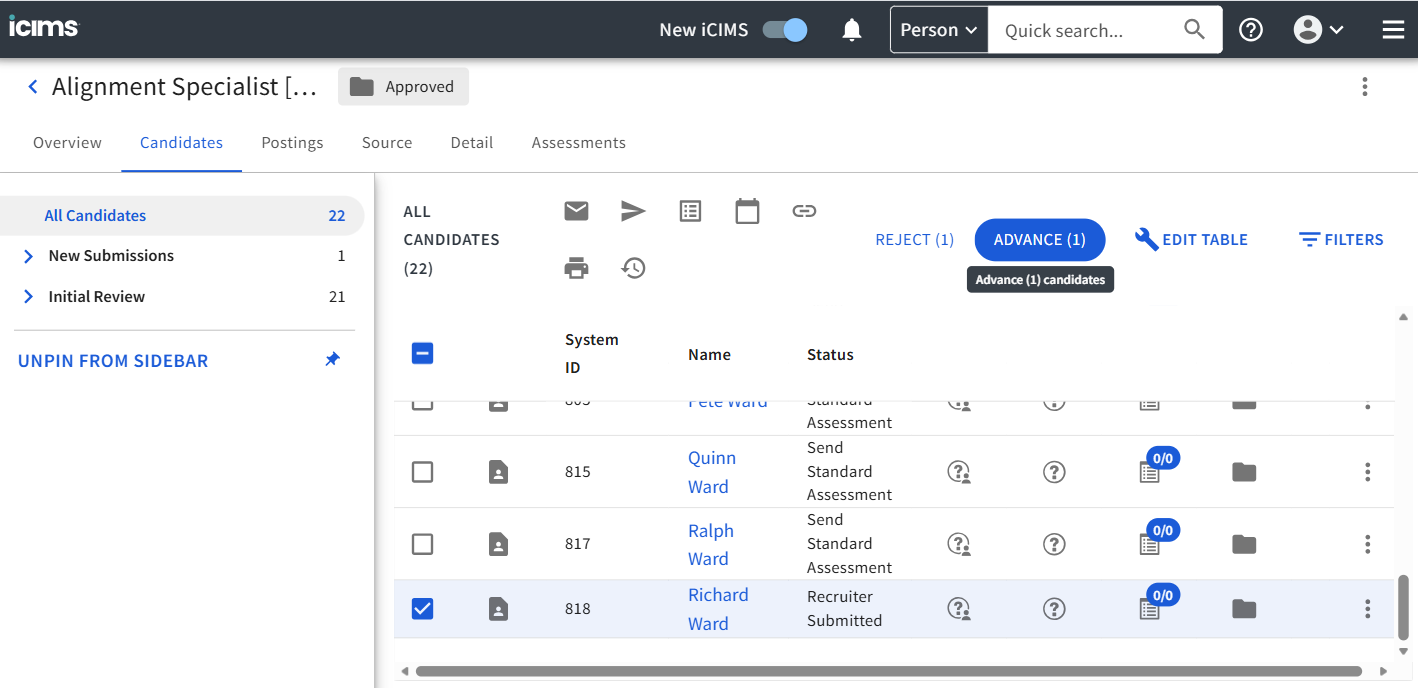
- Select the status that has been associated with Criteria testing.
- iCIMS will open a popup for the status change process. You may see a Confirm of Modify Package button, if so, it may be is required so you should click it to confirm the invitation was successful. Then click Continue.
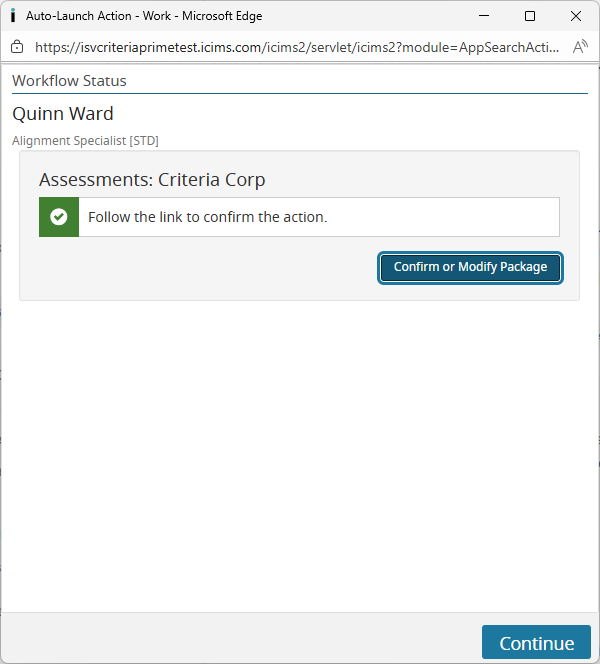
If you click the Confirm of Modify Package button one of 2 things will happen:
- A new browser tab will open and the Criteria candidate experience will open to the landing page. This means that the candidate was successfully invited. You can close this tab, do not continue, the candidate will need to complete this testing.
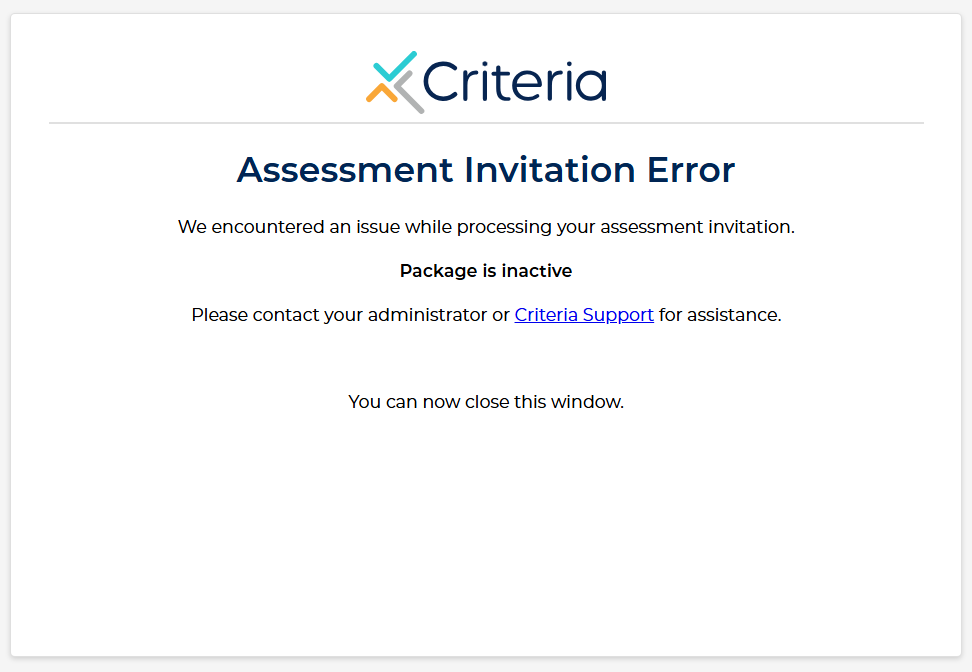
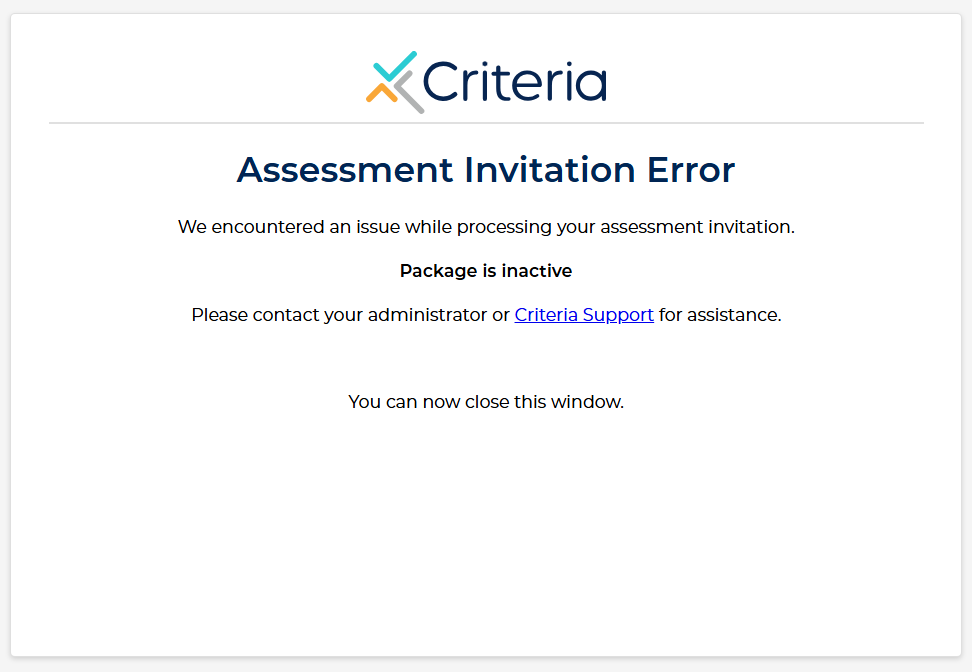
- A new browser tab will open and an error page will be shown. Copy the error message and provide it to Criteria to help you debug the issue. Likely there is an issue with the package setup. Also provide the iCIMS Job ID and the name of the Criteria package the candidate should have been invited to.
Example error page:
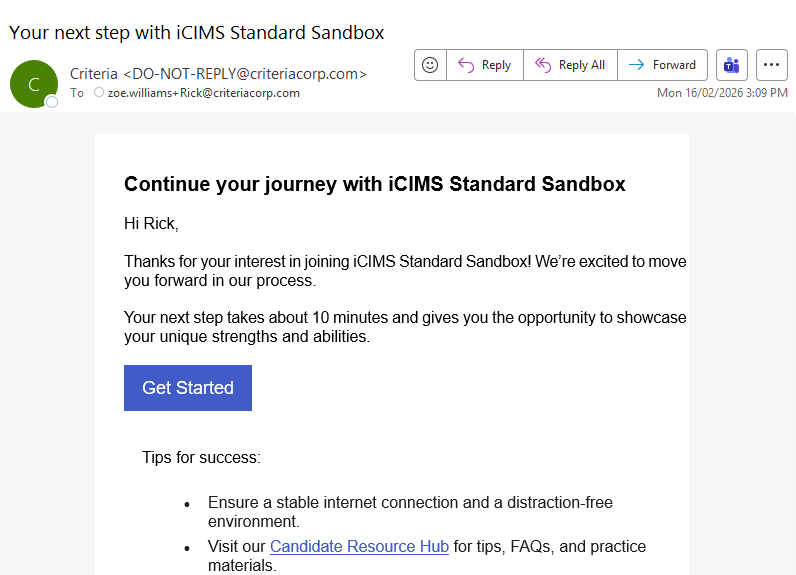
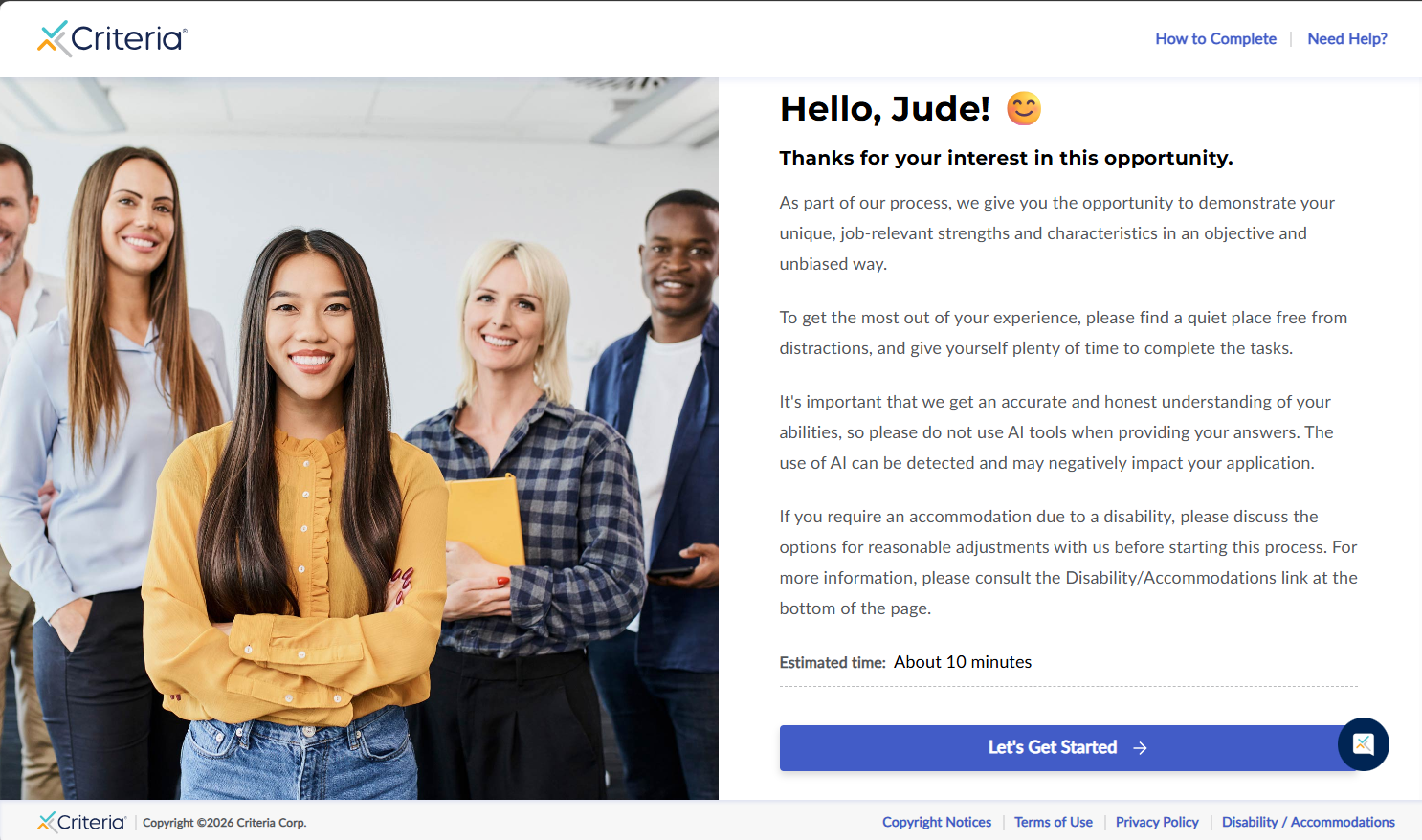
- The candidate will receive an email from Criteria with a link to take the assessments. The invitation will be created using the Job settings from Criteria - Assessments / Interview + evaluators, invitation email template, candidate experience landing page, expiry date etc.
- The testing link will open to the Criteria testing center (this page is customizable via your Criteria platform)
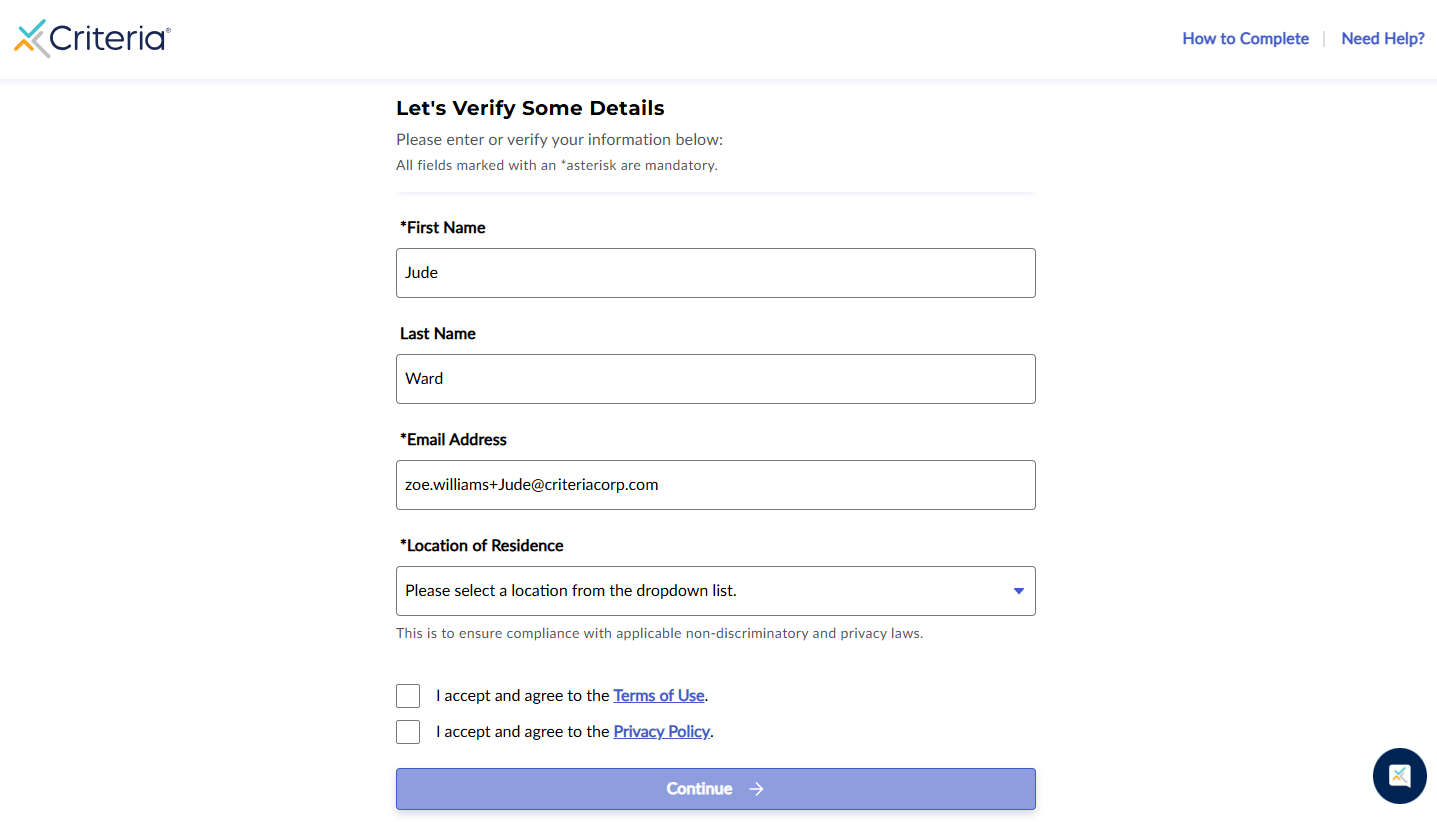
- The candidate’s name and email are pre-filled in the form using the data provided by iCIMS
- Once the assessments are completed the results will be available in iCIMS
Recruiter Initiated - Sending Assessments in Bulk
If you are using the Recruiter Initiated / Status Change method for inviting candidates, it is possible to invite several candidates at once. They just need to be moved to the Criteria Assessment status together.
- From the Candidates tab in the iCIMS job, tick all the candidates that you’d like to trigger assessments to, use the check box to select all candidates
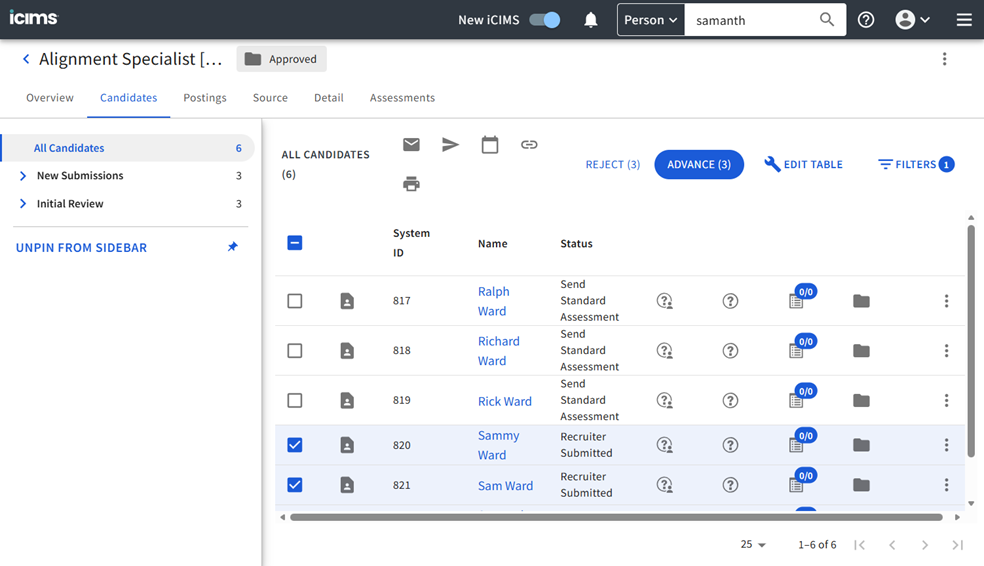
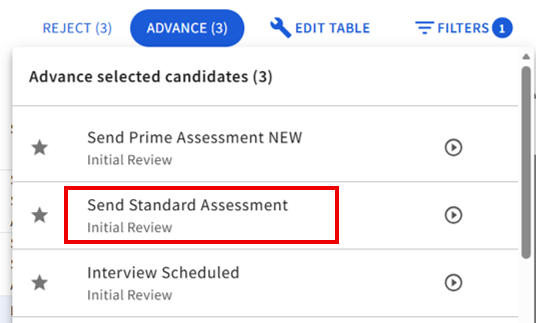
- Click the Advance button and select the appropriate Criteria testing status to move all the selected candidates. In this example, that status is called Send Standard Assessment.
- Each candidate will receive an email from Criteria with a link to take the assessments. The invitation will be created using the Job settings from Criteria - Assessments / Interview + evaluators, invitation email template, candidate experience landing page, expiry date etc.
- If your iCIMS setup requires you to click the Confirm of Modify Package button, you will need to click this for each candidate.
- The results will appear in iCIMS as the candidates complete.
Viewing Status and Results
The following demo shows what results are available on-screen in the iCIMS Standard + Criteria integration (open the demo in a new window).
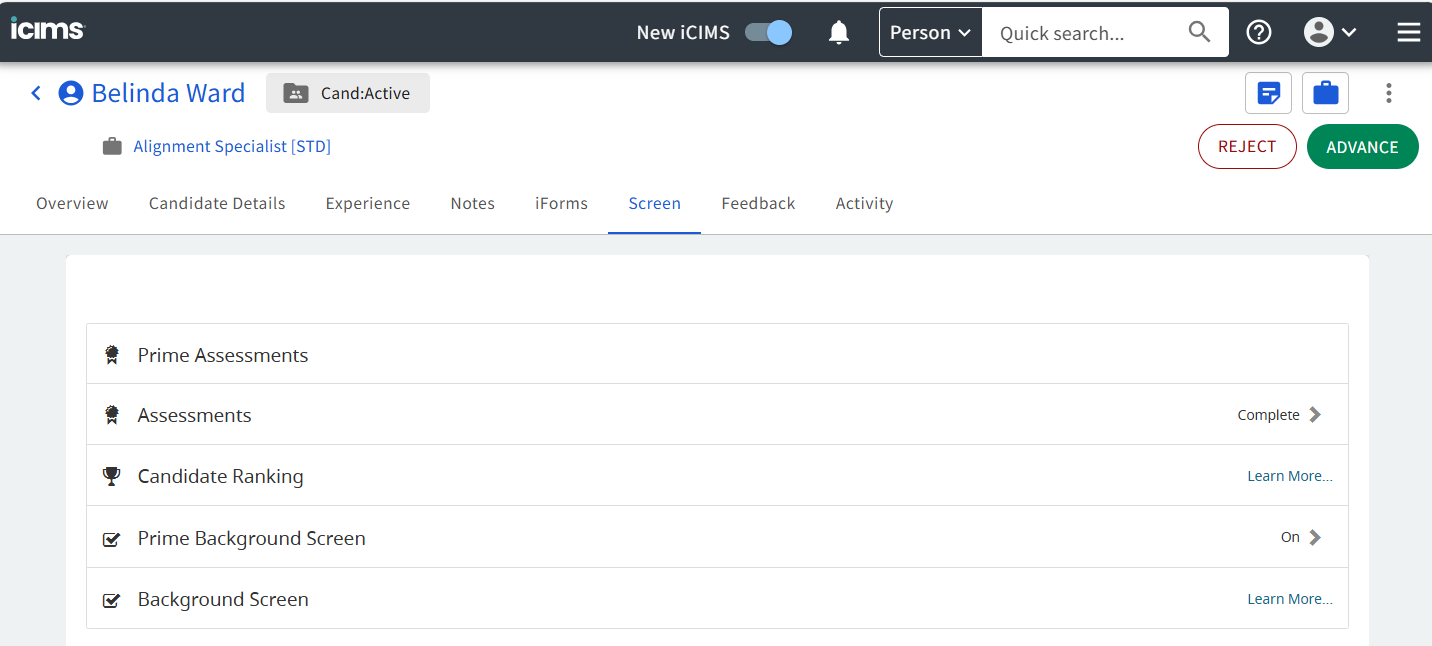
To view results for a candidate, navigate to the Screen tab for the candidate within the Job. Click Assessments.
or navigate to the Screen tab from the Candidate profile. Click Assessments.
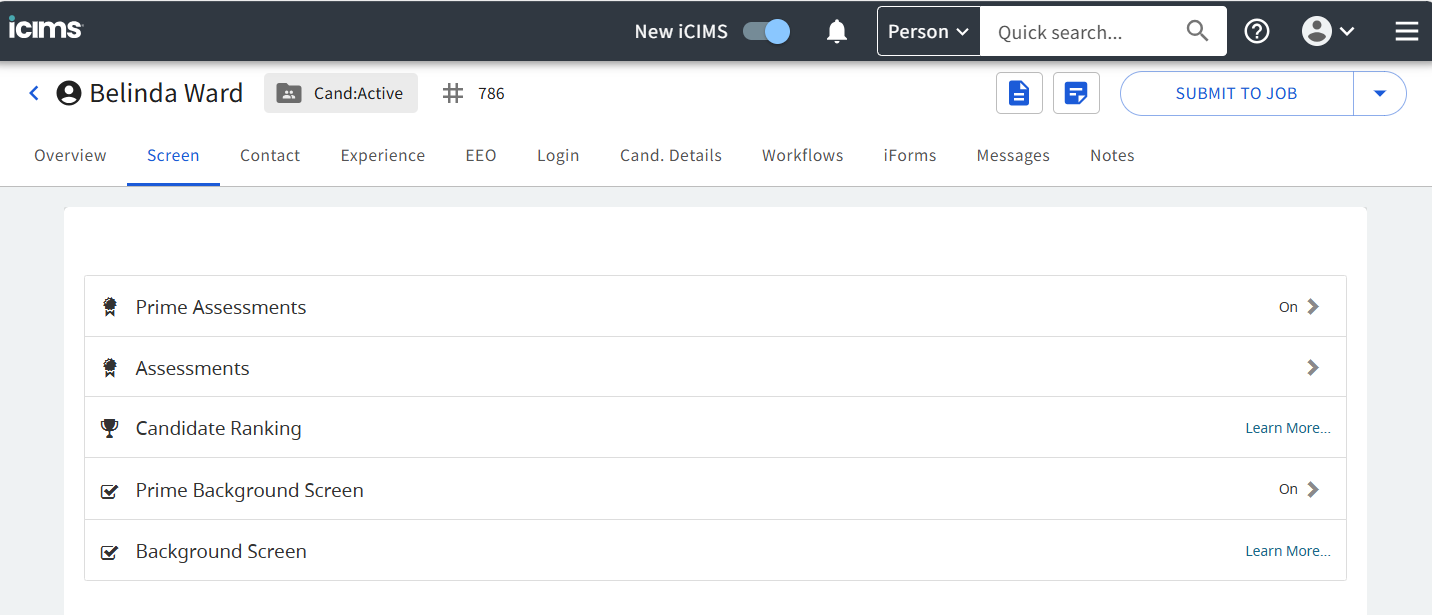
If you came in via the Job, the screen will show the Criteria results for the candidate that are applicable to this iCIMS Job. If you came in via the Candidate, the screen will show the Criteria results for this candidate across all iCIMS Jobs. The same data is shown, the layout is just slightly different.
For each completed package, the standard iCIMS assessment fields will be shown. The data in the fields will change depending on the status of the testing and the type of testing the candidate has been invited to complete.
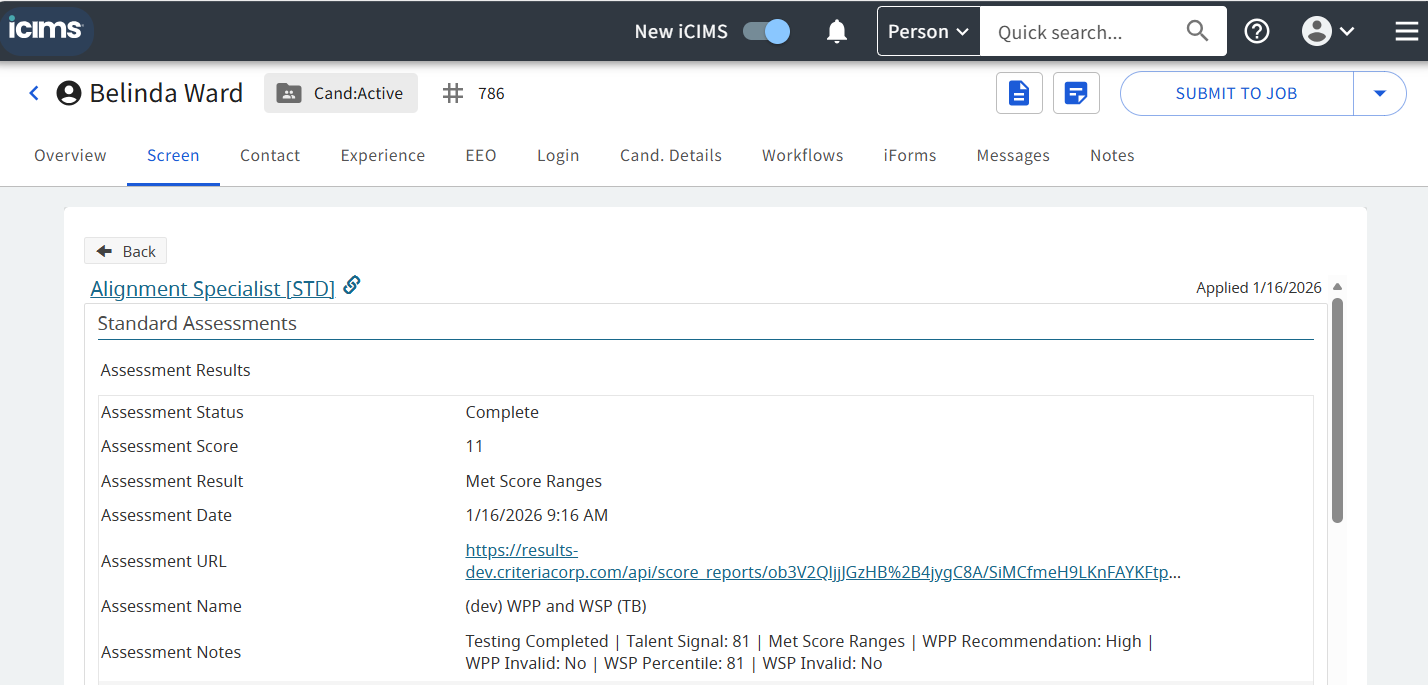
Assessment Status | Sent - Candidate has been invited In Progress - Invitation contains an Interview, the candidate has completed, but the evaluation is not completed yet Complete - the invitation is fully completed and scored, the results should be available below |
Assessment Score | The overall score for the invitation. This will no be present when status = Sent. This will usually be Talent Signal, but may be another score if you have chosen to receive a different test score here. |
Assessment Result | When Status = In Progress, "Evaluation In Progress - X of Y Completed" to show the progress of the Interview evaluation. X is the number of evaluations already completed. Y is the number of evaluations required to be completed to generate a score. When Status = Complete, "Met Score Ranges" or "Did not meet Score Ranges" or "Testing Completed" (if there is no score range set in Criteria) |
Assessment Date | The date/time the candidate completed testing. This will be shown in your local time zone. |
Assessment URL | When Status = Sent, this will be the Candidate testing link Otherwise, this will be the Criteria report link. The report may be displayed in HTML (default) or PDF format. If you wish to change the report format, or you have specific requirements regarding the report that is shown, please reach out to Criteria. If the invitation is for an interview, use the report to access the evaluation portal or to review the interview videos (only available from HTML report). Both links will require a one-time-password process to authenticate you before you evaluate/review the videos. |
Assessment Name | The package that the candidate was invited to complete |
Assessment Notes | When Status = Sent, this will contain the Event ID in Criteria and a message to indicate they have been invited When Status = In Progress and the invitation only contains a Structured Interview, TBD Otherwise, this will display the Talent Signal (if applicable), the met score ranges message (if applicable), and the main score fields from each of the assessments and interview from the invitation. This field has a maximum length. If the package contains several tests, some score values may be omitted to avoid exceeding the maximum length. |
Invited
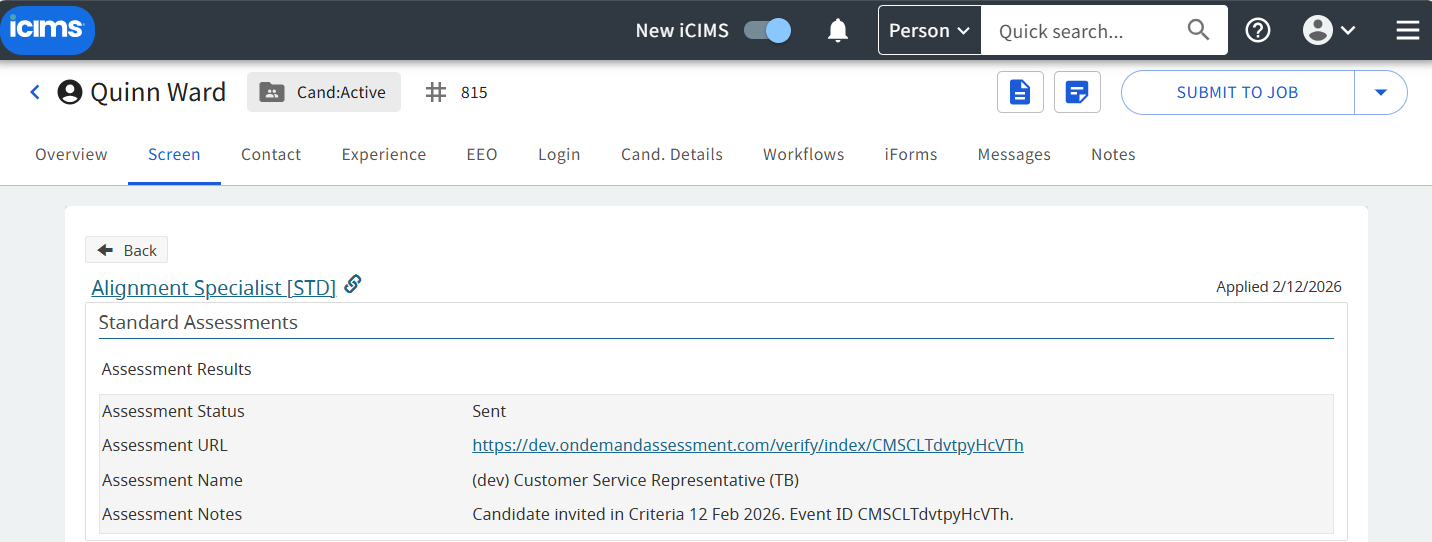
This candidate has been invited. The Status is Sent. The Notes displays their Criteria Event ID if you need to easily locate the entry in Criteria; E.g. to extend their invitation or re-send the invite from Criteria.
The URL shown is the Criteria testing link, this may be given to the candidate while the Status = Sent. You should not provide the Criteria report link to the candidate as the report is for Criteria customers only. Always check the link before passing it to a candidate.
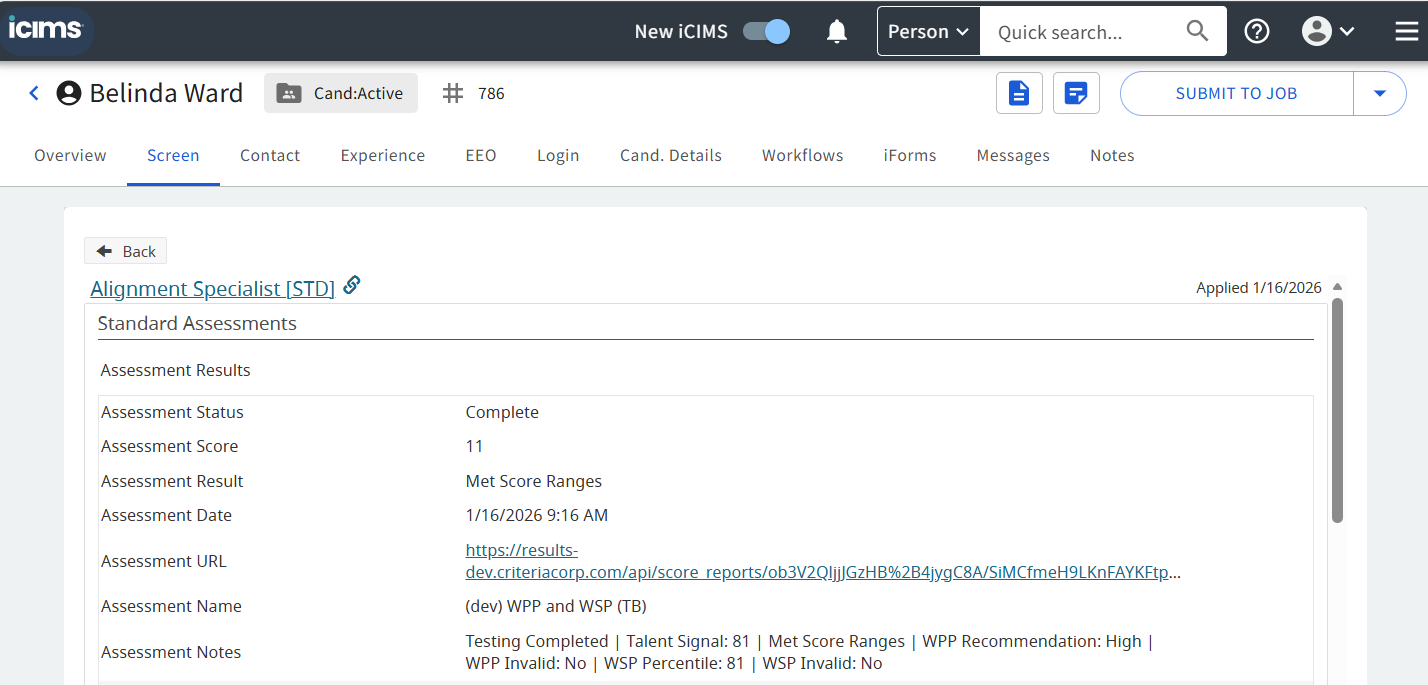
Assessment Results
The candidate has completed an assessments-only package. The results are displayed with the Complete Status, the Score displays the Talent Signal and the Notes lists the main scores for all the assessments completed. Click the URL to open the Criteria report in a new browser tab.
Video Interview Results
The candidate has completed their interview, but the evaluation is not been completed yet. The assessment entry in iCIMS is shown with the In Progress Status and the Result field shows the progress of the evaluation, in this case 0 evaluations have been completed, once 2 evaluations are completed the score will be available and the status will change to Complete.
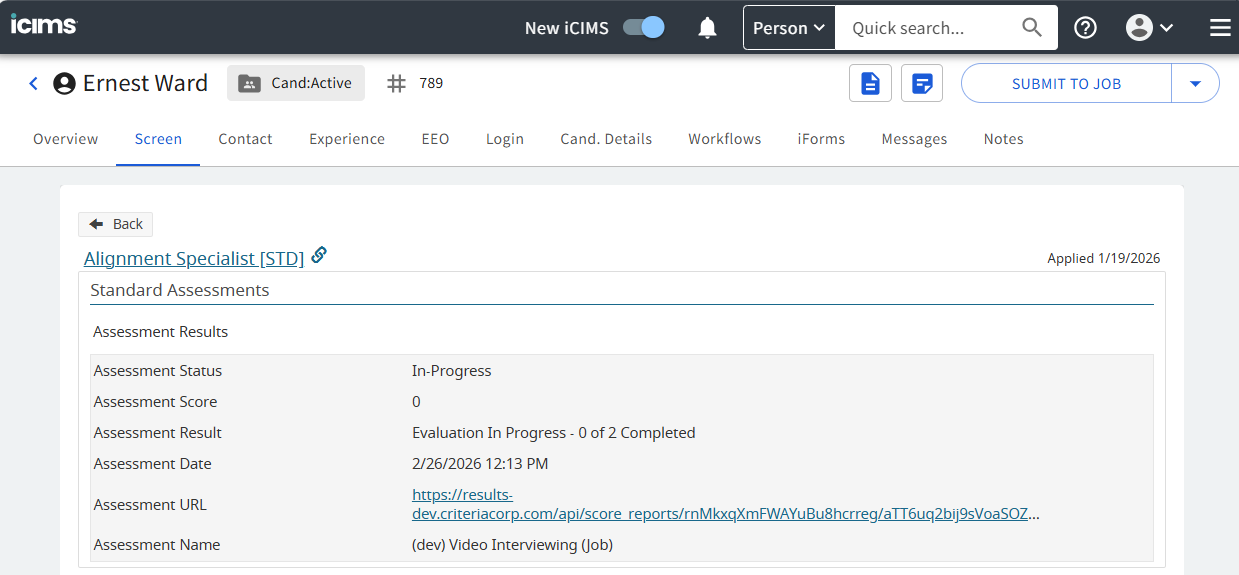
The Assessment URL link can be used by evaluators to access the evaluators portal. Just open the report and click the Evaluate button.
The evaluation has now been completed. The Status is Complete. The Result shows Complete, as there are no score ranges for an interview, and the Notes displays the interview score and recommendation.
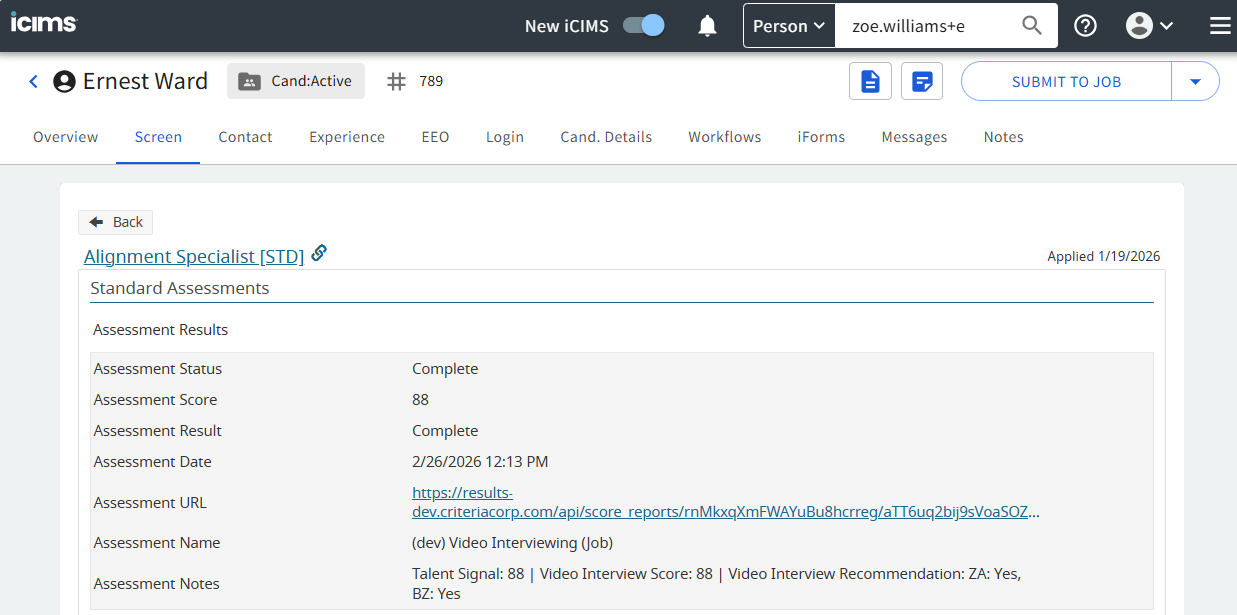
Use the Assessment URL link to access the report.
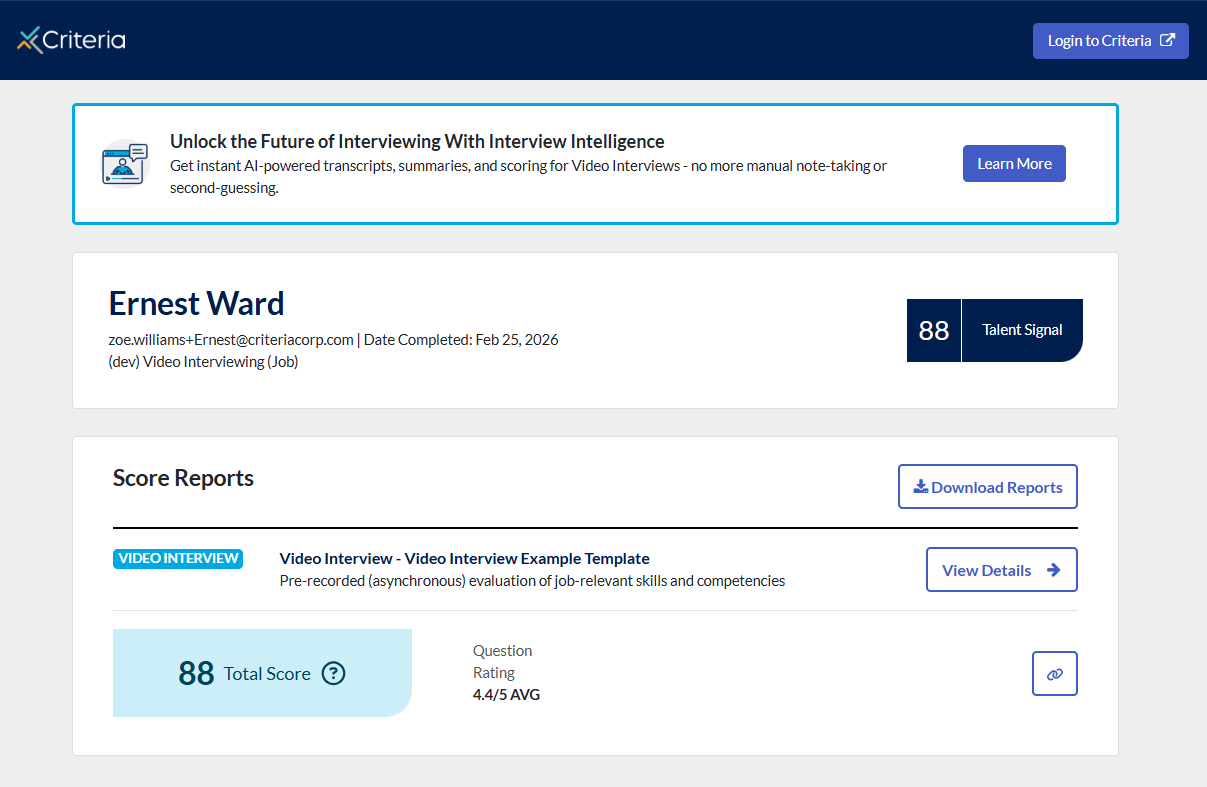
In the case of an auto-scored interview, there will not be a recommendation value.
(screen shot to follow)
The report will indicate that it was scored by Criteria AI.
(screen shot to follow)
Assessment + Video Interview Results
This candidate has completed their interview, and there were also assessments in the same package. The assessment entry is shown with the In Progress Status as the interview is not yet marked.
The Result field indicates the progress of the interview evaluation, while the Notes displays the assessment results which are already available. The Score only represents the score based on the scored components, which is currently just the assessment/s. The Score and Notes will be updated once the interview has a score.
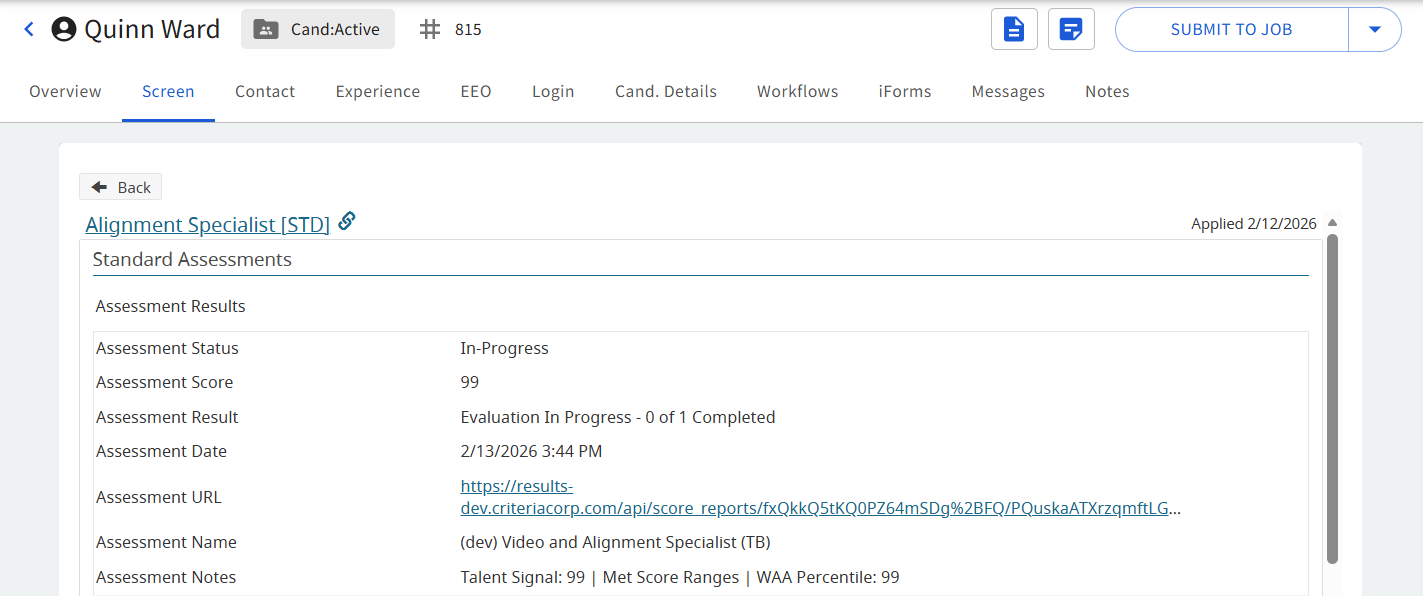
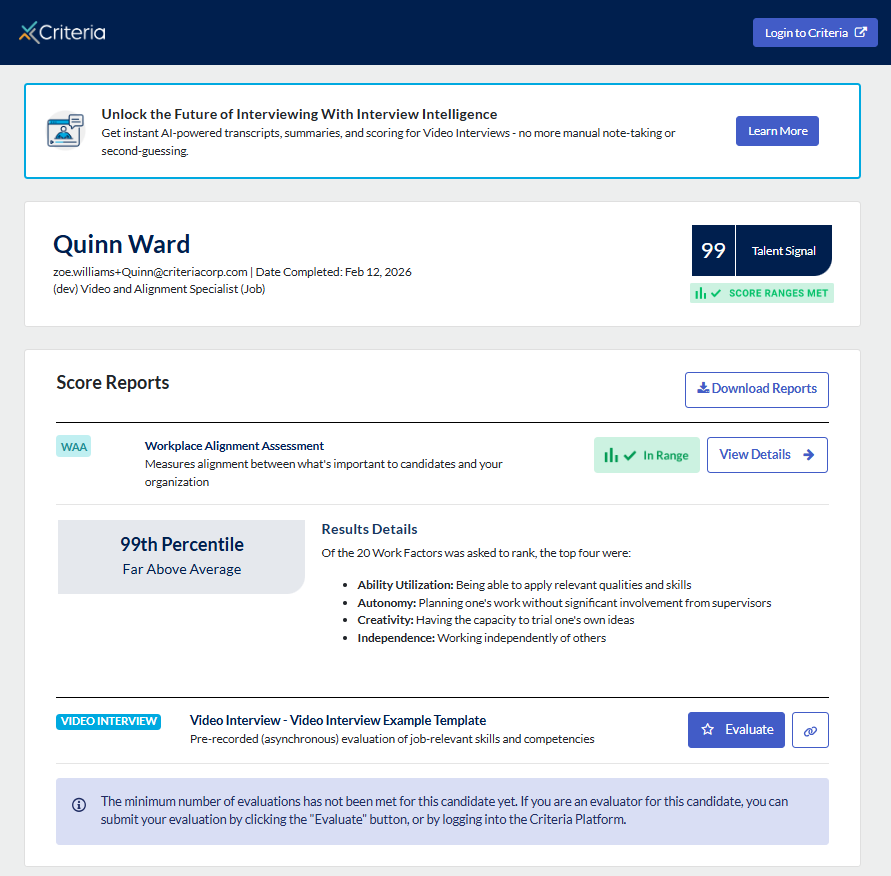
The Assessment URL link can be used to view the assessment results and evaluators can use the Evaluate button to access the evaluator portal. As there is no Video Interview score yet, the Talent Signal only reflects the score from the assessments.
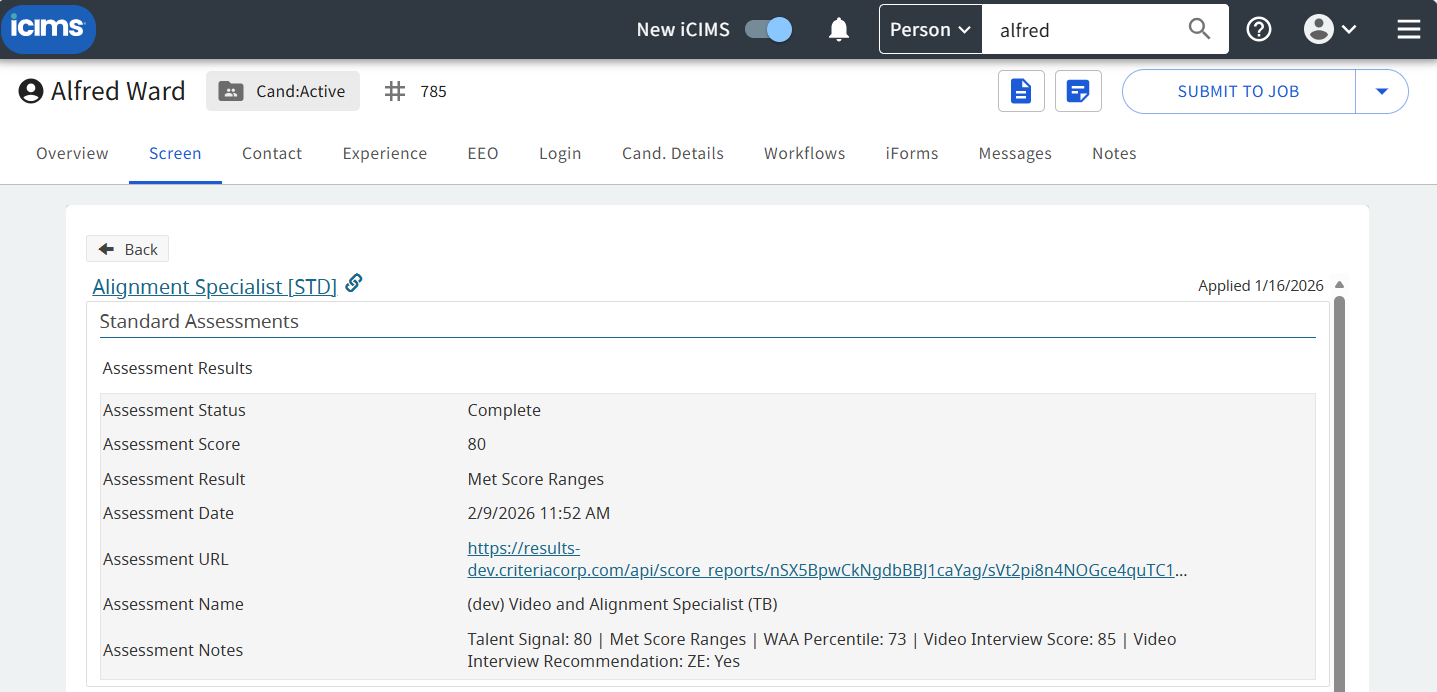
The evaluation for this candidates' interview has been completed. The Status is Complete. The Score has been updated to reflect the Talent Signal using both the Assessment and Video Interview results. The Result shows whether the candidate met all the score ranges, and the Notes has been updated to display the interview score and recommendation along with the assessment results that were already present.
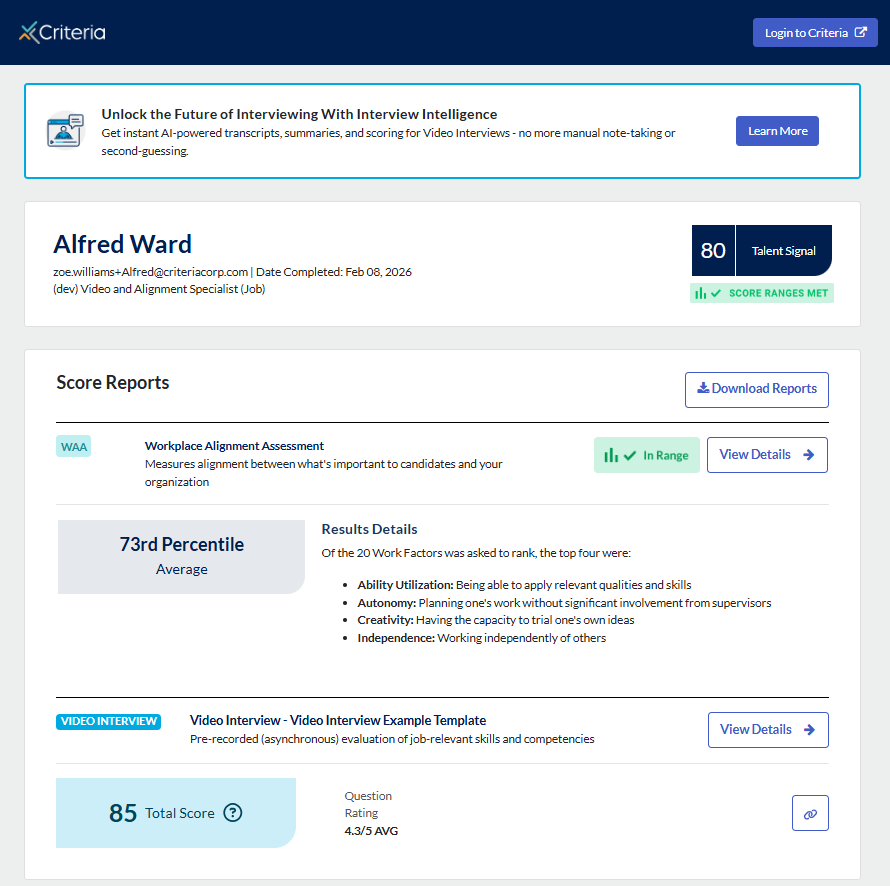
The Assessment URL will link to the updated report which will now contain the Video Interview results.
In the case of an auto-scored interview, the In Progress update will show for a few minutes while the interview is being marked. It will then refresh to show the Complete status. The result will look similar to a human evaluator, however, there will be no Recommendation value.
(screen shot to follow)
The report will indicate that it was scored by Criteria AI.
(screen shot to follow)
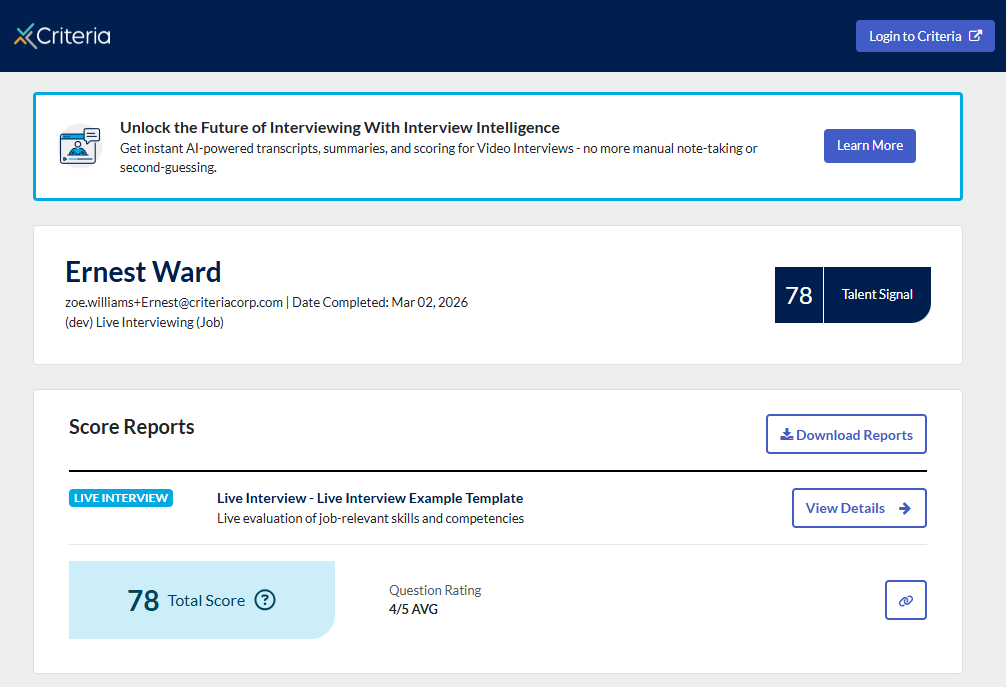
Live Interview Results
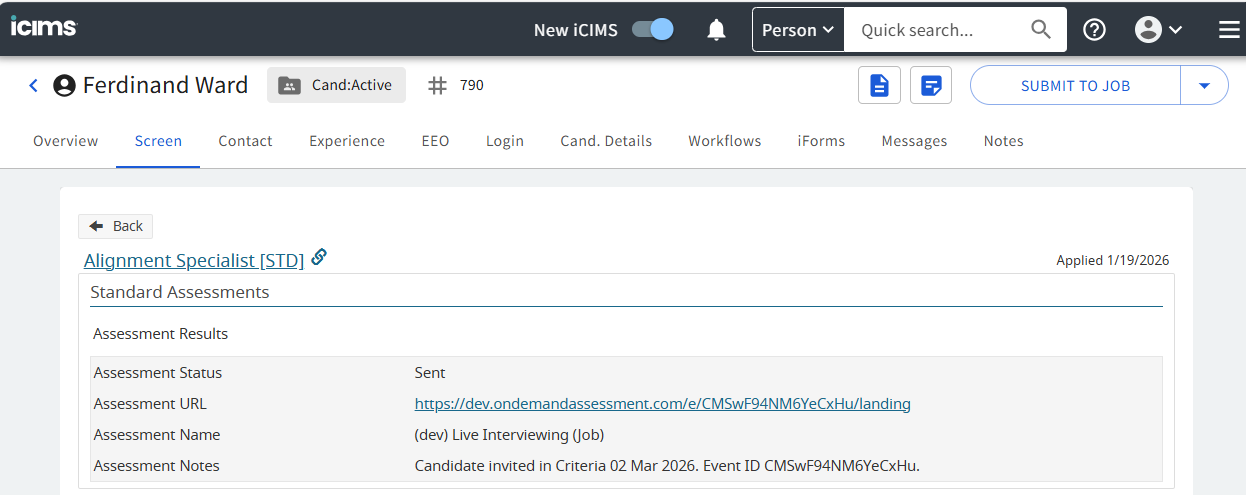
Initially, the Sent status will be shown like other packages.
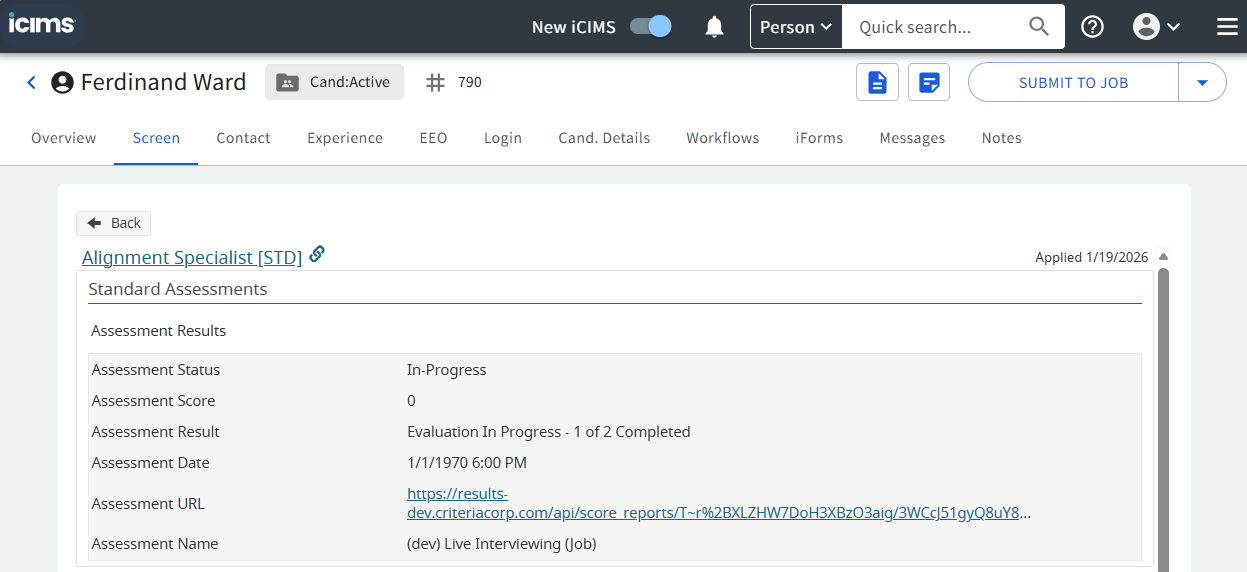
One evaluation has now been completed, but the interview has not been fully evaluated yet. The assessment entry in iCIMS is shown with the In Progress Status and the Result field shows the progress of the evaluation, in this case 1 evaluation has been completed, once 2 are completed the score will be available and the status will change to Complete.
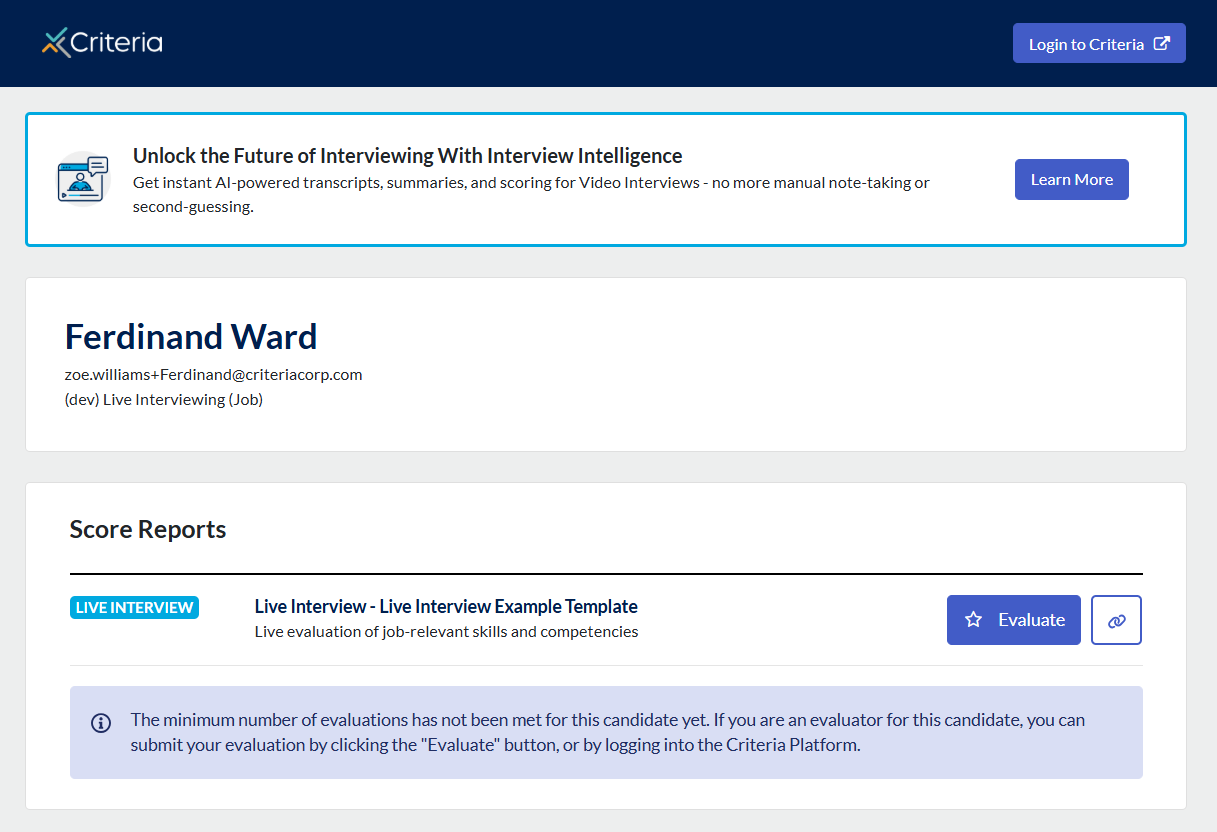
The Assessment URL link can be used by evaluators to access the evaluators portal. Just click the Evaluate button.
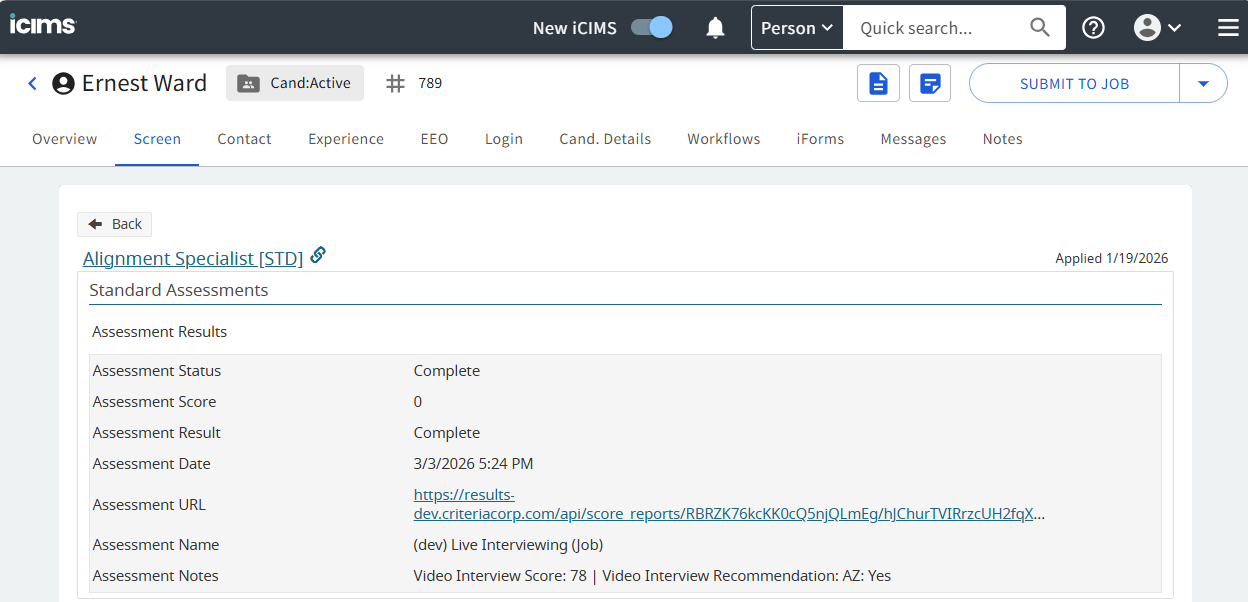
The live interview has now been fully evaluated and a score is available.
The Assessment URL link will show the Criteria score report with the Live Interview score.
Proctoring
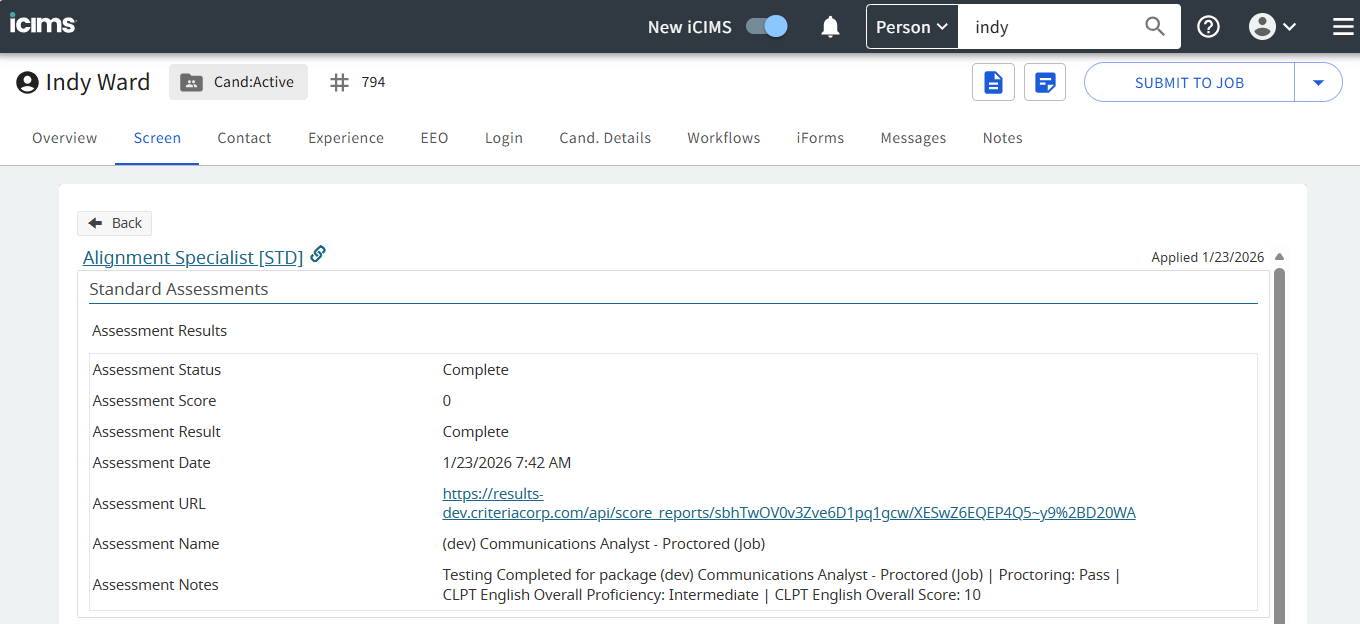
If the event was proctored, the proctoring outcome - Pass, Flag, Fail - will be displayed in the Notes field.
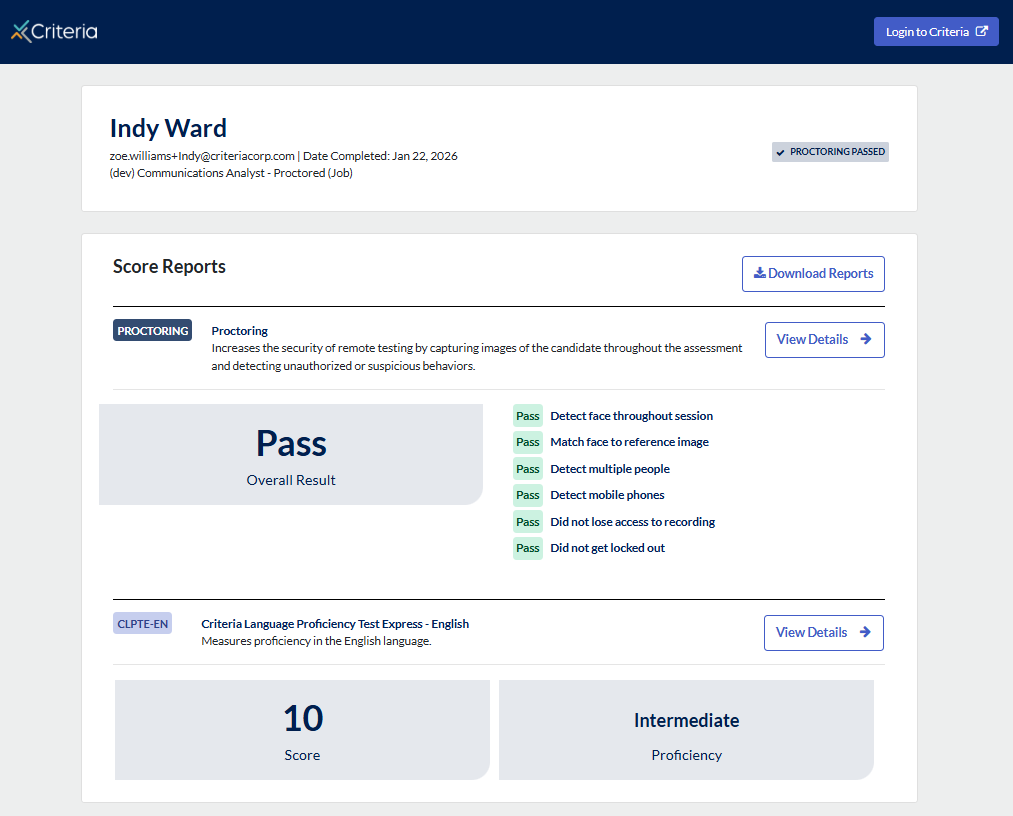
The report displays the overall proctoring result as well as all the factors that contribute to the final score.
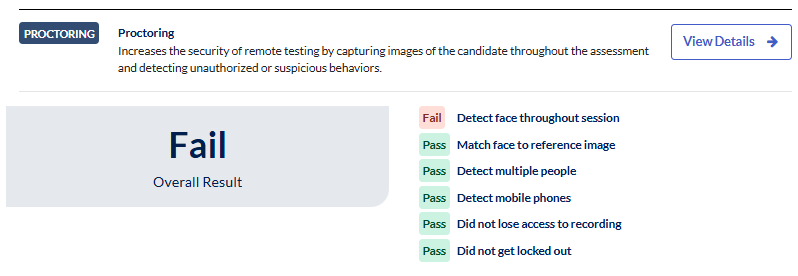
Example report for a Failed proctoring result:
Ongoing
Keeping your Packages in sync
There are 2 lists in iCIMS that must be maintained for this integration to work.
- Assessment Type - used to choose the Criteria package on the iCIMS Job
- Assessment Name - used to display the package name in the assessment results
Criteria can maintain these 2 lists in your iCIMS account via a Sync from your Criteria Platform account. After adding, renaming or inactivating a package, click the button in your Criteria account to sync the latest packages to iCIMS.
If you do not have the sync enabled for your integration, and you are only using 1 Assessment provider in iCIMS. Reach out to Criteria to have the sync enabled.
If you do not have the sync enabled for your integration, you (or your iCIMS rep) will need to maintain these 2 lists manually within iCIMS.
When you add, rename or inactivate a package in Criteria, you will need to make the same change in iCIMS.
- The Assessment Type list must contain the exact package ID from Criteria (Job Code or Test Battery ID). The package name may differ from the name in Criteria, but to avoid confusion, Criteria recommends the same name is used (Job Title or Test Battery Name).
- The Assessment Name list must contain the exact package Name from Criteria (Job Title or Test Battery Name).
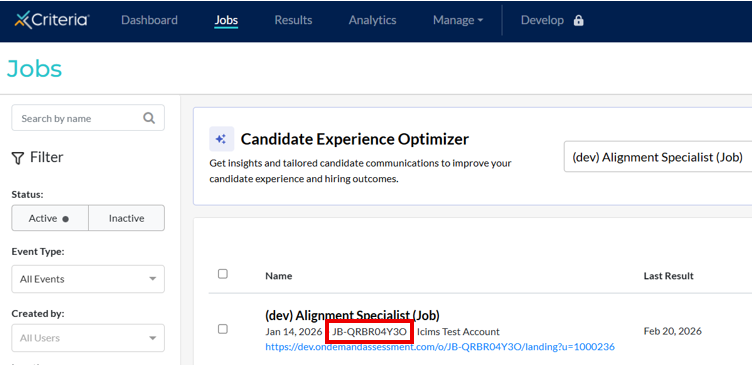
To find the Job Code, go to the Jobs page in your Criteria account and look for the text string under the job title that starts with "JB-". E.g. JB-QRBR04Y3O.
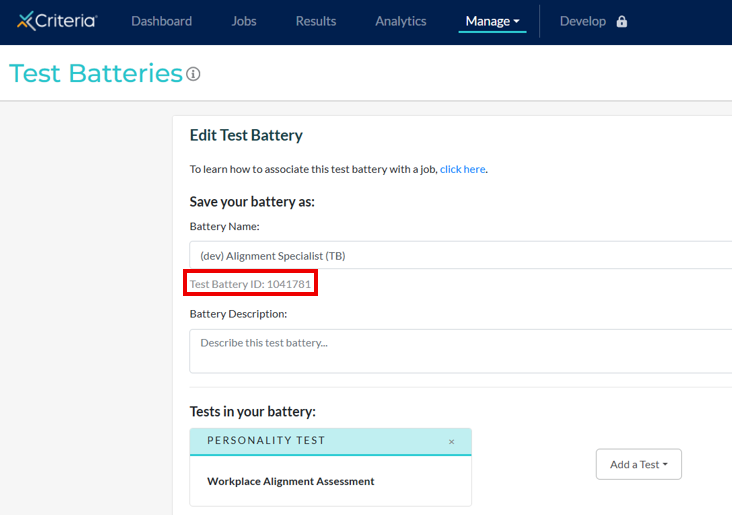
To find the Test Battery ID, go to the Test Batteries menu in your Criteria account. Click on the Test Battery you want the ID for. Tip: Make sure the Test Battery is only associated with 1 active job to ensure the integration works properly. The Test Battery ID is on the details page. The Test Battery ID is also available on the Job Settings page.
Using the Package Sync in Criteria
This feature will be coming to your Criteria account soon. In the meantime, Criteria can manually trigger the package sync for your account when needed.
FAQ
Can I change my integration to use Jobs as the packages in iCIMS?
Yes, talk to Criteria to make this change.
You will need to decide an appropriate time to migrate your integration.
What to expect:
- Ideally Criteria can do an in-line update of your packages so you do not need to re-select the package on all your open iCIMS jobs. Criteria will check your account and advise if this is possible.
- Ideally Criteria can sync the packages in the background, so you do not need to manually update all the package configuration in iCIMS. Criteria will check your account and advise if this is possible.
- Don't worry, after the migration, candidates who were invited via a Test Battery package will still be able to have their results sent back to iCIMS on the Jobs package.
Once the migration is completed, Criteria will ask you to check some iCIMS Jobs to ensure the packages are still in place, you will then put through a test candidate to check it is all working.
Why can't I sync the packages via my Criteria account?
If you are just using 1 assessment provider in iCIMS, Criteria can enable this for you.
Once enabled, go to the Integrations menu in your Criteria account and click the Sync button.
If you are using more than 1 assessment provider in iCIMS, you should not use the sync from Criteria as the packages from the other provider will be made inactive by the sync.
Troubleshooting
Candidate not being invited
- Are you seeing the Confirm of Modify Package button in iCIMS when you invite the candidate, use that link to load the error page. Use the error message to try and debug/solve the issue yourself, or provide the error message to Criteria for assistance. E.g. the error message in this sample error page is 'Package is inactive', which indicates you have likely made changes to the jobs and test batteries in Criteria without updating the package list in iCIMS.
- If you have made changes to your Test Batteries or Jobs in Criteria lately and haven't done a package sync, sync now and then check the iCIMS Job is still using a valid Criteria package. Invite the candidate again.
- If the candidate is still not being invited, try the following troubleshooting steps
Check the Assessment Type field on the iCIMS Job.
- Is there a Criteria package chosen?
- Check in your Criteria account to make sure this package is still active. Is the Criteria package active in Criteria?
If your candidates are still not being invited, reach out to Criteria Support for assistance.
