Admin Console for Develop
 Updated
by
Amy Thomas
Updated
by
Amy Thomas
As an admin user, you can customize your Develop account in several ways in the Settings area of the Admin Console.
Once logged into your Develop account, click Admin Console in the top menu.
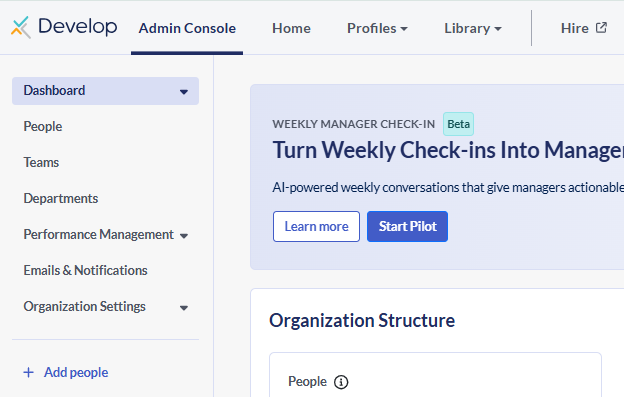
Dashboard
Your Dashboard provides analytics for your employees' activity in your Develop account. There are three views: Overall Activity, TEAMscan Activity, Check-In Activity. These can be filtered by time or by user/team.
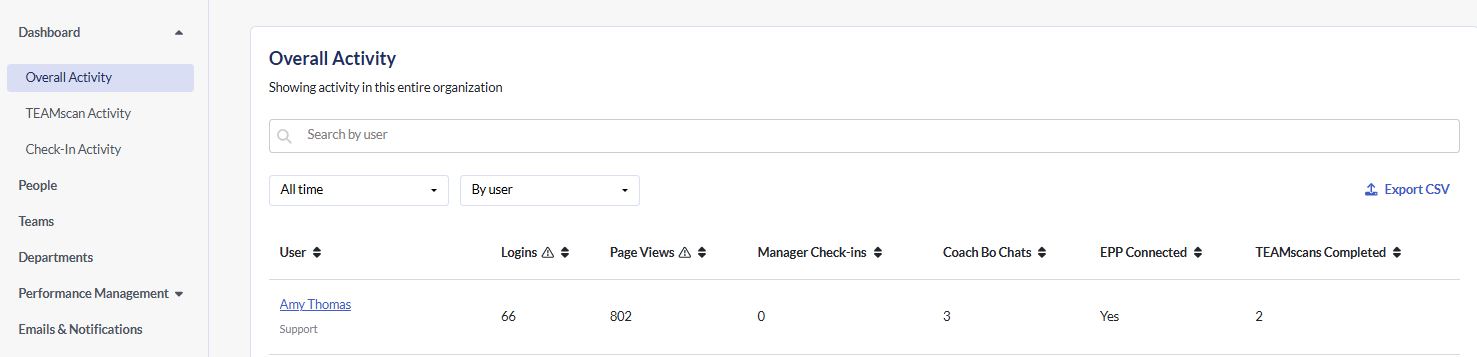
Please note that if an employee does not login to their Develop account, such as clicking the TEAMscan link in their invitation email, their activity may not register here.
People, Teams and Departments
The People section is where you add and manage your employees within your Develop account. You can link an employee's previous EPP results to their Develop profile here also.
The Teams section is where you create teams and assign team leaders.
The Departments section is where you create departments and assign department leaders.
Performance Management
Surveys
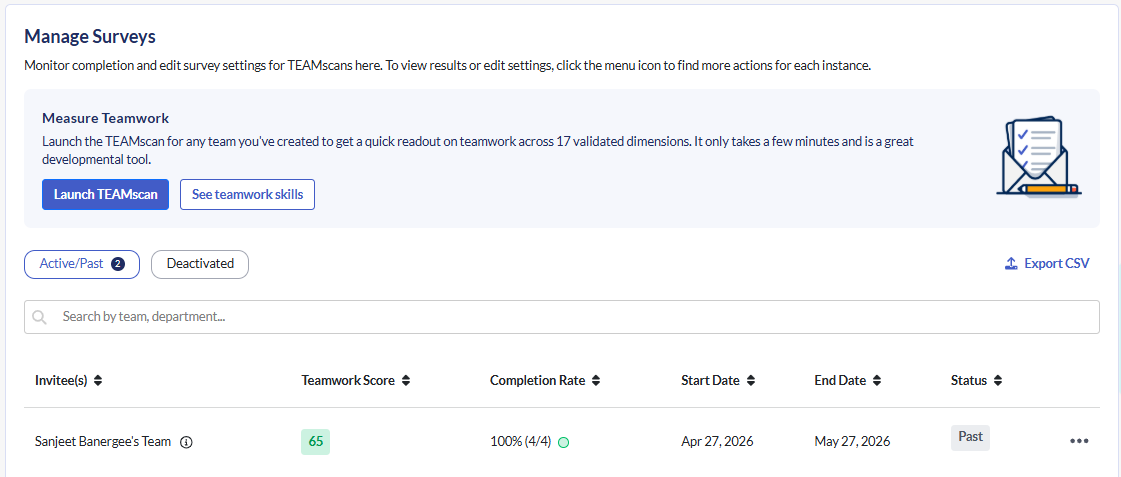
You can launch a TEAMscan survey for your whole organization, a department or a specific team from your Admin Console.
View and manage all your TEAMscan survey results in once place.
Goals
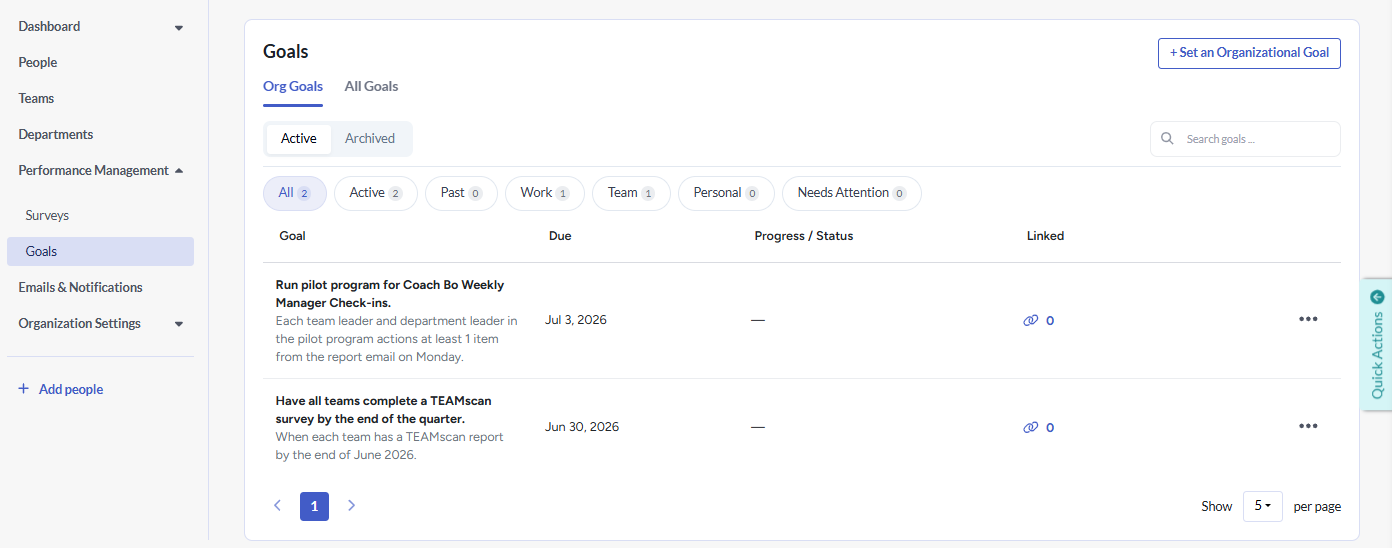
Set goals for your organization and view the goals set by your departments.
Review the progress of your goals.
Emails & Notifications
Configure which emails will be sent to your employees by default when activity occurs in your Develop account. Toggle the email to grey to disable or to blue to re-enable.
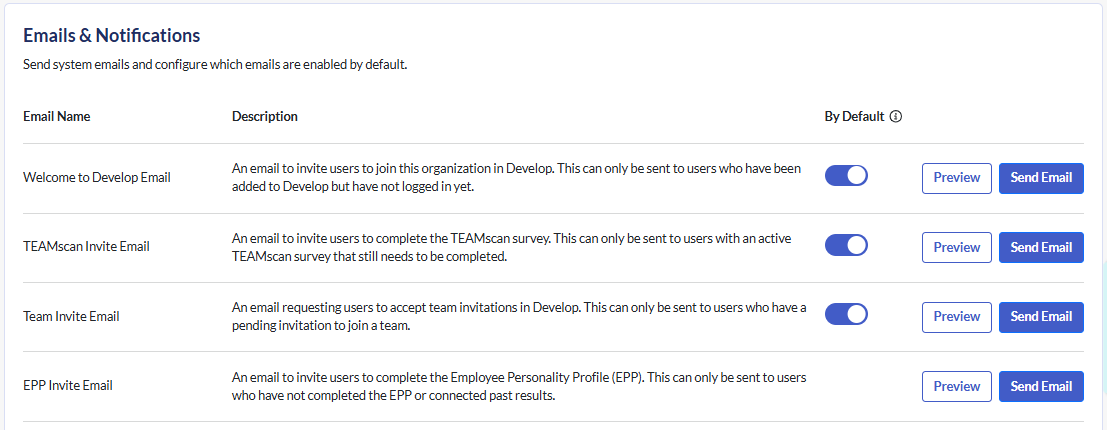
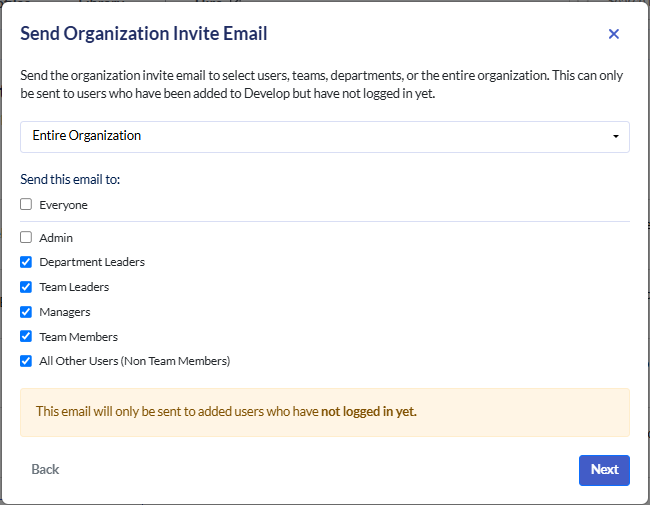
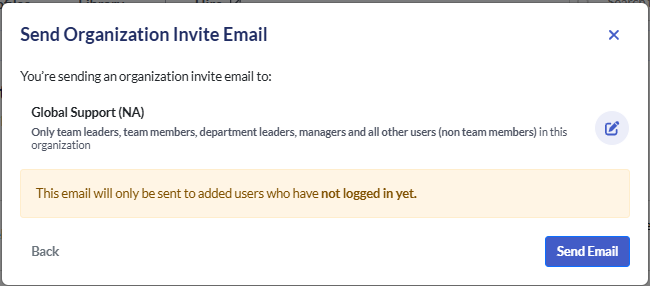
Trigger emails to be sent immediately to certain users. Click Send Email and select who the email will be sent to. Click Next, then click Send Email.
Organization Settings
General Settings
Who Can Join Your Organization?
If the email addresses used by employees across your organization have different domains, list all of these here. This will enable users with different email domains to use your Develop account.
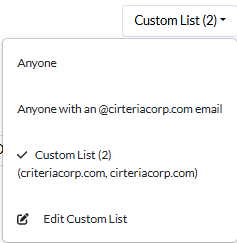
By default, this is set to Anyone, however you can restrict access to your Develop account.
- Click the dropdown list to choose whether anyone, only people with the domain as your email, or a list of allowed domains may join your Develop account.
- To create a list of allowed domains, select Edit Custom List.
- Add each domain one at a time (everything after the @ but do not include the @ symbol). Click Add Another Field to add the next domain.
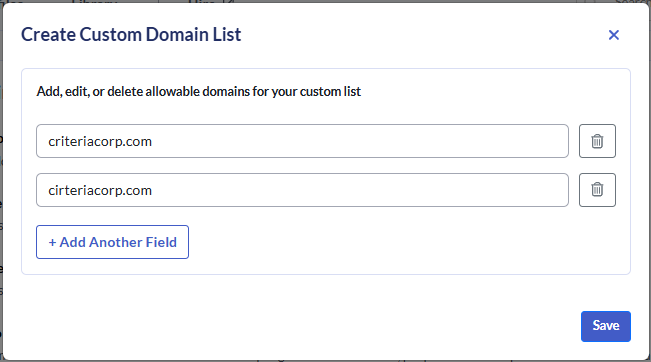
- Click Save once all domains have been added. Once the action message in the bottom left corner has finished, you can click the cross to close the modal.
- You can add to this list whenever you need to. You can also remove domains by clicking the trash icon next to the domain being deleted.
Who Can Create Teams
By default, all users can create new teams.
- Click the dropdown list to change this so that only managers, team leaders and admins, or only admins, or a custom list of users may create new teams.
- To create a custom list, click Edit Custom List.
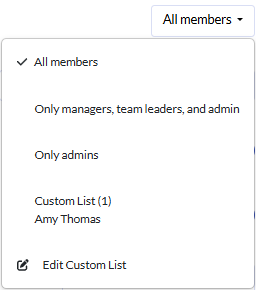
- Enter the email addresses of users who may create teams or select them from the dropdown list.
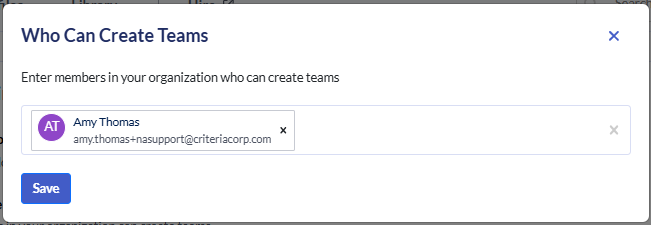
- Click Save.
Who Can Add People To This Organization?
By default, all users can invite new team members to join your Develop account.
- Click the dropdown list to change this so that only managers, team leaders and admins, or only admins, or a custom list of users may invite new team members.
- To create a custom list, click Edit Custom List.
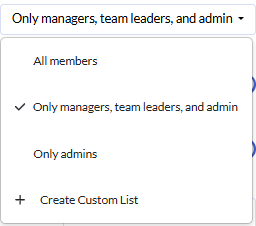
- Enter the email addresses of users who may create teams or select them from the dropdown list.
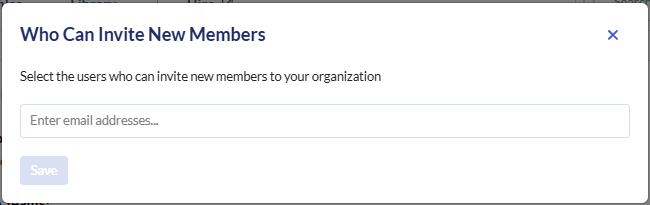
- Click Save.
Allow Admins to Add Users to Teams without Users Accepting Invites?
When this is on, admins can add users to teams without users accepting invites. When it's off, people have to accept invites to be added to a team.
Toggle grey to disable and toggle blue to enable. Your changes will be saved automatically.

Enable Departments
You can arrange your Develop account to group teams within departments. Each department can be assigned a department leader, who can manage and view all the teams set up within their department.
Only admin users have the ability to create departments. If you do not want to use departments within your Develop account, toggle grey to disable this option. Toggle blue to enable.

Time zone
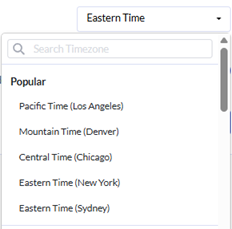
This is the time zone that will be applied by default to all users across your Develop account. Your employees may set a different time zone for their own login by updating this option in User Settings.
- Click the Timezone box.
- Select a time zone from the dropdown list or use the search field to locate your time zone. This will be saved automatically.
Enable All AI Features
Toggle blue to enable AI functionality for Develop. This includes Coach Bo as well as AI generated free text summaries for organization and department leaders.
Toggle grey to disable this feature. Your changes will be saved automatically.

Default Global Header Image
All users and teams may upload an avatar and a banner to their profile page. Here you can upload an image that will be used as the banner image for all users and teams across your Develop account.
- Click Upload, then click Upload New Photo to search your device for the image to be used.
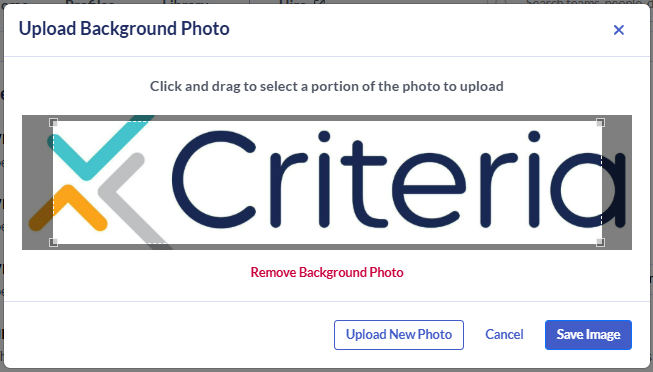
- Click Save Image.
- To remove the header image from all users and teams, click Remove Background Photo.
Check-Ins
View our guide to enabling and managing the Weekly Check-ins with Coach Bo.
TEAMscan
These settings relate to the TEAMscan teamwork survey.
Enable Suggested Conversations
Allow team members to view suggested conversations with other members in the organization based on lowest and highest scoring teamwork areas.
Toggle grey to disable and toggle blue to enable. Your changes will be saved automatically.

TEAMscan Survey
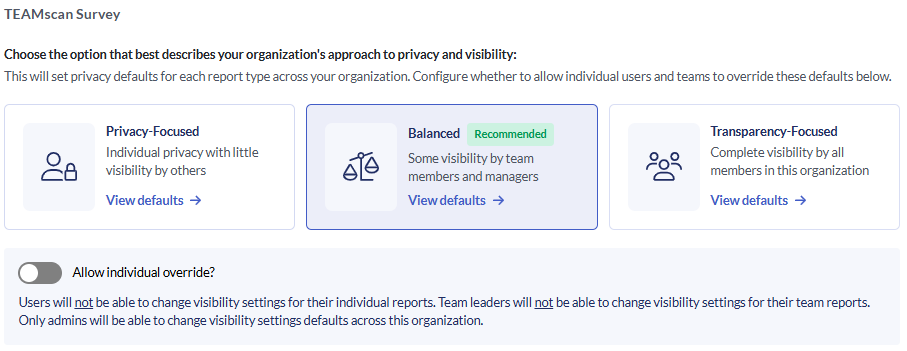
Choose the option that best describes your organization's approach to privacy and visibility.
Click View defaults to see the configuration settings for each option.
Toggle Allow individual override? to blue to enable. This will allow your employees to override the privacy and visibility default you have set. Toggle this option to grey to disable it.
EPP
Allow Users to Link Previous Results
When your employees have previous completed the personality assessment, you can choose whether they may re-use their results or must complete the assessment again. By default, users may select whether they want to use their existing results or complete the assessment again.
- If you want all employees to complete the assessment again, toggle this option off (grey). When your employees join your Develop account, they will be prompted to complete the assessment again.
- If you want to allow employees to choose whether to complete the EPP again or use their previous results, toggle this option on (blue).

Coach Bo
Enable Conversation History
All conversations with Coach Bo in your organization will be saved by default, but individual users can turn off their conversation history. Only individual users can see their conversation history.
Toggle grey to disable and toggle blue to enable. Your changes will be saved automatically.

Coach Bo Style
Specify the style of responses Coach Bo should reply with. In normal mode, Coach Bo will help users with a wide range of requests and enable more discussions around personal issues. In conservative mode, Coach Bo will redirect conversations to focus on work-related issues and refer users to organizational resources for topics outside of work.
- Select your preferred option from the dropdown list. This will be saved automatically.

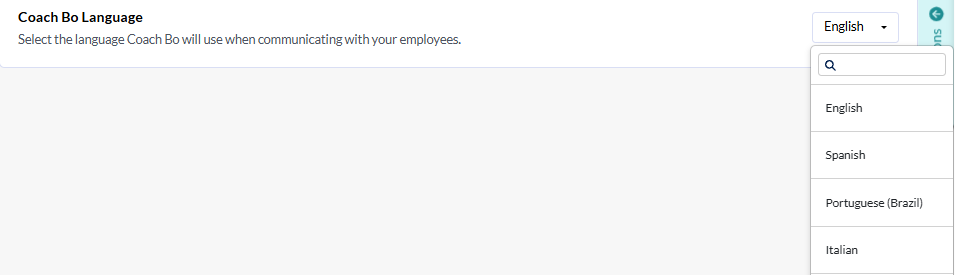
Coach Bo Language
Select the language Coach Bo will use when communicating with your employees. English is selected by default.
- Click the dropdown.
- Search or scroll to select the default language. This will be saved automatically.
Your employees can select their preferred language for their interactions with Coach Bo within User Settings.
File Sync
You can automatically sync employee data from your HRIS via secure file transfer. Changes are processed on a scheduled basis and applied to your Develop account.
Contact your Customer Success Manager to have your Develop account set up to integrate with your HRIS.
