Real Time Interviewing
 Updated
by
Amy Thomas
Updated
by
Amy Thomas
Real Time Interviewing (RTI) is a video conferencing layer built into Criteria's structured interviewing product. When enabled on a job stage, it gives your interviewers a live video and audio call with the candidate, a real-time interview guide, and an automated post-call summary with AI-generated insights.
Note: RTI is a separate feature from standard Live Interviewing. Standard Live Interviewing provides evaluator scorecards and guides for in-person or phone interviews. RTI adds a built-in video call, live transcription, call recording, and AI insights. Both run on the same interview template.
Enabling Real Time Interviewing
When Criteria have enabled Real Time Interviewing for your account, this will be toggled on in Company Preferences by default.
In the Structured Interview Preferences section, check that Real Time Interview is toggled on.
Interview Content Library and Interview Templates
No changes are required for the creation of questions and interview templates for Real Time Interviewing. These follow the same process as for Async Video Interviews and Standard Live Interviews.
Create a job
Creating a job that contains a Real Time Interview follows the same initial process as usual.
Once you have selected your interview template, you will be directed to the Configure Details screen. By default, the Real Time Interviewing option will be toggled on.
(If you wish to proceed with a Standard Live Interview, toggle this option off.)
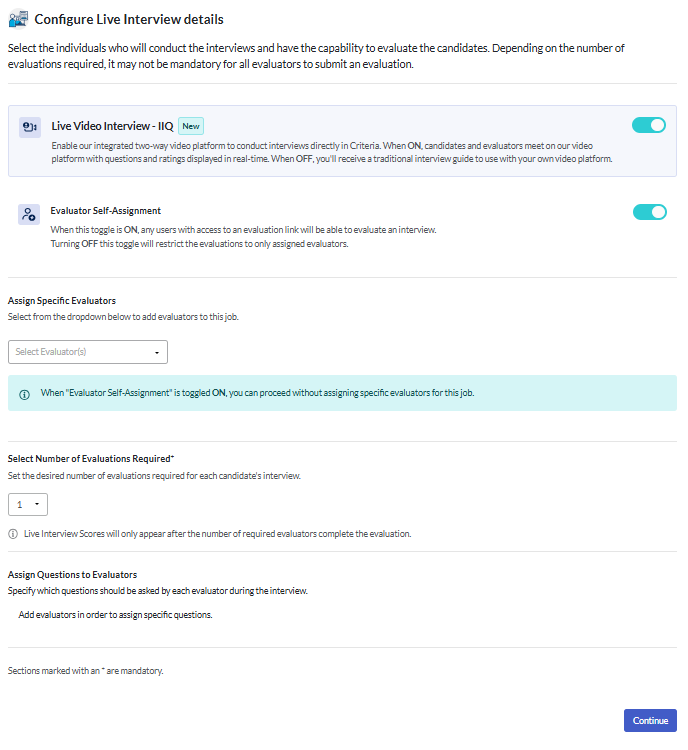
Toggle Self Assignment on, or select evaluators. Select the number of evaluations required. You may also chose to assign evaluators to specific questions.
Click Continue.
Invite candidates
Add candidates to your job by following these steps. You can copy or email the evaluation link for the interviewers now or wait until the interview has been scheduled.
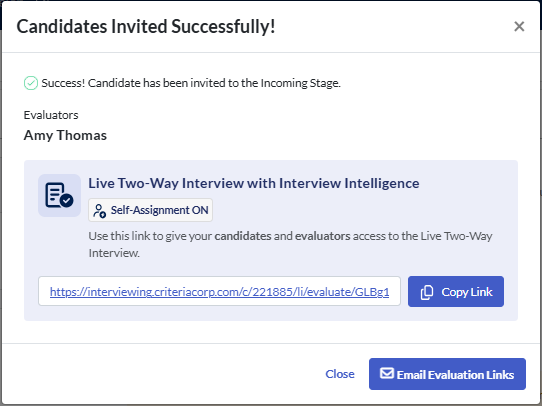
Scheduling the interviews with your candidates needs to be managed outside of the Criteria platform. However, you can send your candidates an email inviting them to book in their preferred interview time.
Once your candidate has scheduled the interview time, you can send them and the interviewers the interview link.
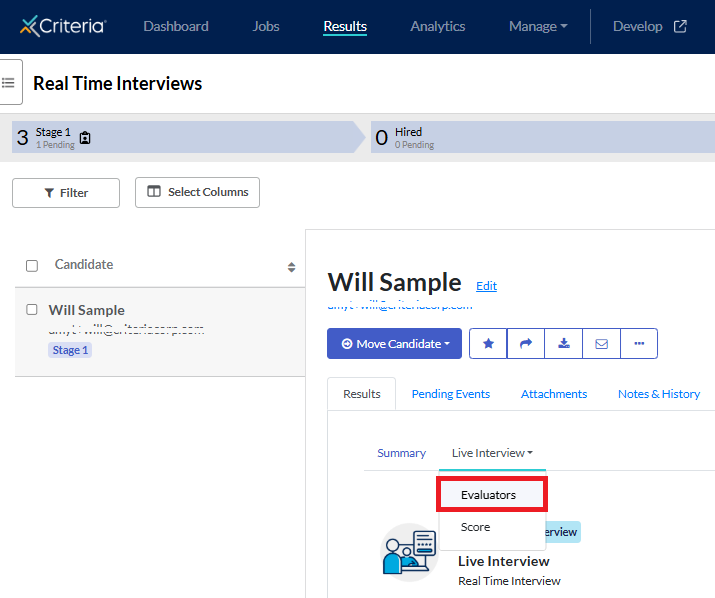
Open the candidate card and go to Live Interview in the Results tab. Select Evaluators from the dropdown.
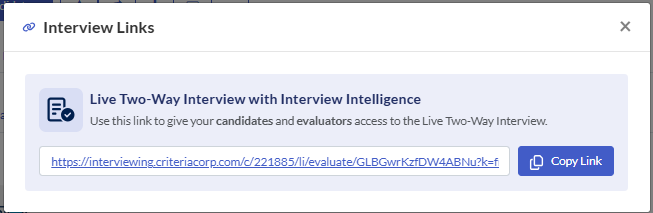
Click Interview Links.
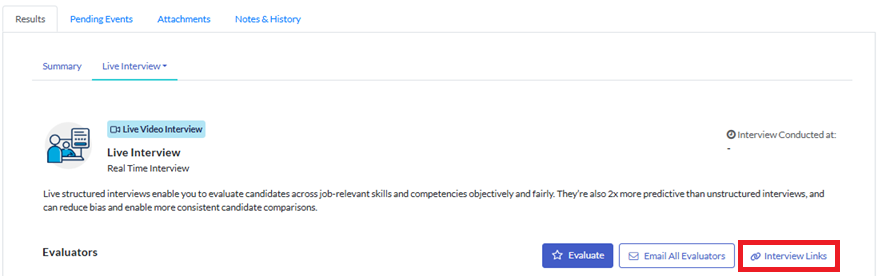
The same link needs to be shared with both the candidate and any interviewers.
Access the interview
Candidate
When the candidate clicks on the link, they will enter the email address listed in their candidate record in the Criteria platform, then click Proceed.
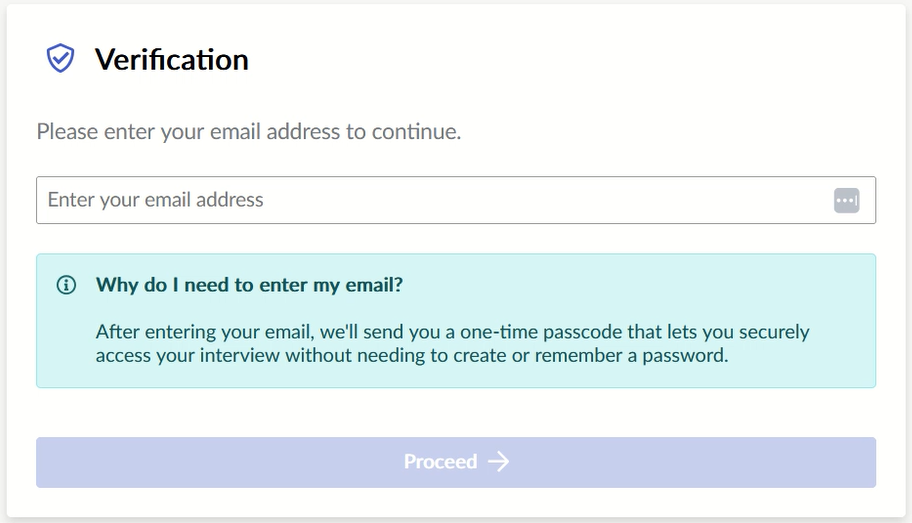
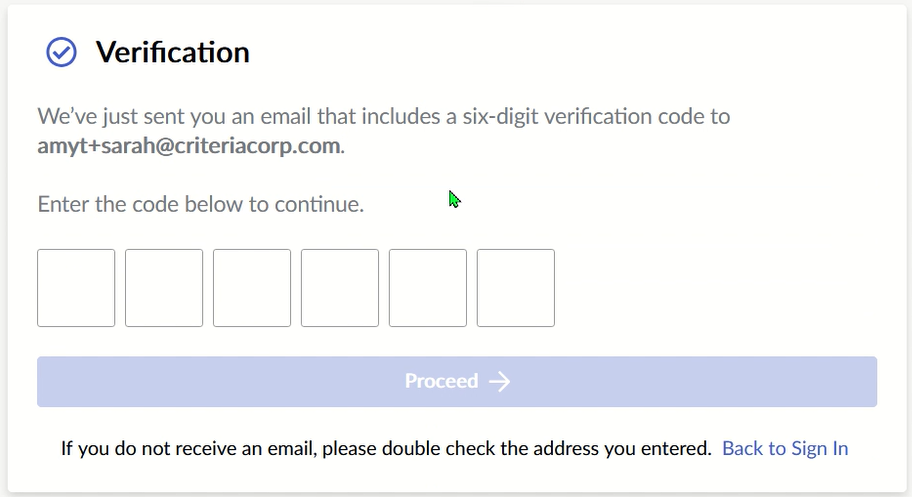
A 6 digit verification code will be emailed to them. They can type this in or copy and paste the code from the email. Then they will click Proceed.
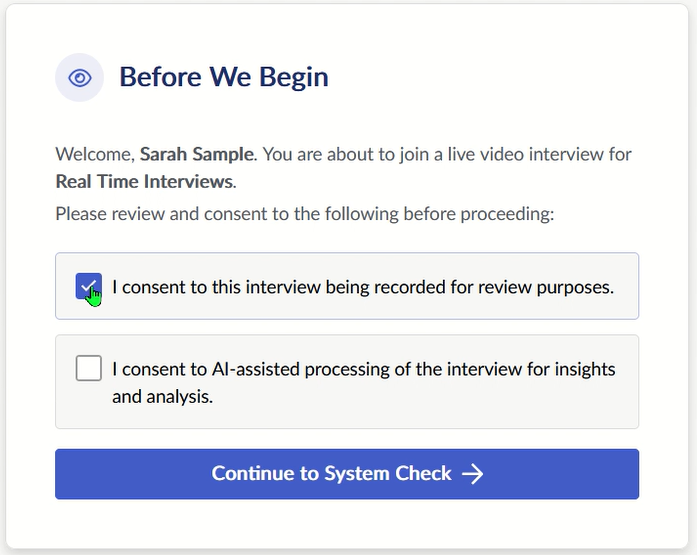
There are two items for the candidate to consent to. Both items are completely optional, and candidates can proceed with the interview even if they decline either or both.
- Consent to interview being recorded: If unticked, the interview will not be recorded. This means that no transcript will be generated; the AI Insights and Ask Anything features will not be available.
- Consent to AI-assisted interview processing: If unticked, the interview is recorded but no transcript is generated. The AI Insights and Ask Anything features will not be available.
We recommend focusing your evaluation solely on the candidate’s responses and job-relevant skills and behaviours.
The candidate clicks Continue to System Check.
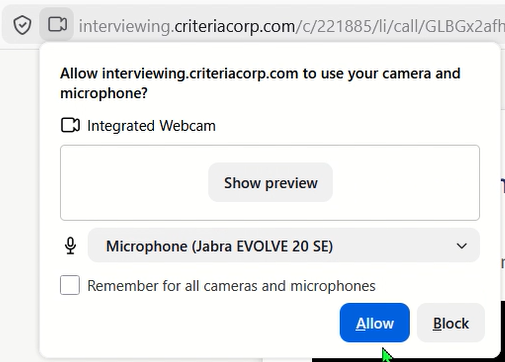
They may be prompted to allow their camera and microphone in their browser settings.
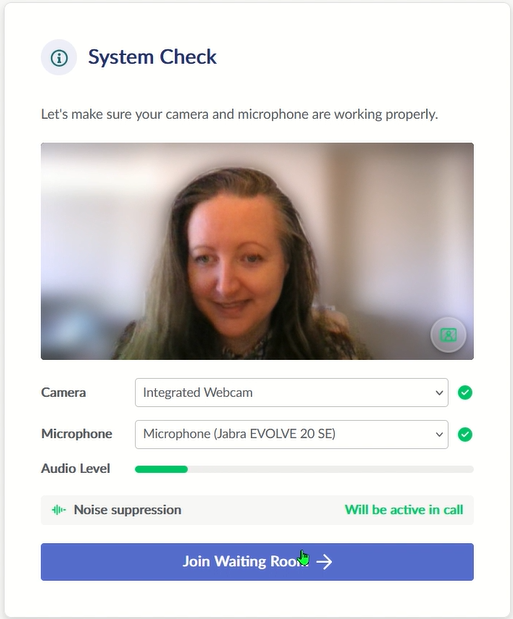
The platform will check their camera and microphone. The candidate can then click Join Waiting Room.
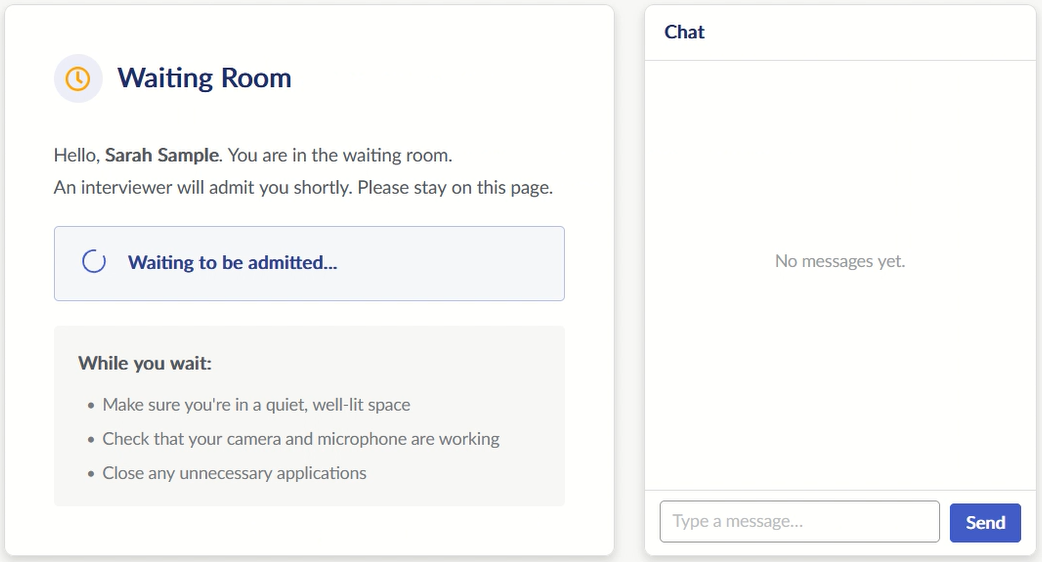
The candidate will only join the call once an interviewer admits them.
Interviewers
Interviewers will go through the same verification process that the candidate does (see above). If the interviewer is self-assigning, they will also be prompted to provide their name.
Click Join Interview.
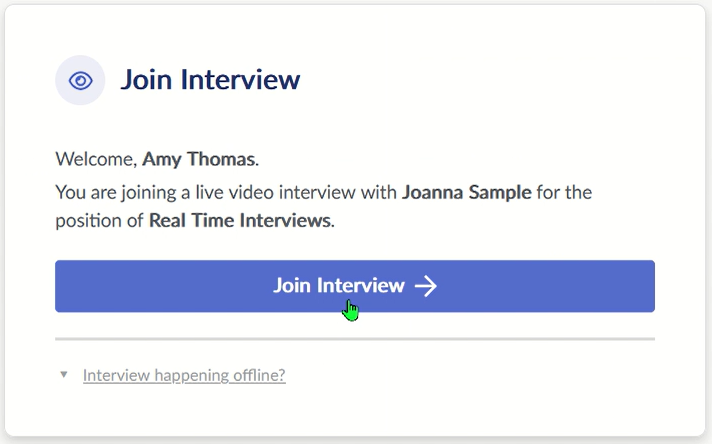
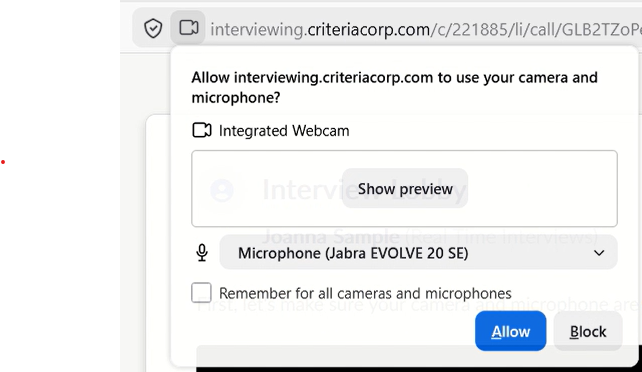
You may be prompted to allow your camera and microphone in your browser settings.
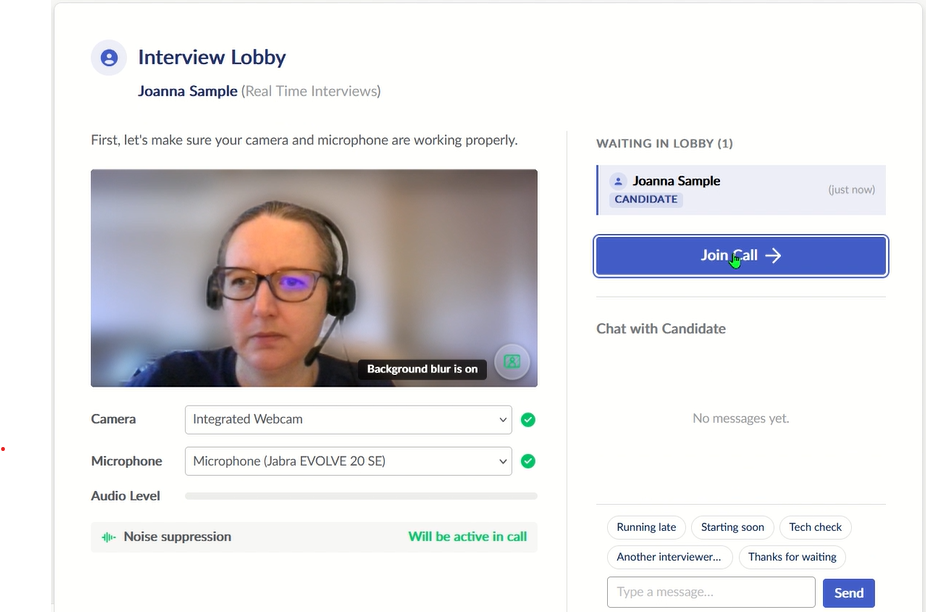
Click Join Call. All interviewers will immediately be connected. The candidate will not be aware that you are in the interview, or how many people have joined. They will not be able to join until you allow them in.
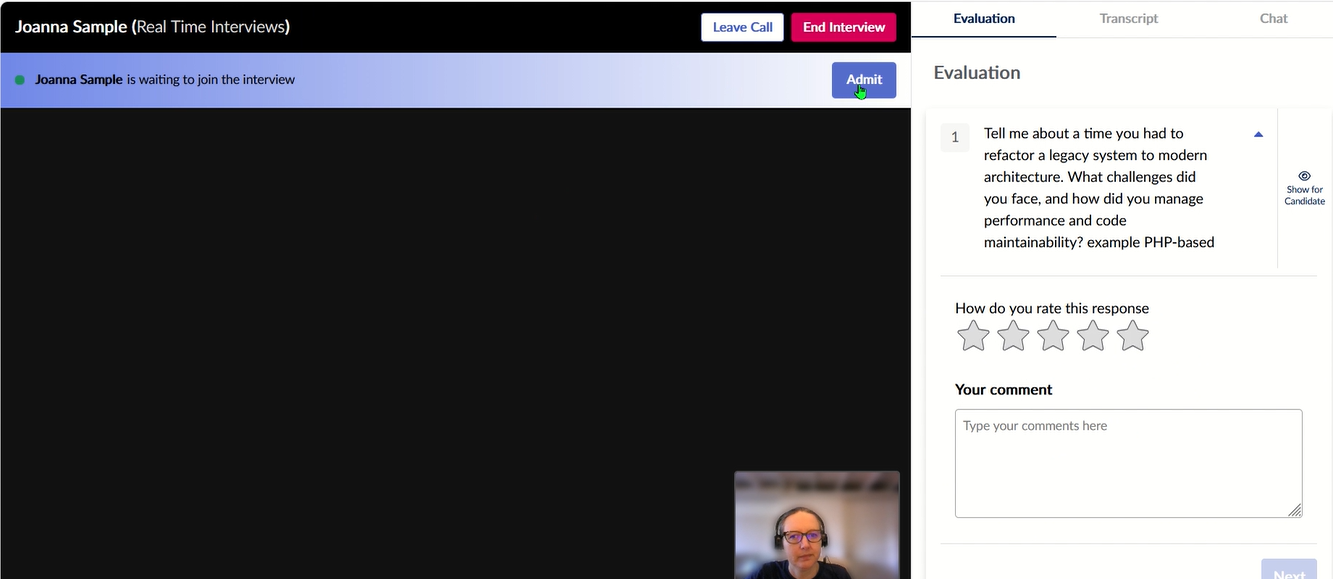
When you are ready, click Admit to allow the candidate to join the interview.
During the interview
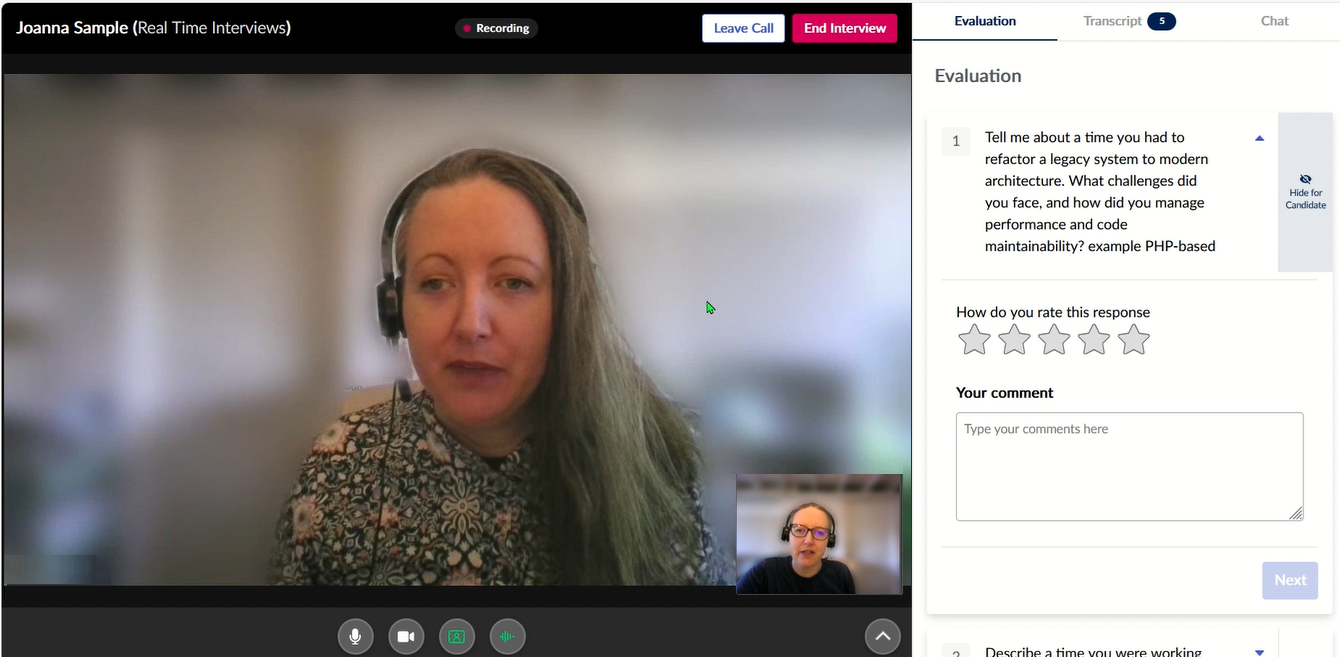
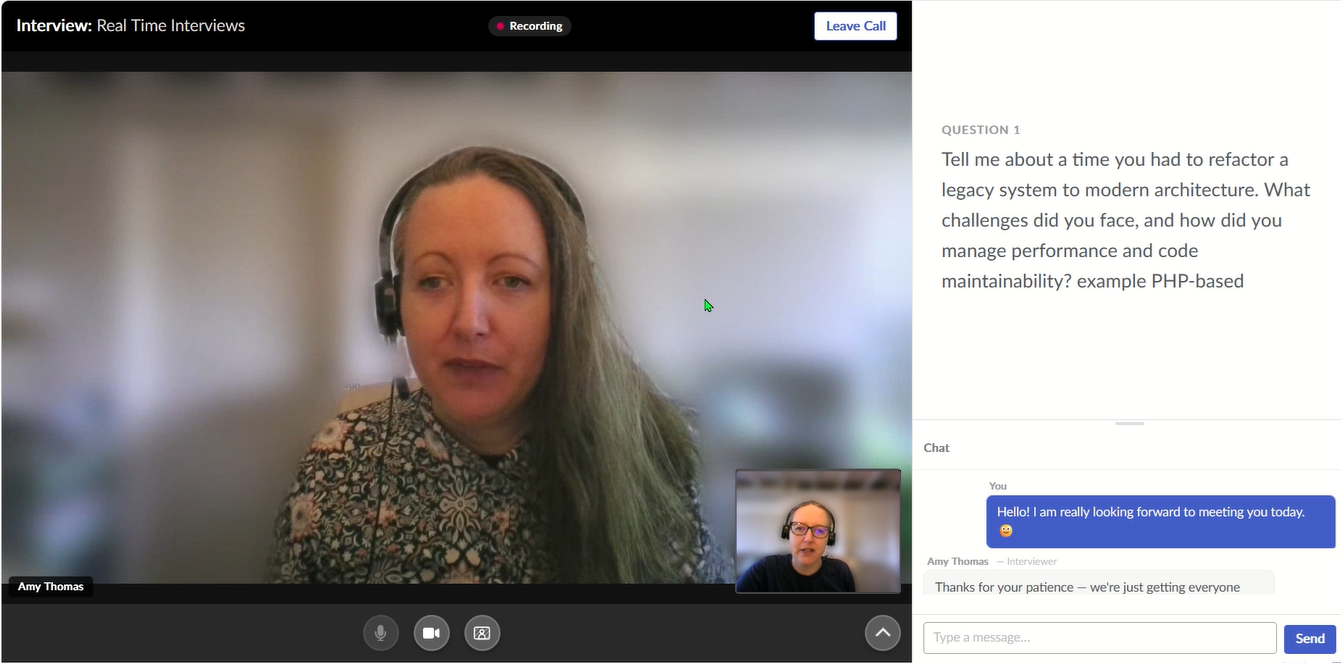
The candidate's name and the job appear at the top of the screen. Below this you will see the candidate and any other interviewers on screen. The buttons at the bottom enable you to control your microphone and camera.
There are three tabs on the right side:
- Evaluation: The questions set in the interview template are displayed.
- Click Show for Candidate to allow the candidate to view the question also. This must be clicked for each question in turn; only 1 question will be displayed for the candidate at a time.
- Rate the candidate's response and add any comments.
- Click Next to move to the next question.
- Transcript: a transcript of the conversation will appear in real time, unless the candidate has not given consent to the use of the AI features.
- Chat: the candidate and interviewers can send texts during the interview. Do not use this to discuss the candidate with other interviewers, as the candidate will see any messages added here.
For the candidate, the job they have applied for appears at the top of the screen, with some camera and microphone controls at the bottom. Between these, they will see themselves and the interviewers on the screen.
On the right, they will see the question being asked (if you are sharing this with them). The Chat conversation appears beneath this.
Conducting the interview
We recommend sharing the question with the candidate when you ask it, so they can refer back to it if they need to.
As the candidate responds to each question, type in some notes and add a rating. You can return to the interview at a later time to add more details if you do not submit your evaluation straight away.
End the interview
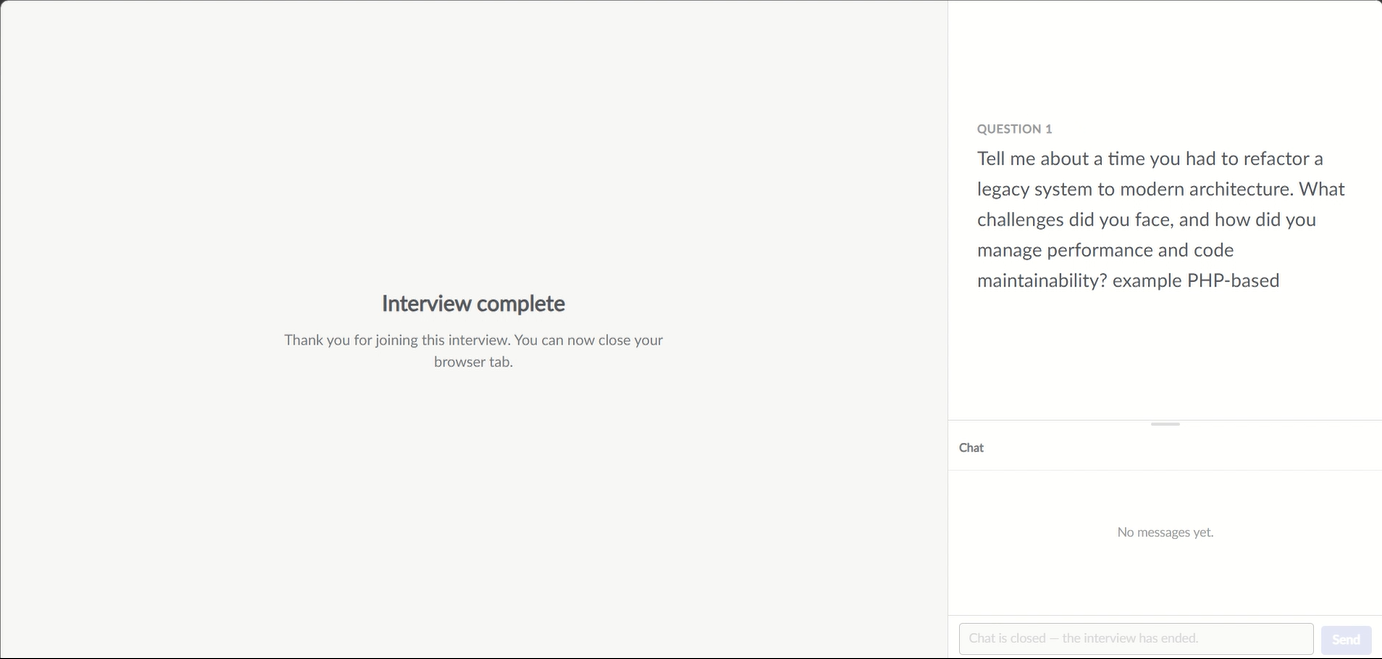
At the conclusion of the interview, advise the candidate to click the Leave Call button at the top of the screen.

They can then close the browser. Until one of the interviewers ends the interview, the candidate will be able to return via the original link you sent them, and send a message in the Chat.
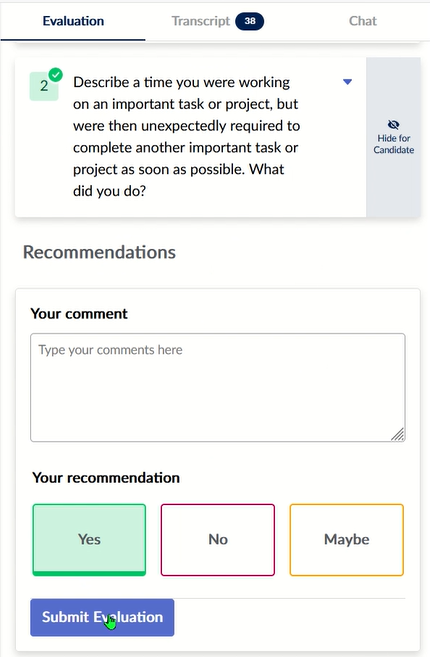
If you did not add ratings and comments during the interview, we recommend adding these as soon after the interview as possible, while the interview is fresh in your mind. Select Yes, No or Maybe for your recommendation.
Click Submit Evaluation. This will finalize your evaluation; you will not be able to return to it later to make changes.
Once all the interviewers are satisfied that they no longer need anything in the interview screen, click End Interview. Only one interviewer needs to do this; any other interviewers can simply click Leave Call.

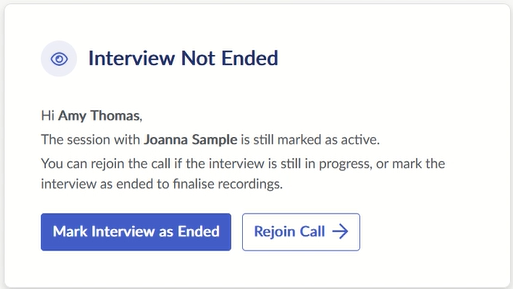
If all the interviewers click Leave Call, the last interviewer to leave will see an Interview Not Ended message. Click Mark Interview as Ended to end the interview.
Post-interview evaluations
If an interviewer was unable to attend the interview in real time, they can still evaluate the candidate's responses after the interview has been Ended. Note: the candidate will need to have provided their consent to the recording.
In your Criteria account, open the candidate card. Go to the Results tab and select Live Interview, then Evaluators.
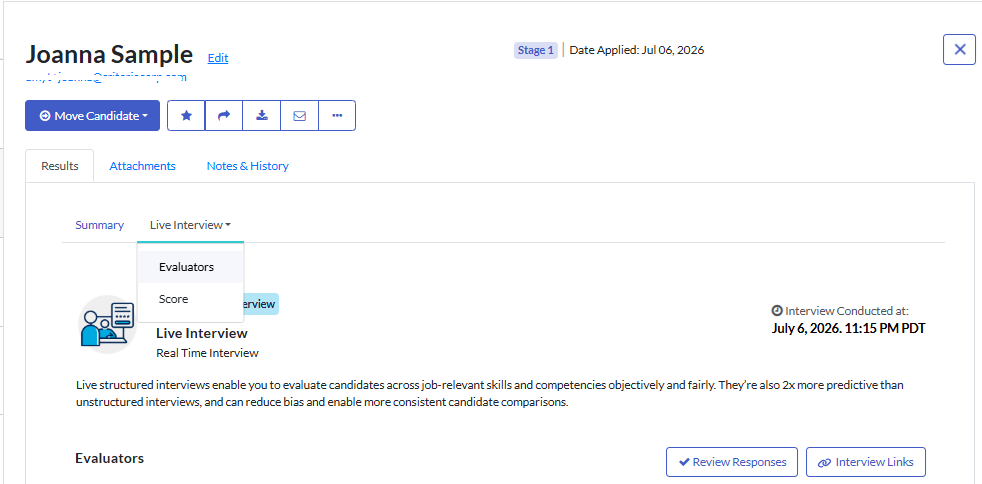
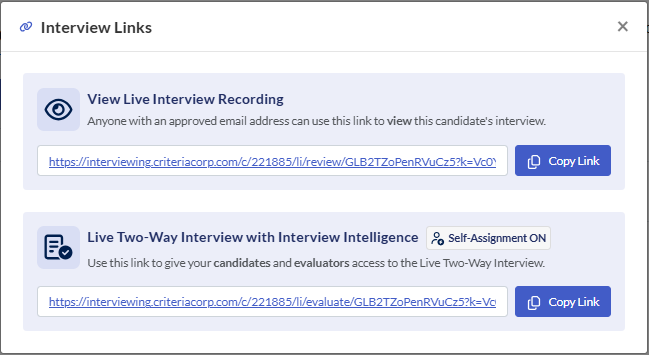
Click Interview Links.
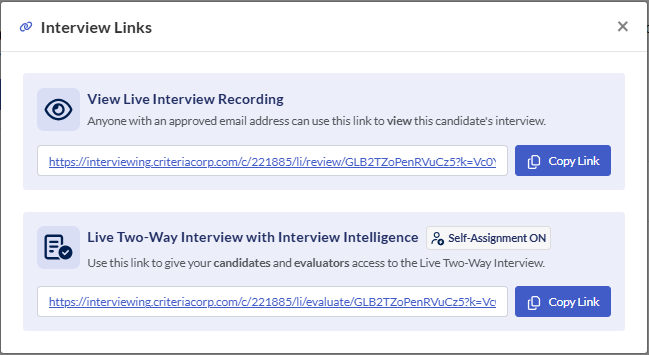
Click Copy Link under Live Two-Way Interview with Interview Intelligence. This can be given to any assigned evaluators and guest evaluators (anyone with an approved email domain, if using Self Assignment).
The evaluator will need to follow the prompts to verify their identity, then they will be directed to the evaluation screen.
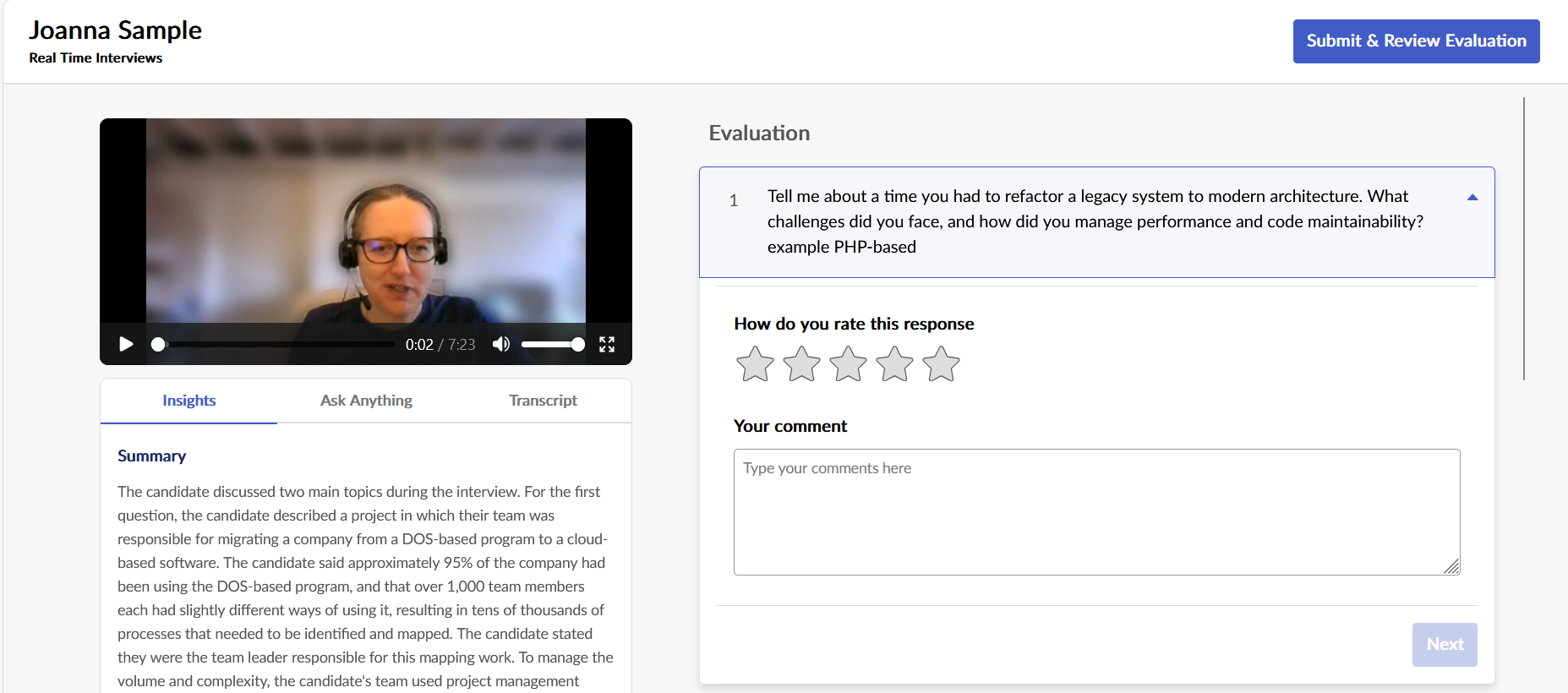
If the candidate consented to the AI-features being used, the evaluator will see three tabs beneath the recording of the interview. Note: these will not be available if the candidate did not consent to the use of the AI features.
- Insights: Criteria's AI analyzes the transcript and provides a Summary of the conversation, as well as highlighting the Key Moments.
- Ask Anything: Criteria's AI can provide a quick summary about topics that are important to the evaluator about the candidate. The responses are generated from the interview transcript, are strictly factual, and do not provide evaluative commentary that could bias their decision making.
- Transcript: a direct transcription of what was said during the recording.
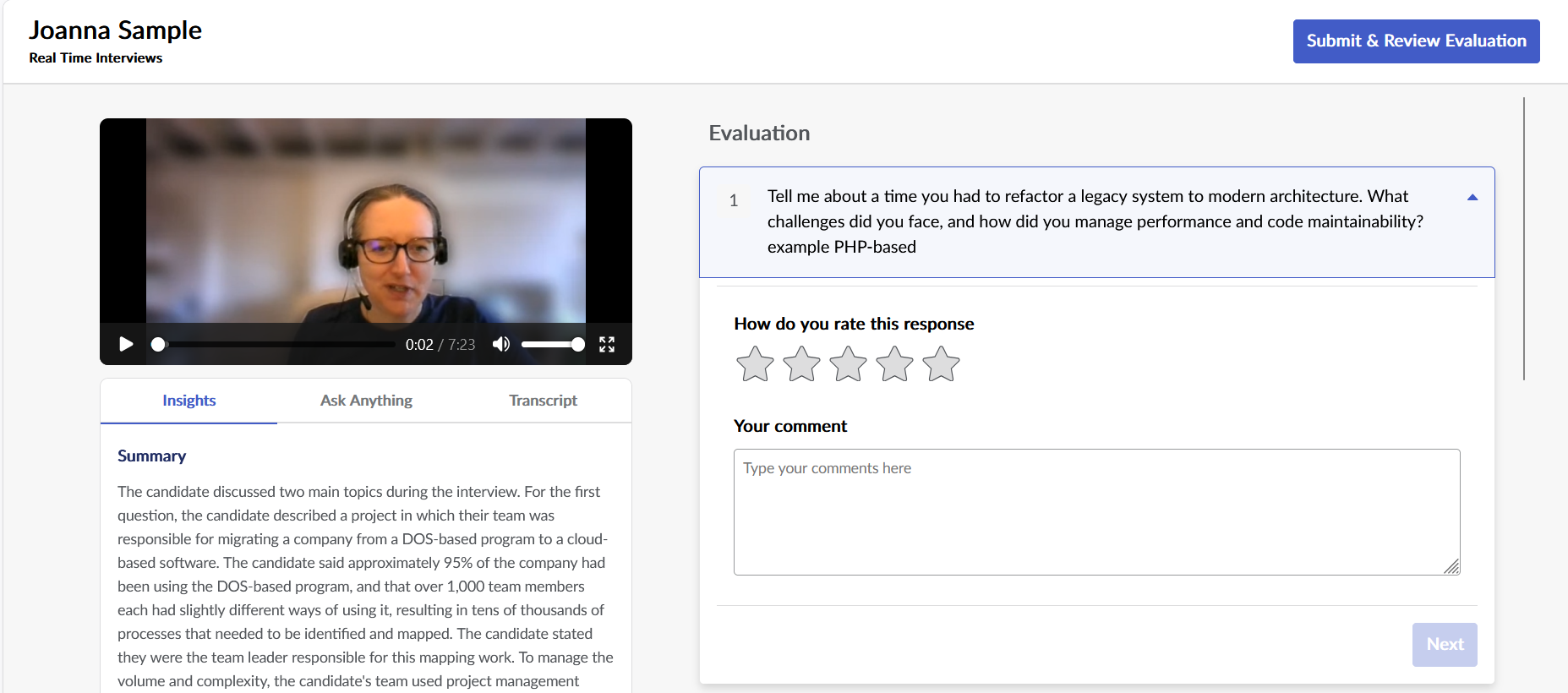
As the evaluator watches the recording, they can add their rating for each question and any comments. Once they are satisfied with their evaluation, they will click Submit & Review Evaluation.
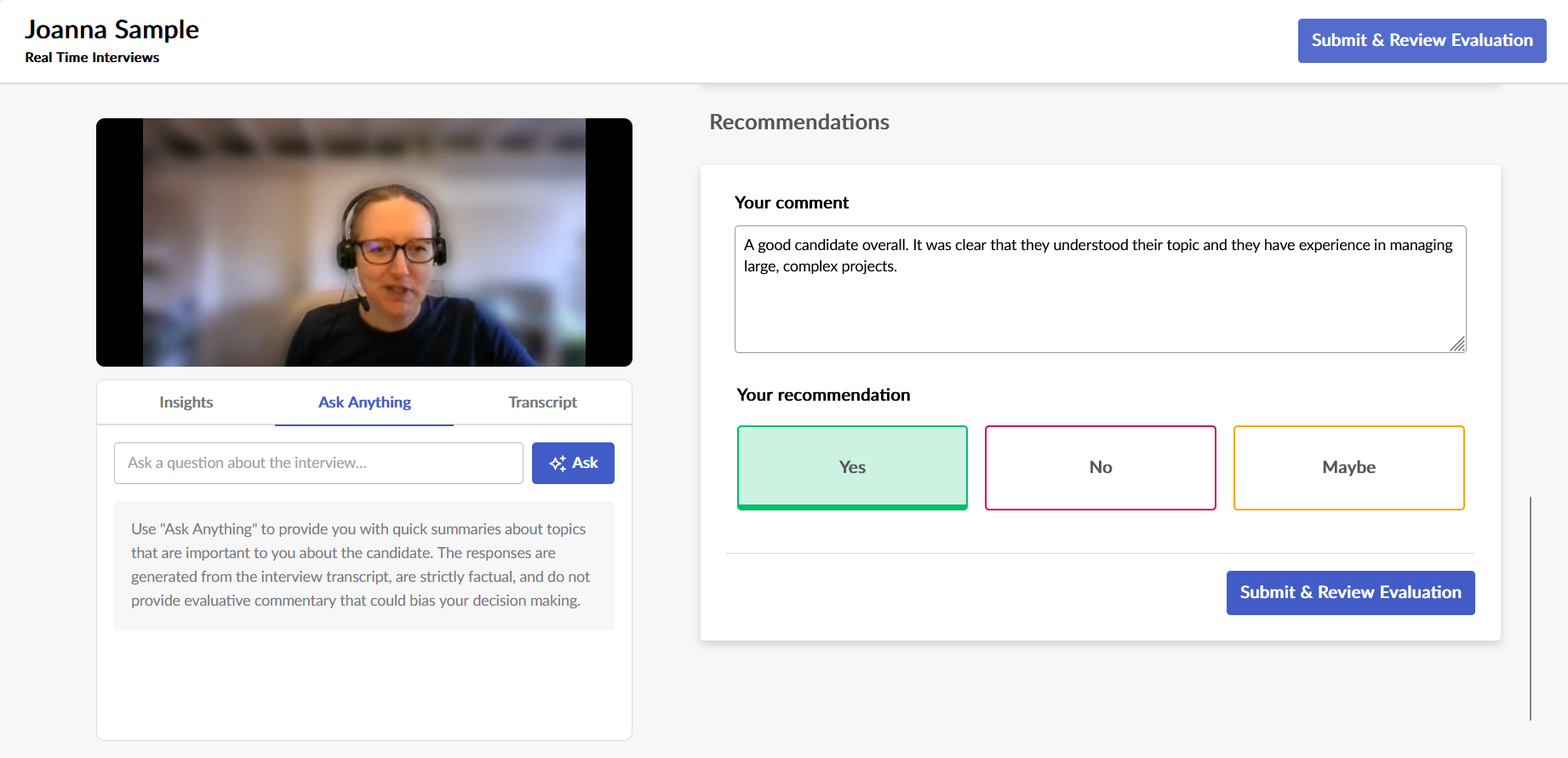
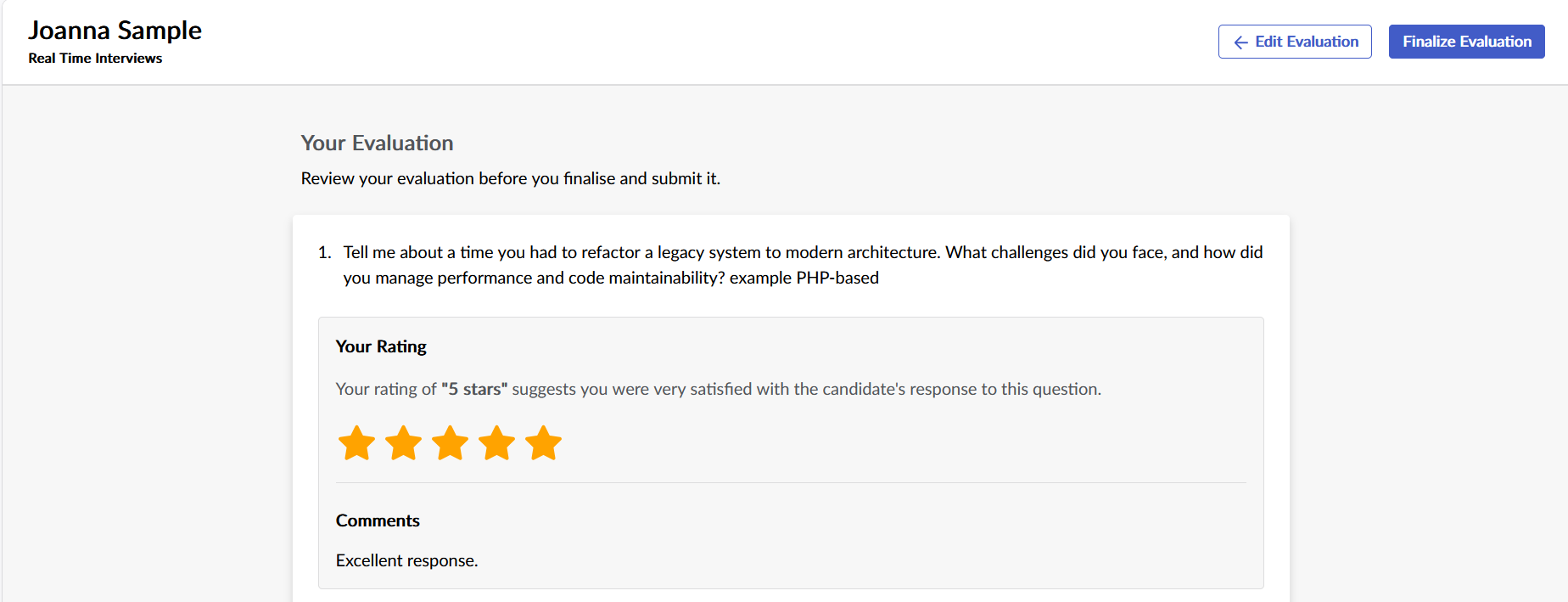
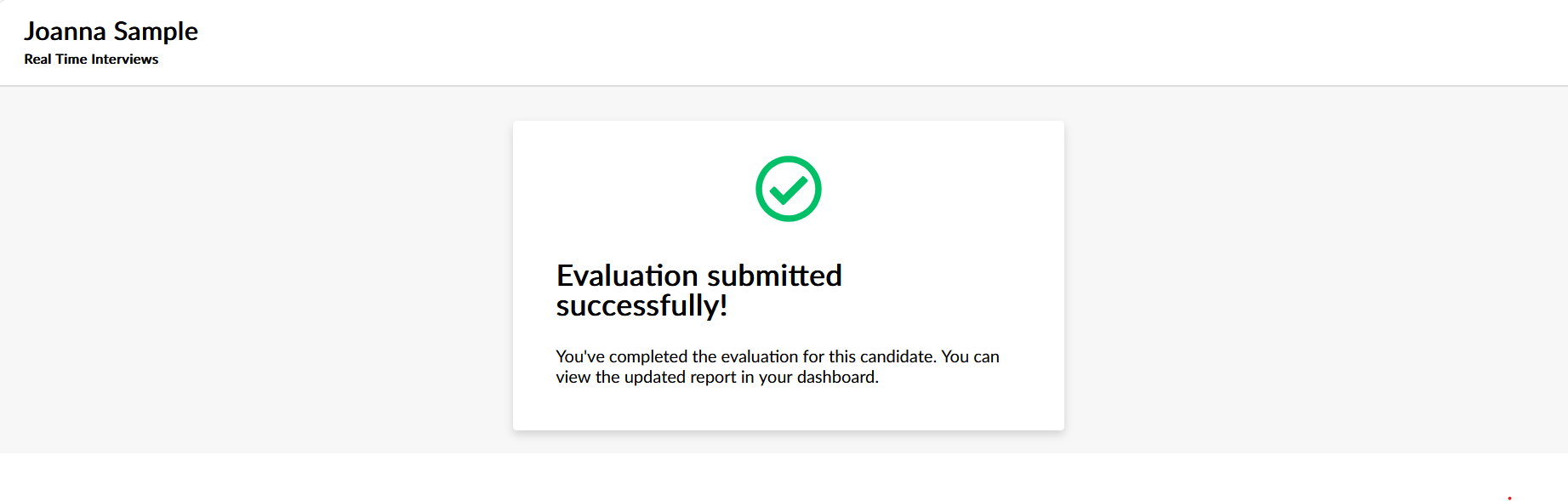
If they wish to return later to review their evaluation, they can close the window and click on the link again later to continue. If they are ready to submit their evaluation, they will click Finalize Evaluation. Once they click Finalize Evaluation they will not be able to return later to make any changes to their ratings, comments or overall recommendation.
Results
View Responses
If want to view the interview later, or share it with others, this can be done in the candidate card. (Note: the candidate will need to have provided their consent to the recording and use of AI features.)
Go to the job and open the candidate card. Go to the Results tab and select Live Interview, then Evaluators.
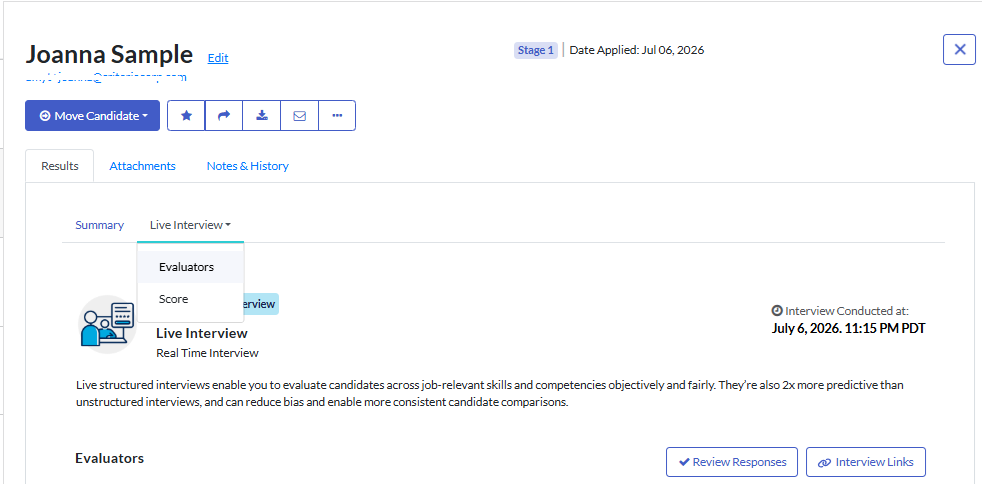
There are two ways to access the View Responses screen.:
- Click Review Responses to open this in a new tab.
- If you are sharing the recording with someone else, click Interview Links. Click Copy Link under View Live Interview Recording. Anyone with access to an email with an approved domain will be able to view the recording and AI features. They will not be able to submit an evaluation from this link.
The View Responses screen:
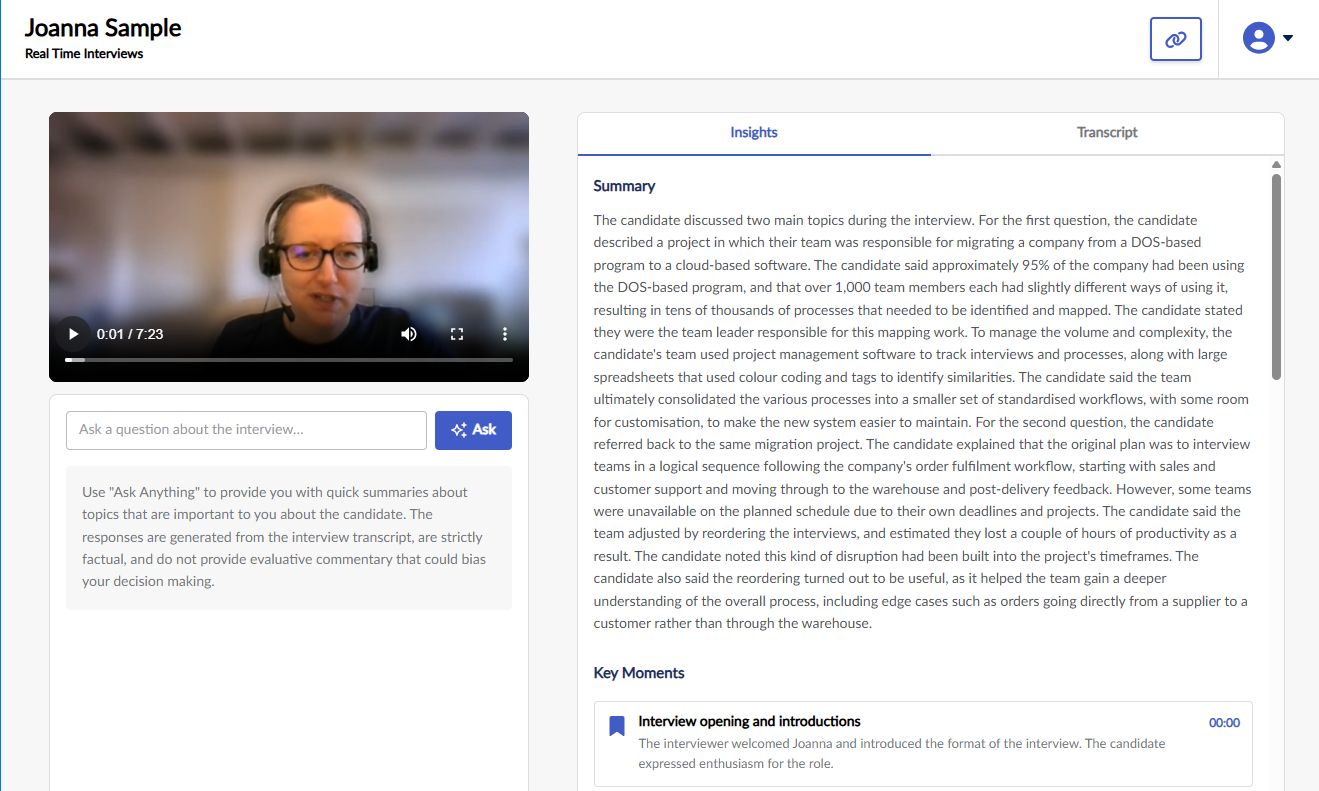
- Interview recording: The recording is displayed in the upper left of the screen.
- Ask Anything: ask Criteria's AI to provide you with a quick summary about topics that are important to you about the candidate. The responses are generated from the interview transcript, are strictly factual, and do not provide evaluative commentary that could bias your decision making.
- Insights: Criteria's AI analyzes the transcript and provides a Summary of the conversation, as well as highlighting the Key Moments.
- Transcript: a direct transcription of what was said during the recording.
Score Reports
In the candidate card, to to the Results tab and click Live Interview. Click Scores.
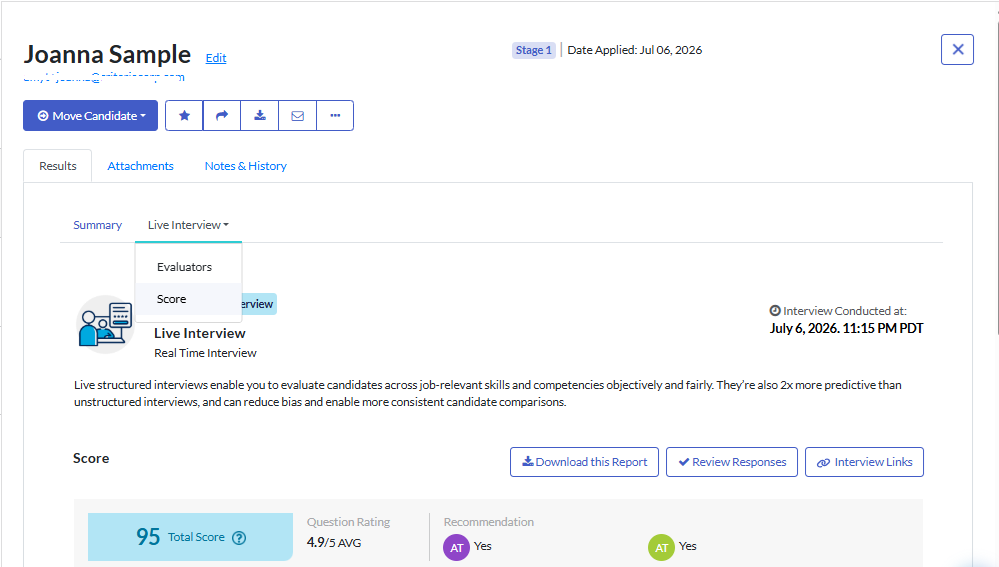
The Score Report is displayed on the screen and can be downloaded by clicking Download this Report. The results can also be included in the spreadsheet reports.
