Job Data Report
 Updated
by
Amy Thomas
Updated
by
Amy Thomas
The Job Data Report is a downloadable spreadsheet that includes each candidate’s details, assessment results, and structured interview results for a specific job.
You can generate the report in two ways:
- The Run Reports section under Manage.
- The Results screen within the job.
The Job Data Report report is run immediately and the report emailed to you once it has finished generating. The estimated delivery time of your report is based on the complexity and volume of data requested. This report cannot be scheduled.
Want to choose the fields that are included in the report? Our Report Builder enables you to select the data that's important to you.
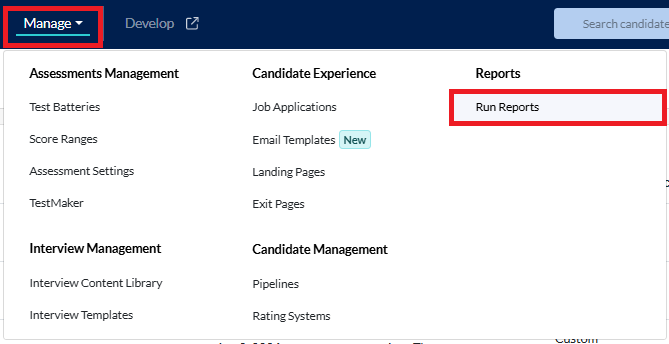
Manage > Run Reports
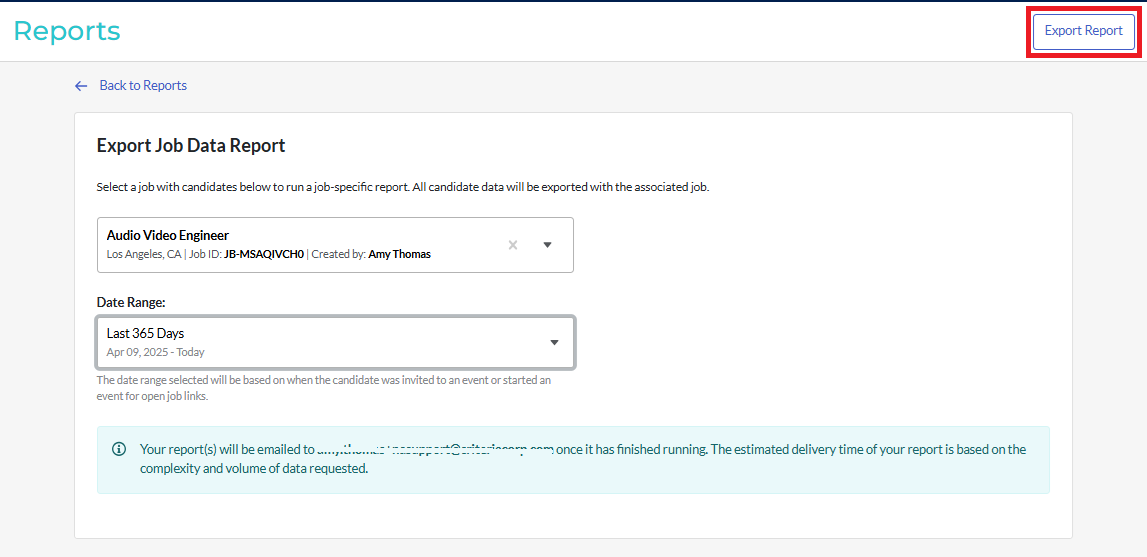
- To generate this report, go to Manage in the top menu and select Run Reports from the dropdown list.
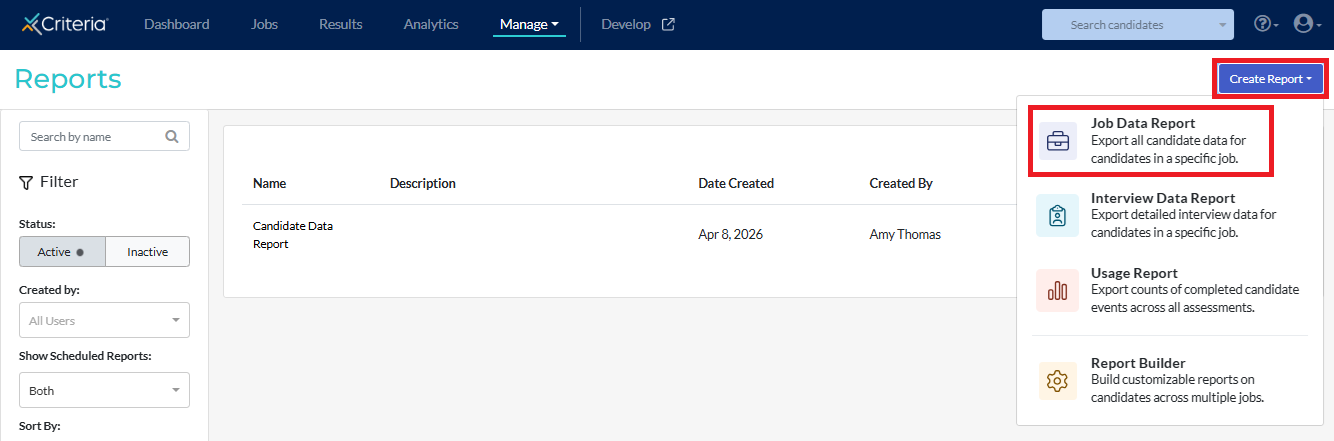
- Click Create Report in the top right corner, then select Job Data Report from the list.
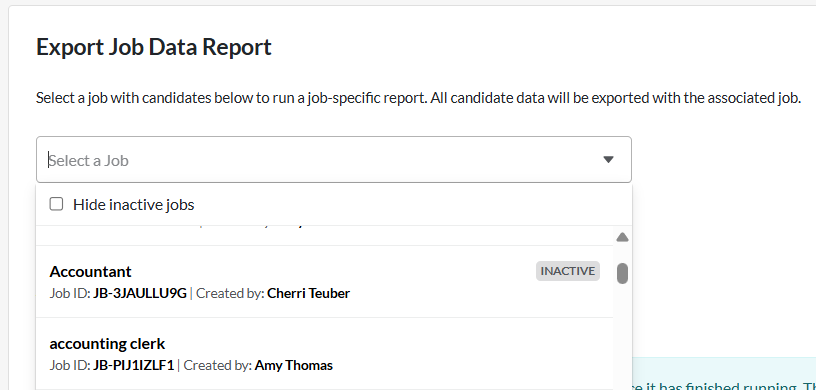
- Choose the job you want to run the report for from the dropdown list. To make searching your active jobs easier, tick Hide inactive jobs.
You can only run this report for jobs that you have access to. If you are not an admin user, only jobs that have been shared with you will appear in this list.
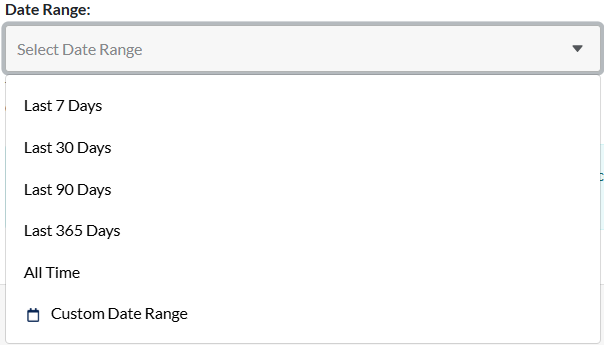
- Set the date range for the report. The options are: Last 7 Days, Last 30 Days, Last 90 Days, Last 365 Days, All Time, or select Custom Date Range and enter the From and To dates.
- Click Export Data. Once the report has been generated, it will be emailed to your registered email address.
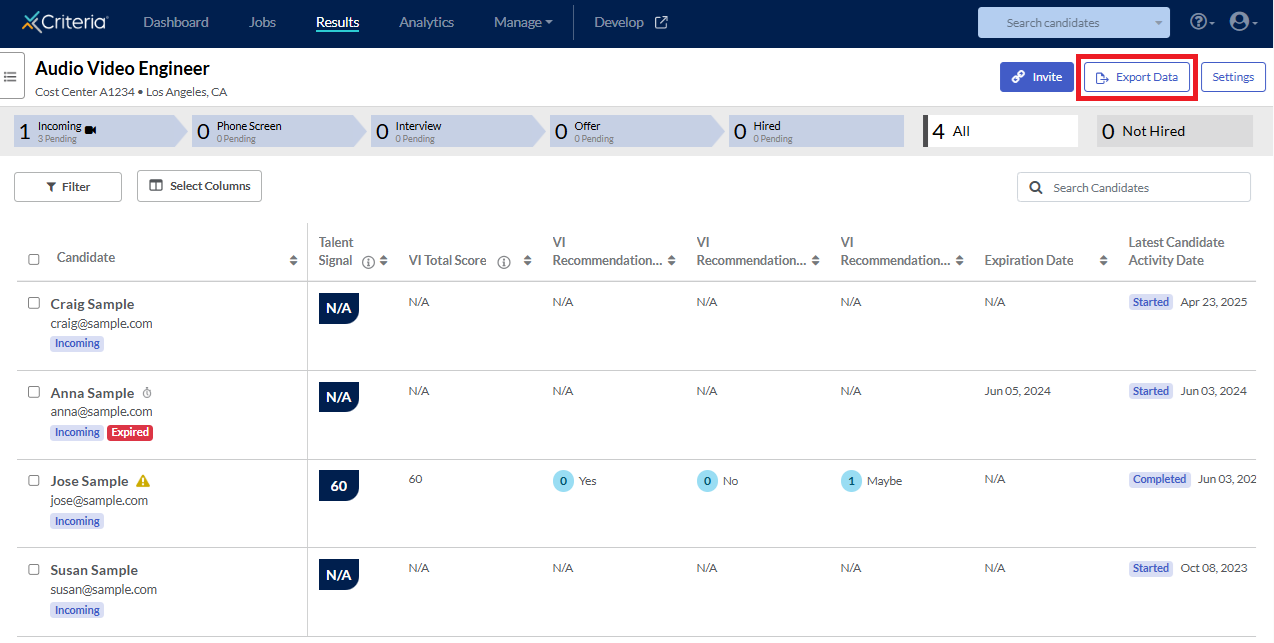
Results page
- By default, when you click on the job title in the Jobs list, you will be directed to the Results page. Click Export Data.
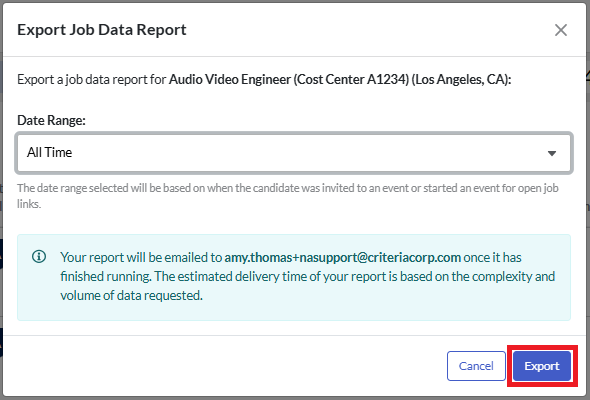
- Set the date range for the report. The options are: Last 7 Days, Last 30 Days, Last 90 Days, Last 365 Days, All Time, or select Custom Date Range and enter the From and To dates.
- Click Export. Once the report has been generated, it will be emailed to your registered email address.
Report email
- An email will be sent from Do-Not-Reply@criteriacorp.com with the subject Criteria Job Data Report is ready.
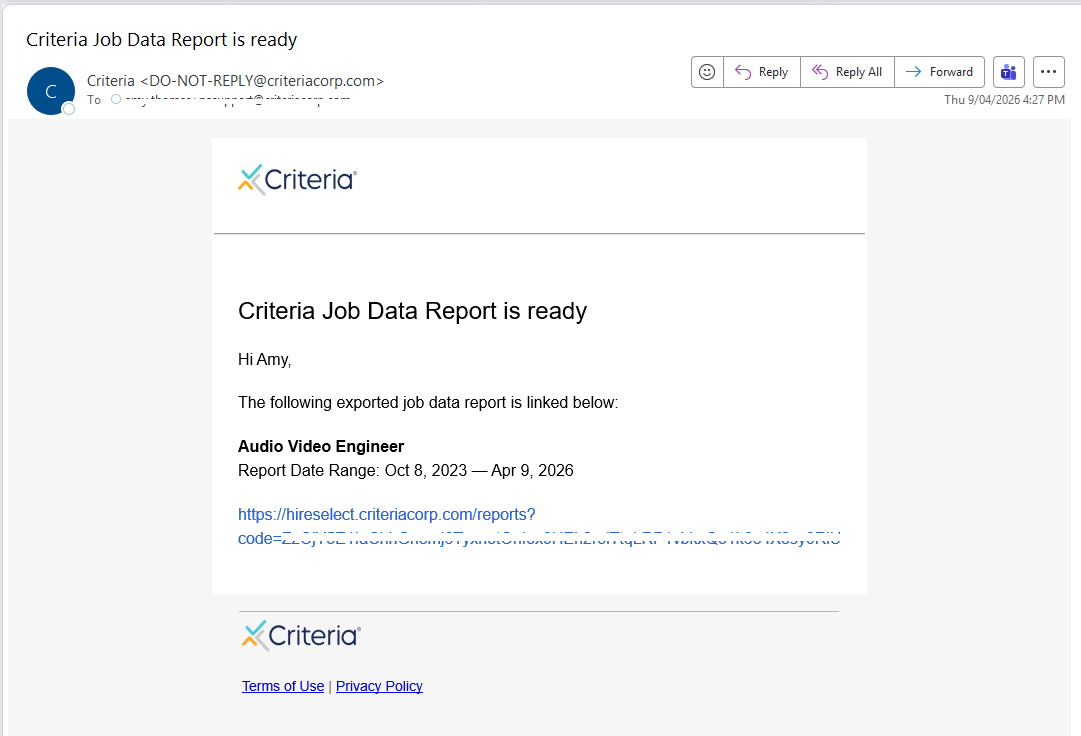
- Click on the link in the email to open the download page.
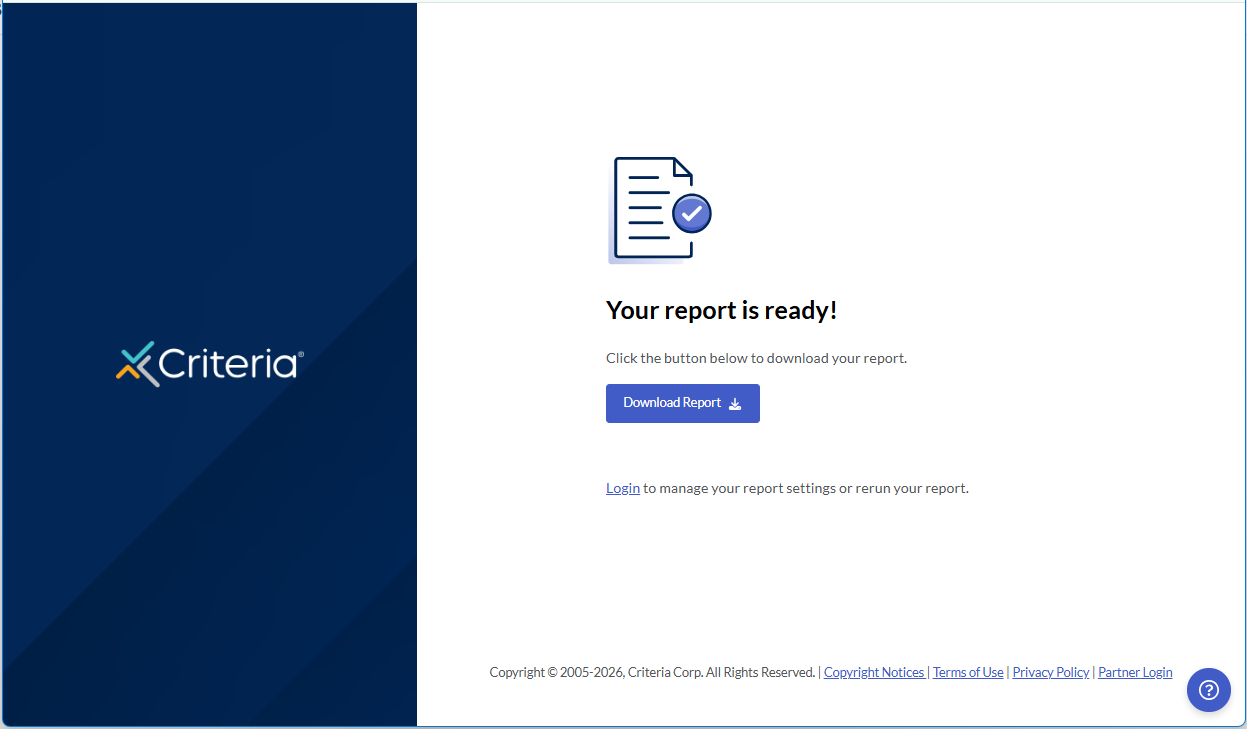
- Click Download Report. A .csv file containing the requested data will be downloaded to your device.