Jobs Page
 Updated
by
Amy Thomas
Updated
by
Amy Thomas
The Jobs page is your command center for organizing, tracking, and optimizing all of your recruitment campaigns within Criteria. Whether you're launching a new position, monitoring active job postings, or fine-tuning your hiring workflow, understanding how to navigate and leverage the Jobs page features will help you work more efficiently.
This guide walks you through the interface, from searching and filtering your jobs to using bulk actions and customizing notification preferences, so you can spend less time managing logistics and more time finding the right candidates.
Access the Jobs page
Click Jobs in the top menu.

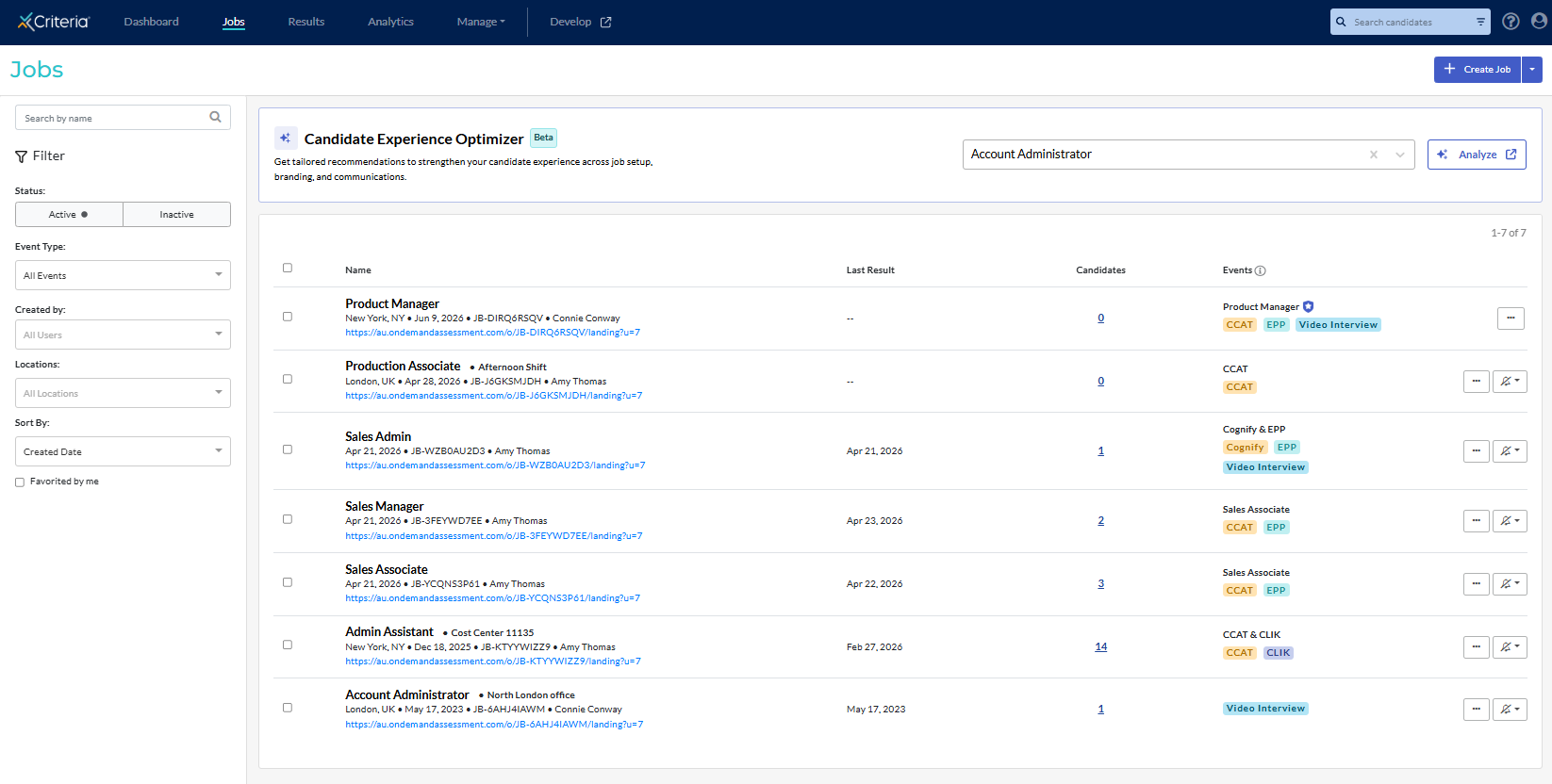
This shows you a list of jobs in your account. By default it shows whatever jobs meet the filter parameters you had previously selected. If no filters have been selected, you will see a list of all the active jobs you have access to.
- Admin users can view all jobs in your account, regardless of who created them.
- Other users will only have access to the jobs that either you created or were shared with you.
Create Job
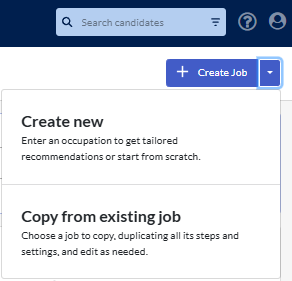
To create a new job click Create Job in the top right. To copy an existing job, click the arrow next to Create Job and select Copy from existing job from the dropdown menu.
Search and Filters
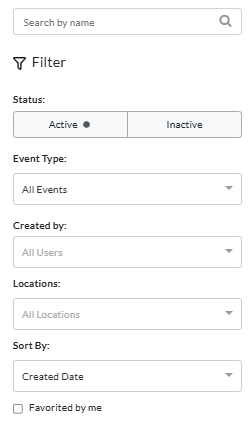
The search field and filters on the left allow you to easily locate the jobs you are currently recruiting for or need to complete tasks for.
Search
Type the Job Title (or part of the title, if you are not certain of the exact Job Title) into the search field. A list of all jobs that contains that sequence of characters in the Job Title will be returned.
Active / Inactive
Select to show only Active jobs or only Inactive jobs. The key difference between active and inactive jobs is that candidates can only be added to an active job.
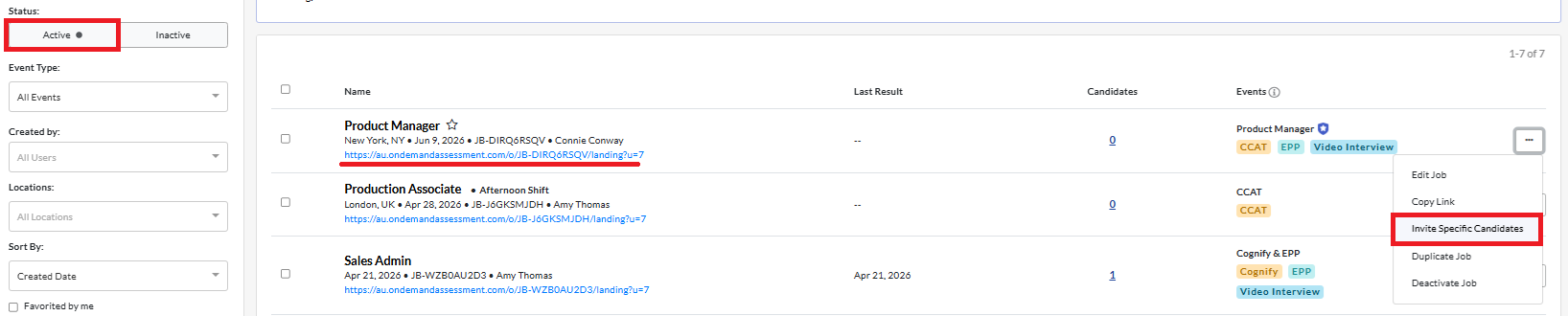
The open links are hidden for jobs in the inactive jobs list and the option to Invite Specific Candidates is not available.

✳️ Click ... to the right of the job and select Deactivate Job. The job is moved to the Inactive jobs list and no candidates can be added to it.
✳️ To reactivate a job in your inactive jobs list, click ... and select Reactivate Job. The job is moved to the active jobs list so candidates can be invited for assessments / access the open link.
Event Type
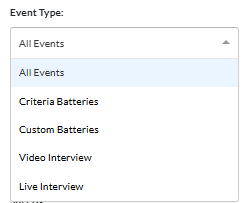
The Event Type filter lets you display only jobs that include specific types of evaluation tasks.
- All Events: all jobs are shown, regardless of the type of evaluation task/s associated with the job.
- Criteria Batteries: only shows jobs that include a Criteria Recommended Test Battery. This type of test battery is also indicated by a shield icon in the Events column.
- Custom Batteries: only shows jobs that include a custom test battery created for your account.
- Video Interview: only shows jobs that include a video interview.
- Live Interview: only shows jobs that include a live interview.
Created by
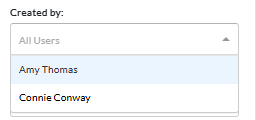
Select a user to display only the jobs created by that person. For example, to only view only jobs you created, choose your name from the list.
Location
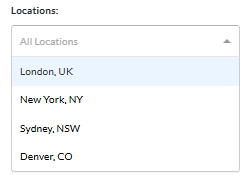
If you set locations for your jobs, you can use these to filter your jobs. Select a location from the dropdown to only view jobs associated with that location.
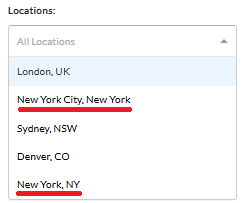
Note that the same location format needs to be used for each job, otherwise there will be multiple options for the same location.
Sort By
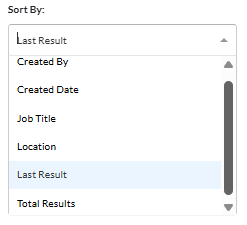
The Sort By option does not hide any jobs but reorganizes the jobs list based on the parameter selected.
Created By: sorts the jobs list by the user who created them, in alphabetical order.
Created Date: displays the jobs in order of when they were created, with the most recent jobs at the top.
Job Title: shows the list of jobs by Job Title, in alphabetical order.
Location: lists the jobs by Location, in alphabetical order. Jobs with no Location set are at the bottom of the list.
Last Result: orders the jobs list by most recent candidate activity (that is, the date the most recent candidate submitted their testing/interview).
Total Results: organizes the jobs list by the number of candidates in the job, with the largest volume jobs at the top.
Favorited by me
If the other filters do not enable to you to focus only on the jobs you need, you can make certain jobs your favorites to filter the jobs list by these.
Hover over the job title. The outline of a star will appear. Click on this to add the job to your favorites.
The star will turn yellow and become permanently visible to you. Other users will not see which jobs you have favorited.
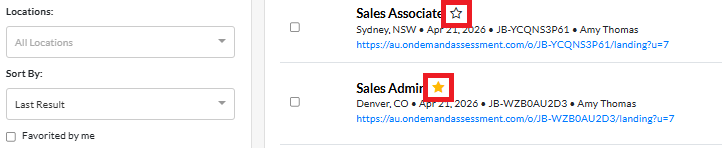
Tick Favorited by me to view only jobs you have added to your favorites.
Click the star again to remove it from your favorites list.
Candidate Experience Optimizer
The Candidate Experience Optimizer helps you enhance your candidates' journey throughout the recruitment process by automatically analyzing your job configuration and surfacing job-specific recommendations to improve every candidate interaction across the hiring process.
Bulk Actions
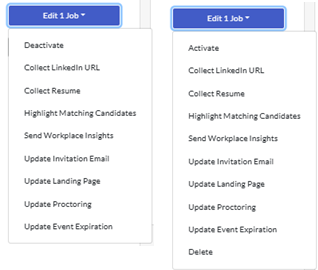
When you tick the box to the left of at least one job, the Bulk Actions button appears beneath the filter options on the left. The Bulk Actions options will depend on whether you are in the active jobs list or the inactive jobs list.
Menu Option | Action | Jobs list |
Deactivate | Moves the selected jobs to the Inactive jobs list. | Active |
Activate | Moves the selected jobs to the Active jobs list. | Inactive |
Collect LinkedIn URL | Requires candidates in the selected jobs to provide the URL for their LinkedIn Profile. | Active Inactive |
Collect Resume | Requires the candidates in the selected jobs to upload a resume document. | Active Inactive |
Highlight Matching Candidates | Tests that match the associated score range will display a green check mark and candidates for whom all tests taken match the associated score ranges, a Score Ranges Met icon will display. | Active Inactive |
Send Workplace Insights | An email containing the Workplace Insights Report (WIR) will be sent to candidates automatically upon completion of any event where the WIR is available. Note that this only applies to candidates who complete testing after this option is enabled. Candidates who completed testing prior to this will need to be sent the WIR individually. | Active Inactive |
Update Invitation Email | Update the invitation email for the first stage of the selected jobs. This is the email candidates will receive when invited to complete an event. | Active Inactive |
Update Landing Page | Update the landing page your candidates will see when they click on the open link or their invitation link for the selected jobs. | Active Inactive |
Update Proctoring | Add Proctoring to the selected jobs and chose the proctoring options to be used. | Active Inactive |
Update Event Expiration | Add or change the number of days candidates will be given to complete the event. Note: if you wish to select a specific date and time for the expiration date, this will need to be set in the job settings for each job. | Active Inactive |
Delete | If an inactive job has no candidates, the job may be removed from your Criteria account by clicking Delete. | Inactive |
Jobs list
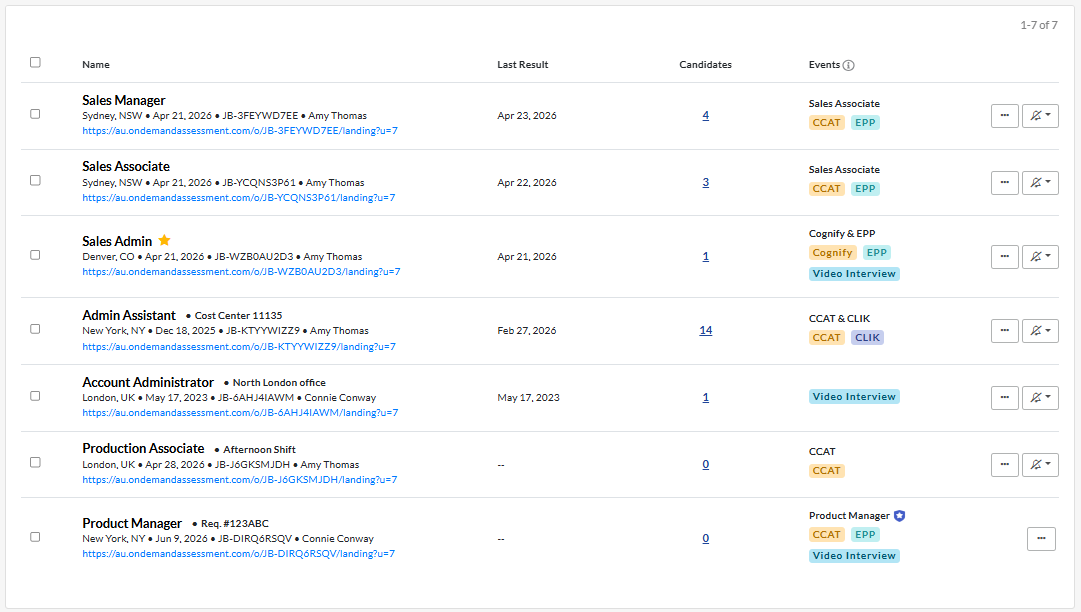
The jobs you have access to (and have set filters for) appear in the main table in the center of the page.
Name
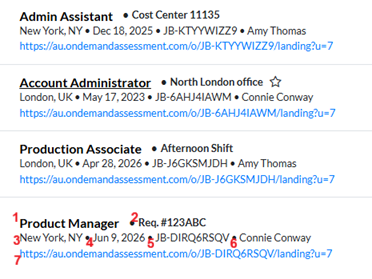
The Name column shows key details about the job:
- Job Title: this is the job name that will be visible to candidates and will appear on the Summary, Score and Proctoring Reports.
Click on the Job Title to be taken to the job. - Internal Reference Name: this is only visible to users in your Criteria account and can be added to reports created using Manage > Reports.
This field can help differentiate between jobs with the same Job Title (for example, by adding the hiring month or location). You could also use it to easily identify the department or cost center the job is associated with, or for some other purpose. - Location: if set, the Location (city, state) is shown beneath the Job Title.
- Date Created: this is the date the job was created in your Criteria account.
- Job Code: the unique identifier for the job. This is always in the format of JB-XXXXXXXX.
This code may be required when adding packages for some ATS integrations. If you need to reach out to Criteria for assistance with the job, we recommend quoting this code. - Job Creator: the name of the person who created the job.
- Open Link: for active jobs, the open link is displayed in blue beneath the other job details.
The open link contains the Job Code and your User ID. When candidates use this link, they are added to the job and associated with your profile. If you have Notifications for my results set for the job, you will receive an email when candidates using your open link complete the event.
Last Result
The Last Result column shows the most recent results submitted by a candidate for that job.
Note: if a candidate is invited to complete a new event, they are considered In Progress and their earlier results will not be included in the calculation of the Last Result field.
In the example above, the most recent candidate submitted result on April 23rd. There are also 2 jobs at the bottom where no candidates have completed their event.
Candidates
The Candidates column shows the number of candidates in the job.
In the example above, the Sales Manager job has 4 candidates but there are no candidates for the Product Manager job yet.
Events
The Events column indicates which evaluation tasks are associated with the job.
The text at the top is the name of the test battery. Criteria Recommended Test Batteries are indicated by a shield icon.
Beneath this, pills show the tests set for the test battery. If video interviewing and/or live interviewing are being used in the job, pills are displayed for these also.
Note that if you have multiple test batteries in the job, only the first test battery will be shown here.
More Actions
Click ... to view actions you can take for the job. The options will depend on whether the job is active or inactive.
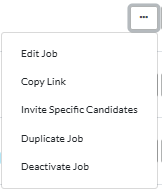
For active jobs:
Edit Job: takes you to the Job Settings page.
Copy Link: copies the open link so you can paste it into a job advertisement or share with candidates.
Invite Specific Candidates: takes you to the candidate invitation screen.
Duplicate Job: creates a copy of the job.
Deactivate Job: moves the job to the inactive jobs list.
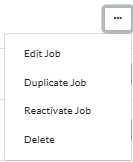
For inactive jobs:
Edit Job: takes you to the Job Settings page.
Duplicate Job: creates a copy of the job.
Reactivate Job: moves the job back to the active jobs list.
Delete: if the job has no candidates, this removes it from your Criteria account.
Notifications
The bell icon on the far right indicates your notifications preference for the job. Click the bell icon and select the option for each job.
- If you created the job, this will be set to Notifications for all results by default.
- If you are an admin user, to set the notifications preference for any jobs you did not create, you will need to share the job with yourself.
