Humanforce Talent Integration Guide
 Updated
by
Integrations Team
Updated
by
Integrations Team

Implementation Process
- Customer/Criteria CSM create Jobs in Criteria platform to be used as Assessment Templates in Humanforce Talent
- Criteria CSM populates spreadsheet with Criteria Jobs to add into Humanforce Talent & logs Case with Criteria Integrations Team
- Customer identifies the Status names to use in the integration.
- Customer emails Criteria Support Team (techsupport@criteriacorp.com) with the following:
- Indicate that you give permission for Criteria to request an API Key from Humanforce Talent and set up the integration on your behalf.
- What Recruitment Process/es in Humanforce Talent should be updated to include the Criteria status values to support Criteria testing?
- Would you like to support 2 rounds of testing (2 Criteria invitations per candidate) or just 1
- What status names you would like to use in the integration (if you would like to use your own names)
- Criteria emails Humanforce Talent Support to activate integration; including attachments of customer approval, recruitment processes, Criteria Job details for Assessment Templates, Status names for use in integration.
- Humanforce Talent Support completes the setup required to facilitate the integration (typically completed within 24 hours).
- Add Criteria Jobs as Assessment Templates
- Update specified Recruitment Process/es to include the Criteria Status values, using the names provided by the customer
- Add Custom Fields to the Job Vacancy to allow Criteria assessment package/s to be selected on Job Vacancy. These exact ID values must be used, the names may be different.
- Field Name: Select an assessment template, Field ID: Integration_PL_Assessment_Template
- Field Name: Select Round 2 Criteria Assessment Package, Field ID: Integration_PL_Assessment_Template_rd2
- Humanforce Talent provides integration credentials to Criteria
- Criteria enables Humanforce Talent integration on Criteria account, this will initialize the integration in Humanforce Talent
- Customer submits a sample candidate & tests integration to ensure it is all working correctly
Identify Status Names
You can use the default status names provided by Criteria, or choose your own custom names to match your existing recruitment process.
Copy the table below into a spreadsheet or document, fill in your preferred names in the My Status Names column, then share it with Criteria before your integration is set up.
A couple of things to note:
- If you only plan to invite candidates to one Criteria package per application, you don't need to implement the Round 2 statuses — just leave those rows blank.
- Any optional statuses you don't want to use can also be left blank.
Purpose / Description | Required? | Default Status Name | My Status Names |
Round 1 Trigger Status Candidate is automatically invited to the first Criteria package on the Humanforce Talent Job when they are moved to this status. (this status is skipped when the Humanforce Talent Job is configured with inline testing) | Yes | Criteria - Send Testing | |
Round 1 Scheduled Status Candidate is automatically moved to this status when they are successfully invited to the Criteria package. This status should be different from the Trigger status | Yes | Criteria - Invited | |
Round 1 Evaluation Status Candidate is automatically moved to this status for a package that contains VI, once the candidate has completed their tasks and the video is now with the evaluators to score. | No | Criteria - Evaluating | |
Round 1 Completed Status Candidate is automatically moved to this status when the final score is available. For an Assessment package, this happens when the candidate completes. For a Video package, this happens when the minimum number of evaluations are completed. If the "Completed + In Range Status" is also in use, this status is only used when the candidate did not meet the score ranges, or there are no score ranges in place. | Yes | Criteria - Completed | |
Round 1 Completed + In Range Status Candidate is automatically moved to this status when the final score is available, and they have met all the score ranges in place in Criteria. | No | Criteria - Completed In Range | |
Error Status If the candidate is unable to be invited, either to the 1st or 2nd Criteria package, the candidate will be automatically moved to this status. Details about the issue will be included as a note in the candidate activity feed. Once you have resolved the issue, you can move the candidate back into the appropriate Trigger status to attempt the invitation again. | Yes | Criteria - Error | |
Round 2 Trigger Status Candidate is automatically invited to the second Criteria package on the Humanforce Talent Job when they are moved to this status. (this status is skipped when the Humanforce Talent Job is configured with inline testing) | Yes, if round 2 is being used | Criteria - Send Testing Rd2 | |
Round 2 Scheduled Status Candidate is automatically moved to this status when they are successfully invited to the second Criteria package. This status should be different from the Trigger status | Yes, if round 2 is being used | Criteria - Invited Rd2 | |
Round 2 Evaluation Status Candidate is automatically moved to this status for a package that contains VI, once the candidate has completed their tasks and the video is now with the evaluators to score. | No | Criteria - Evaluating Rd2 | |
Round 2 Completed Status Candidate is automatically moved to this status when the final score is available. For an Assessment package, this happens when the candidate completes. For a Video package, this happens when the minimum number of evaluations are completed. If the "Completed + In Range Status" is also in use, this status is only used when the candidate did not meet the score ranges, or there are no score ranges in place. | Yes, if round 2 is being used | Criteria - Completed Rd2 | |
Round 2 Completed + In Range Status Candidate is automatically moved to this status when the final score is available, and they have met all the score ranges in place in Criteria. | No | Criteria - Completed In Range Rd2 |
Using the Integration
Adding Criteria Assessments to a Job
- When creating a new Humanforce Talent Job, choose the appropriate Recruitment Process that has been configured with the Criteria status values.
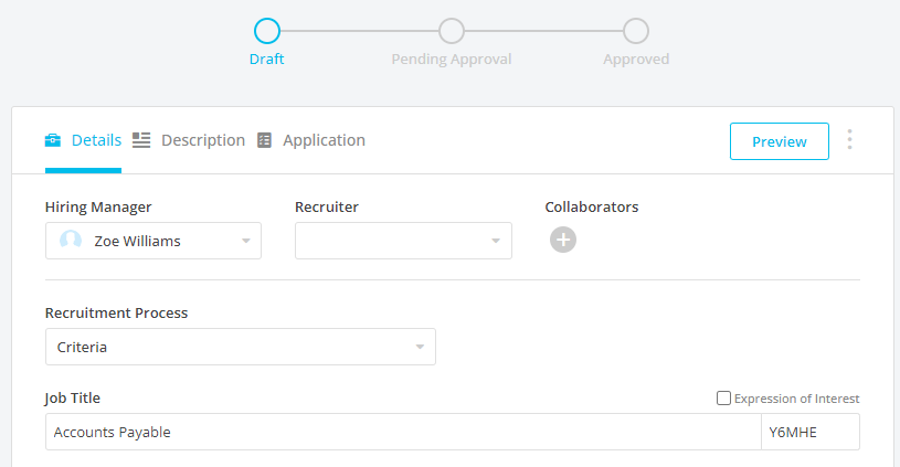
Configure the Position Details section of the Job as follows:
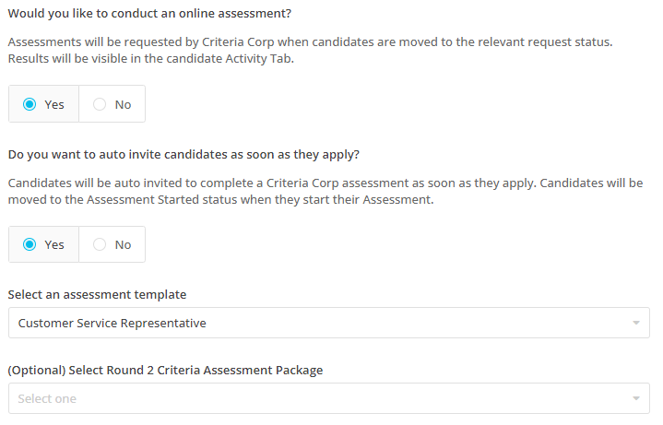
- Would you like to conduct an online assessment?
Choose Yes to use Criteria testing. Setting the value to Yes will automatically display the additional questions
- Do you want to auto invite candidates as soon as they apply?
If you’d like applicants to complete assessments as soon as they submit their application, choose Yes
Choose No if you’d like to move the candidates to the Criteria testing status when you are ready for them to complete testing
- Select an assessment template
Choose the Criteria assessment template (aka Jobs in Criteria platform) to administer on ‘application / on status change’ as appropriate
- (Optional) Select Round 2 Criteria Assessment Package
If you wish to administer a second round of testing, choose the 2nd Criteria Assessment Package here.
Note Round 2 testing is triggered on status change
- Click Save to record your changes
Auto-Invite on Application (Inline Testing)
If you have selected to auto-invite candidates as soon as they apply, a candidate will be automatically invited for Criteria testing as soon as their application is submitted in Humanforce Talent.
The following demo shows the Auto-Invite on Application (Inline) process in action (open the demo in a new window).
The Candidate will submit their application form.
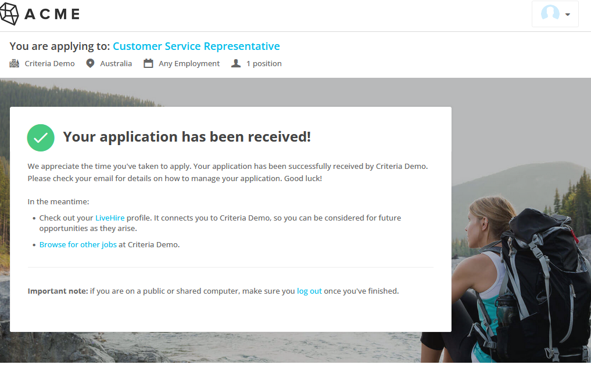
Criteria will be notified of the new application and will automatically invite the candidate to the assessment template selected in the Humanforce Talent job, using the configured Job Settings — including the expiry date, email template, and any other preferences set for that job.
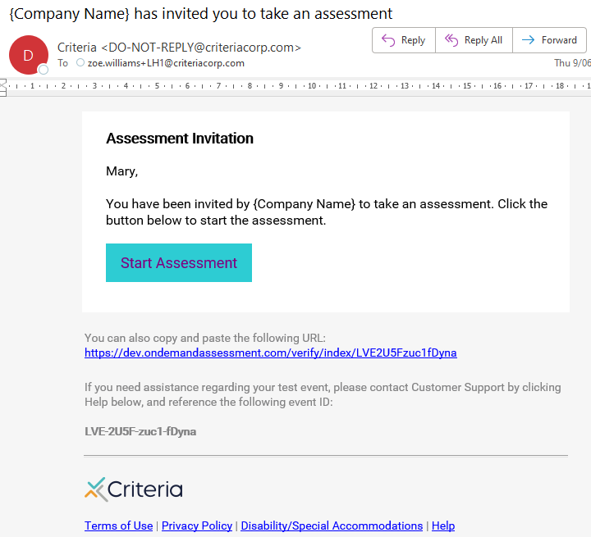
Criteria will email the candidate to complete testing. If SMS is enabled in your Criteria account, and the candidate has not opted out of SMS communications in Humanforce Talent, they will also receive an invitation SMS.
The candidate status in Humanforce Talent will be updated to Criteria – Invited (or your custom status name)
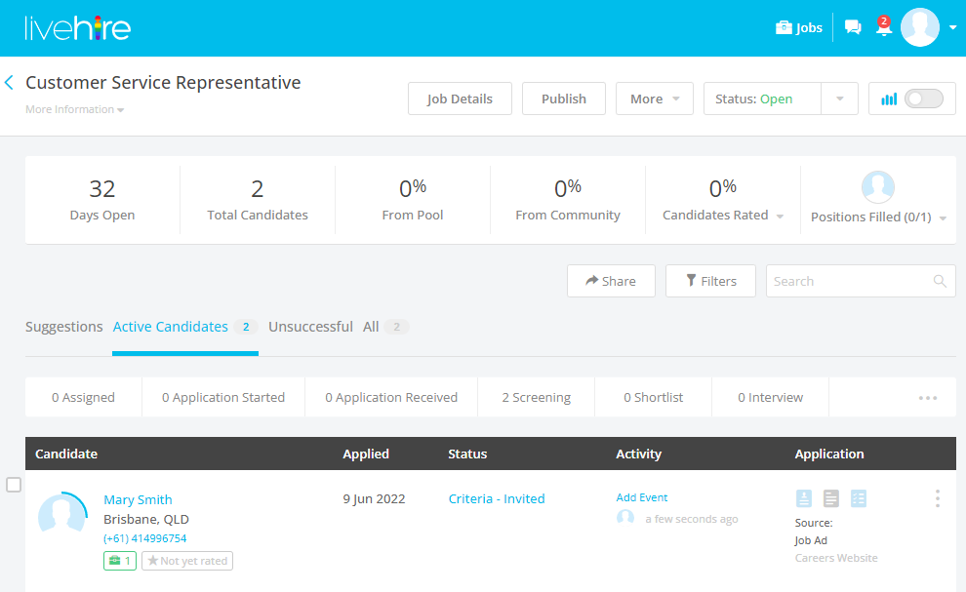
The Activity tab will show the full history of changes made by the integration, including status updates and notes added by Criteria.
Once a candidate has been successfully invited, their Criteria Event ID will appear here. This is useful in a couple of situations — you can use it to quickly locate the candidate in Criteria if they need an extension, or share it with the candidate directly if they didn't receive their invitation email, they can paste it into the Criteria candidate experience.
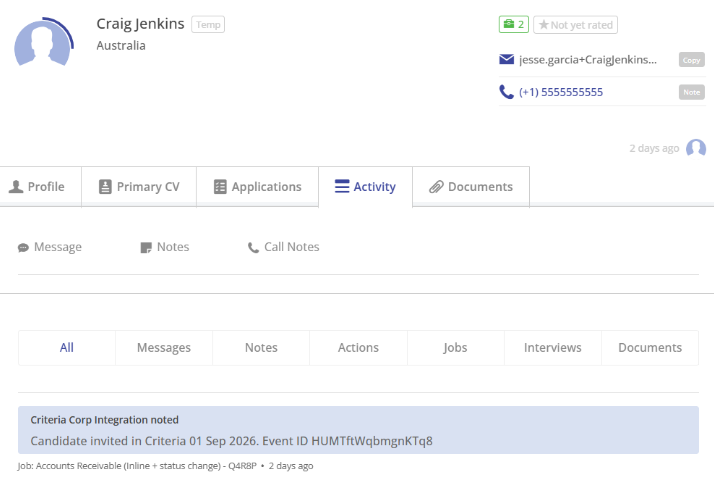
If a candidate hasn't completed their testing, they'll receive a reminder email and SMS (if enabled). When an expiry date is set, the reminder is sent 24 hours before expiry. Otherwise, if the Automated Reminder Emails setting is enabled in Criteria, the reminder is sent 2 days after the initial invitation.
The candidate will use the Start Assessment button in the invitation email to complete the testing.

On completion of testing, the candidate will close the browser window.
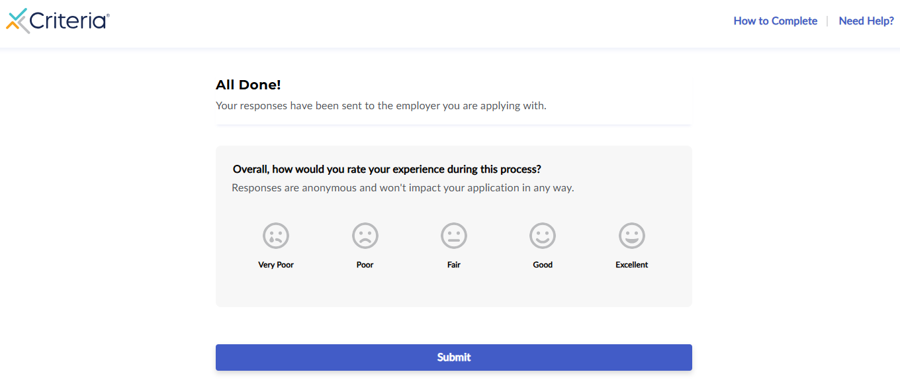
The results will appear in Humanforce Talent within a few minutes.
Optional Settings - Invite on Assigned or Imported
By default, candidates are automatically invited to Criteria when they apply through the Humanforce Talent application form. There are two additional scenarios you can configure if needed:
- Manually added candidates — If you manually create candidates within a job, these won't be invited automatically by default. Let Criteria know if you'd like them to be auto-invited to the Inline package as soon as they're added.
- Indeed candidates — Since Indeed applicants use the Indeed application form rather than the Humanforce Talent form, they won't be invited automatically either. Let Criteria know if you'd like them to be auto-invited to the Inline package when they're imported into the Humanforce Talent job.
Invite On Status Change (Recruiter Initiated)
When a candidate is moved into the status Criteria - Send Testing or Criteria - Send Testing Rd2 (or your custom status name/s) the candidate will be automatically invited for Criteria testing.
If the candidate status is changed to Criteria - Send Testing, the candidate will be invited to the Criteria package in the Select an assessment template drop-down on the Job Vacancy. This is the first package.
If the candidate status is changed to Criteria - Send Testing Rd2, the candidate will be invited to the Criteria package in the (Optional) Select Round 2 Criteria Assessment Package drop-down on the Job Vacancy. This is the second package.
The following demo shows the Auto-Invite on Application (Inline) process in action (open the demo in a new window).
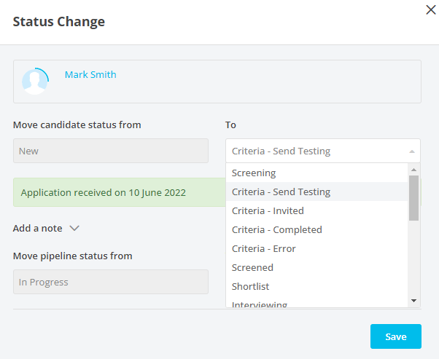
- To change the status for a single candidate, click on their Status.
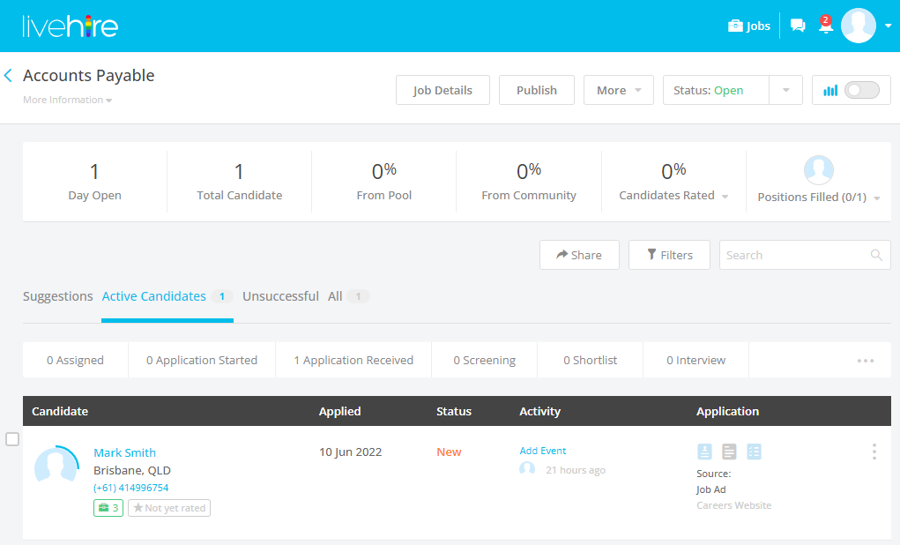
- Then choose the new Status from the drop-down menu - Criteria - Send Testing / Criteria - Send Testing Rd2.
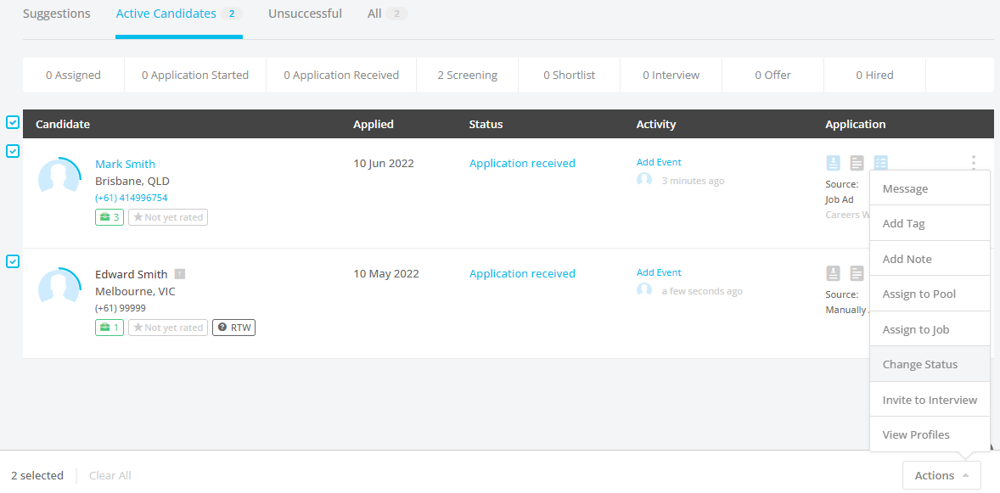
Alternatively, to change the status for multiple candidates at once
- Tick the box in from of the relevant candidates and choose Actions > Change Status from the bottom right corner.
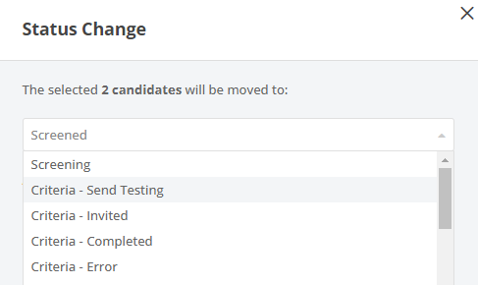
- Then choose the new status from the drop-down menu- Criteria - Send Testing / Criteria - Send Testing Rd2.
- The status will be updated for the selected candidate/s in the candidate list.

Criteria will be notified of the status change and will automatically invite the candidate(s) to the assessment template selected in the Humanforce Talent job, using the configured Job Settings — including the expiry date, email template, and any other preferences set for that job.
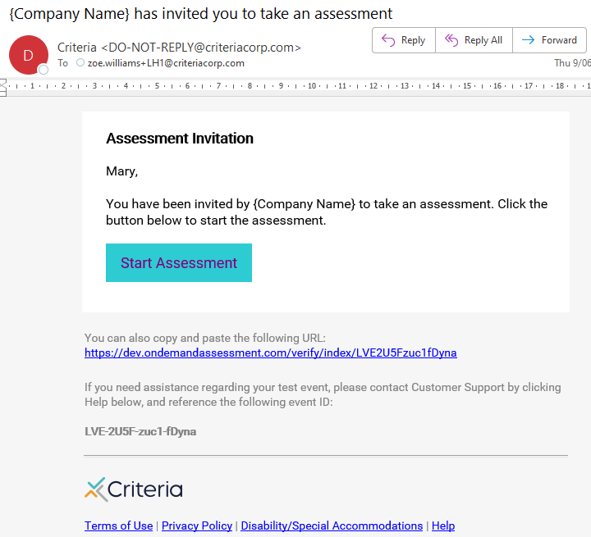
Criteria will email the candidate to complete testing. If SMS is enabled in your Criteria account, and the candidate has not opted out of SMS communications in Humanforce Talent, they will also receive an invitation SMS.
The candidate status in Humanforce Talent will be updated to Criteria – Invited or Criteria – Invited Rd2, as appropriate.

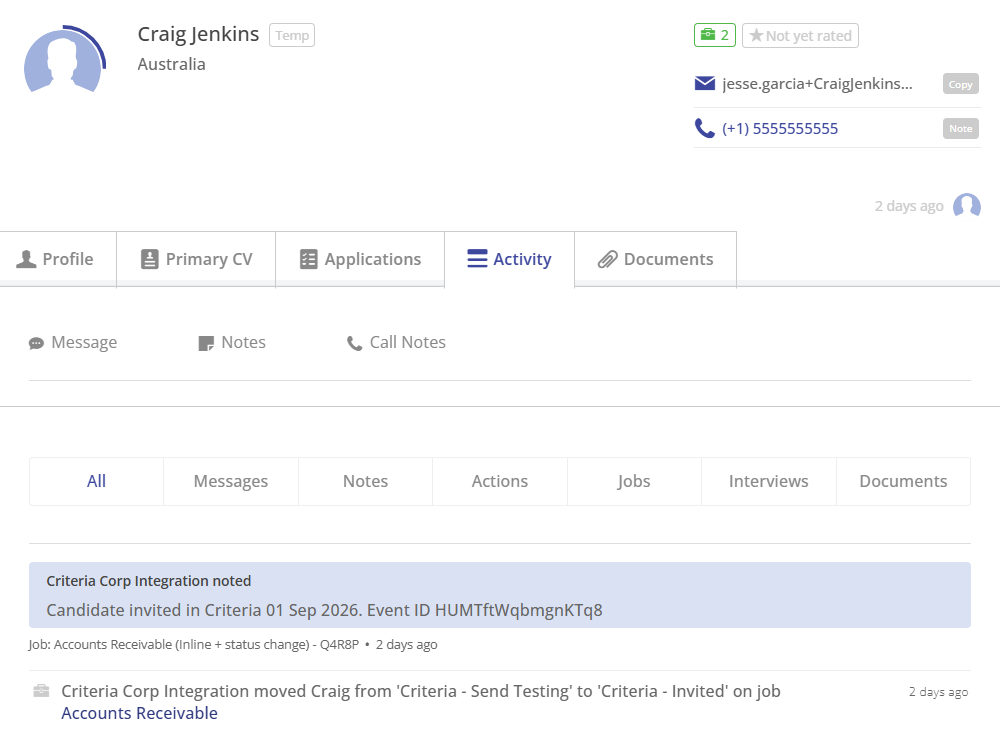
The Activity tab will show the full history of changes made by the integration, including status updates and notes added by Criteria.
Once a candidate has been successfully invited, their Criteria Event ID will appear here. This is useful in a couple of situations — you can use it to quickly locate the candidate in Criteria if they need an extension, or share it with the candidate directly if they didn't receive their invitation email, they can paste it into the Criteria candidate experience.
If a candidate hasn't completed their testing, they'll receive a reminder email and SMS (if enabled). When an expiry date is set, the reminder is sent 24 hours before expiry. Otherwise, if the Automated Reminder Emails setting is enabled in Criteria, the reminder is sent 2 days after the initial invitation.
The candidate will use the Start Assessment button in the invitation email to complete the testing.

On completion of testing, the candidate will close the browser window.
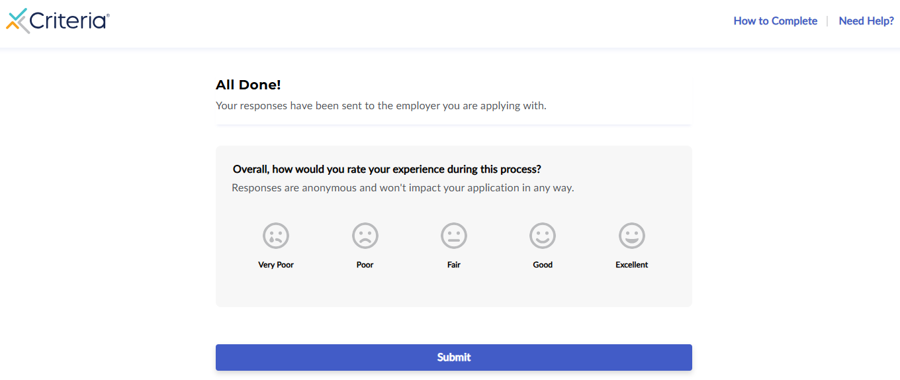
The results will appear in Humanforce Talent within a few minutes.
Viewing Status Updates and Results
Once a candidate has completed testing, their status in Humanforce Talent will update to the appropriate Completed status — for example, Criteria – Completed, Criteria – Completed Rd2, or your In Range status.
The following demo shows how Results are displayed in Humanforce Talent (open the demo in a new window).
Results are displayed in two places in Humanforce Talent.
- The candidate list
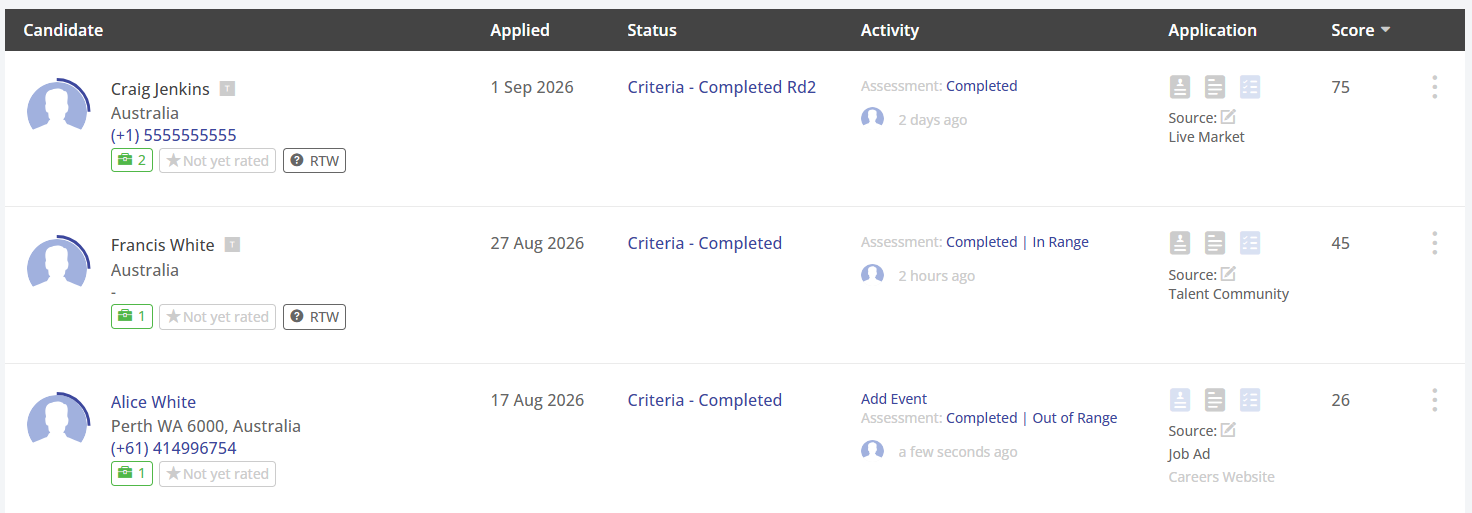
The Activity column will show an Assessment heading with the current status:
- If a video interview evaluation is in progress, this will show Evaluating
- If testing is fully completed and scored, this will show Completed
- If score ranges are configured, the result will also show In Range or Out of Range
The Score column shows the candidate's overall score — by default this is the Criteria Talent Signal, though you can choose a different numerical score if preferred. Hovering over the score will show the individual score from each test in the package.
- The Candidate Activity screen
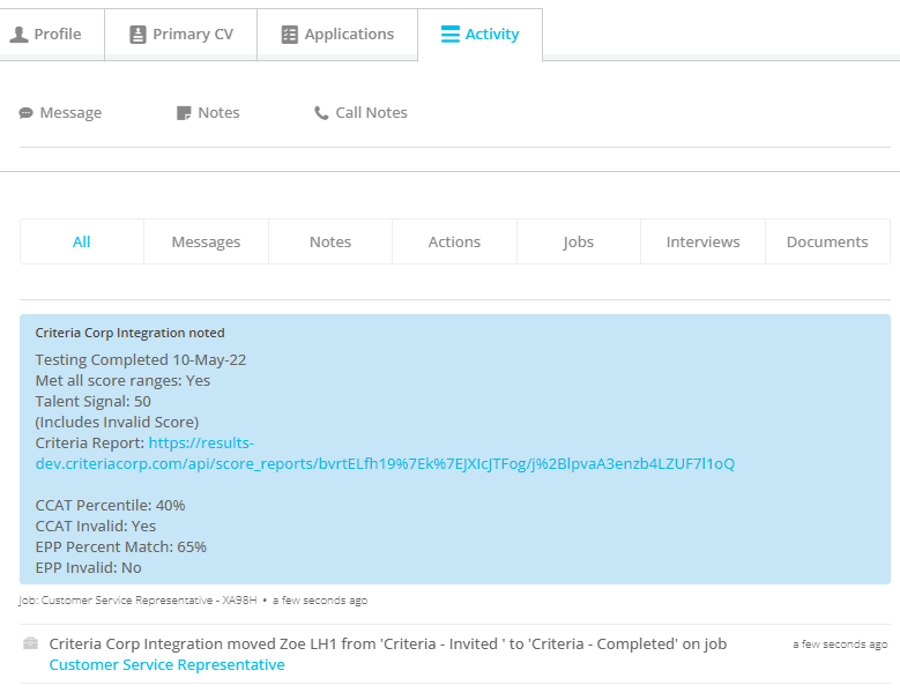
A note is added to the Activity feed each time there's an update from Criteria — when the candidate completes testing, when an evaluation is submitted, and when final results are available. If a candidate has completed two Criteria packages, both sets of results can be viewed here.
The information shown will vary depending on the current status, but generally includes the package name, completion date, a link to the Criteria report, the Talent Signal, whether score ranges were met, and individual scores from each test in the package.
If an assessment was proctored, the proctoring result — Clear or Review — will be displayed in the Activity feed.
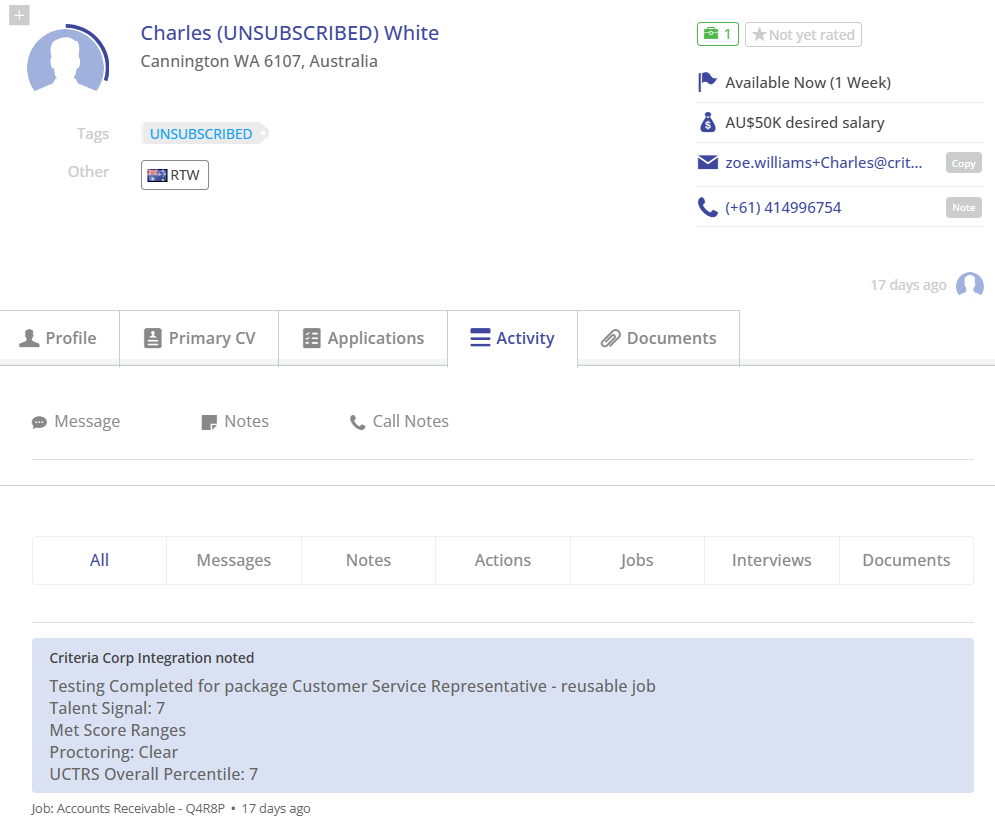
Assessments
Once testing is complete, results are sent to Humanforce Talent as soon as they're marked. For most assessments this is immediate, however Illustrait may take 5–10 minutes to mark, and if WAA was used, results will only be sent once a work factors profile is available for scoring.
Humanforce Talent will be updated as follows:
- The candidate status will change to Criteria – Completed, Criteria – Completed Rd2, or your In Range status (if configured)
- A note will be added to the Activity feed including the assessment scores, Talent Signal, and report link
- The Assessment status in the candidate list will update to Completed, plus In Range or Out of Range if score ranges were set. Hover over the status to reveal the View Criteria Report option — the report will show the assessment results.
- The Talent Signal will display in the candidate list Score column — hover over it to see individual assessment scores
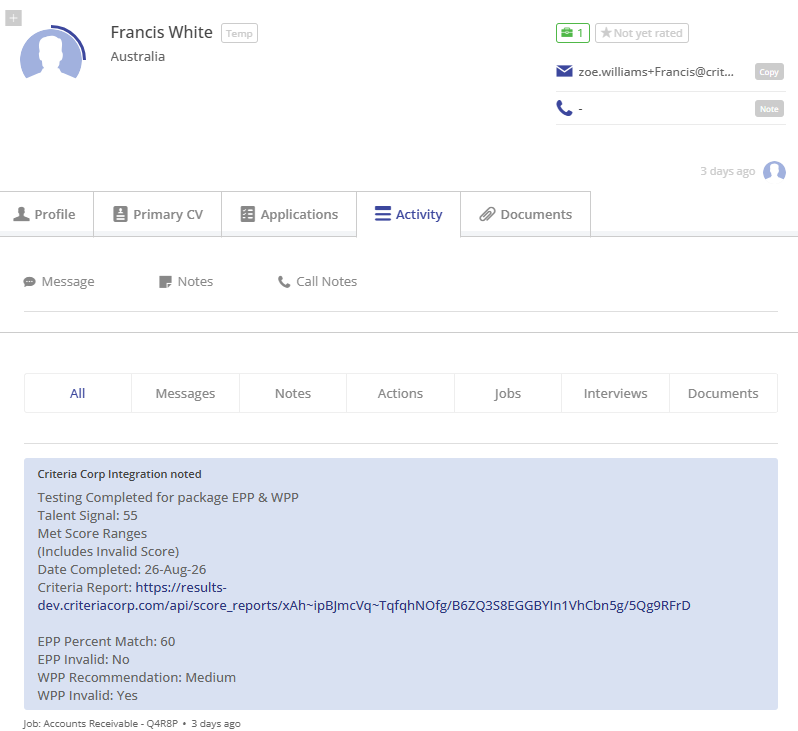
Video Interview
Once the candidate has completed their video interview, the Video Interview won't have a score until an evaluation is completed. AI evaluation typically takes a few minutes; human evaluation may take a few days. Humanforce Talent will be updated as follows:
- The candidate status will change to Criteria – Evaluating or Criteria – Evaluating Rd2 (if configured)
- A note will be added to the Activity feed explaining the evaluation state (e.g. Evaluation In Progress — 0 of 2 Completed), along with a report link. The report will contain links for recruiters to evaluate or view the video interview.
- The Assessment status in the candidate list will update to Evaluating. Hover over the status to reveal the View Criteria Report option — the report will show links to evaluate or view the video interview.
- No score will be displayed in the Score column at this stage
Once the minimum number of evaluations have been submitted and a Video Interview score is available, Humanforce Talent will be updated:
- The candidate status will change to Criteria – Completed or Criteria – Completed Rd2
- A note will be added to the Activity feed with the Video Interview score, Video Interview recommendation (if not AI-scored), and report link
- The Assessment status in the candidate list will update to Completed. Hover over the status to reveal the View Criteria Report option — the report will now include the Video Interview results.
- The Talent Signal will display in the candidate list Score column — hover over it to see the Video Interview score, which will match the Talent Signal
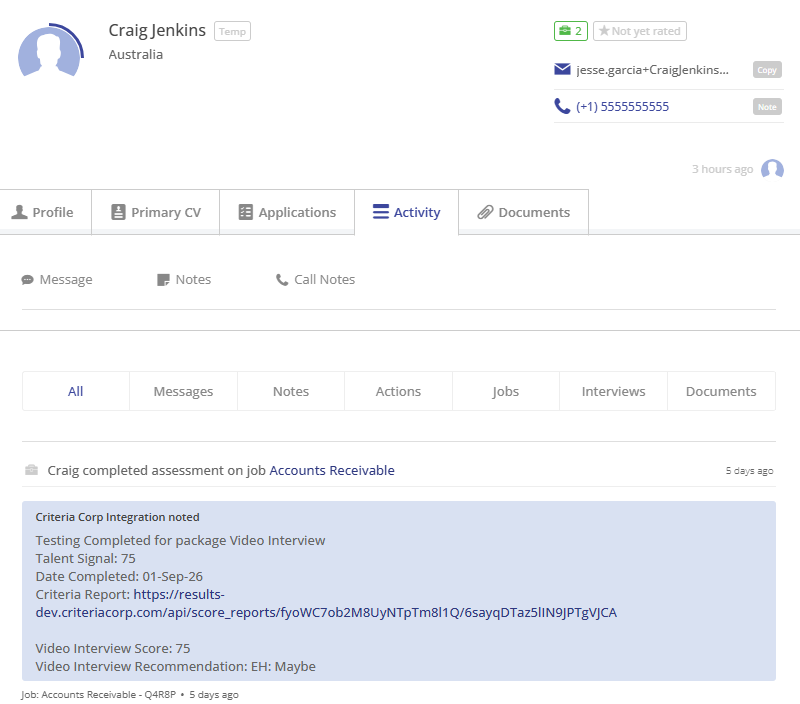
Video Interview + Assessments
A single invitation may include both assessments and a video interview. The candidate must complete all components before the integration will process any updates.
Once the candidate has completed everything, the assessment results will be available immediately — however, the Video Interview won't have a score until an evaluation is completed. AI evaluation typically takes a few minutes; human evaluation may take a few days. Humanforce Talent will be updated as follows:
- The candidate status will change to Criteria – Evaluating or Criteria – Evaluating Rd2 (if configured)
- A note will be added to the Activity feed explaining the evaluation state (e.g. Evaluation In Progress — 0 of 2 Completed), along with assessment scores and a report link. The report includes the assessment results and a link for recruiters to evaluate or view the video interview.
- The Assessment status in the candidate list will update to Evaluating, plus In Range or Out of Range if score ranges were set on the assessments. Hover over the status to reveal the View Criteria Report option — the report will show the assessment results and links to evaluate or view the video interview.
- The Talent Signal score will display in the candidate list Score column — hover over it to see the individual scores from each assessment
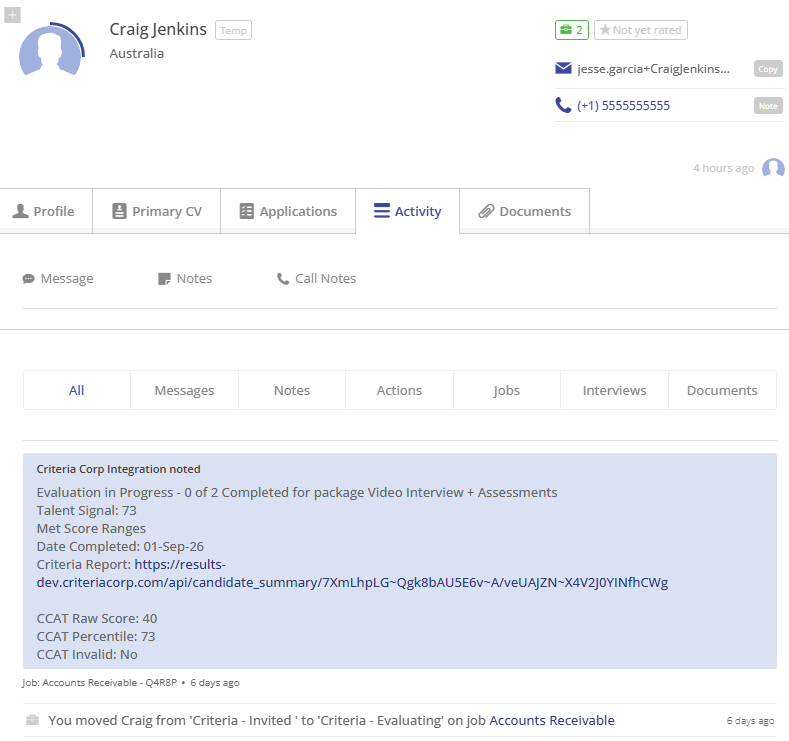
Once the minimum number of evaluations have been submitted and a Video Interview score is available, Humanforce Talent will be updated:
- The candidate status will change to Criteria – Completed, Criteria – Completed Rd2, or your In Range status (if configured)
- A note will be added to the Activity feed including the assessment scores, Video Interview score, Video Interview recommendation (if not AI-scored), updated Talent Signal, and report link
- The Assessment status in the candidate list will update to Completed, retaining the same In Range or Out of Range result as before. Hover over the status to reveal the View Criteria Report option — the report will now include the full results including the Video Interview score.
- The candidate list Score column will display the updated Talent Signal — hover over it to see individual assessment scores, now updated to include the Video Interview score
Live Interview
Unlike video interviewing, there is no action required from the candidate — a live interview will be scheduled between the candidate and recruiter, and evaluations are submitted based on that conversation.
The candidate will remain in the Invited status until the first evaluation is submitted.
Once an evaluation has been submitted but more are still pending, Humanforce Talent will be updated as follows:
- The candidate status will change to Criteria – Evaluating or Criteria – Evaluating Rd2 (if configured)
- A note will be added to the Activity feed explaining the evaluation state (e.g. Evaluation In Progress — 0 of 2 Completed), along with a report link. The report will contain a link for recruiters to submit their evaluation.
- The Assessment status in the candidate list will update to Evaluating. Hover over the status to reveal the View Criteria Report option — the report will show a link to submit an evaluation for the live interview.
- No score will be displayed in the Score column at this stage
Once the minimum number of evaluations have been submitted and a Live Interview score is available, Humanforce Talent will be updated:
- The candidate status will change to Criteria – Completed or Criteria – Completed Rd2
- A note will be added to the Activity feed with the Interview score, Interview recommendation, and report link
- The Assessment status in the candidate list will update to Completed. Hover over the status to reveal the View Criteria Report option — the report will now include the Interview results.
- The Talent Signal will display in the candidate list — hover over it to see the Interview score, which will match the Talent Signal
Optional Settings in Results
Talk to your Criteria contact if you'd like to enable any of the following.
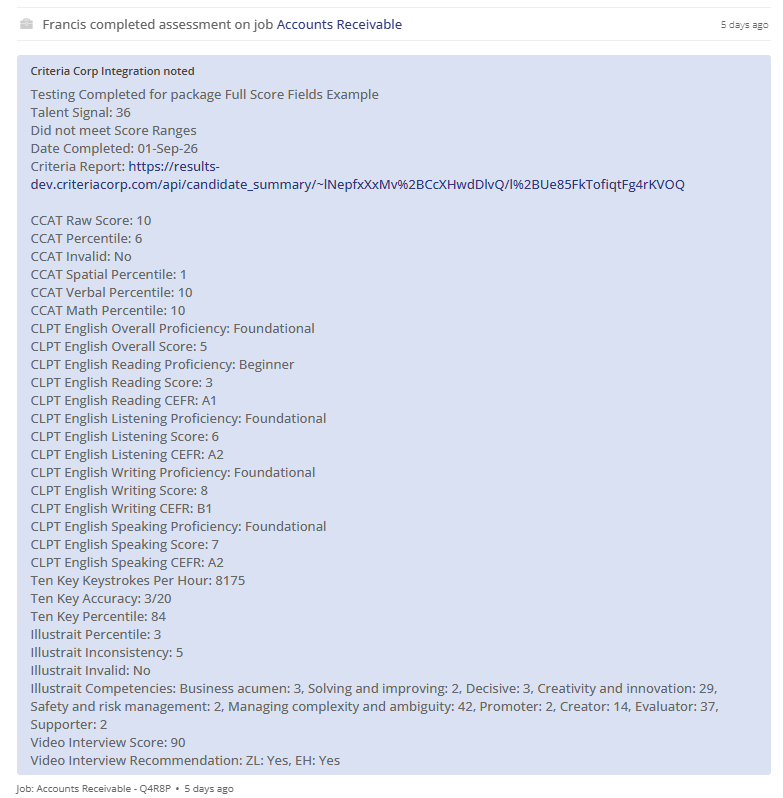
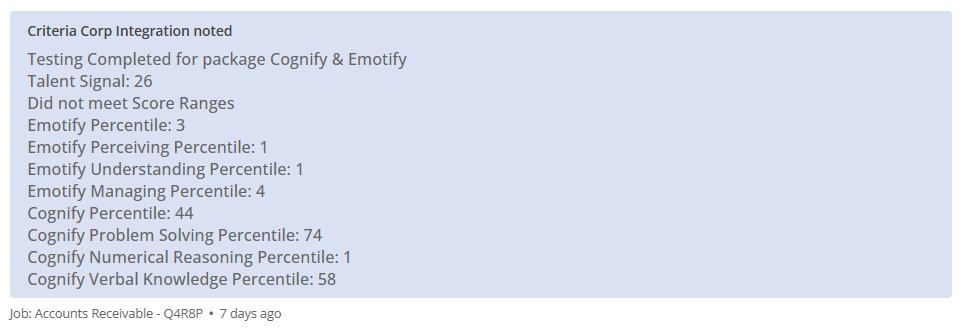
All Score Fields
By default, the integration only displays the main score from each assessment — full details are available in the report. However, if you regularly use a specific sub-score or factor in your decision making, you can request the full score list to be enabled. Note that depending on the assessments you use, this may result in a long list of fields.
Report Format
The report link displayed in the Activity feed and candidate list can be configured as one of the following:
- Standard report as a web page (HTML, default)
- Standard report in PDF format
- Summary report only (PDF)
- Personality report only (PDF)
- Secure link — requires login to the Criteria platform to access
Score in Candidate List
By default, the Score column in the candidate list displays the Talent Signal. This can be changed to any other numeric score of your choosing.
Keep in mind that the hover tooltip only appears when an overall score is present. If you choose a score that isn't used by every invitation, the detailed score breakdown won't be available from the candidate list — you'll need to check the Activity feed instead.
This setting does not affect what is shown in the Activity feed.
Ongoing
Updating Assessment Templates / Criteria Packages
The assessment template dropdown in Humanforce Talent is managed manually by the Humanforce Talent support team.
When a Criteria job has been added, renamed, or deactivated, contact Criteria Support and they'll send Humanforce Talent an updated assessment template spreadsheet with the revised job list.
Note that changes to the settings or test battery within an existing job won't affect the package list in Humanforce Talent, so no update is needed — the next candidate invited to that job will simply use the new settings.
Troubleshooting
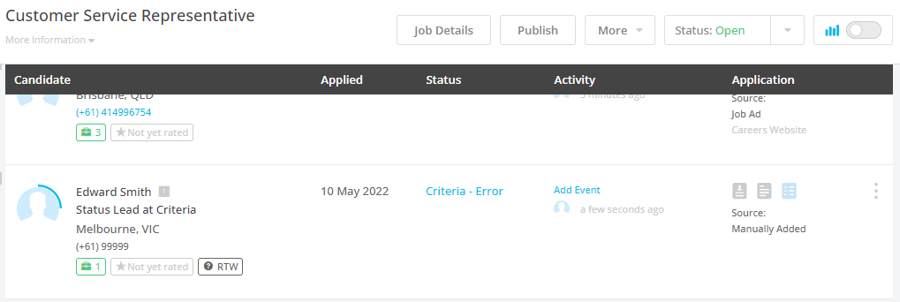
Candidate Status = 'Criteria – Error'
If the candidate status changes to the Error status, that indicates that something went wrong, and Criteria was not able to complete the task it was attempting.
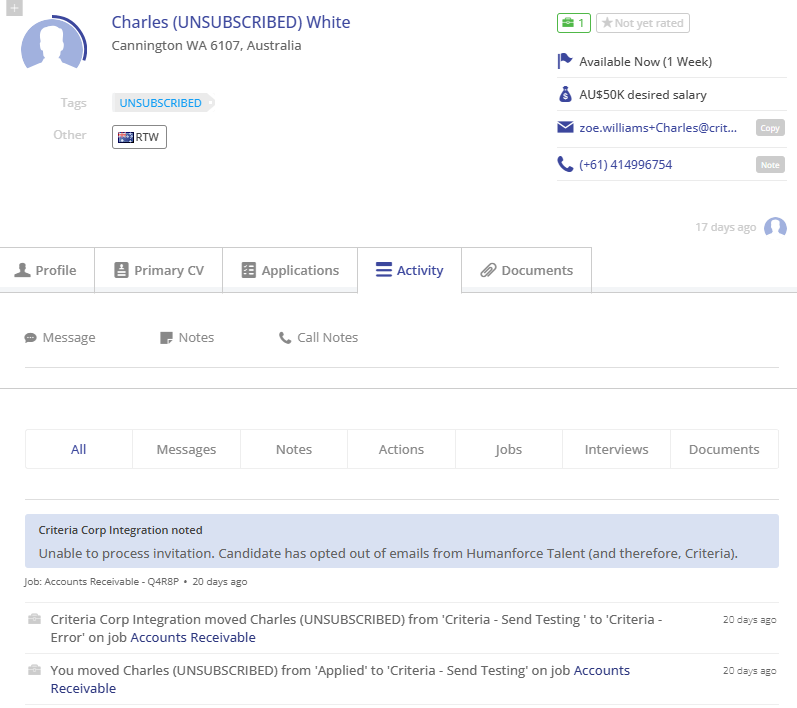
Go to the Activity tab for the candidate to see the note from Criteria with details about the error.
If the error occurred during candidate invitation and you can identify and resolve the problem, move the candidate back into the relevant Criteria – Send Testing status to re-attempt the invitation. Check that the candidate is progressed to the Criteria - Invited status which indicates a successful invitation.
Error Message | Action |
Humanforce Talent Job Vacancy does not have a Criteria Assessment Template selected. (round {round number 1 or 2}). | Check the assessment template fields on the Humanforce Talent Job Vacancy configuration. Use the round number in the error message to know which round the error relates. Check the applicable assessment template is selected correctly. Once the assessment template has been updated, attempt the invitation again. |
Criteria Assessment Template is invalid ({Criteria Job Code}). | Login to your Criteria account and locate the Job with the Job Code mentioned in the error message. If the Job is inactive, you can:
Ask Criteria Support if you require assistance with this. |
Candidate has opted out of emails from Humanforce Talent (and therefore, Criteria). | The candidate cannot complete testing if Criteria is unable to send them an invitation email. Ask the candidate if their notification preferences can be changed to allow them to be invited to Criteria testing. Then attempt the invitation again. |
Humanforce Talent candidate does not have an email address. | The candidate cannot complete testing if Criteria is unable to send them an invitation email. Update the candidate entry in Humanforce Talent to have an email address. Then attempt the invitation again. |
Candidate is not being moved to the Completed status
If a candidate has completed Criteria testing and their results have been added to Humanforce Talent, but their status hasn't updated to Completed or Completed + In Range, check what status the candidate is currently sitting in within Humanforce Talent.
Criteria will only move a candidate to the Evaluating or Completed statuses if they're still within the Criteria status flow. If you've already moved the candidate to another workflow step — for example, they've progressed to Hired or have been Rejected — Criteria won't move them back into the active flow, even if they subsequently complete their testing or a video interview evaluation is finished.
To confirm this is what happened, check the candidate's Activity feed. If it shows an update from Criteria but the status didn't change, it means Criteria detected they were outside the status flow and added the results note without updating the status.
Deactivate Integration
Contact Criteria if you do not wish to use this integration anymore.
Criteria will remove their integration pieces from Humanforce Talent. Once that has been done, you can talk to Humanforce Talent about removing Criteria's access and other data related to the Integration.
