Create a Job Using the Job Profiler
 Updated
by
Amy Thomas
Updated
by
Amy Thomas
Once you have prepared all the components you will use in your job, you are now ready to create the job.
There are three evaluation tools you can select to include in your job: assessments, video interview and real time interview. You may choose to include one, two, or all three of these for your job.
If you are not sure what assessments or interview questions to use for the job you are hiring for, our Job Profiler tool can recommend these for you.
When you create a new job, Job Profiler automatically searches our extensive database to suggest a set of assessments that you can use to assess your candidates' suitability for the job. The suggestions are based on the job title you selected and are built to provide valuable insights into the standard requirements for the job.
See it in action!
View a quick guide to how the job profiler can make building your assessment suite easier.
Create the job
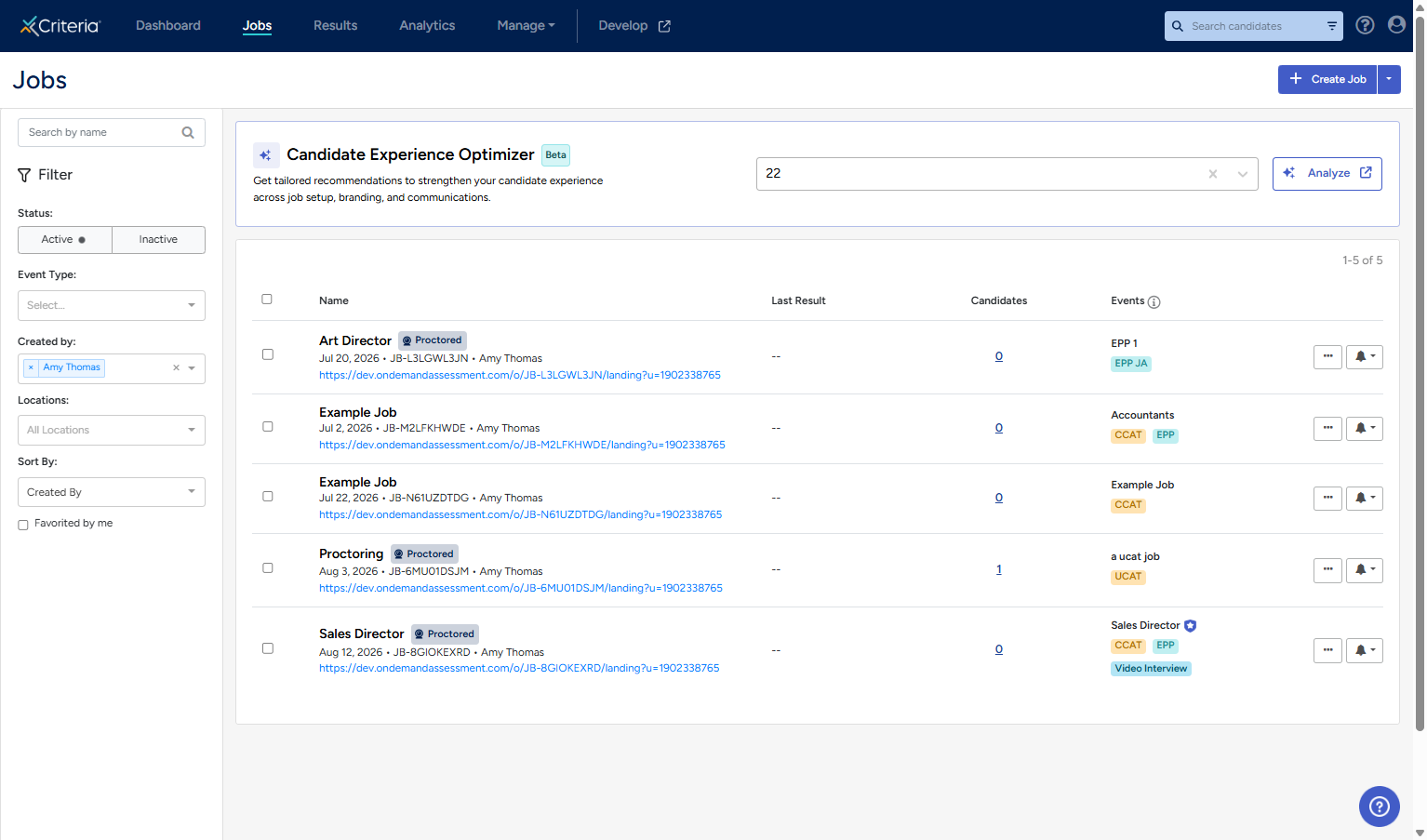
- On the Jobs page, click Create Job to begin the job creation process.
- In the Job Name field, type a job title. As you type, Criteria will suggest matching job titles. Select the evaluation methods you want to include, then click Continue:
• Assessments: Evaluate candidates with scientifically validated assessments.
• Video Interview: Save time with AI-powered video interviews.
• Real-Time Interview: Conduct live interviews with structured questions.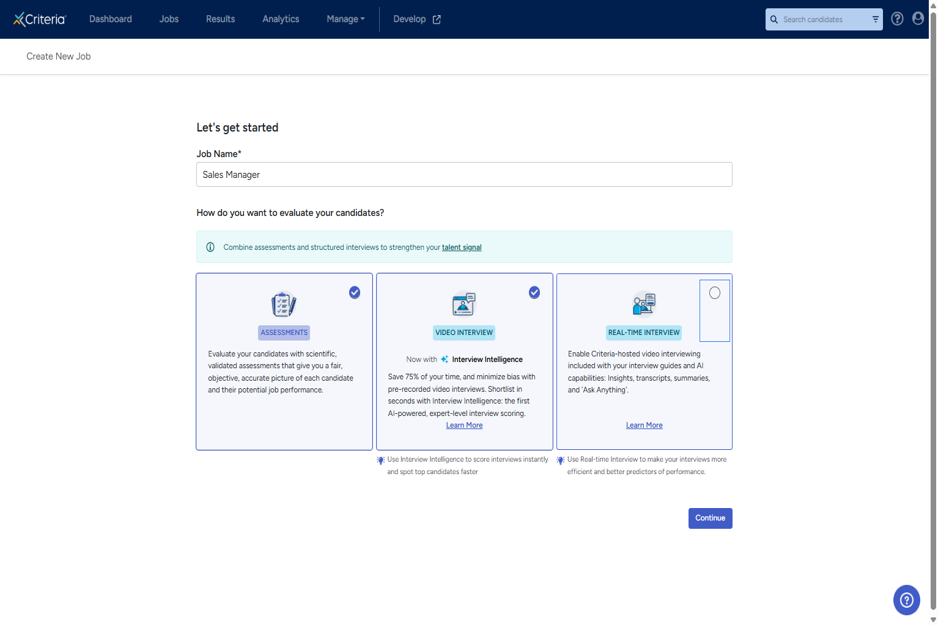
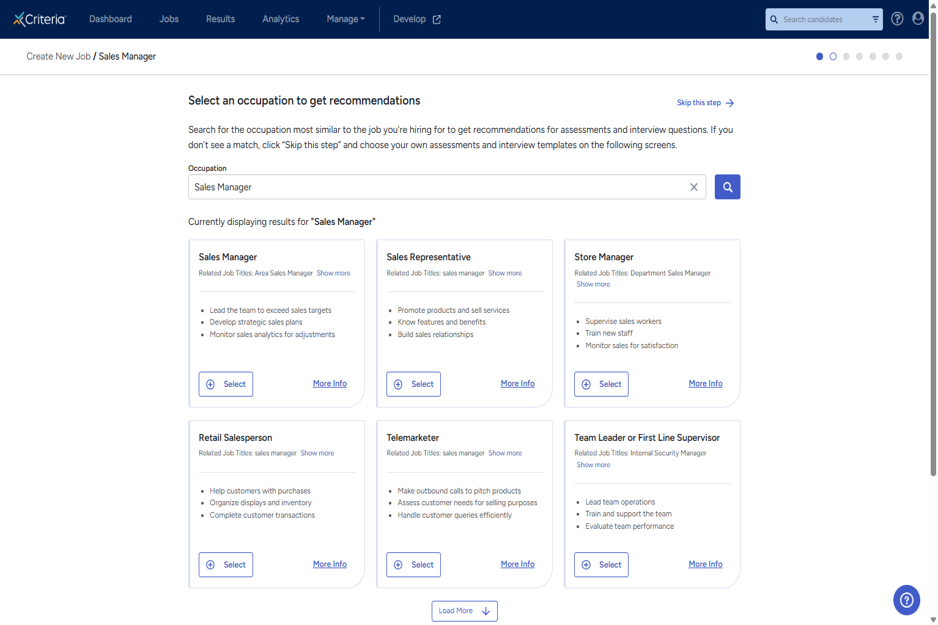
- On the Job Profiler (occupation selection) screen, review the recommended occupation based on your job title. Click Select to confirm and proceed to assessment recommendations.
Assessment recommendations
- Criteria displays recommended assessments for the role. Where relevant, it will also provide alternative assessments. Click Learn More on any assessment to view further details.
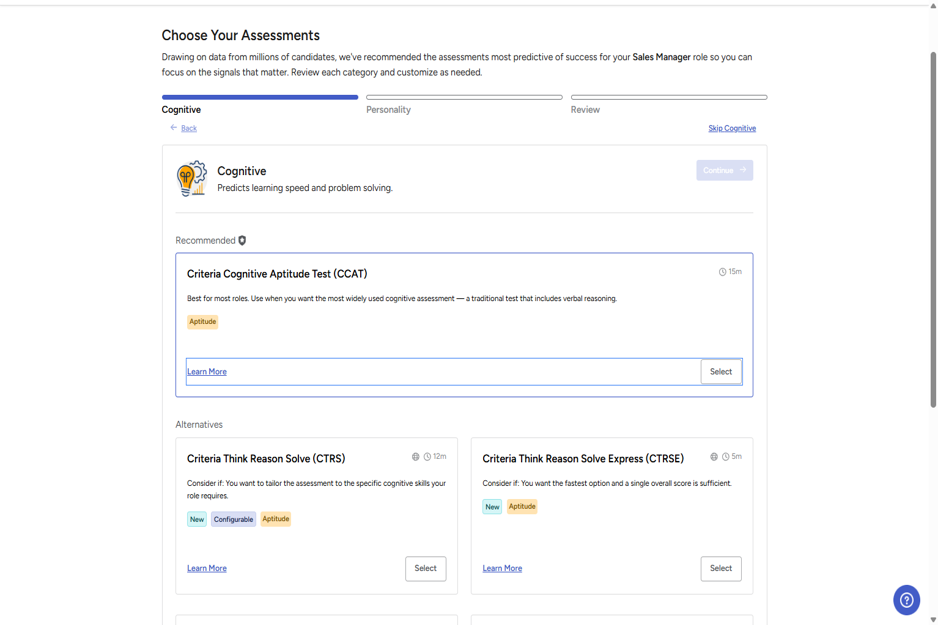
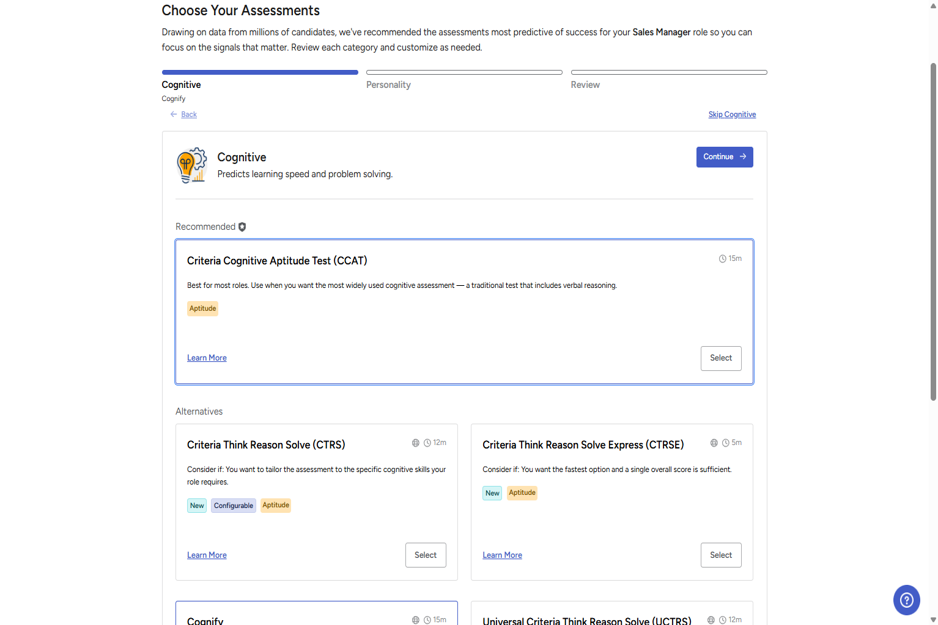
- The Cognitive tab shows aptitude tests. Click Select on the recommended assessment if you want to include it in the test battery. If you prefer an alternative assessment, scroll down to the Alternatives section and click Select on your preferred option.
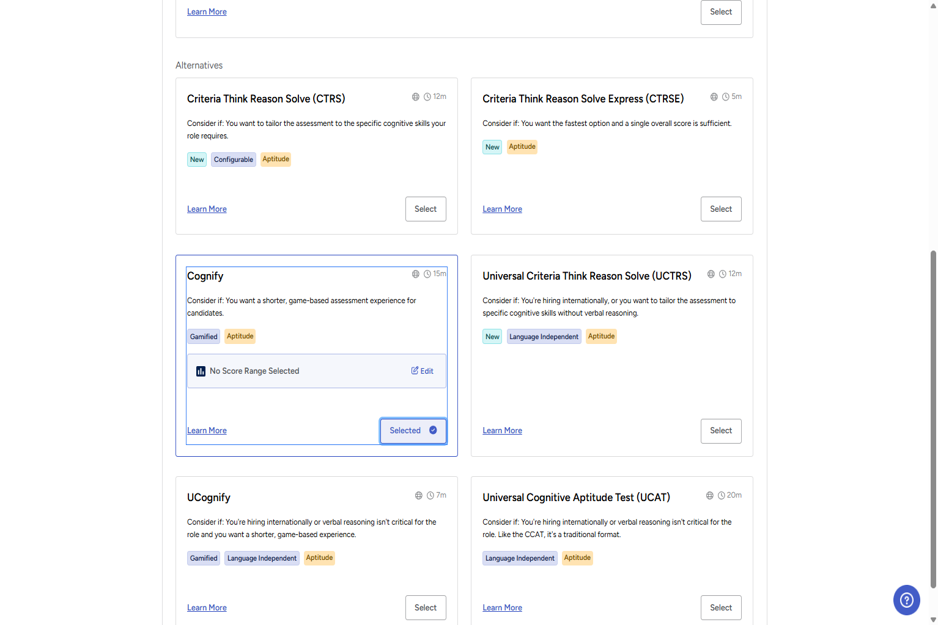
- After selecting an assessment, you can click Edit to configure the score range.
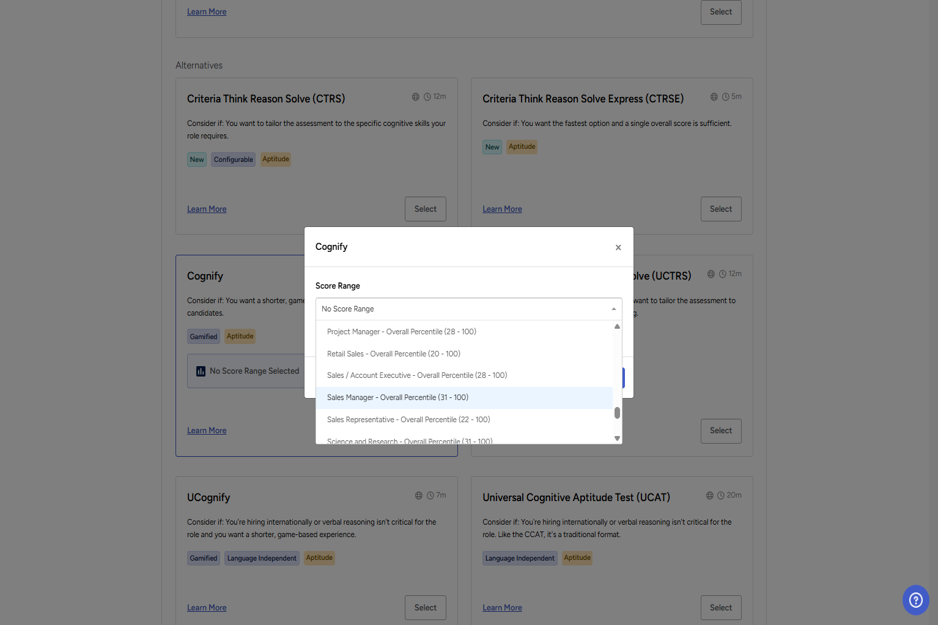
- Click Continue to move to the next assessment selection step. If you do not want to use a Cognitive assessment, click Skip Cognitive.
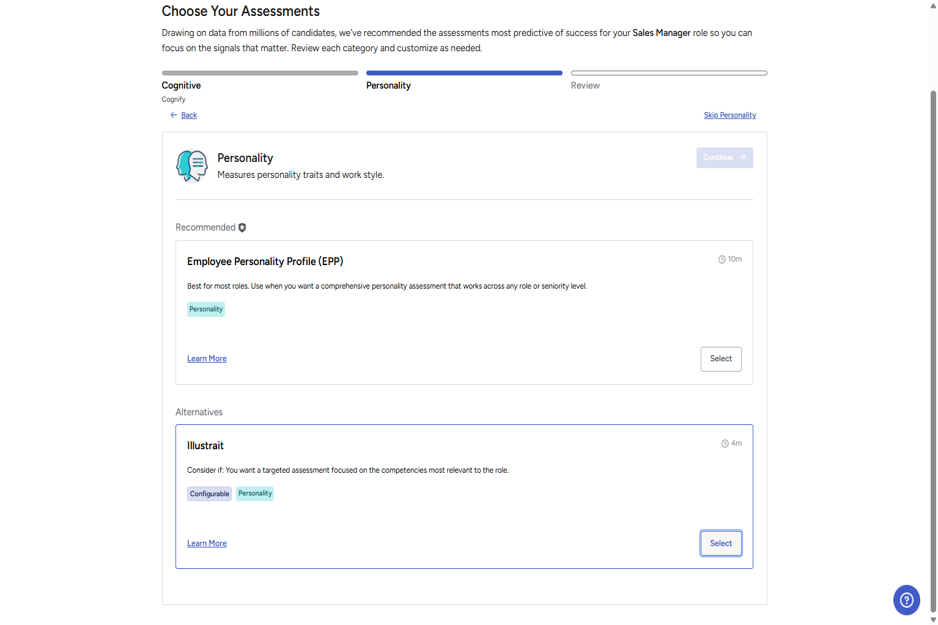
- Repeat steps 4 to 7 for the Personality, Emotional Intelligence, Risk, and Skills sections. Note that only sections containing recommended assessments for the job will be displayed.
- Click Back to return to an assessment tab and change your selection.
- Click Back to return to an assessment tab and change your selection.
- Some assessments, such as Illustrait and Workplace Alignment Assessment require additional settings to be selected. These can be set once the assessment is selected.
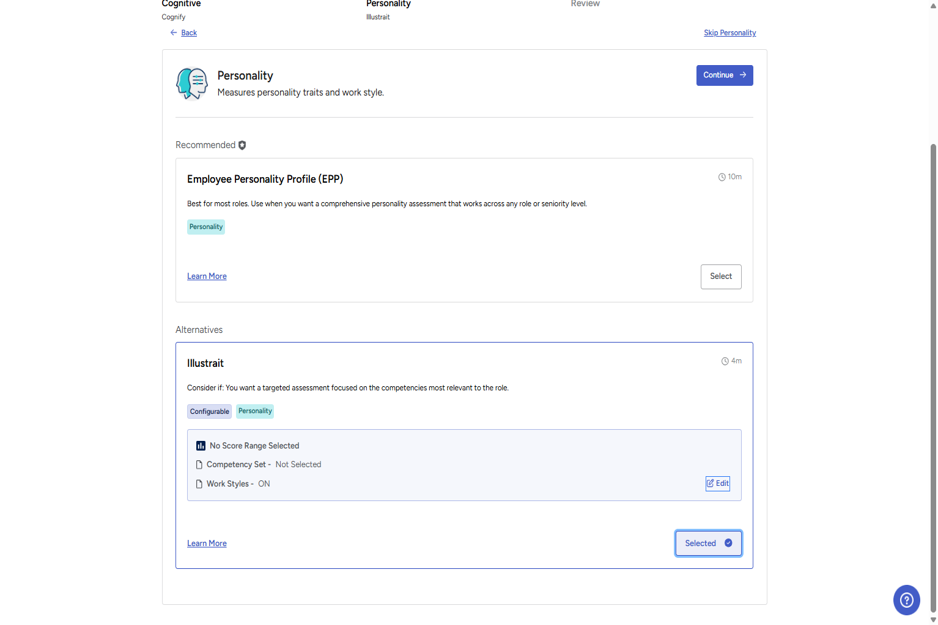
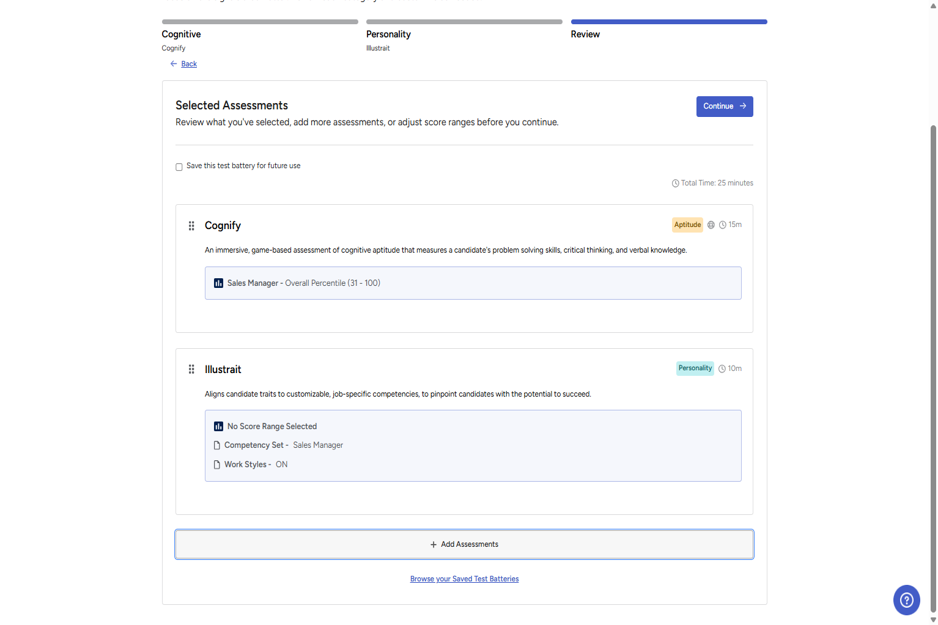
- Once you have selected the assessments you want to use from the recommendations, click Continue to move to the Review step. Here you can verify your selected assessments and add more assessments to the job.
- Click Add Assessments to open the Assessment Library.
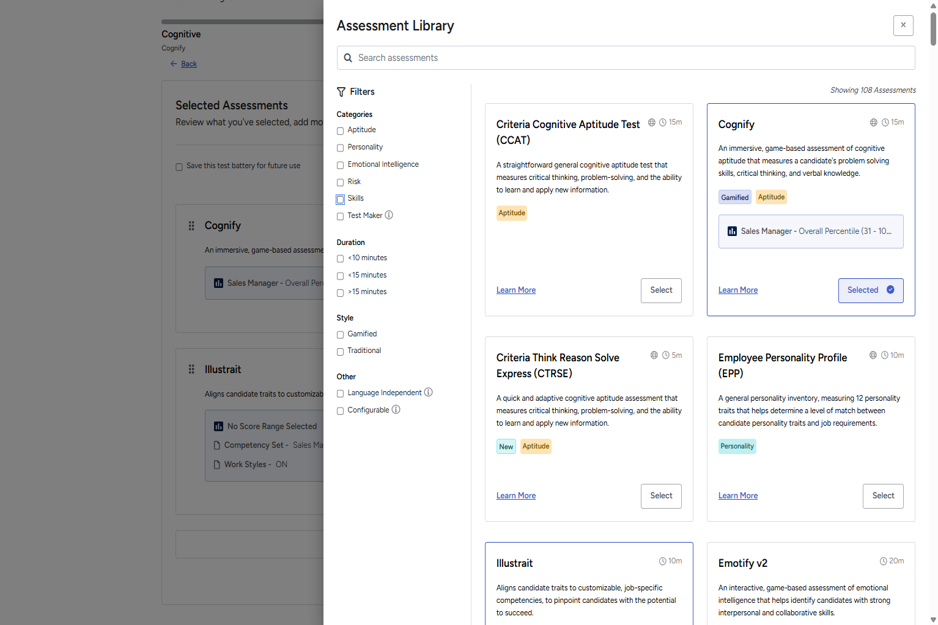
- In the Assessment Library, use the Filters on the left to find the assessments you want. For example: select Test Maker to view tests that you have created.
- Find the assessment you want to add and click Select. Click Edit on the newly added assessment to configure its settings, such as score ranges.
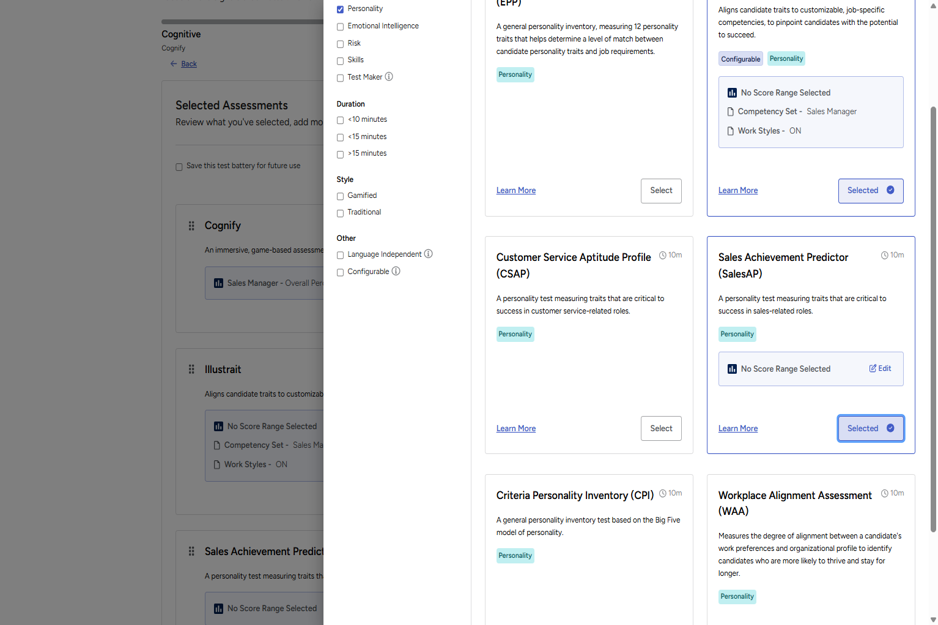
- Close the Assessment Library by clicking the cross in the top right.
- You can reorder the assessments by clicking and dragging the Drag to reorder handle (6 dots) next to each assessment.
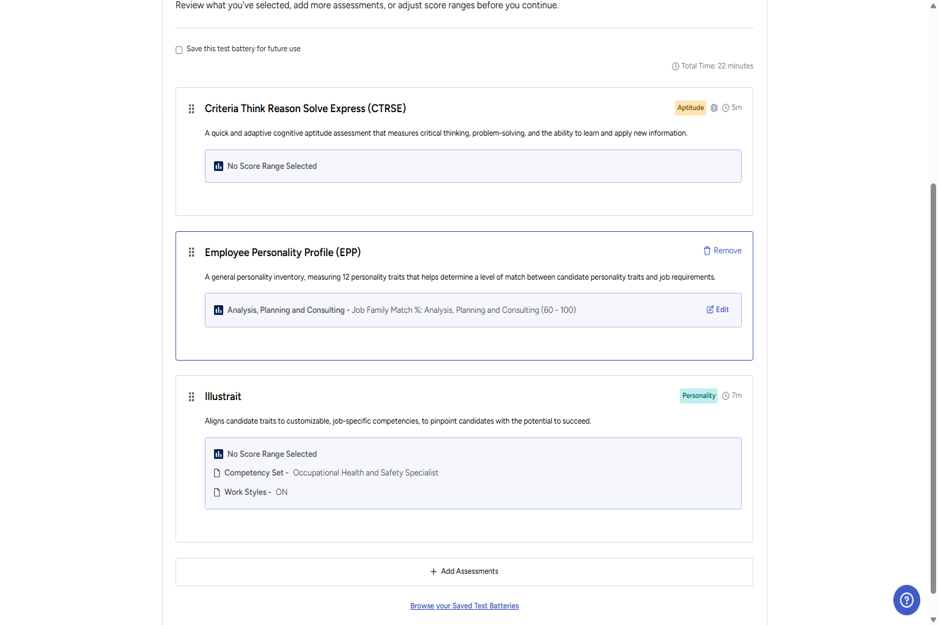
- To remove an assessment from the job, click the Remove button on the assessment card.
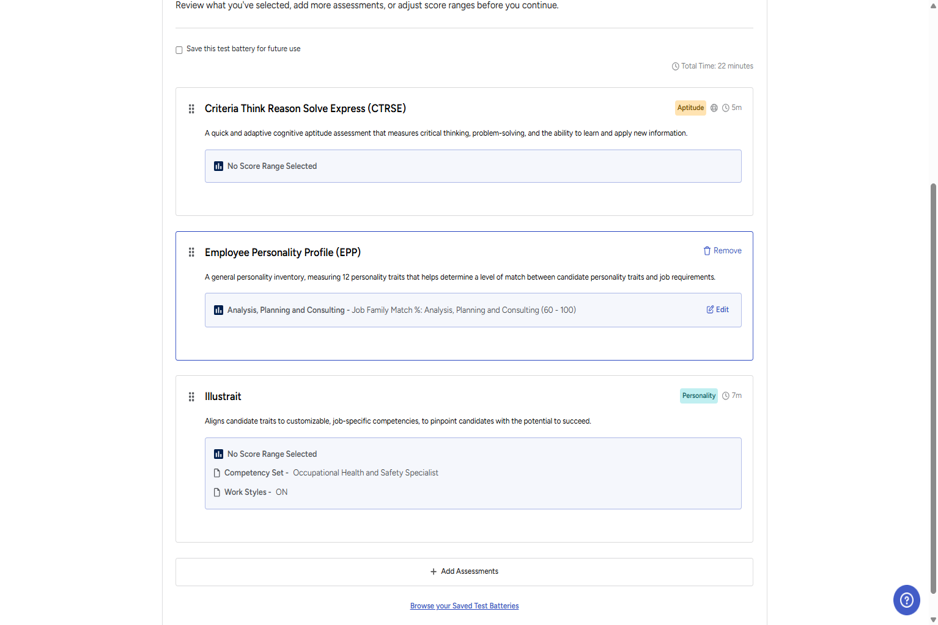
- Check the Save this test battery for future use checkbox to save your selected assessments as a reusable test battery. By default, it will be given the same title as the job name, but this can be changed by clicking Edit.
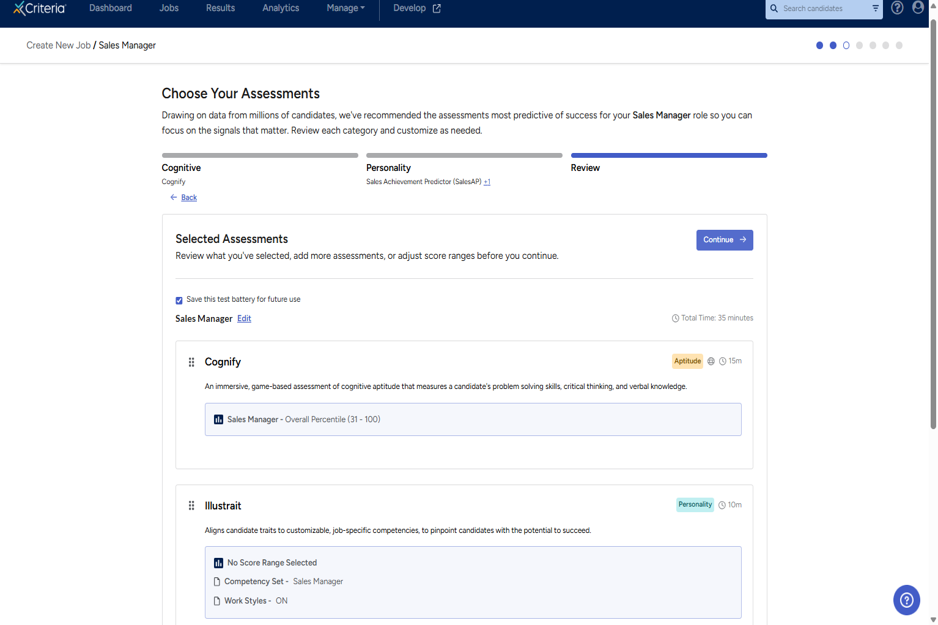
- Click Continue to proceed to the interview configuration steps.
Structured interview recommendations
- Review the recommended video interview questions. If you want to change the recommended occupation, click Search for a different recommendation.
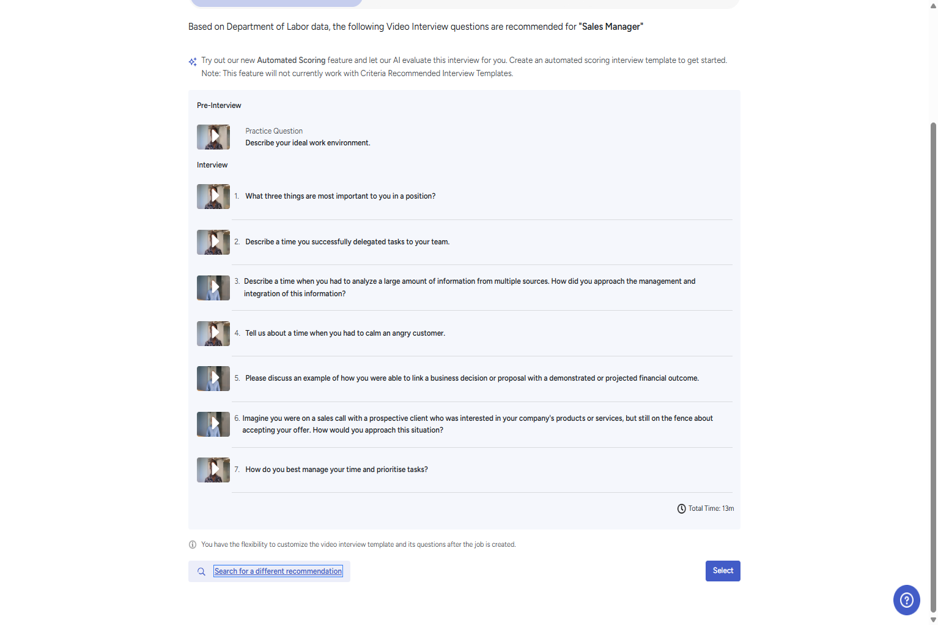
- Click Select to confirm the video interview questions and proceed to configuration.
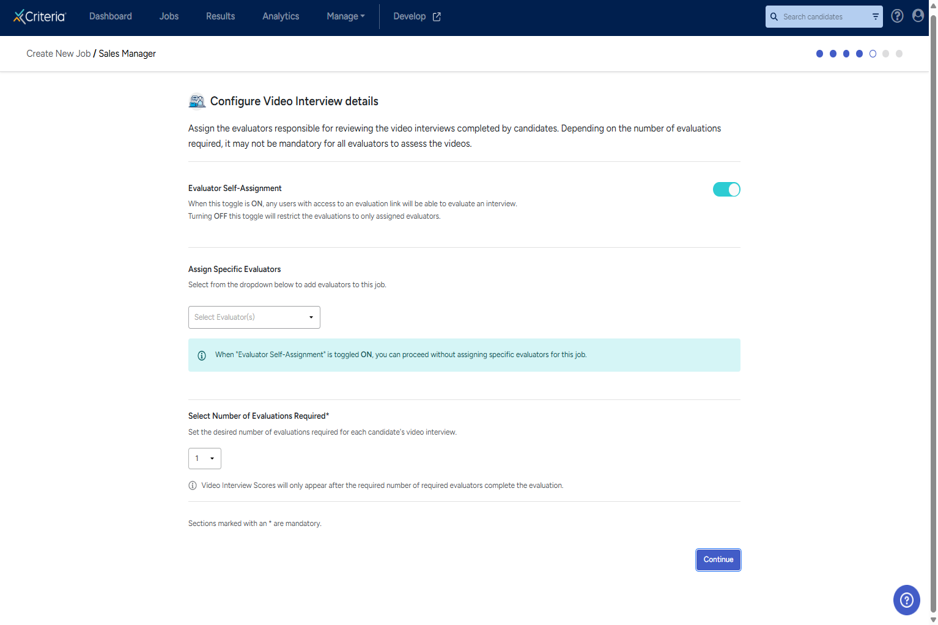
- On the Configure Video Interview details page, configure who will evaluate the video interviews. The Evaluator Self-Assignment toggle allows any user with access to evaluate interviews. Click Continue.
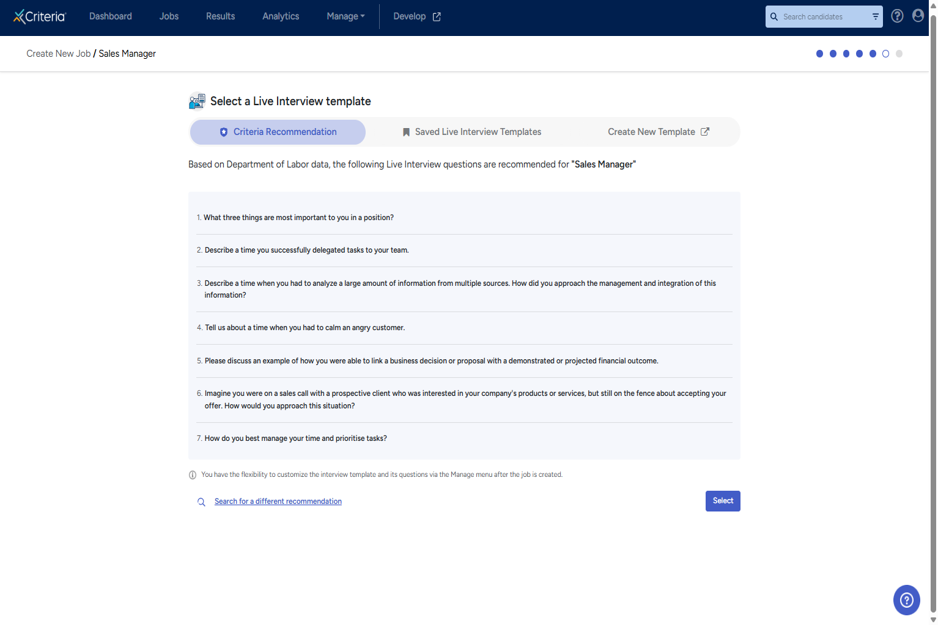
- On the live interview questions page, review the recommended questions. If you want to change the recommended occupation, click Search for a different recommendation. Click Select to confirm the interview question selection.
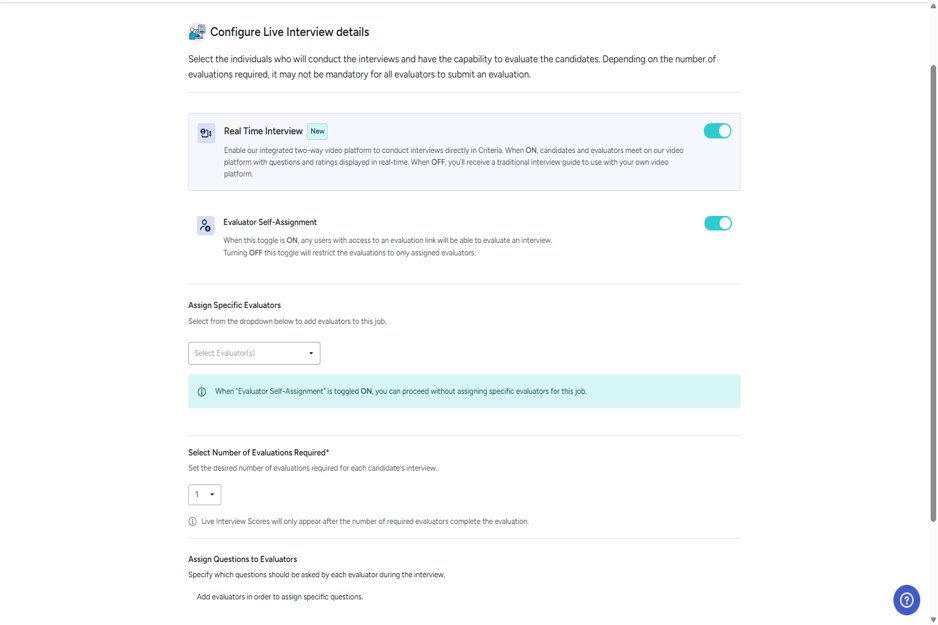
- On the Configure Live Interview details page, configure the evaluators for live interviews. Click Continue.
Next steps
Your job has been created!
- If you want to add an application form to your job, or adjust any of the job's default settings, you can do this once the job has been created. Before inviting any candidates to apply for the role, we recommend reviewing your job's settings.
- If you plan to use your Criteria account's default settings for your job, you can now begin inviting candidates.
Click Invite via email to add and invite specific candidates.
Click Copy to copy the open link. This can be pasted into job ads, your careers page, an email inviting candidates to apply, or another location.
