Eightfold Integration Guide
 Updated
by
Integrations Team
Updated
by
Integrations Team

Activating the Integration
- Get your API Key from Criteria
- Set up a stage in Eightfold to use as the trigger for inviting applicants to Criteria testing
- Update the Advanced Settings to allow the new stage to be used in your Criteria Integration
- Install the Criteria App in Eightfold
- Provide the Webhook URL and API Key from Eightfold to Criteria
- The integration is ready to be used, test it out to check it's all working OK
Create a Stage to trigger Criteria testing
Criteria Testing is triggered when an applicant is moved into a particular stage in Eightfold. You will need to create a new stage for this purpose.
If you intend to invite applicants to multiple Criteria packages, you may want to create multiple stages to allow you to trigger each package at the appropriate stage in the workflow.
If you would like to invite all applicants when they are added to the New stage, this stage will already exist and does not need to be added.
- In Eightfold, navigate to More > Admin Console > Integration > Integration Systems.
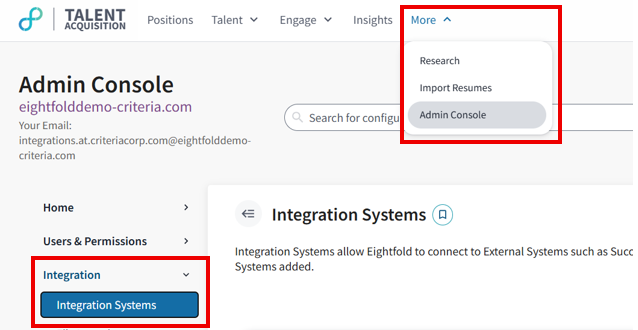
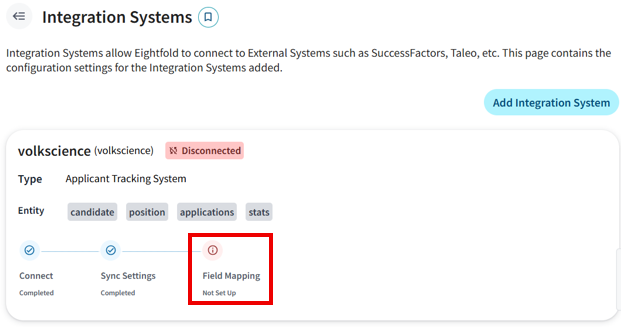
- Click on Field Mapping
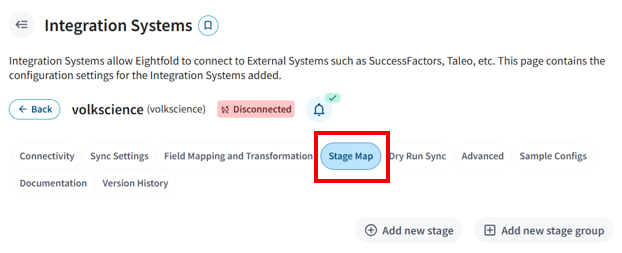
- Click on Stage Map
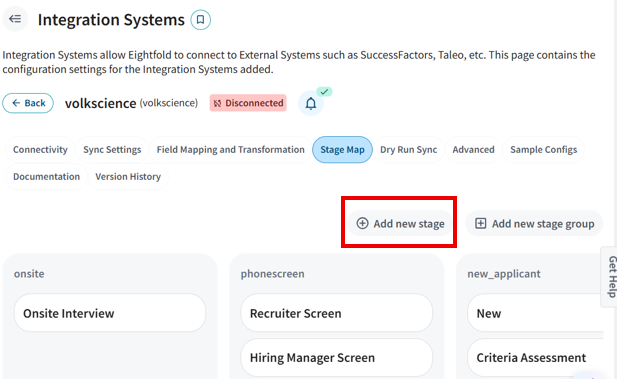
- Click Add new stage
- Enter the details for your new Stage
Stage Group: Chose an appropriate group e.g. new_applicant
Stage Name: Enter a name for your stage. Tip: save a copy of this stage name somewhere handy as you will need to use it again in the next 2 sections of this guide.
Reason: Enter the purpose for adding this stage "New Stage for Criteria Integration"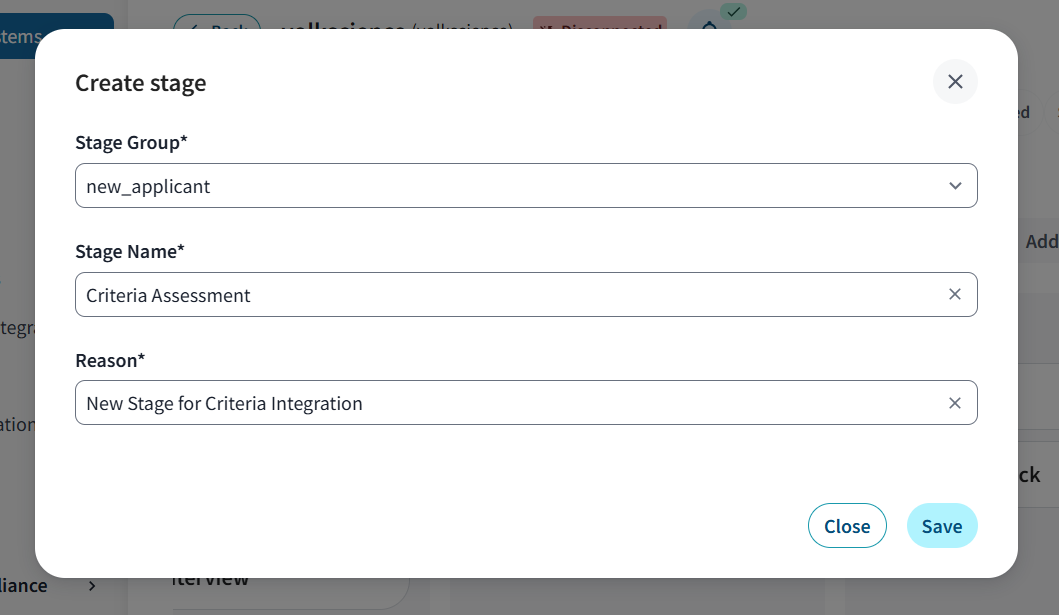
- Click Save. Your new status will be displayed in the Stage Group that you chose
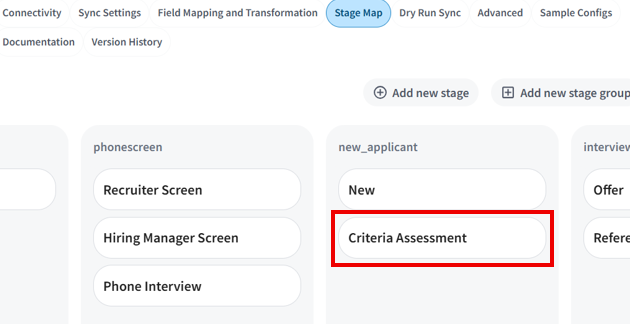
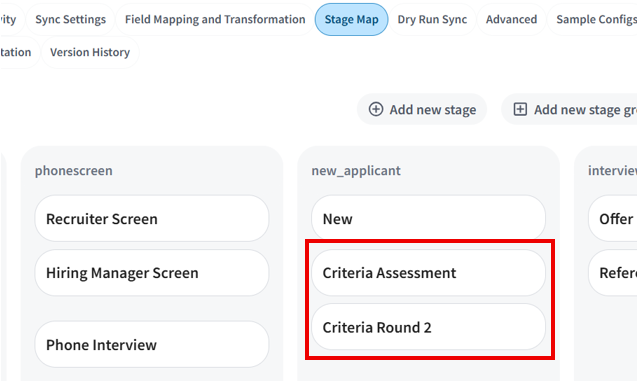
If you wish to create multiple stages for Criteria testing, repeat this process to add the additional stage/s now.
Add New Stage/s to the Advanced Stage List
Now that you have the stage/s in Eightfold, you need to update the advanced settings in Eightfold to allow these stage/s to be used with the Criteria integration.
If you are triggering testing from the New stage, it should exist in the Advanced Stage List, but it is best to go through this process to check it is already there to prevent issues later.
- In Eightfold, navigate to More > Admin Console > Integration > Integration Systems.
- Click on Advanced
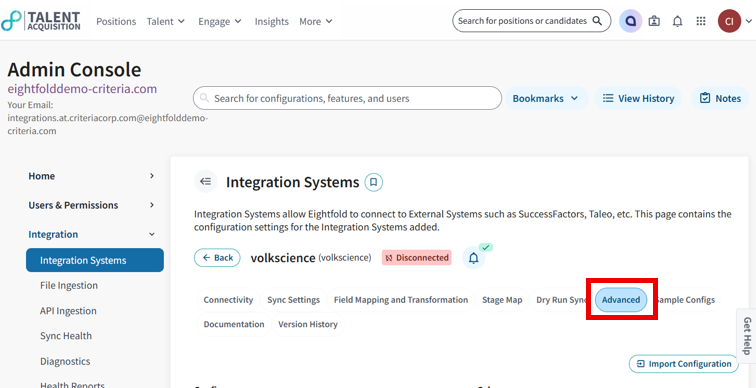
- You will be making a change to the data in the Config box on the left.
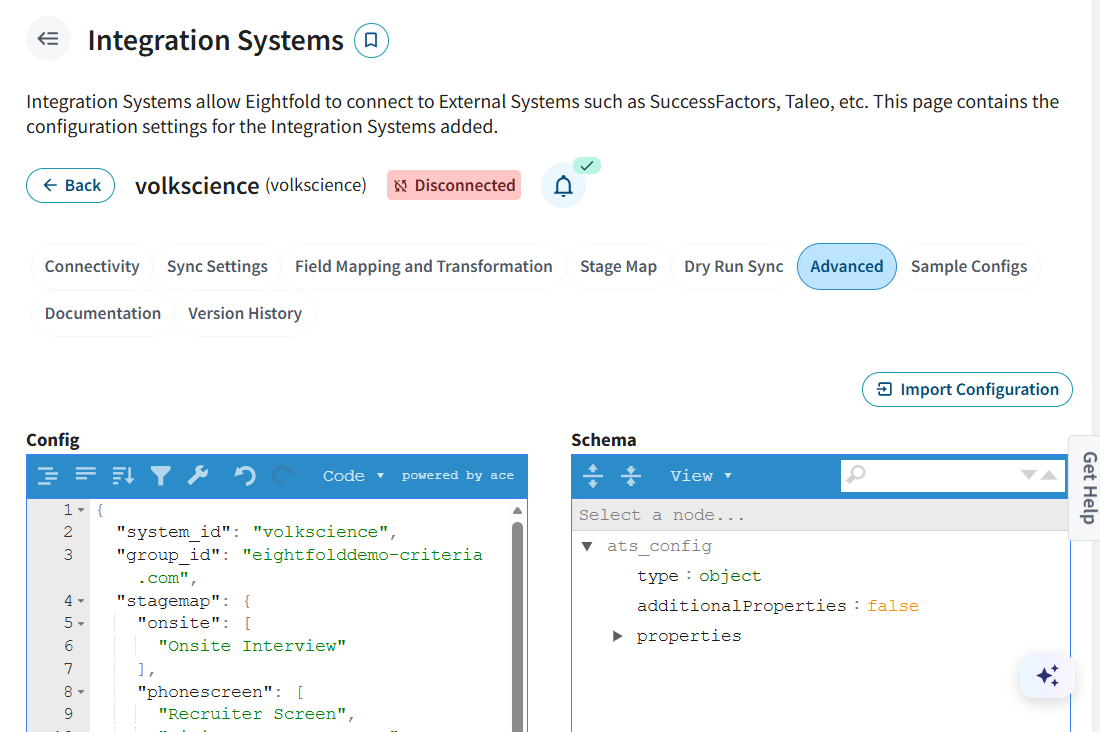
- You need to edit the advance_stage_list section in the Config box.
To find this section, click into the Config box and then press Ctrl-F (Windows) or Command-F (mac) on your keyboard to open the Find box. Copy and paste into the Find box the text - advance_stage_list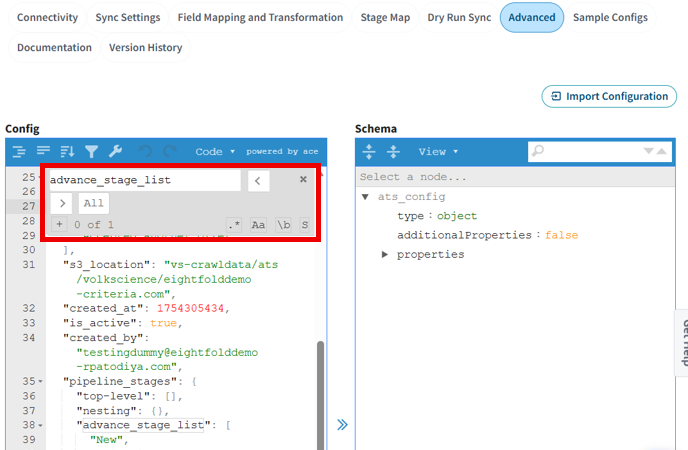
- As soon as you enter this text, the Config window will jump down to the section showing the advance_stage_list setup.
The advance_stage_list is a list of the stages in your Eightfold account that are configured to allow advanced setup to be applied to them. Each stage name is surrounded by double-quotes, and there is a comma separating each item.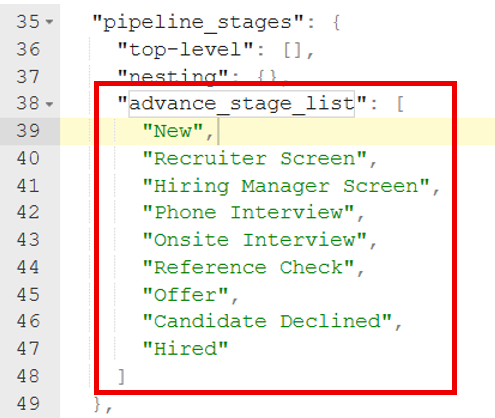
- You will need to add your Criteria stage/s to this list. The order doesn't matter, it is easiest to add them into the middle of the list. Click where you want to add the new stage and press ENTER to make a new line.
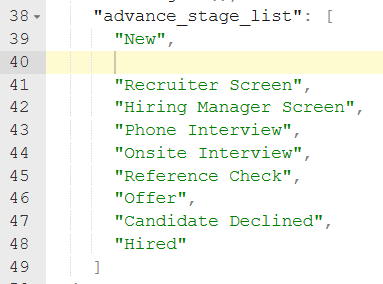
- You want to add your Criteria stage name with double quotes at either end and a comma at the very end. If your Criteria stage name is Criteria Assessment you will enter "Criteria Assessment",
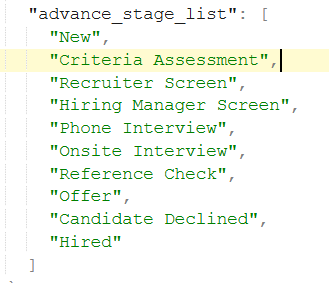
- If you have more than one stage for Criteria, add the others here too, one per line.
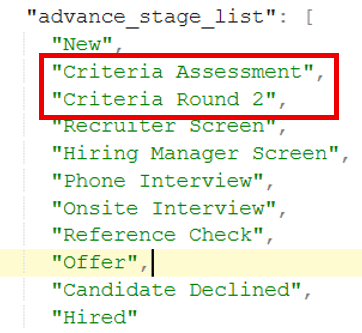
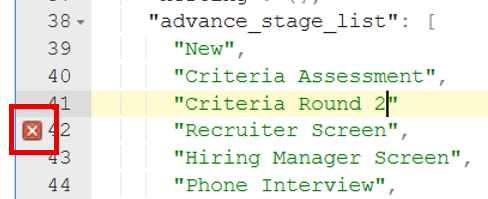
- When you have finished adding the stage/s, go to the bottom of the page and enter a Comment about what you changed e.g. "Added Criteria stages to the advanced stage list"
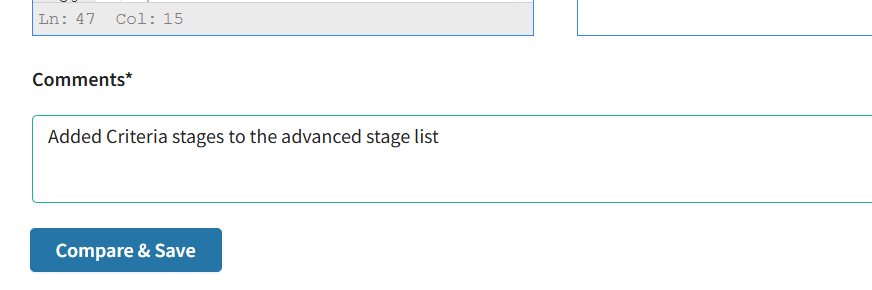
- Then click Compare & Save
- A popup will show you what was changed, check that the only changes (highlighted in green in the right-side box) are for the Criteria stage/s you added. This screen shot, it is showing that we added our Round 2 stage called Criteria Round 2.
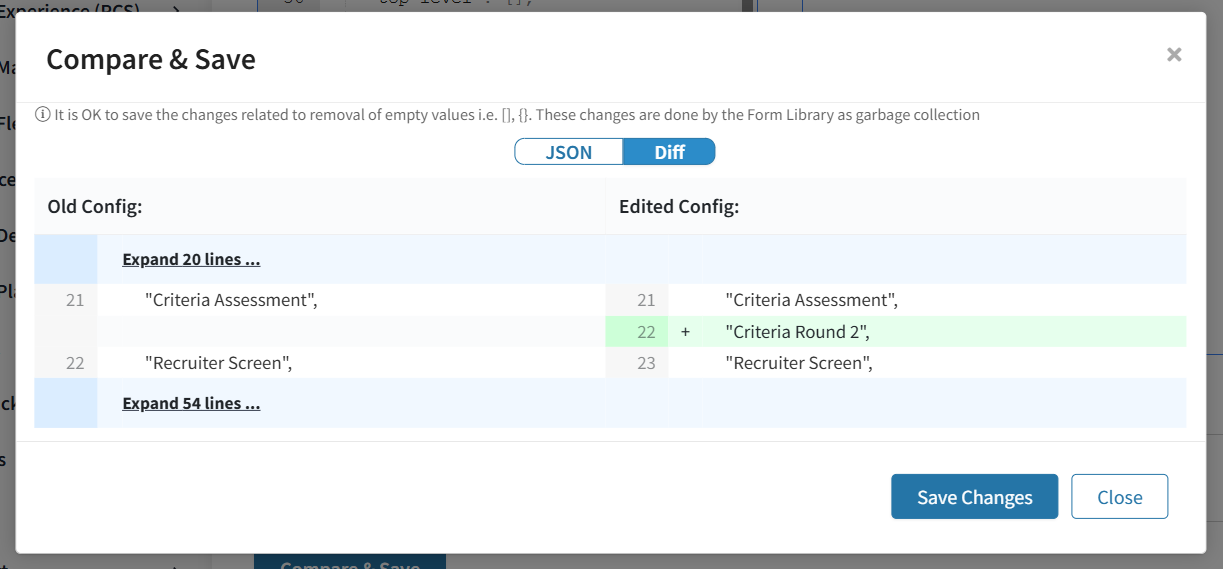
- If you are happy that the only change that has been made is to add the Criteria stage/s, click Save Changes.
Refresh the browser page if you want to revert the page back to showing the currently saved values so you can try again from the start.
Install the Criteria App in Eightfold
Now that the Stage/s are set up in Eightfold, and you have your Criteria API Key, you can install the Criteria App in Eightfold.
- In Eightfold, navigate to More > Admin Console > Apps > Install App
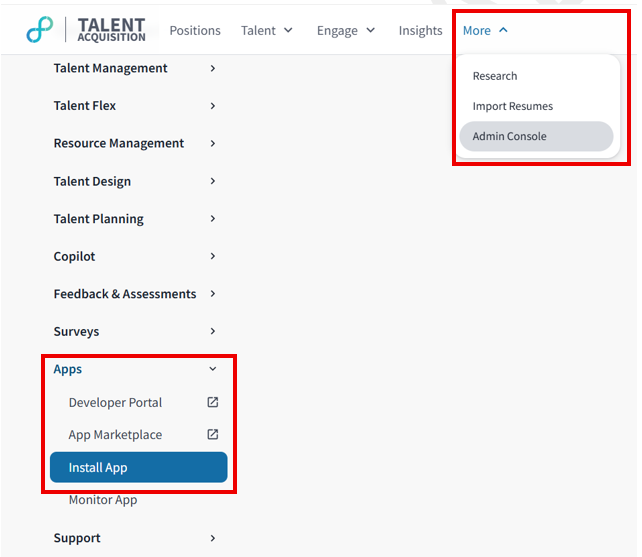
- In the Install App section, click the Plus (+) icon to see the list of available apps
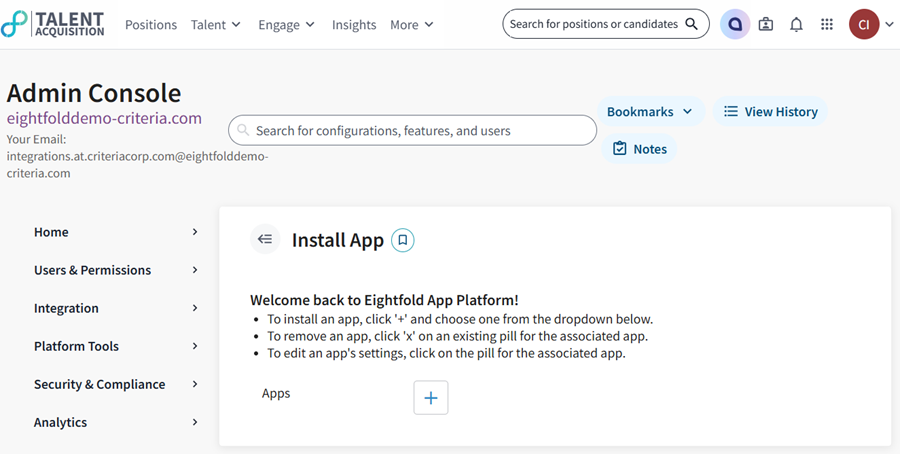
- Type in Criteria or locate Criteria in the drop-down list and select it
- In the Configure Settings to Install App popup box, paste in your Criteria API Key. This will be a string of letters and numbers. Make sure you do not accidentally copy any spaces at the beginning or end of the API key. Click the eye icon to view the API key.
The Criteria API URL will prefill to the Criteria North America URL, if you are using the Criteria APAC system, you will need to use a different URL, update it now.
Criteria NA URL - https://integrations.criteriacorp.com/api/v1/eightfold
Criteria APAC URL - https://integrations-au.criteriacorp.com/api/v1/eightfold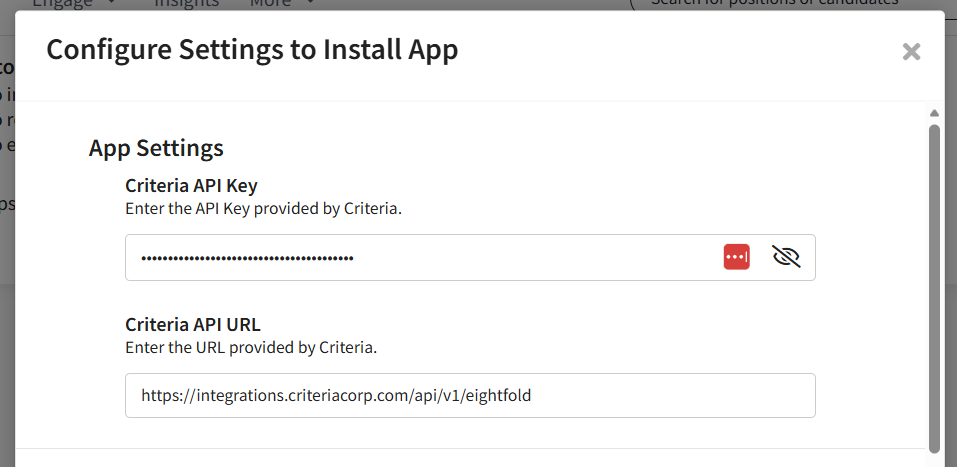
- Scroll down to the Stage field in the System Settings section. Enter the name of the stage in Eightfold that you will be using to trigger Criteria testing. Enter this exactly as it appears in Eightfold. If you are using multiple stages, enter them all here, separated by a comma e.g. Criteria Assessment, Criteria Round 2.
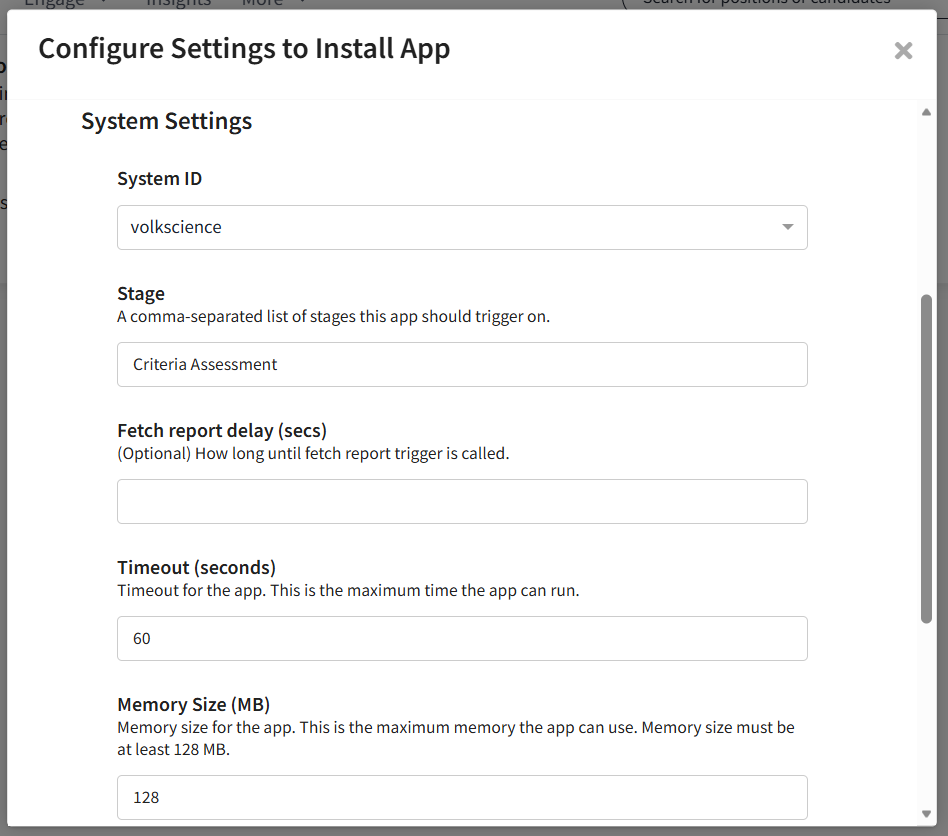
- The last section is Authentication/Authorization. In the Webhook Authentication Type field, choose api_key.
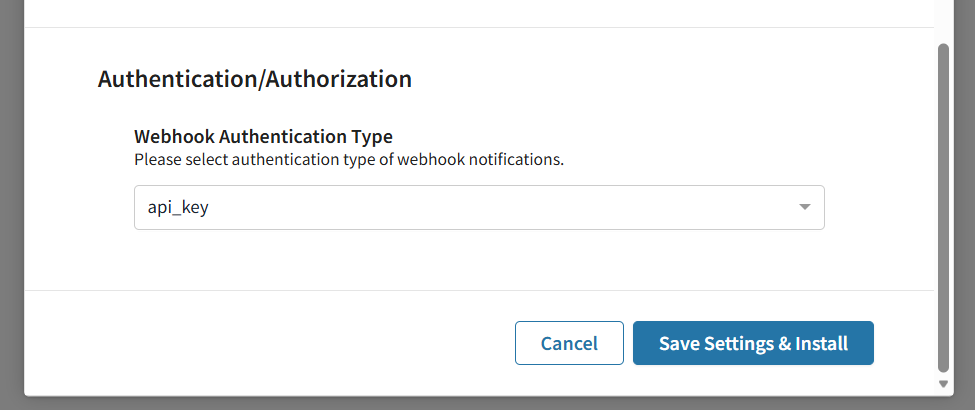
- Click Save Settings & install to complete the setup
- A popup will be shown to indicate the app has been installed and you will be shown the details that Criteria needs to interact with Eightfold. Copy the Webhook Endpoint URL and Authentication Key values and provide these to Criteria. Tip: Use the copy icon after each item to easily copy the whole value.
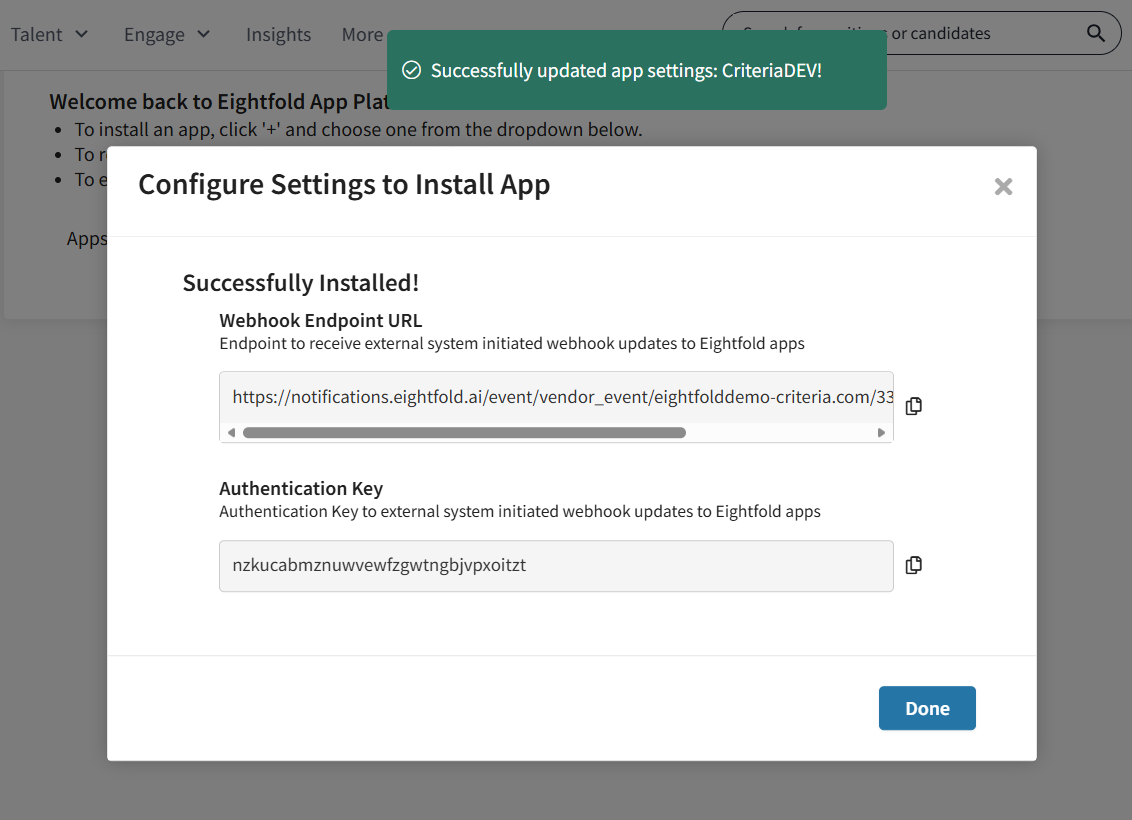
- Click Done once you have taken a copy of the details. The Criteria app is now installed and ready to be used.
Using the Integration
Recruiters will be able to invite applicants for testing when the applicant is moved into the stage that is associated with the Criteria App in Eightfold.
When the applicants is advanced, a popup will be show to allow the user to choose which Criteria package the applicant is to be invited to.
Immediately after the package is chosen and the Confirm button is clicked, Eightfold will notify Criteria to invite the applicant to the chosen package.
The packages displayed in Eightfold are the active Jobs in your Criteria account. When an applicant is invited, your Job Settings and Company Preferences from Criteria will be used to process the invitation - the applicant will be invited to the tests and/or interviews from Stage 1 on the Job, the email template and branding will be shown to the applicant, the expiry date from the Job Settings will be used, etc.
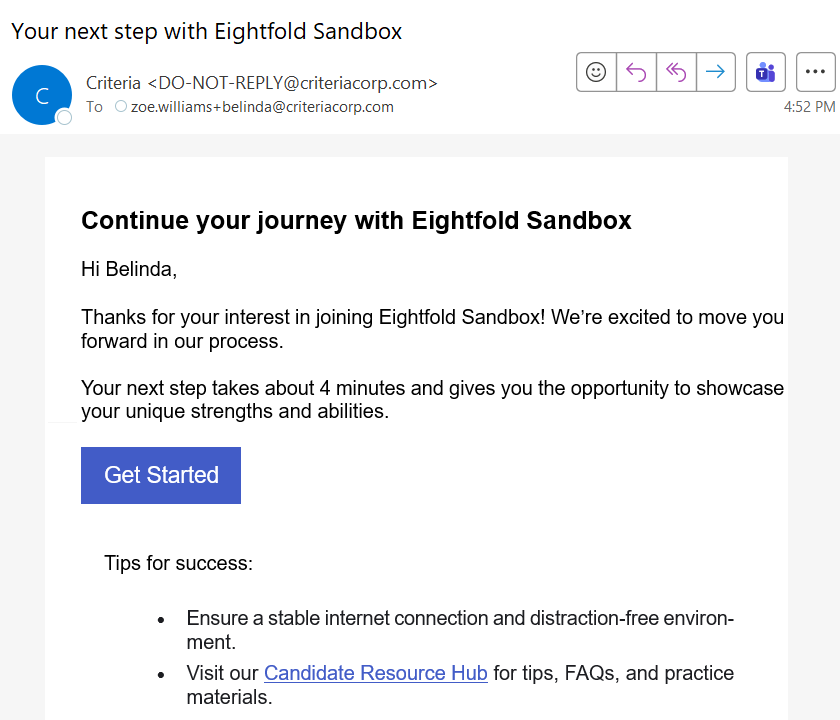
The invitation email is sent to the applicant by Criteria.
Sending testing to an Applicant
To invite an applicant for testing you need to move them into the Criteria testing stage.
This is done by clicking the Advance Stage button. This is available in several places in Eightfold, and it works similarly in all locations.
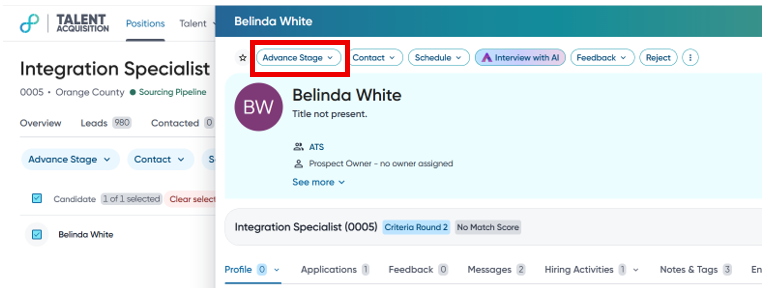
On the applicant details page within a position, click Advance Stage
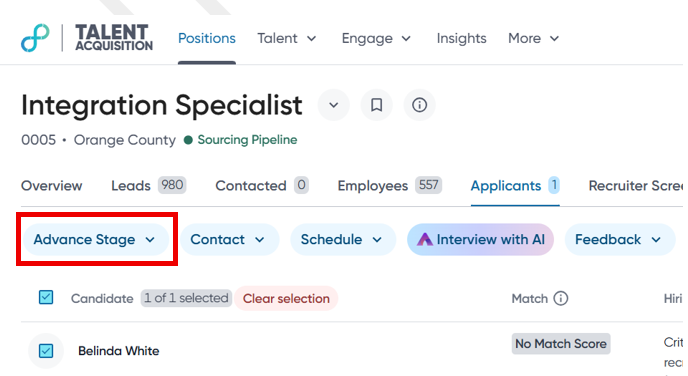
Or, on the applicant list page within a position, tick the applicant and then Advance Stage
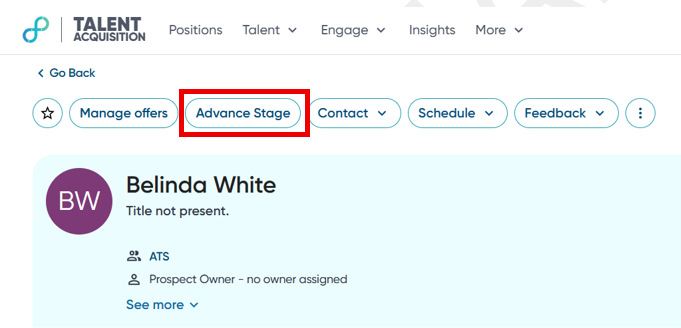
Or, on the applicant profile page, click Advance Stage, then click the radio button in front of the relevant Position
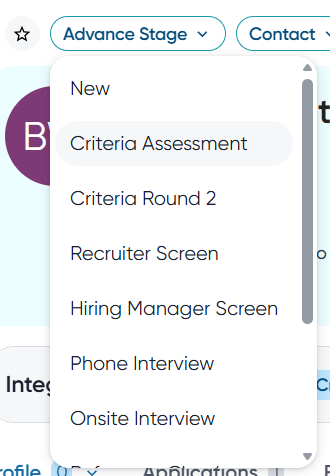
No matter where you click Advance Stage, the next thing you need to do is to choose the Criteria testing stage to move them into.
Then choose the Criteria package
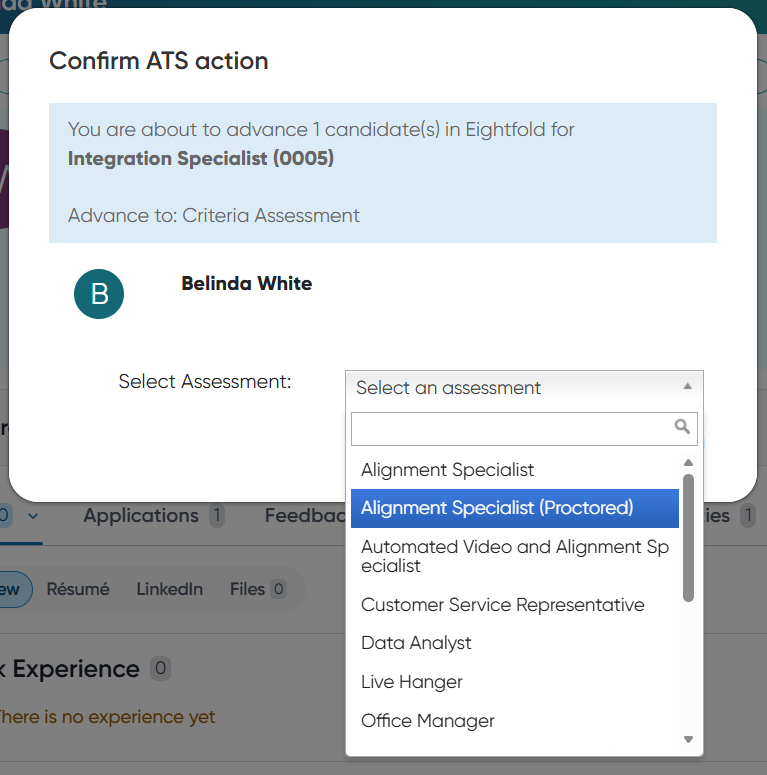
Click Confirm to apply the change and Eightfold will immediately notify Criteria to invite the applicant.
Send testing to Applicants in bulk
You may invite multiple applicants for Criteria testing in bulk by moving multiple applicants into the Criteria testing status at the same time.
- In your Eightfold position, tick the box in front of all the applicants you wish to invite.
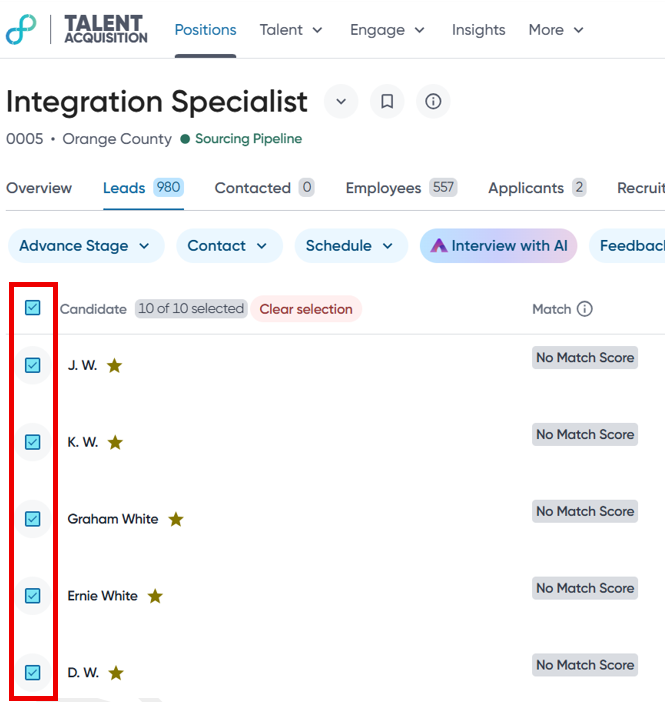
- Click on Advance Stage
- Select the Criteria testing stage from the drop down
- The popup will indicate how many applicants are going to be invited by this action
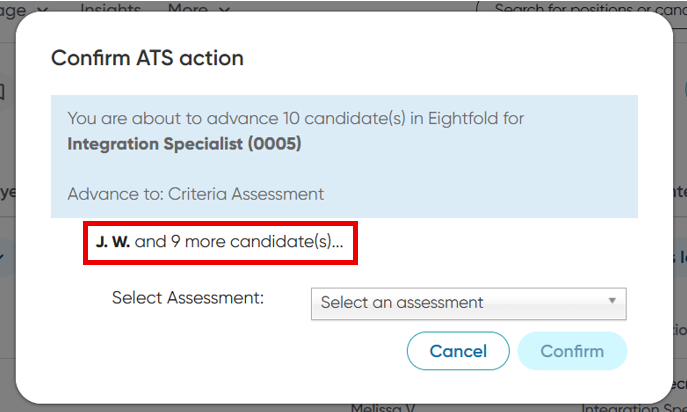
- In the popup, choose the Criteria package the applicants should be invite to
- Click the Confirm button to apply the change and Eightfold will immediately notify Criteria to invite the applicant
Viewing Status and Results
Viewing status and results for a candidate's assessment can be done by navigating to the Assessments section of the candidate record within Eightfold.
Navigation instructions are as follows:
- Click Positions in the top menu bar. Then select the position where your candidate applied.
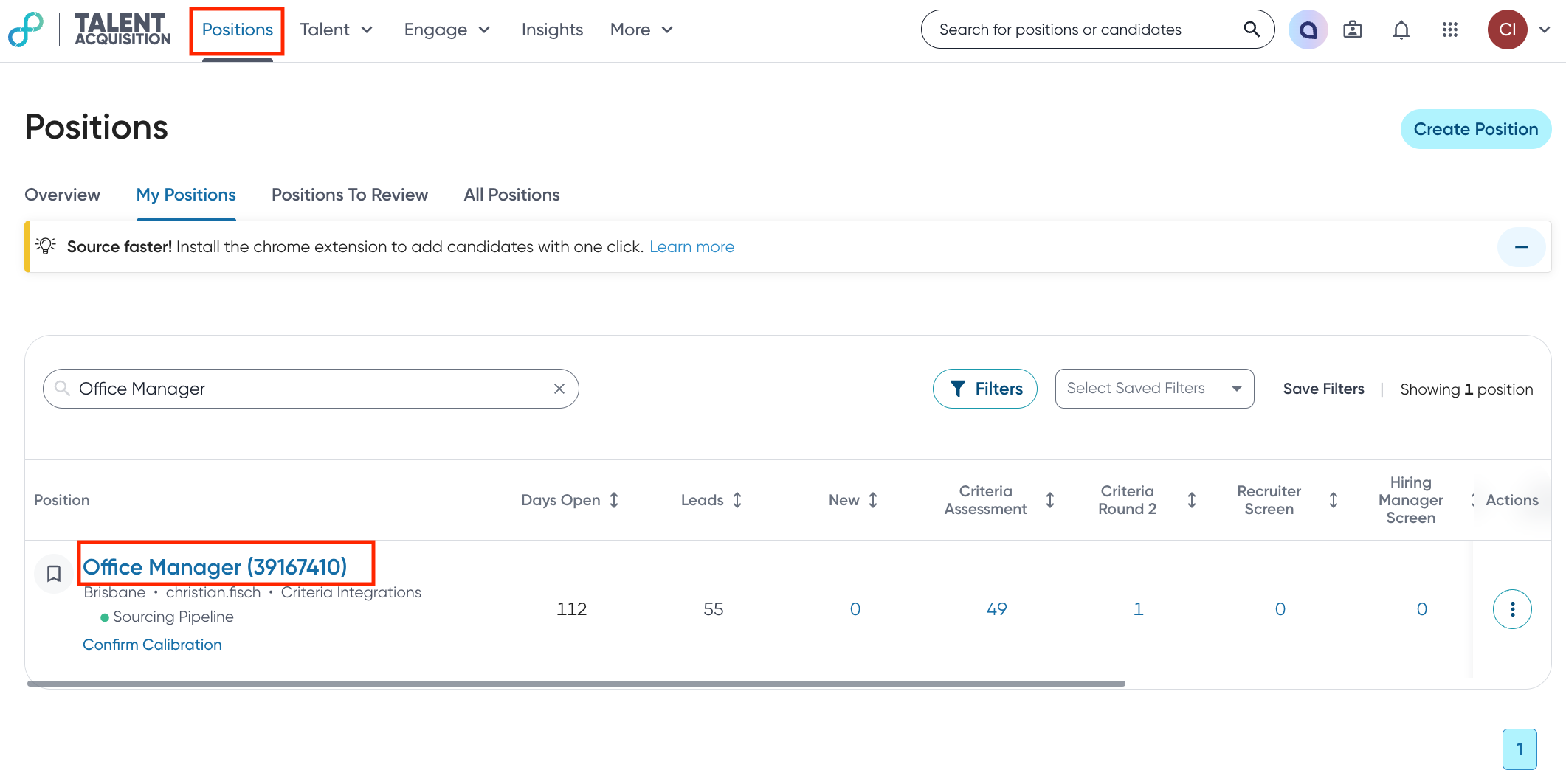
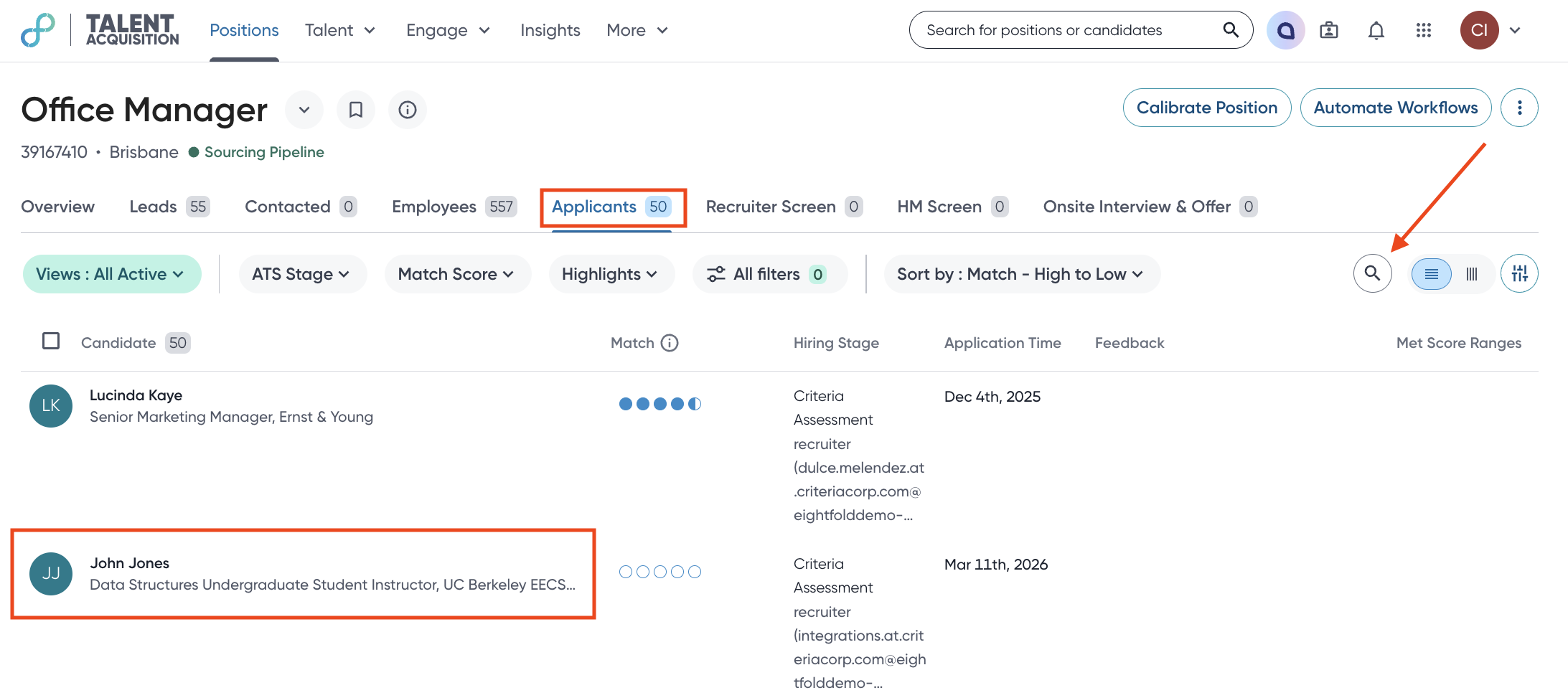
- After clicking into the desired position, please click the Applicants tab within the position. Then click on the name of the applicant whose assessment you'd like to review. If you know the name of the candidate you may search for them using the magnifying glass button as indicated by the red arrow.
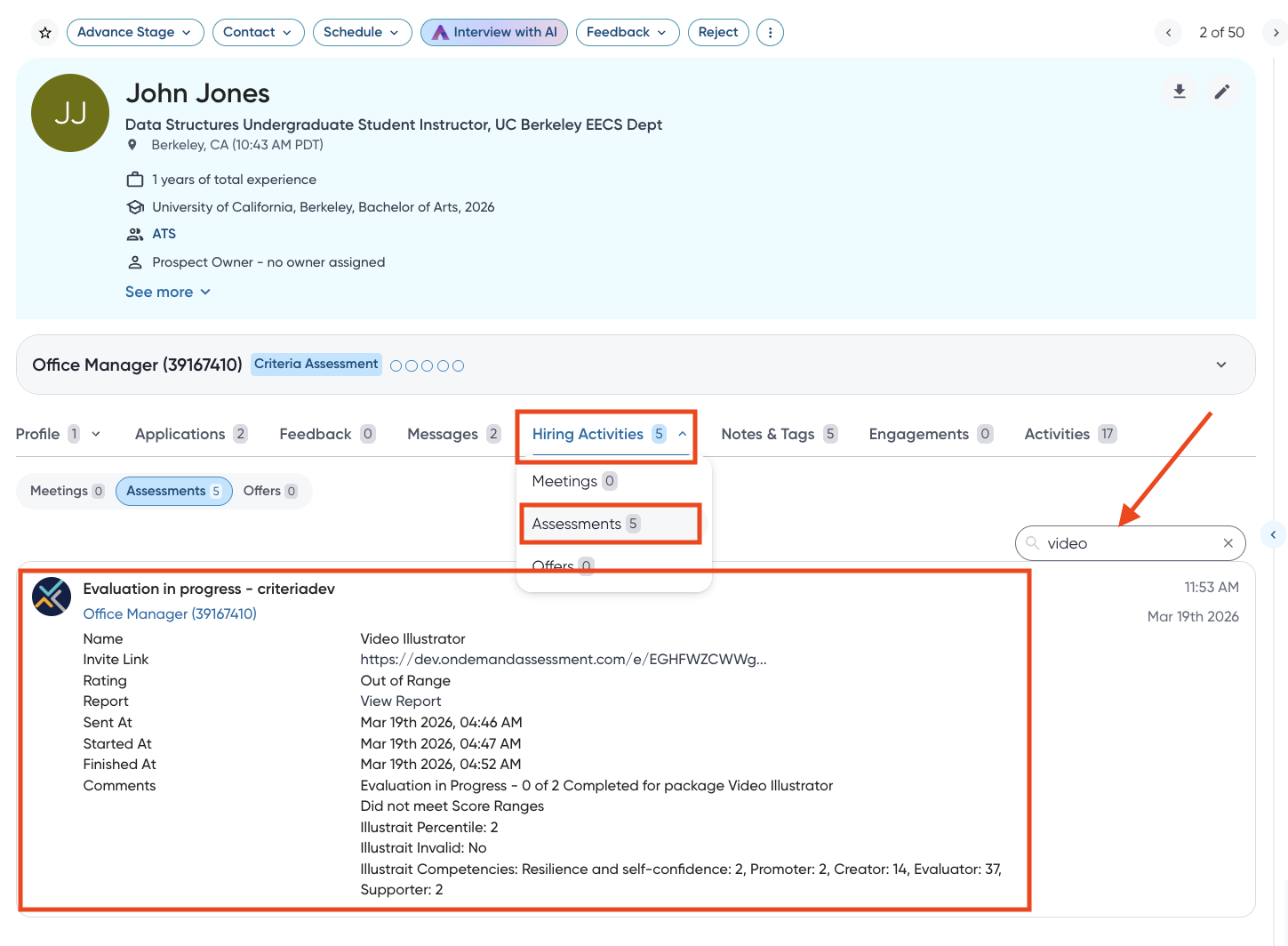
- Clicking on the applicant's name will open a popup on the right-hand side of the screen, displaying the applicant's profile. From here, please click the Hiring Activities dropdown and select Assessments. This will display all of the Criteria assessments that the candidate has been invited to/completed. If you would like to filter to a specific assessment result, you may use the search bar on the right-hand side of the screen and filter by the name of the Criteria package that was ordered.
The bottom portion of the candidate record will display the status and results for a given assessment, including a link to view the report in Criteria. The next section of this guide will show this in more detail.
Assessment Results
The top-most line will state either Invited or Completed, letting you know where the candidate is in the process. If the assessment package contained a Video Interview, this line will also let you know when the evaluation of that interview is in progress.
Moving downward you will be presented with the name of the Criteria package that was ordered for the specific assessment action.
Following this is the invite link that was sent to the candidate.
The Rating will state if the candidate was within score ranges for their assessments.
The following timestamps will show when the candidate was invited, when they began their assessment, and when they completed the assessments.
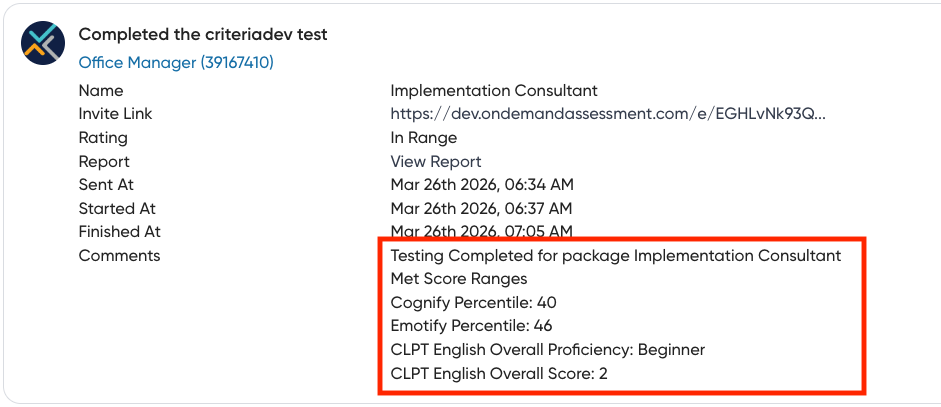
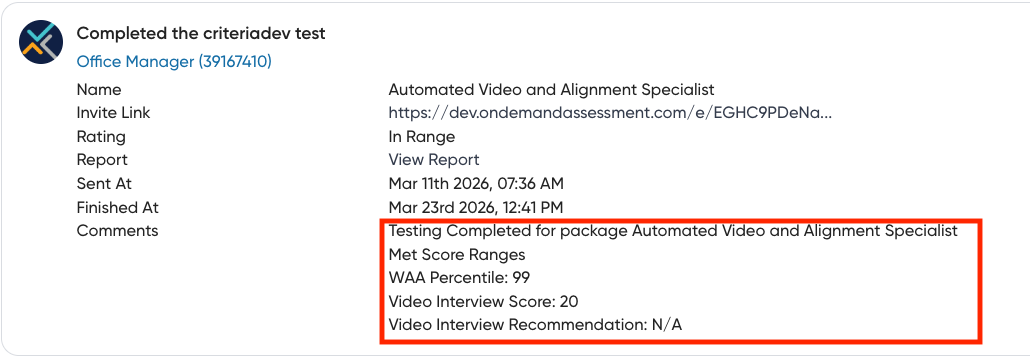
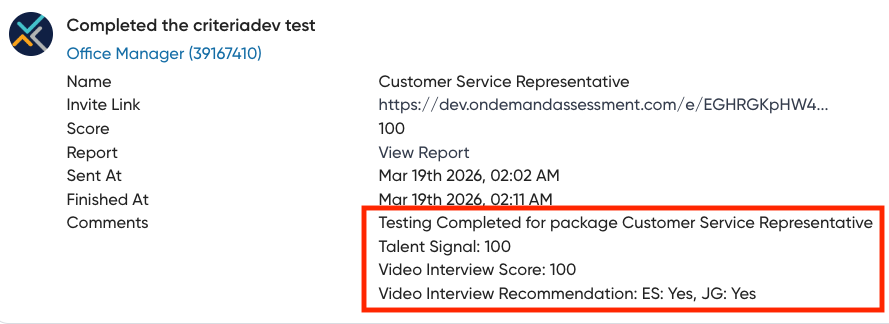
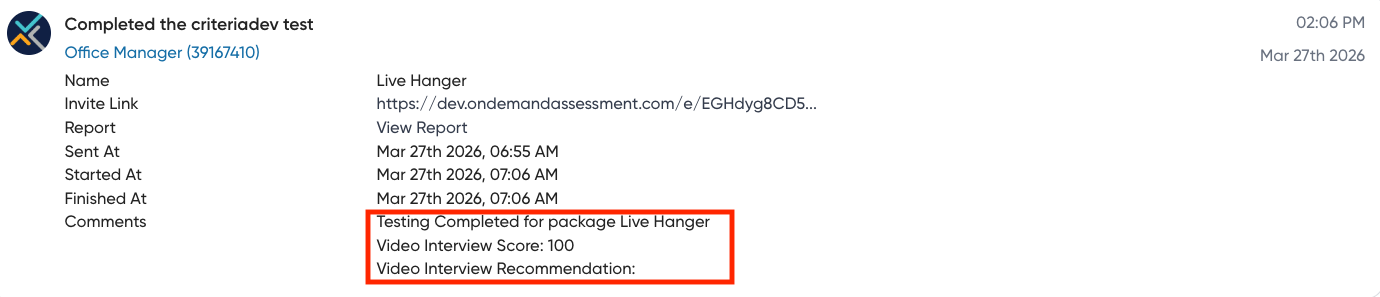
The Comments section will contain detailed specifics about the assessment, such as scores for each test within the assessment package, the candidate's Talent Signal, and any video interview recommendations if applicable.
Assessment + Video Interview Results
Video Interview Results
Live Interview Results
Troubleshooting
The Package List in Eightfold is out of date
Eightfold maintains a Criteria package list for each Stage within each Eightfold Job. This Criteria package list in Eightfold is refreshed every hour.
Due to this setup:
- If you make changes in Criteria, it may take up to an hour for the changes to take effect in all your Eightfold Jobs
- After you make changes in Criteria, the Criteria package list may be different for each Eightfold Job/Stage as the lists are likely being refreshed at different intervals
- After you make changes in Criteria, some Users may see different packages as the list for each User are likely being refreshed at different intervals
- There is no way to force the package list to be refreshed, you must wait
- You could ask another user if they can see the package and have them invite the applicants on your behalf
Criteria recommends that you create new Criteria Jobs in advance of needing to use them. If you make changes in Criteria in the afternoon, when you login to Eightfold in the morning Eightfold will retrieve the new package list from Criteria.
