Kula Integration Guide
 Updated
by
Integrations Team
Updated
by
Integrations Team

Setting Up Your Integration
- Contact your Criteria Customer Success Manager (CSM) and advise you would like to integrate with Kula.
- You will need admin-level access in Kula to activate the integration.
- Criteria will provide you with a Criteria API Key.
- In Kula, you will use the Criteria Corp Settings tile in Organization integrations to enable the Criteria integration and input the Criteria API Key from Criteria.
- Follow the Activating the Integration process below to activate the integration from Kula.
We encourage all customers to put through a few test candidates to ensure the integration is working as intended, before going live.
Activating the Integration
Enter Criteria API Key and Verify Integration
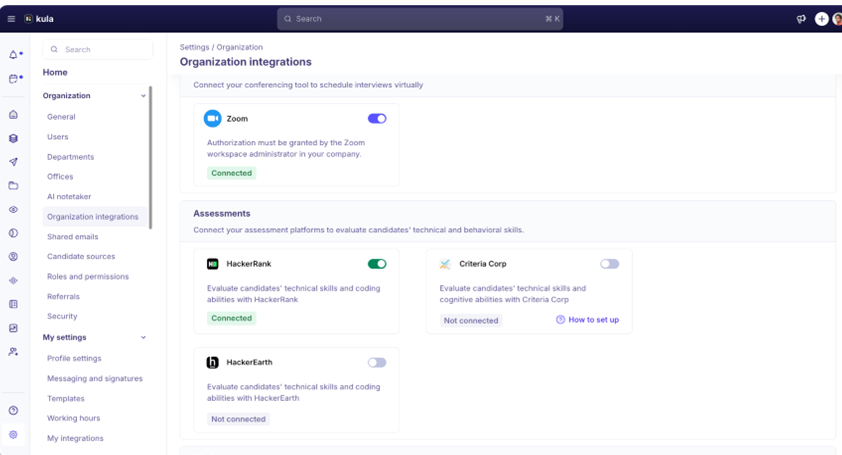
Within Kula, navigate to Settings > Organization integrations > Assessment and locate Criteria Corp in the available integrations list.
Select Enable Integration and input the Criteria API Key into the Recruiter-type User API Key field. Click Verify API key.
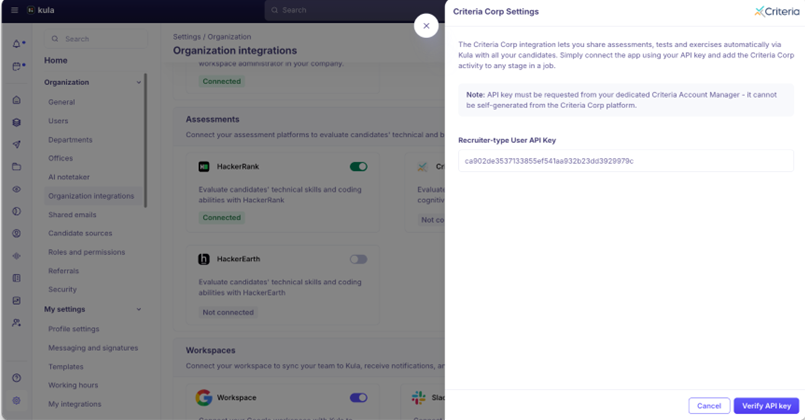
If the integration has been successfully activated, a message will be shown with the following: "CriteriaCorp integration successfully enabled."
Using the Integration
Associate Criteria with a Job
Step 1: Create or Edit Interview Plan
- Navigate to the Job for which you want to add assessments
- Go to the Interview Plan tab
- Click Add Activity within the desired hiring stage
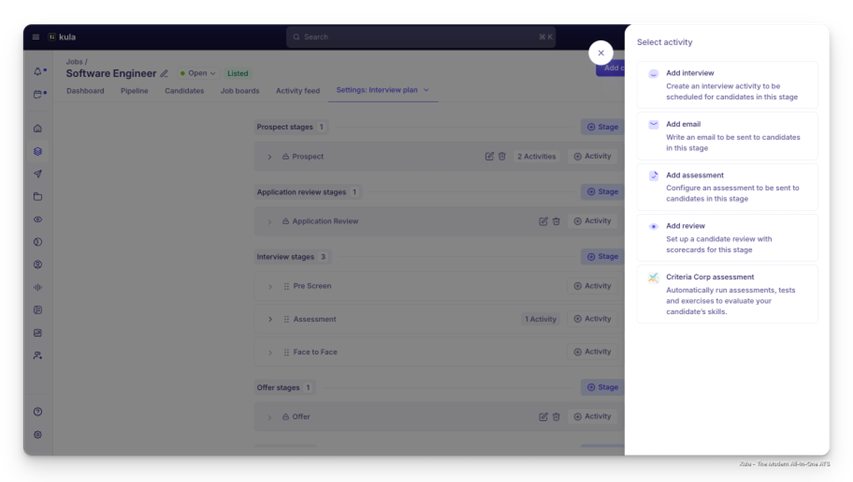
Step 2: Configure CriteriaCorp Activity
- From the activity list, select CriteriaCorp Assessment
- Select the team members who will review and evaluate the assessment results
- Choose the CriteriaCorp assessment package from the dropdown and click Next
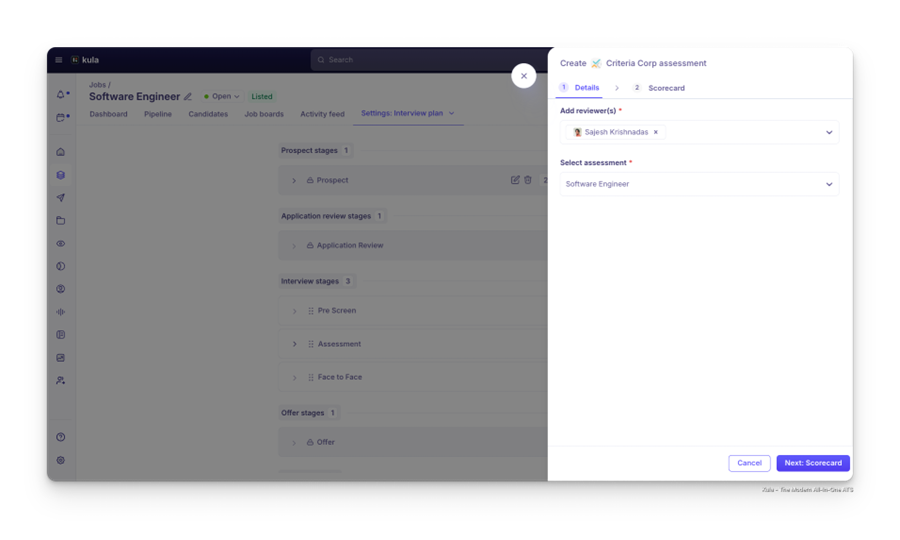
- Set up the scorecard with evaluation criteria, custom questions, and rating scales for reviewers to complete after viewing assessment results
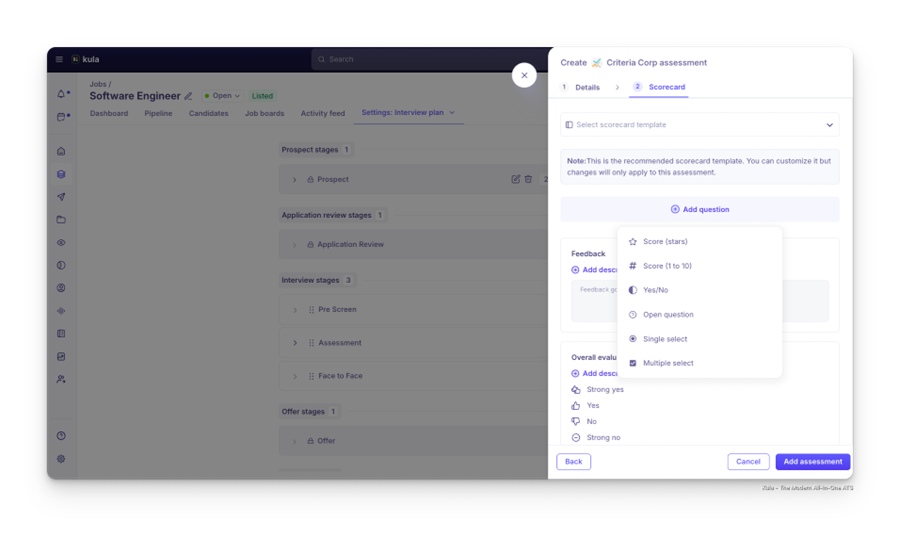
- Click Save assessment
Step 3: Configure Stage-Based Triggers When candidates are moved to the configured stage, the CriteriaCorp assessment activity will become available to send.
Inviting Candidate
Method 1: Via Interview Plan (Stage-Based)
When a candidate reaches the stage with CriteriaCorp activity:
- The activity will appear in the candidate's activity pane
- Click Send assessment
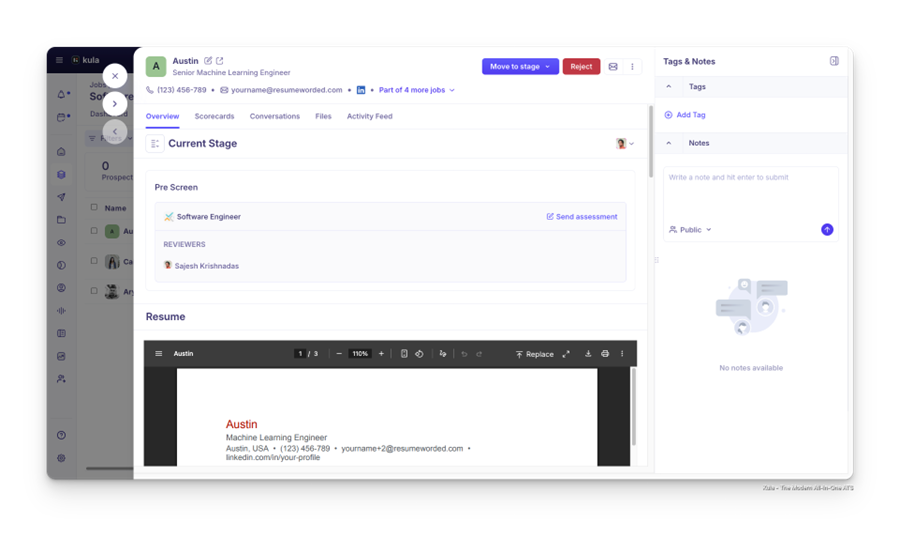
- Review and edit the activity information if needed:
○ Reviewers (pre-populated)
○ Assessment package (pre-populated)
○ Scorecard (pre-populated) - Click Send assessment to send the assessment to the candidate
- Candidate will receive an invite from Criteria Corp with the link to take the test
Method 2: Ad-hoc from Candidate Profile
From any candidate application page:
- Click the More dropdown menu (•••)
- Select Send Criteria Corp assessment
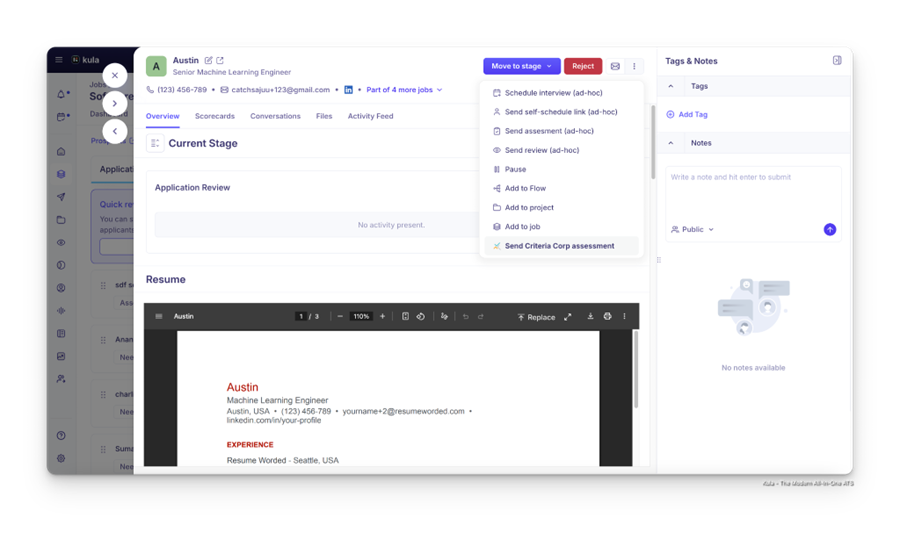
- Complete the assessment configuration:
○ Select the team members who will review and evaluate the assessment results
○ Choose the CriteriaCorp assessment package from the dropdown and click Next.
○ Set up the scorecard with evaluation criteria, custom questions, and rating scales for reviewers to complete after viewing assessment results - Click Send assessment to send the assessment to the candidate and the status will change to Pending submission
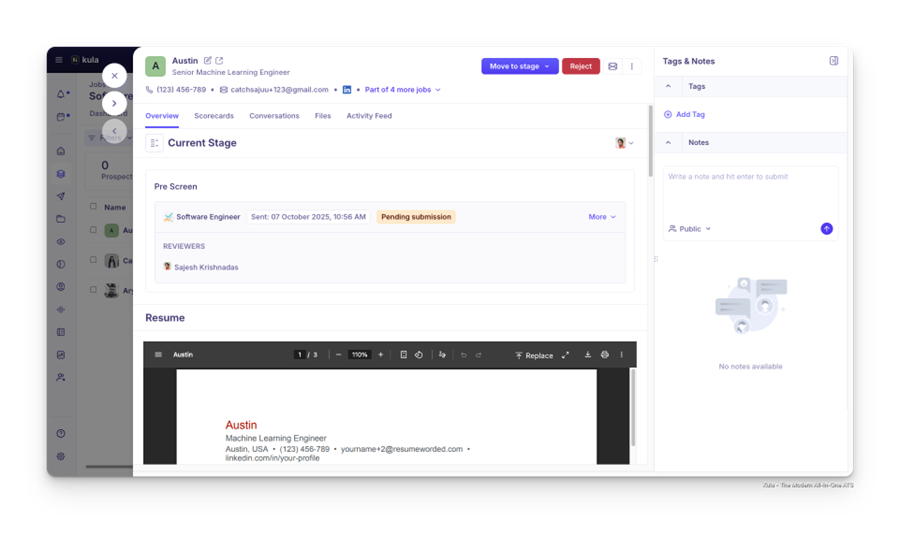
- Candidate will receive an invite from Criteria Corp with the link to take the test
Viewing Results
Once the candidate submits the assessment, the status will change to Submitted
- Click the More dropdown against the Criteria Corp activity
- Select View assessment to see the assessment summary
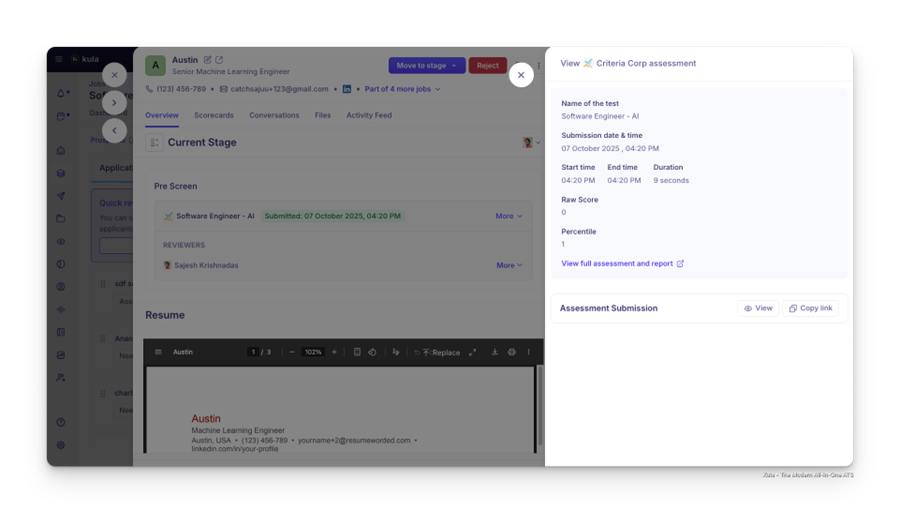
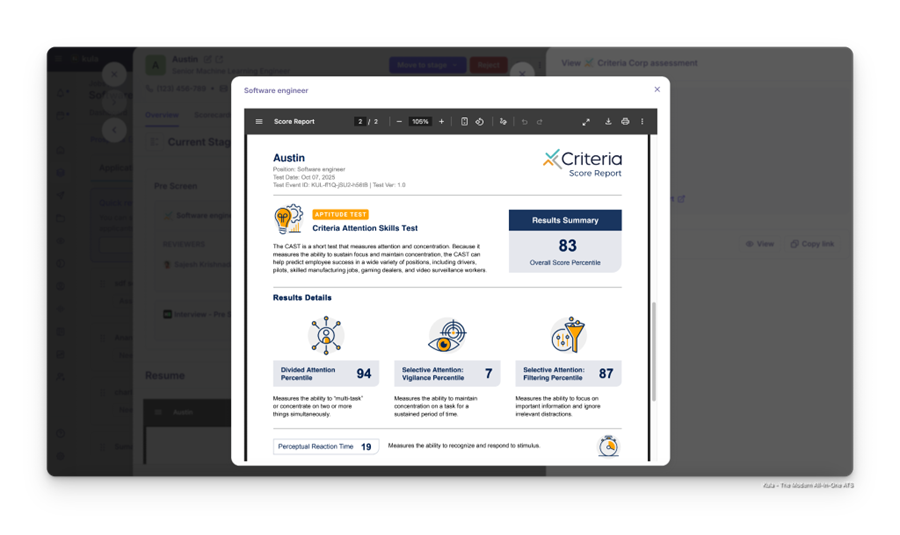
- Click on View to see the entire report
Potential customization (if applicable)
For any customization requests or questions about adapting the integration to your specific workflow needs, please contact Kula Support at support@kula.ai.
Additional Information
1. Assessment Package Configuration: Ensure all assessment packages you want to use are properly configured and active in your CriteriaCorp account before enabling the integration in Kula.
2. Reauthorization: If your Criteria API key is regenerated or changed, you'll need to update it in Kula by going to Settings > Organization integrations > Assessment > CriteriaCorp and clicking Reauthorize.
3. Permissions: Only Kula users with recruiter access to a specific job can send assessments for candidates on that job.
